



Please note: Statistics are updated once daily on Recast for Business
Total Purchases: The sum of all purchases of your video(s) from this Channel (in the selected period and for selected videos)
Total Earnings: The sum of all your earnings across your Channel for purchases, shared video purchases (in the selected period and for selected videos)
Earnings Direct: The total of all your earnings from your own videos
Earnings From Videos You Share: The sum of your earnings from others’ videos after being shared by or on this Channel (in the selected time period)
Total Referrals: Total number of Users who have signed up after following a referral link from this brand's account
No. Referrals Spent 200: Total number of Users who have spent 200 Cast Credits after signing up after following a referral link from this brand's account
Avg. Earnings per Video: The average earnings amount per video (in the selected period and for selected videos)
Avg. Daily Referrals: The average per day of the number of Users who have signed up after following a referral link from this brand's account
Total Purchases From Shares: Quantity of all purchases made by Users from links you shared to others’ videos
Avg. Share Purchases Per Video: The average quantity of purchases generated from links you shared per selected video
Avg. Purchase Price: The average price of your videos (in the selected period and for selected videos)
Total Number of videos: The total quantity of all videos uploaded over time
This guide explains how to manage a live stream using Recast, from establishing a connection with the broadcast software, to starting and ending your stream.
Streaming with Recast requires you to connect your broadcasting equipment to Recast, using a stream input method. Recast supports live streaming using two different streaming protocols: RTMP or SRT. Those managing the stream will have a preference.
Please note: Recast’s SRT streaming option works on a Listener Mode basis. If you wish to use Caller mode, please select RTMP. If you are unsure, please get in touch at partnersupport@recastpay.com and we can assist.
One you've determined which streaming protocol you'd like to use, you need to set up the stream input:
Firstly, make sure your streaming equipment is on, and that it's sending a signal to Recast via the stream input method you selected. You do this by inputing the information you copied from the step above into the relevant fields into your streaming solution.
For SRT this is typically the Endpoint, Stream ID and Passphrase.
For RTMP this either the Endpoint, the Stream Key, or a combination of both which makes up the Stream URL.

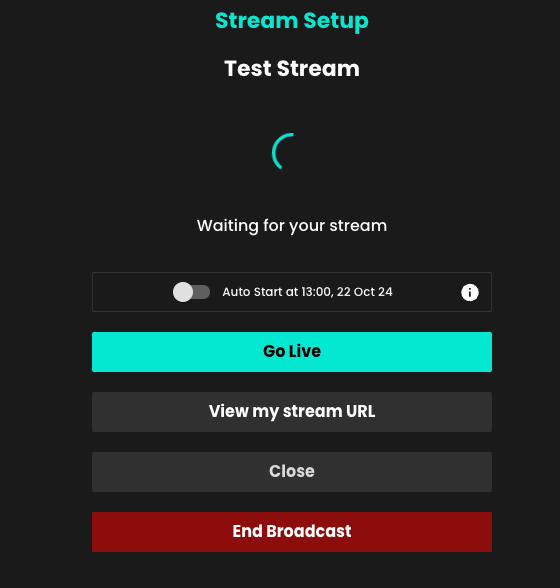
Once you have seen the preview you can click ‘Go live’ when you are ready to start the stream. The stream will then go live immediately on your Embed Widget(s).

If after a few minutes your steam is not appearing in the preview window, please contact Recast via our On Call support number provided or the dedicated WhatsApp group as the partnersupport@recast.tv inbox is not monitored 24/7.
You can now also set your stream to go live automatically simply by toggling on the Auto Start feature. Set up your stream using the above steps then, once you are happy with how things look, you can set the stream to go live automatically at the scheduled start time of the event.
Please note: You can only enable this earlier than 5 minutes before the scheduled start time.

Once the stream is live, you can close the event page and return to it at any time in the ‘Live Events’ tab in Recast for Business. Click ‘manage streaming’ to return to where you were, or if you just want to view the stream itself, choose ‘view’. You can then view it as an admin in Recast for Business or via an embed widget.
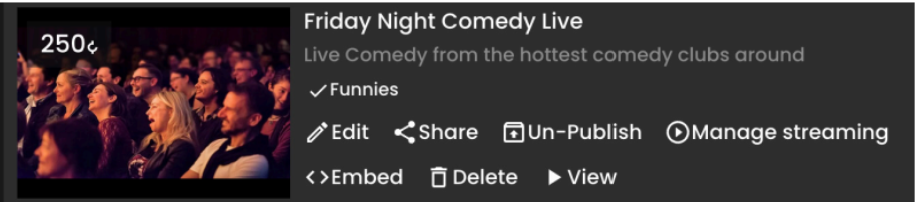
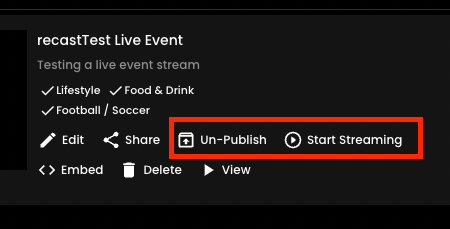
Live streams scheduled for a future date/time can be accessed via the ‘Upcoming’ tab in the ‘Live Events’ section. ‘Start streaming’ will take you to the stream page to start the stream. The scheduled time/date and thumbnail can be changed via the ‘edit’ function.
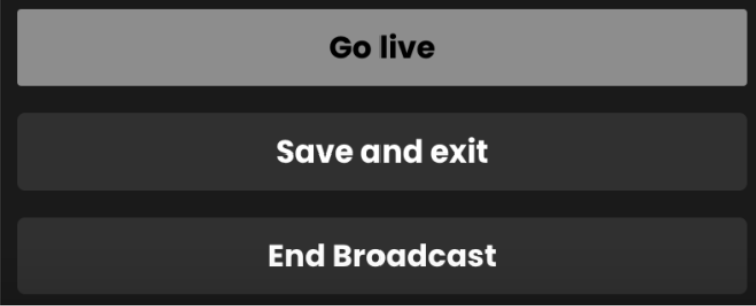
To end your stream, go to the ‘Live Events’ section of your Recast for Business page, click ‘Manage Streaming’ on the event and select ‘End Broadcast’. Once you have stopped a stream, there is no way to restart it. It takes around 1 minute to end the broadcast, please wait for the ‘stream deleted’ message to appear.
If you would like to create a new account, click here, sign up and create your new Vendor account and Brand.
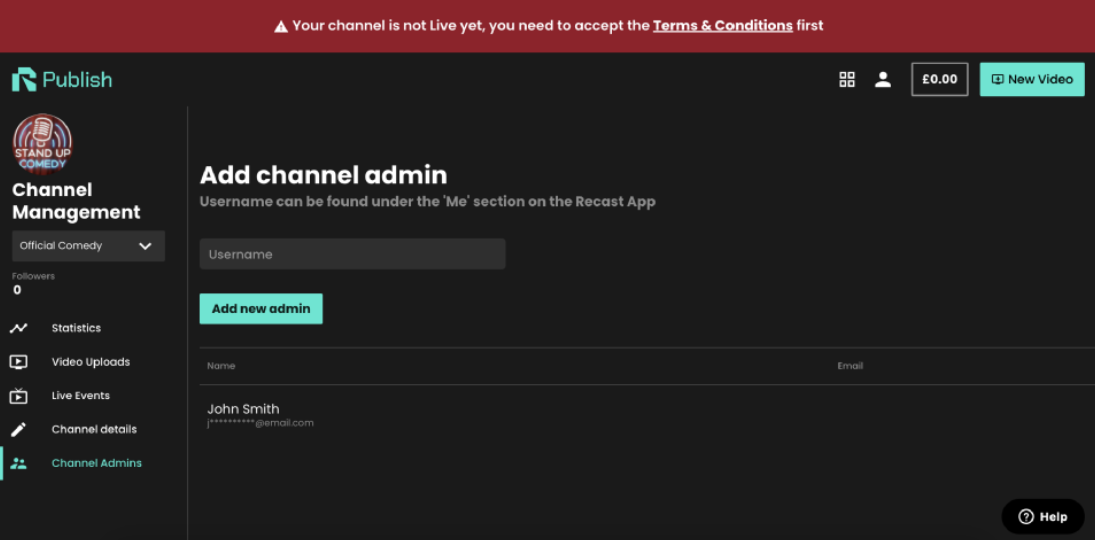
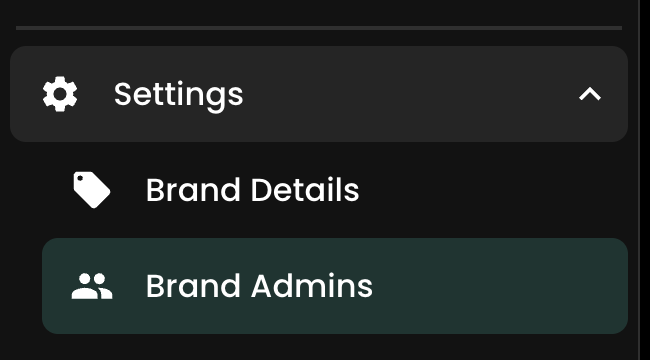
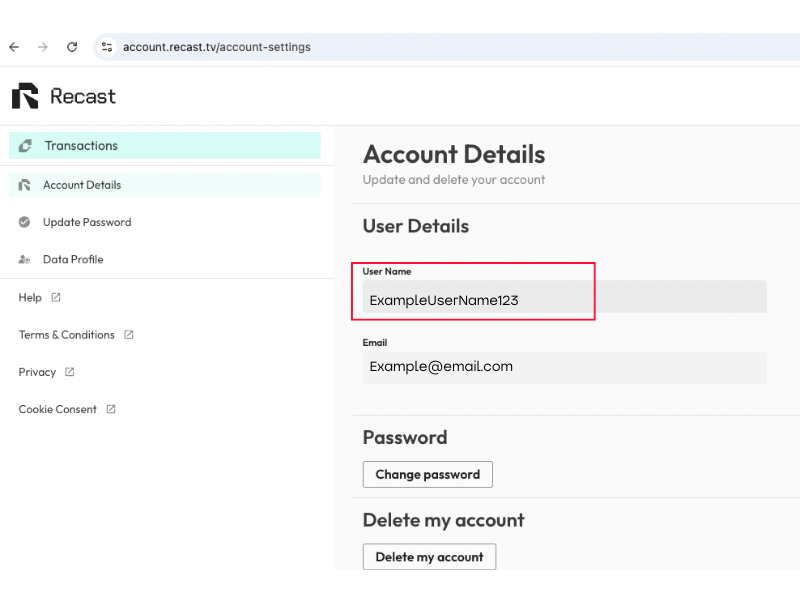
TIP: A ‘Username’ can be found in Recast in the ‘account details' section of https://account.recast.tv/. If you do not know the correct ‘username’, please contact partnersupport@recast.tv
This guide explains how content owners can publish content on their own platform, using a Recast embed widget.
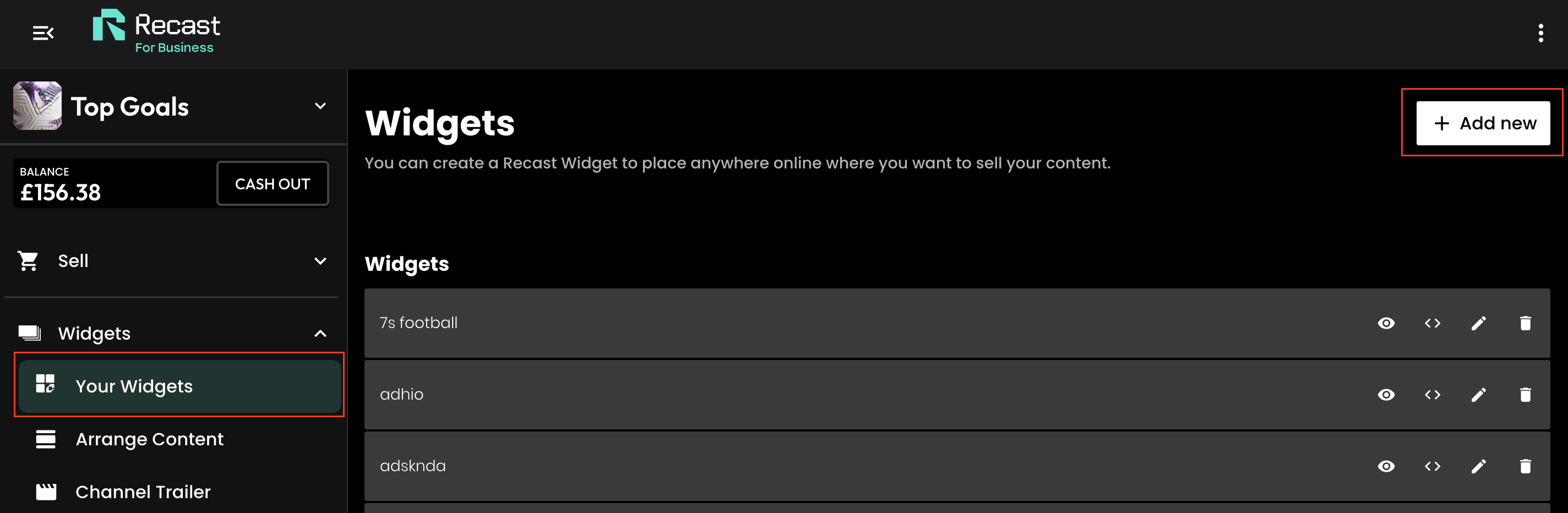
To create a new Recast widget on your website select ‘Widgets’ on the left-hand menu in your Recast for Business account.
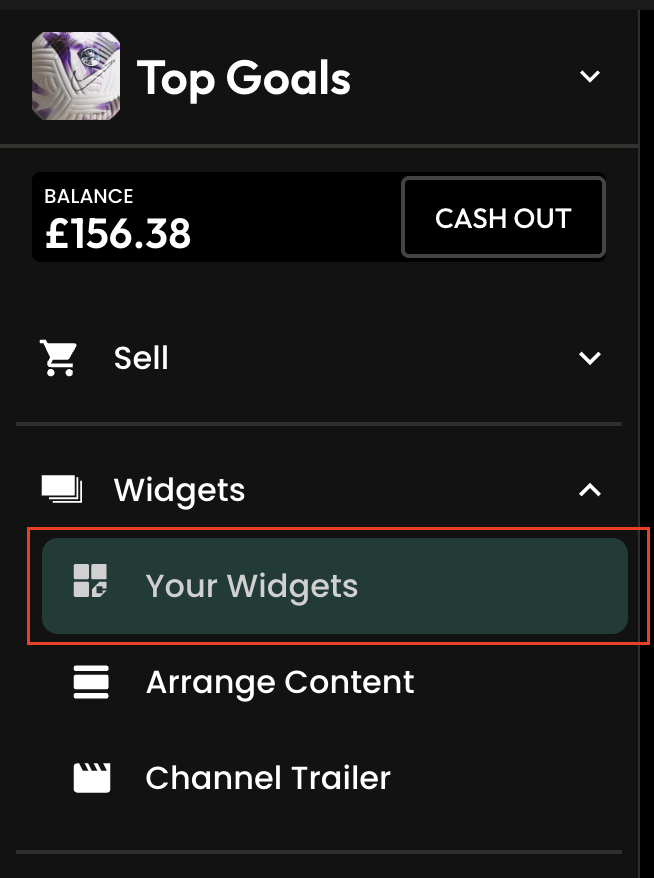
Then press ‘Add New’ at the top right of the screen to add a new widget. Any widgets you have created previously will be listed here.
Then press ‘Next’ to continue

Then press ‘Next’ to move to the next stage.

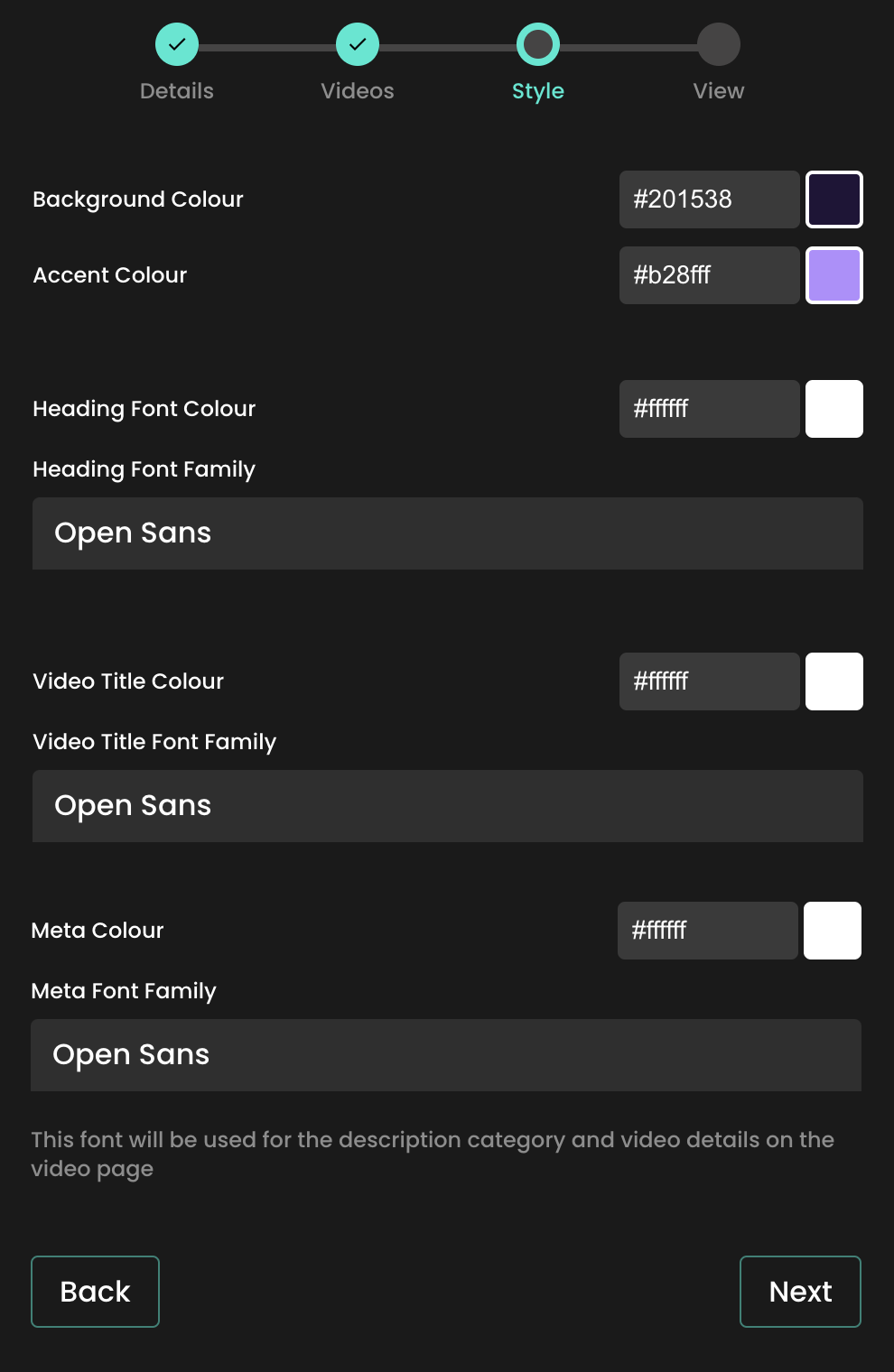
You can apply your own custom styles to your widget. Use the colour picker or type in the hexcode of the colour you want to apply.
You can also change the font that is displayed on the widget by typing the font family name into the text fields. For this to work correctly:

Then press ‘Next’ to move to the next stage.
As shown below, the styles selected will apply to the widget when it’s added on your website.
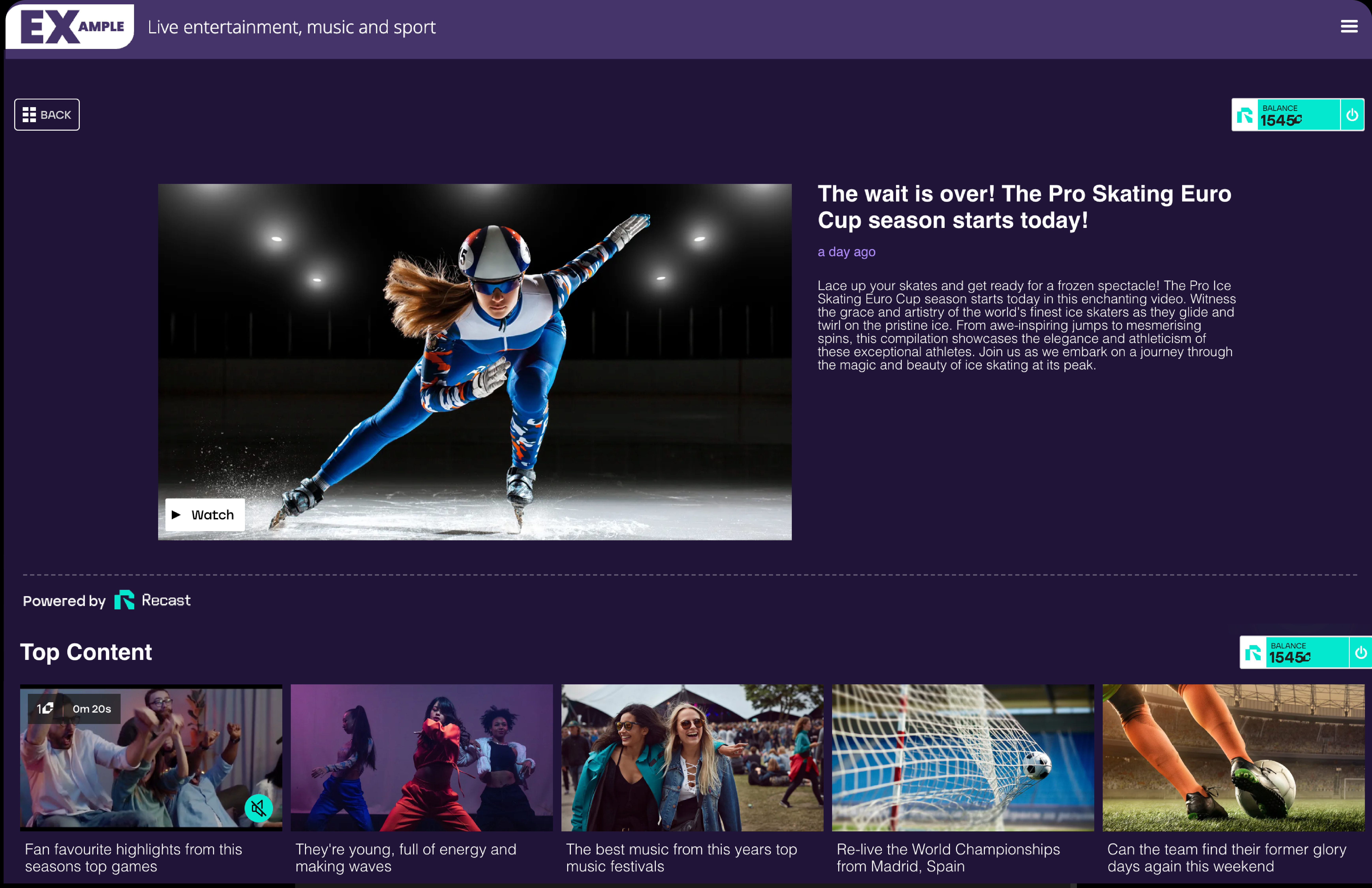
You will now be provided with the code that needs to be embedded onto your website. Press ‘Copy to clipboard’ to copy the code.
Then press ‘Finish’ to save the widget.


Your Brand is your public-facing part of your Vendor account. Give it a name, description, profile image, and cover image that makes you easily recognisable. You'll take this brand across the web as you (and affiliates) embed and share your content.
You are now signed up and are logged in to Recast for Business.
IMPORTANT: If you intend to use Recast's streaming tools please now get in touch with your Recast partnership manager or email partnersupport@recast.tv to request access to Recast Stream. We'll activate these on your account and they will then appear on as menu items in your Recast for Business account.
To add additional admins for your channel, first make sure they have signed up for a Recast user account and ask them to share their account User Name
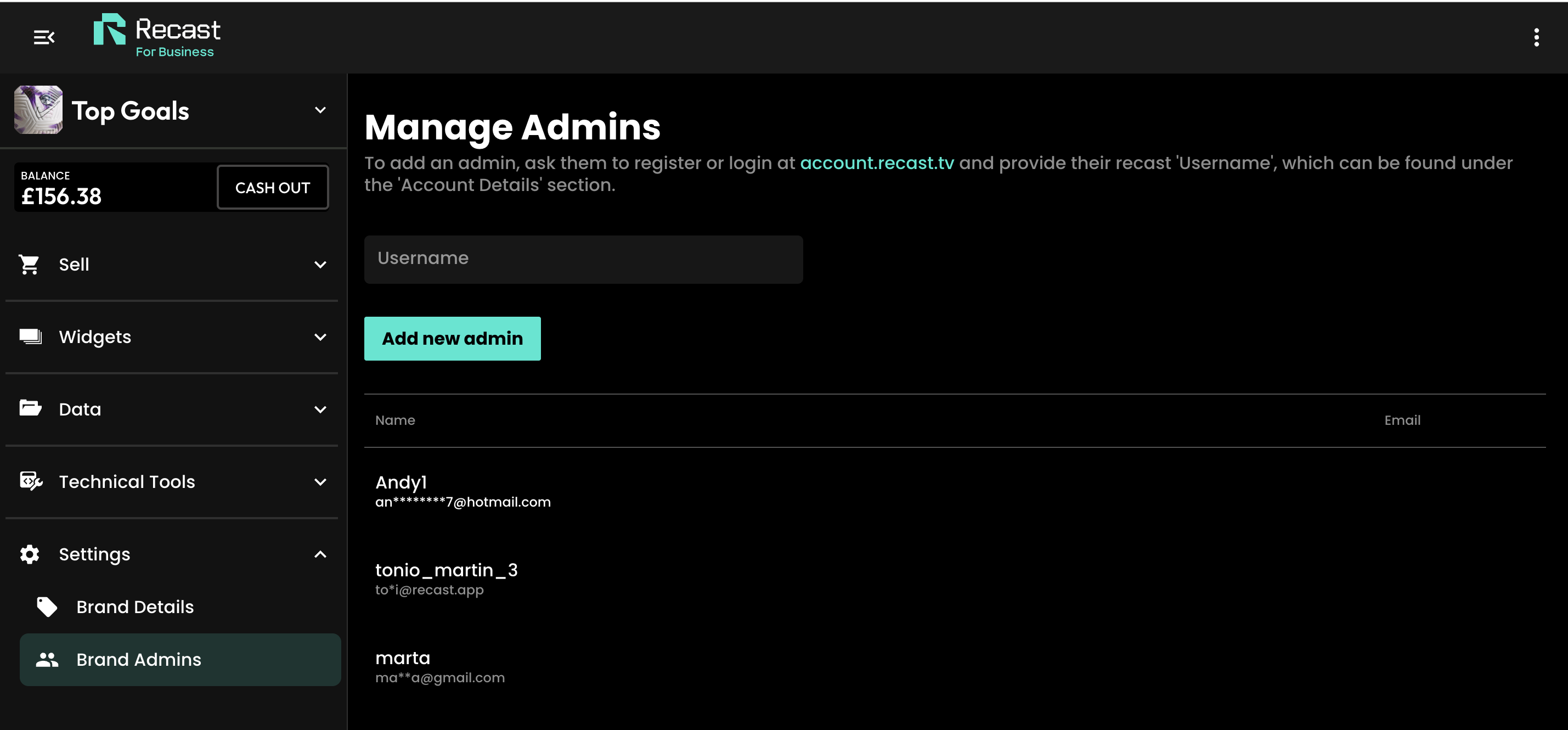
You can upload or schedule your first piece of content by clicking the ‘New Video’ button and selecting the content type or try adding an Access Pass. For more information, please follow these links:
Head to business.recast.tv/api-register. Before you set up your vendor account, you'll be asked to first create a Recast user account, or if you already have one, you can sign-in with your existing user account details.
Now you can set up your Vendor account. This is the person or business that will be paid out any earnings from your sales via Recast. You'll need to provide some details such as the primary contact for the vendor and once you've done that you can start setting up your Brand.
Your Brand is your public-facing part of your Vendor account. Give it a name, description, profile image, and cover image that makes you easily recognisable. You'll take this brand across the web as you (and affiliates) embed and share your content.
You are now signed up and are logged in to Recast for Business.
To add additional admins for your channel, first make sure they have signed up for a Recast fan account and ask them to share their account User Name
Congratulations, you're now all set up and ready to monetise your media. You can find out how to create inventory items and API keys:
Your Brand is your public-facing part of your Vendor account. Add your logo and cover image that makes you easily recognisable to content owners on Recast's distribution marketplace.

You are now signed up and are logged in to Recast for Business.
IMPORTANT: In order to get whitelisted to publish third-party content, you must now contact partnersupport@recastpay.com, confirming the content you would like to publish.
Once whitelisted, a member of the Recast team will let you know, and you'll then be able to start publishing content. For more information on how to Publish content using a Publisher Embed Widget, click here.
And that’s it! You’ll earn from every purchase of content from the widget on your website in line with the revenue split you’ve agreed with the Content Owner.
To add additional admins for your account, first make sure they have signed up for a Recast user account and ask them to share their account User Name
With Recast, you can offer direct-to-consumer PPV or brand-funded access to your content directly from your own website or platform.
This guide is designed to help you get the most from Recast by making your content easier to discover, access, and promote.
Your website/platform should be the primary destination for fans looking to watch your content. The easier you make it for audiences to find, understand and access your Recast-powered content, the more effective your campaign will be.
.png)
Add a clear “Watch” item to your main website navigation.
This should link directly to the page where your Recast widget is embedded. If your audience is coming to your site with intent to watch, the path to purchase should be immediate.
Suggested navigation labels:
Use your homepage to drive awareness before, during and after major content moments.
Recommended placements include:
Example homepage banner copy:
Access [Event/Video Name] Now
Watch directly from [Brand Name Site]. No subscriptions, just pay for what you watch.
CTA: Watch now
Example: Homepage Banners
Portrait

Landscape

Do not rely on one standalone “watch” page alone. Link to your Recast widget page from any relevant content across your website.
Good linking opportunities include:
Example in-page copy:
Want to watch [content name] without a subscription?
[Event/Video Name] is available live and on demand. Watch directly from [Content Owner site] with no subscription required.
CTA: Watch live
Some fans may be new to RecastPay. A short explanation can reduce confusion and improve conversion. Plus, if you sell your rights internationally, a ‘How to Watch’ page will allow you to explain where your content is available via RecastPay.
Suggested copy:
You can watch [Event/Video Name] directly on [Content Owner URL] using via RecastPay in [List Regions] - No subscriptions - just PPV access to what you want, when you want.
Enjoy the freedom to watch on your terms — no long-term commitments, no hidden costs, no limits. Powered by a credit-based wallet, RecastPay let's you purchase only for what you choose, making [Brand Name} content more accessible, affordable, and rewarding.
To access the content:
No subscription is required. You only pay for the content you want to watch.
With Recast, you can embed either a full channel widget or a widget showing a specific number of individually selected events or videos.
Use a full channel widget when:
Use a selected-content widget when:
Think about what your audience will search for when looking for your content. Use those terms in your page title, headings, body copy and metadata.
Include keywords such as:
Example page title:
Watch [Content Name] Now | [Brand Name]
Example meta description:
Watch [Content Name] here. Subscription-free pay-per-view access available directly from [Content Owner URL].
Example on-page heading:
Watch [Content Name] - No Subscriptions - simple PPV access
You should leverage your social media to create a consistent drumbeat of awareness before, during and after your content becomes available via RecastPay.
The goal is not just to announce that content exists - you should repeatedly give your audience clear reasons to watch and a simple route to access.
When you are actively promoting live or on-demand content, update your social media bio link to point directly to your “Watch” landing page.
Suggested bio copy:
Watch live and on demand: [insert link]
Or:
[Content Name] available here: [insert link]
Your audience may be new to RecastPay. Use explainer videos, social graphics, “how to watch” images and short copy to help fans understand the purchase flow.
.png)
Download Recast’s Explainer Assets here.
Key messages to communicate:
Suggested explainer post:
Watching [Event/Video Name] is simple.
→ Go to [widget page URL]
→ Click the stream
→ Create or sign in to your free RecastPay Wallet
→ Purchase instant access
→ Watch live or on demand
No subscription required. Watch here: [insert link]
Build a content calendar around each major video, event, stream, replay or Access Pass campaign.
A strong schedule should include:
.png)
Do not rely on a few launch posts. Audiences often need to see a message several times before taking action.
Recommended cadence for a live event:
Where possible, use formats that allow a direct link.
Useful formats include:
Suggested story copy:
Live today
[Content Name] is available, directly on [brand website].
No subscription required.
Tap to watch: [link]
Use social channels to create urgency around pricing, live availability and time-sensitive access.
Your existing database is one of your most valuable promotional channels. Email audiences already know your brand, understand your content and are more likely to convert than cold audiences.
Use email to drive traffic to your Recast widget page.
Example Email Campaign:
.png)
Recommended email types:
Where rights, pricing, availability or event times vary by market, segment your CRM by geography.
This allows you to give fans the most relevant “how to watch” information.
Examples:
Suggested copy:
Fans in [country/region] can watch [Event/Video Name] via RecastPay directly from [Brand Name].
The content will be available from [local time], with subscription-free access from [$X.XX].
As a reminder, you can ask your users opt-in to your marketing via the Recast purchase flow.
Simply send us your privacy policy, and we will add the opt-in box to your users.
You’ll be able to access all your opt-in data (plus all other sales data), directly from your Recast for Business dashboard.
Not every piece of content needs to sit behind a transaction. Free-to-air platforms can play an important role in driving awareness and demand for the premium content available via RecastPay.
Use platforms such as YouTube, Instagram Reels, TikTok, Facebook, X and LinkedIn to publish promotional content that drives audiences to your Recast widget page.
Useful top-funnel assets include:
Every top-funnel asset should include a direct call to action to your ‘Watch” page where your Recast widget lives.
Recast gives you the flexibility to test, optimise and adapt your pricing strategy.
You can change the price of a piece of content, or publish/unpublish Access Pass promotions at any time.
Early bird pricing can help drive early sales and create urgency before an event.
Suggested copy:
Early bird access is now available for [Event/Video Name].
Buy before [date/time] and save before standard pricing begins.
For major content launches, consider a short launch promotion.
Examples:
Suggested copy:
To celebrate the launch of [Content / Event / Series], fans can access the stream at a reduced price for the first 24 hours.
Pricing can change depending on where the content sits in its lifecycle.
Example structure:
This can help you maximise revenue from peak live demand while continuing to monetise long-tail on-demand viewing.
Once launch urgency has passed, consider lowering the price for on-demand replays or archive content.
Access Passes can help increase average order value by bundling multiple events or content windows.
Examples:
Suggested copy:
Get more from [Brand Name] with a [X-Day / Event / Season] Access Pass.
Watch multiple events and replays with one purchase.
Use pricing as an optimisation tool. Review performance after each campaign and look for patterns.
Useful questions:
Recast’s distribution enables you to maximize reach of your content by incentivizing Content Distributors to publish and promote your content. Learn more here:
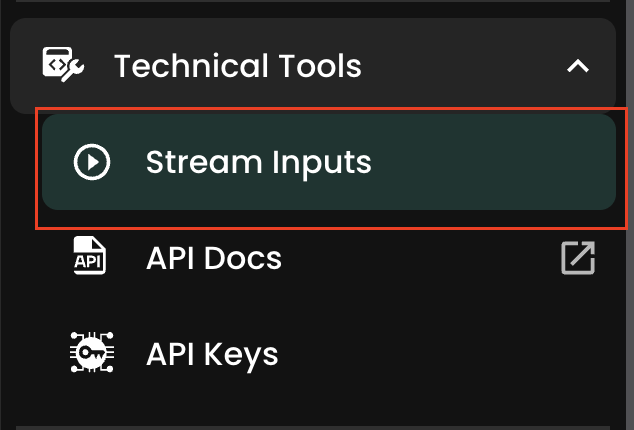
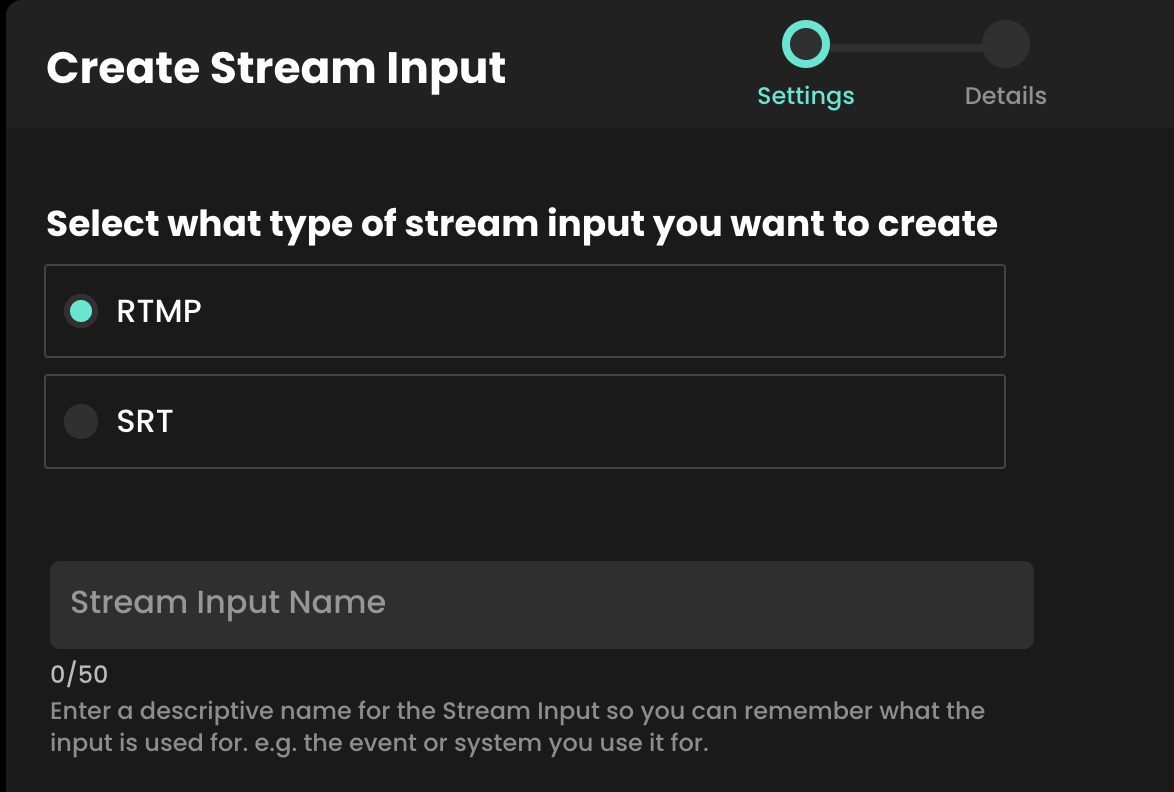
In Recast for Business, open Stream Inputs and choose + Stream Input. Pick RTMP or SRT — the choice is fixed once the input is created.
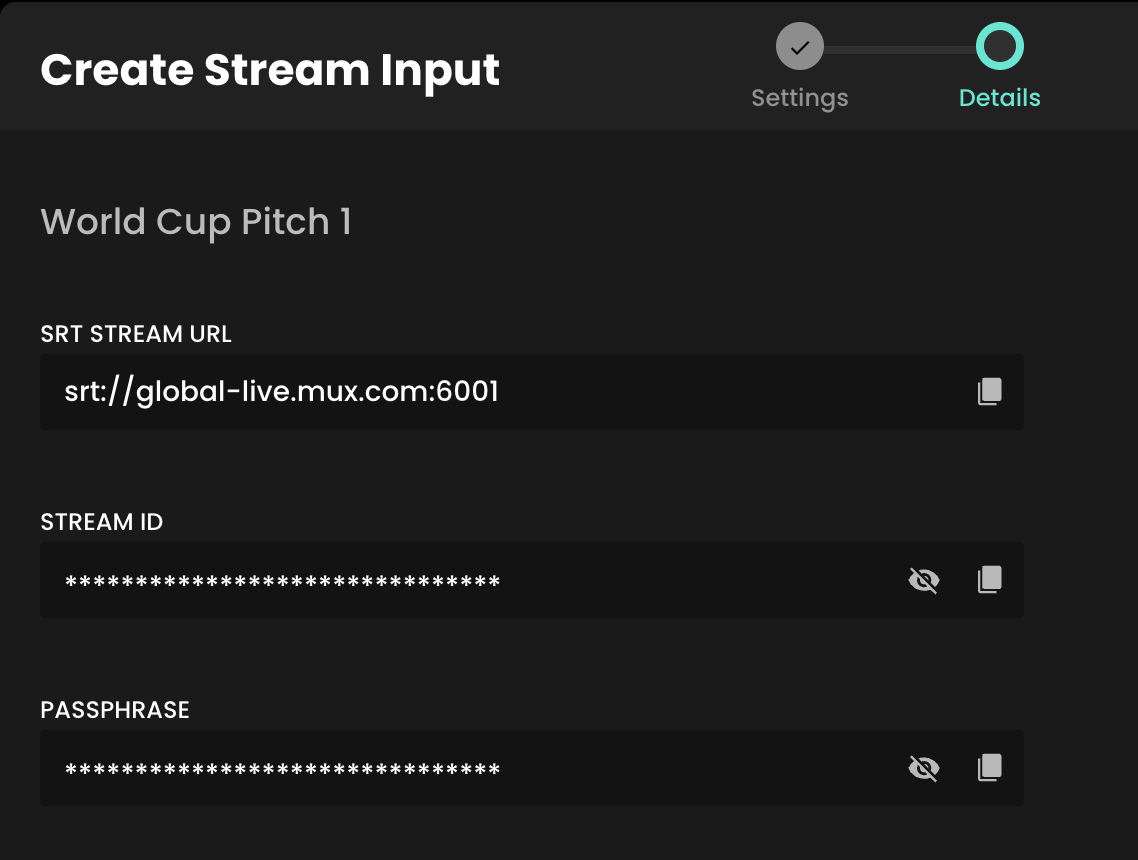
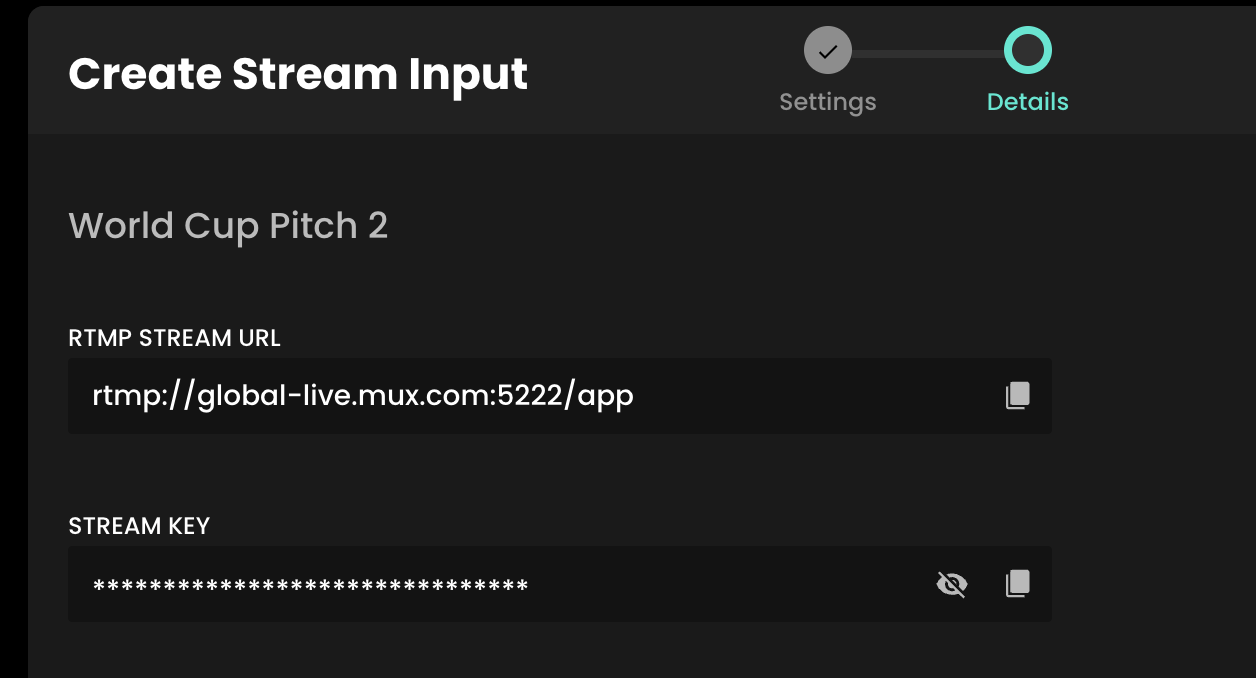
Recast then shows the values your encoder needs. Copy them from there rather than retyping them:
Note that an SRT input labels its credential STREAM ID, not Stream Key. It is the same value, under the name SRT uses for it.
Then confirm all three of these, or your stream will be refused:
A new stream input is switched off. Recast switches it on only when it is attached to a live, non-draft video.
Configuration is done through the Talon's web dashboard. Find its address on your network, or from the unit's front panel where fitted.
Use no more than 50% of your measured upload bandwidth.
The keyframe interval is set as GOP Size in the encoder settings. At 30 fps use 60; at 25 fps use 50.
global-live.mux.com6001500 msEncryption must be AES-128. Mux requires a 128-bit key. If the Talon offers AES-192 or AES-256, do not use them — the handshake will fail with an error that gives no indication of the real cause.
European facilities can use eu-west.live.mux.com in place of the global host.
The complete SRT URL Recast is expecting looks like this, for reference — but enter the parts in their own fields rather than pasting the whole string:
srt://global-live.mux.com:6001?streamid=YOUR_STREAM_KEY&passphrase=YOUR_SRT_PASSPHRASE
Which URL? Recast displays rtmp://global-live.mux.com:5222/app as your RTMP STREAM URL, and that works. This guide uses rtmps:// on port 443 instead: it is the same Mux ingest wrapped in TLS, so your stream key is not sent in clear text, and port 443 passes through restrictive venue networks that block port 5222. Use whichever your encoder supports.
rtmps://global-live.mux.com:443/appIf your firmware will not accept rtmps://, use rtmp://global-live.mux.com:5222/app.
Talon is a transport-stream encoder at heart. The SRT path wraps your output in MPEG-TS, which is exactly what Mux expects — hence the "TS over SRT" naming. No action needed, but it explains why the setting is not grouped with the RTMP options.
Multiple outputs share one uplink. If the Talon is feeding more than one destination, the 50% bandwidth headroom rule applies to the total.
Do not chase low latency. Recast streams run at standard latency (20–30 seconds) by design.
One protocol per stream input. A Recast stream input is created as either RTMP or SRT and cannot be switched afterwards.
Check the stream input is attached to a video and that the video is not a draft. The Talon will report a healthy stream while Recast rejects it.
Then wait a full 30 seconds before concluding anything.
Check the retransmission statistics. A rising rate means the link cannot carry the bitrate — reduce it, or raise the latency value.
You have 30 minutes to reconnect before Recast treats the stream as ended.
Compare the configured bitrate with what the statistics show actually leaving the unit. A gap indicates a network constraint rather than an encoder problem.
Confirm AAC-LC at 48 kHz stereo, and that the correct embedded audio pair is selected. The Talon will happily encode a silent pair without warning.
Prefer embedded SDI or HDMI audio over a discrete input so both share a clock.
Include the model and firmware version, the output type, the protocol, and a screenshot of the dashboard's stream statistics.
More detail: Recast live ingest reference
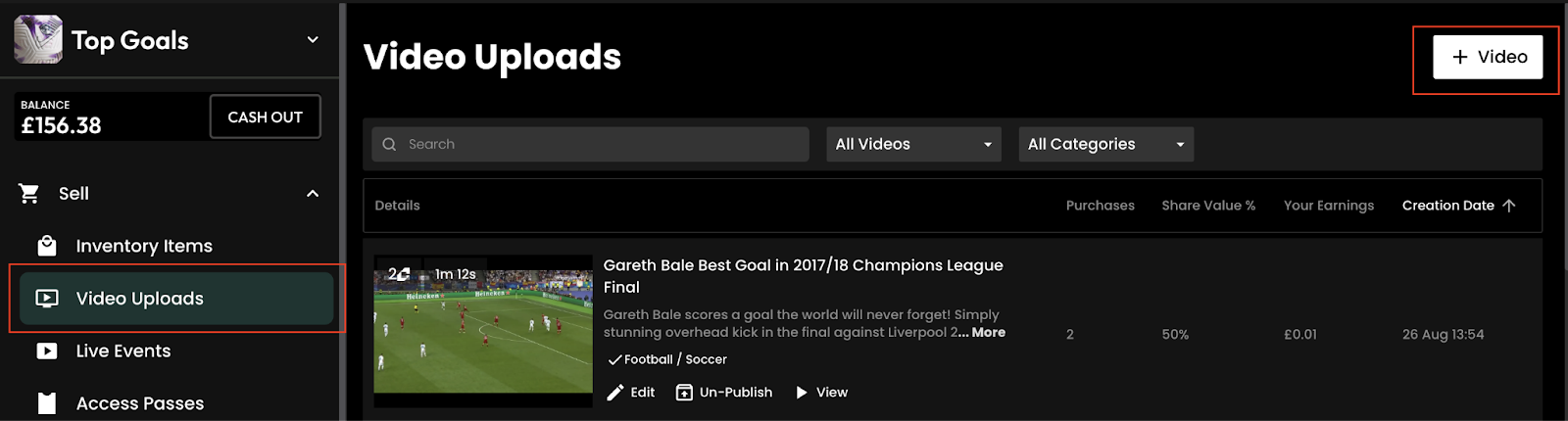
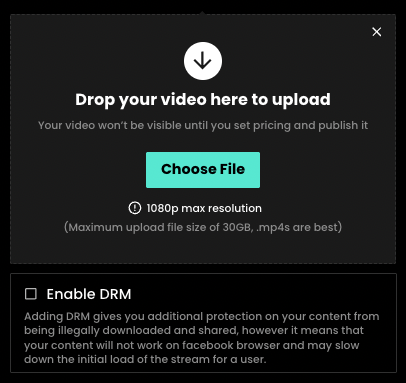
Recast enables you to upload and sell access to video content. This guide will explain exactly how to do so.
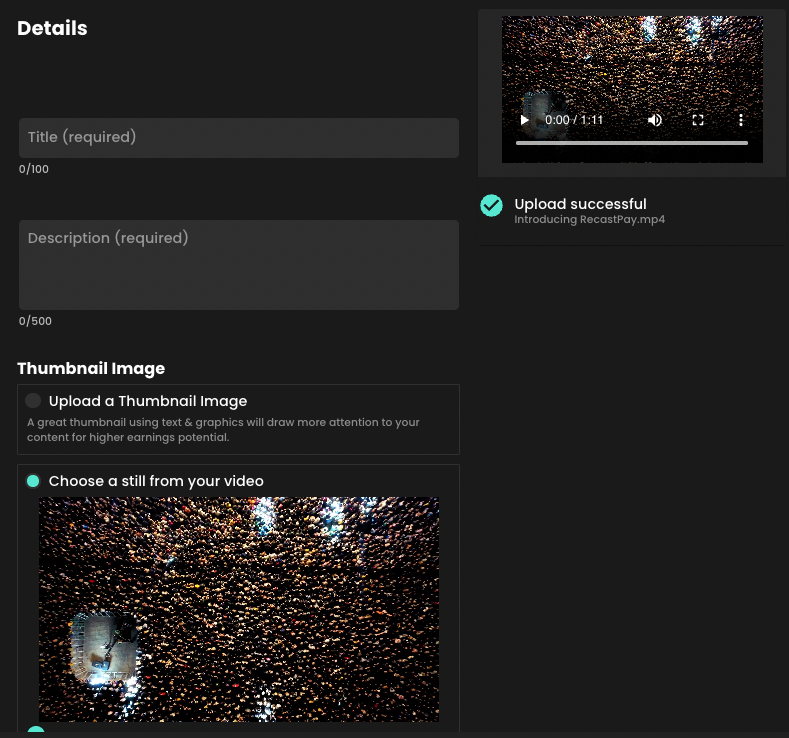
Give your video a title and a description. Catchy titles will help users find your content and encourage them to purchase it when they do.

Once your content is published, you’re ready to arrange the content on your widget.
Recast widgets consist of two different types of sections:
For more information on arranging content on your widget, click here.
If you have both portrait and landscape format content to sell in your Recast Embed Widget, we recommend organising the different sizes into their own custom sections on your widget. Learn more about adding a custom section to your widget here.
The time it will take to upload your video depends on how large the file size is and your internet upload speed. Make sure not to close the platform when you are uploading, as this will interrupt the upload, and you will have to repeat it.
Once uploaded, the video will show as processing. Please note it can take a while to process, depending on your upload speed. This is so we can create HD, high, medium, and low-quality versions.
Once you have finalised your video upload, it can be accessed via the ‘Video Uploads’ button, where you can edit & view your video.
Please note: If you try to close the Upload a Video form before the setup has completed, you will be asked to discard or save the Video Upload Draft.
If you choose to save the draft, it will be available on the Unpublished Video Uploads list, which is found in the ‘Video Uploads’ section. If you choose to discard, the draft will be permanently deleted.
.mp4 (recommended).mov (recommended)
h.264 (recommended)h.265/HEVC
AAC
We support resolutions up to 1080p. We suggest these standard resolutions:
1920×1080, 1280×720 or 854x480
We support both 16:9 landscape and 9:16 portrait resolutions. If your video doesn’t match one of the above aspects ratios, we will pad the video with black bars.
We support constant frame rates up to 60fps.
Note: You may encounter difficulties when uploading content with a variable frame rate. If you receive a “processing failed” error when uploading variable frame rate content, we suggest converting this to constant frame rate and try the upload again.
Many iOS devices have variable frame rate enabled on their camera by default, we suggest disabling this if you encounter issues uploading video shot on iOS devices.

128 kbps
Stereo
We currently only support SDR videos. For these please use the standard BT.709 colourspace
We currently only support progressive scan video. You can upload interlaced videos but we are unable to deinterlace these.
Up to 6 hours. If you need to upload longer duration videos, please reach out to techsupport@recast.tv and we can discuss solutions.
Up to 30 GB
Not currently supported. If you require subtitles on your video, we suggest burning these into the video itself.
Recast’s Embed Widgets are customisable, allowing you to create custom sections with specific content and organise the order of both your custom sections and default sections, such as your “Access Passes”, “Latest Videos” and “Live & Upcoming” sections.
If you have uploaded vertical (portrait) content, we recommend you place this in it’s own custom section, as we explain in the “Adding a new Custom Section”, below.
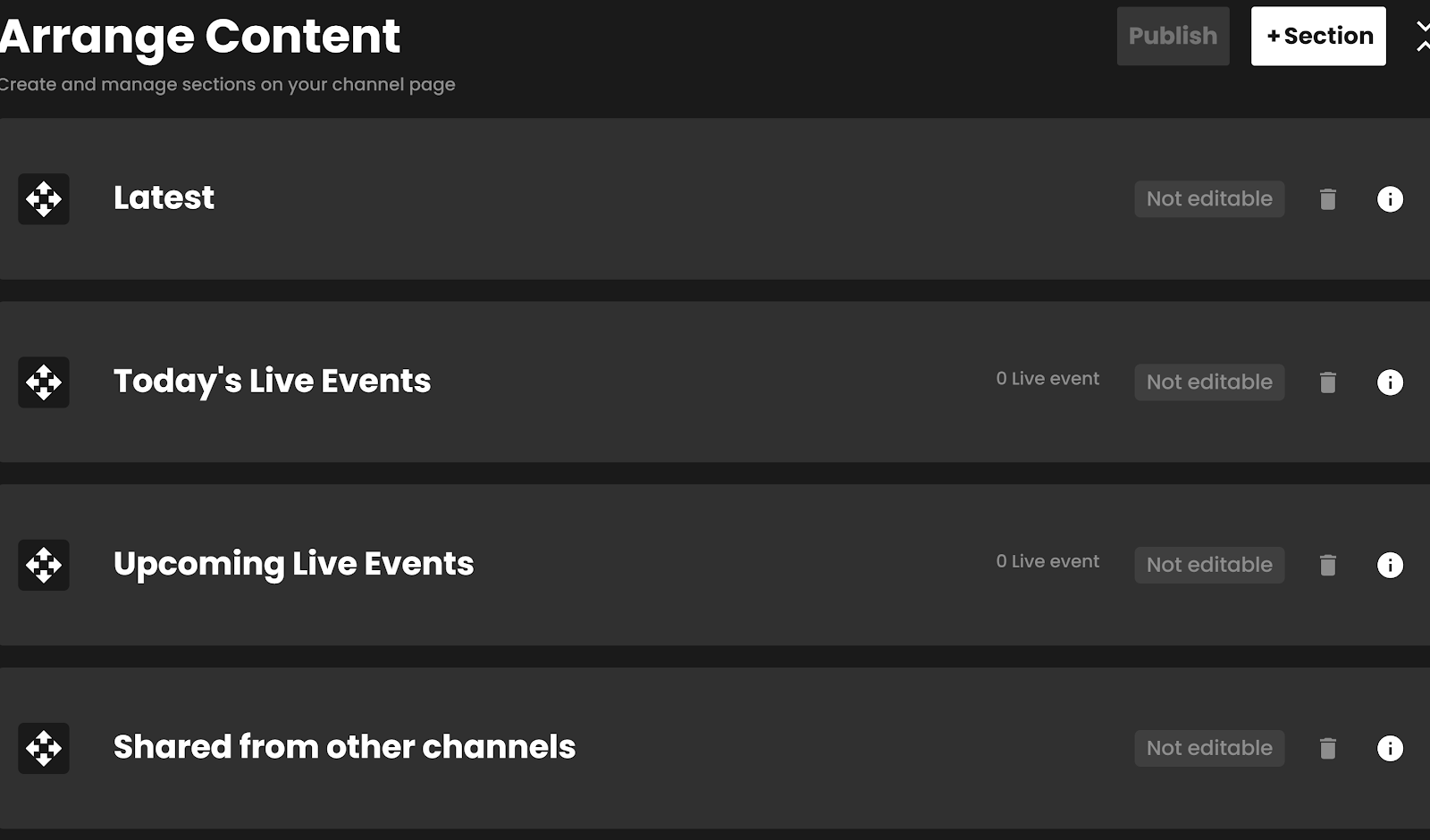
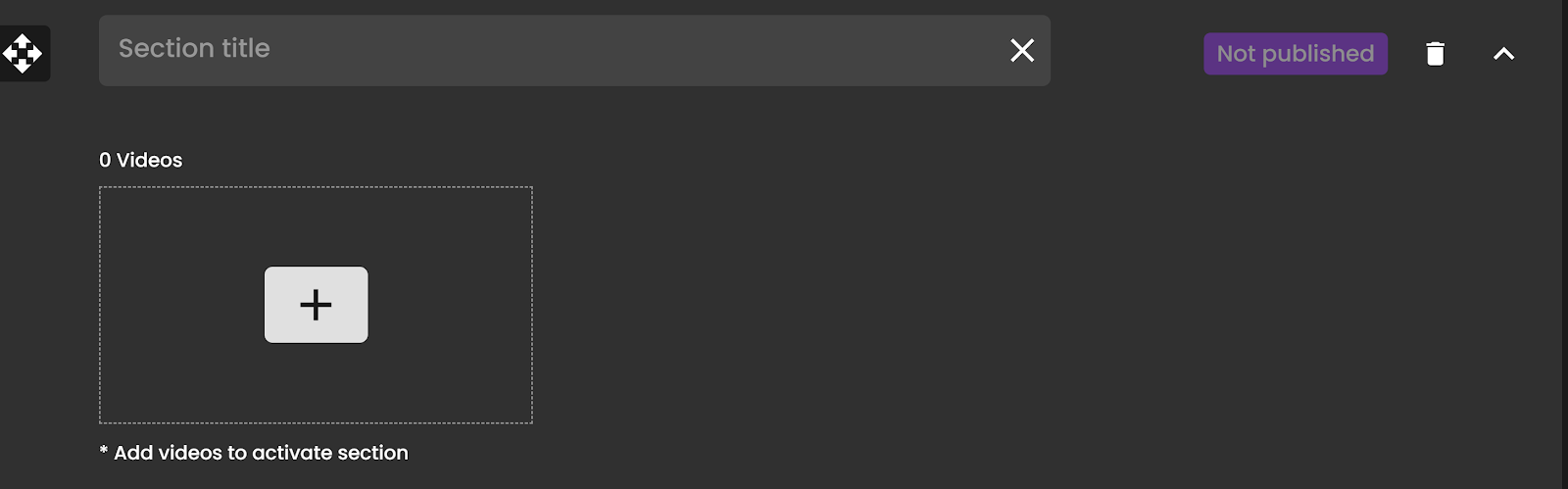
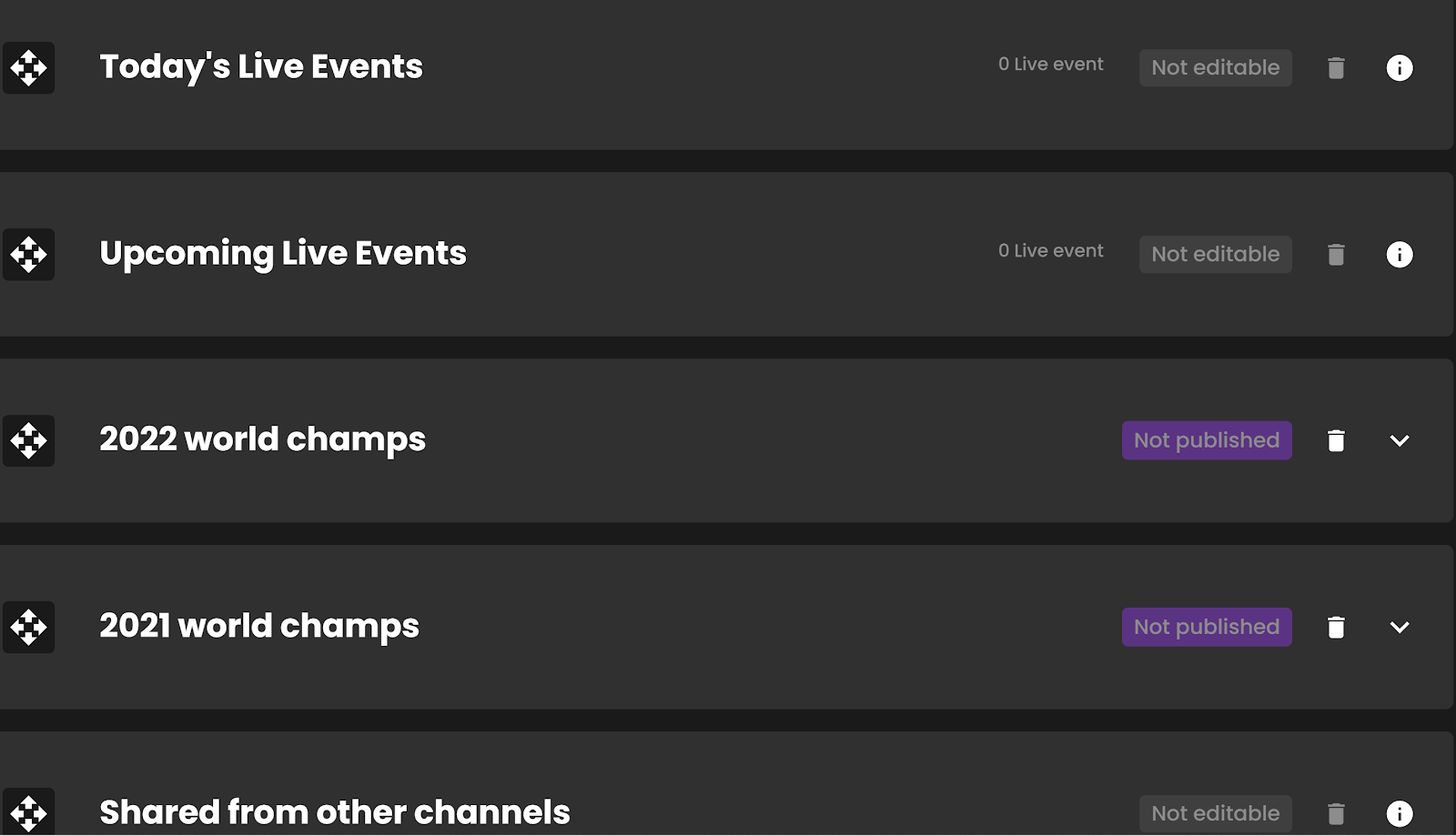
The Featured Carousel is the exception. If published, it always stays at the top of your widget.
The Data Download feature is now available to all Recast Vendors, which allows you to download opted-in data about your users.
Firstly, as a reminder, users are incentivised to opt-in to sharing their information. They can simply share their email address, or if they complete their Data Profile you’ll have access to the following info:
If this feature is not immediately available to you, you may not have provided us with your privacy policy. To get set up, please contact us on partnersupport@recast.tv to have this feature added to your Recast for Business account. Please provide:
We will ask you to read and agree to our Data Sharing Agreement
.png)
This will download a protected zip folder, which will need to be unlocked with a password. The password is available below the download option. Paste the password into your unzip software to gain access to a .csv file. This file contains the information shared from each of your opted-in fans.
When downloading a new version, it will replace the version below and you commit to updating the data you hold as a result. This should be completed at least once every 14 days to keep the user data you hold up to date and adhere to all opt-ins and outs of your fans as per the Data Sharing Agreement.

After you have created your Recast for Business account, you can become a Publisher of other Recast Vendors. Please contact us at publishersupport@recast.tv if you’d like to get whitelisted. Once whitelisted, here's how to create an Embed Widget.
1. As a Publisher, you can create widgets containing content from Recast Vendors. First, head to the Your Widgets page in Recast for Business and select ‘Add New’.
2. Give the widget a name and select the option ‘Content from other channels’. You can also give the widget some header text which will be visible on the created widget.
.png)
At this point you have two options:
3. Select one (or multiple) channels whose content you’d like to include on your widget.
4. If you selected "Create with Selected videos and events, you'll now be asked to choose to create the widget from either on-demand or live content from the selected channel(s). And if you want to be more precise in the content you are selecting you can specify certain videos or categories of videos.
.png)
5. You can now style the widget to suit the colours and content of your brand's website. Use the colour picker or type in the hex ode of the colour you want to apply.
You can also change the font that is displayed on the widget by typing the font family name into the text fields. For this to work correctly:
Be sure to check that the transparency slider (see red box in the below image) is set to the right hand side, otherwise if may not be visible:

Then press ‘Next’ to move to the next stage.
6. Preview your widget and copy the iFrame code, ready for use on your website.

Once you've copied your widget code, go to the web page on your website where you want it to live. How you add the code will depend on the website CMS software you use, but typically website's will allow you to toggle between a "visual" view and a "code" or "text" view in the text editor section. If you go to the latter, you'll be able to drop the embed code straight into the text editor.
Other website CMS's may have a component called " Code embed" or similar, that you can just add to your page before pasting in your Recast Embed widget code. Remember to save and publish the page.
When a user purchases third-party content via a widget you have created, you will earn a percentage of the purchase. This percentage is determined by the content owner when they price their content and set their share percentage.
If you do not want to embed content on your site, you can still earn a revenue share of content you promote, by using Share & Earn links. For a full explanation of how these work, click here.
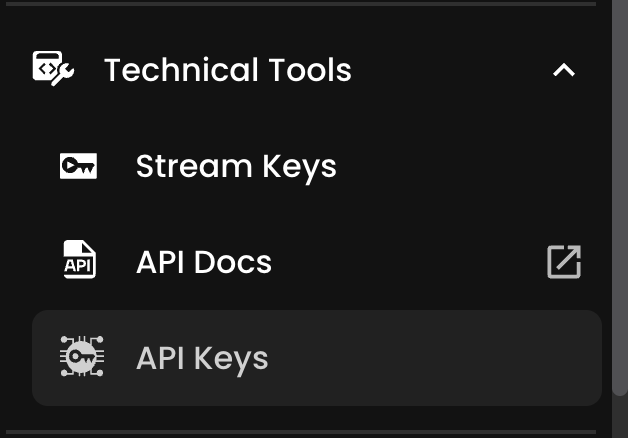


You'll be able to manage all your API keys within the API Keys item on the left hand navigation. For each key, you'll be able to:

Streaming with Recast requires you to connect your broadcasting equipment to Recast, using a stream input method. Recast supports live streaming using two different streaming protocols: RTMP or SRT. Those managing the stream will have a preference.
Once you've determined which streaming protocol you'd like to use, you need to set up the stream input:
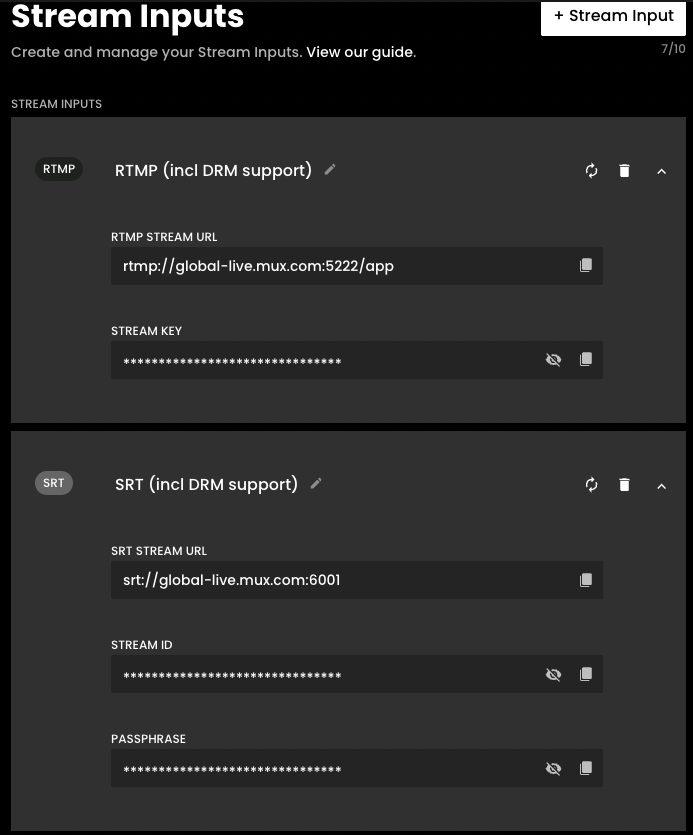
Edit name- edit the name of your stream input

Regenerate - If the security key has been compromised, the RTMP Key can be regenerated, which will renew the Stream Key

Delete - If there are two or more inputs set up, the delete icon becomes active. Please note, you'll be asked to confirm this action as it cannot be undone.

Copy: Click to copy the key if you need to paste it into your streaming software.

For security, this information is hidden by default. Click to view.

If you need help to live stream, view our guide How to live stream.
Content publishers help you reach audiences beyond your owned channels at zero cost.
With Recast, approved publishers can host and promote your content directly on their own websites using Recast widgets. This allows publishers to offer you premium content to their audiences without negotiating traditional rights agreements, while earning a share of revenue from every transaction they generate.
For Content Owners, publishers can extend reach, create incremental revenue and place your content in trusted editorial environments where relevant audiences already exist.
.png)
Using publishers can help Content Owners:
Publishers can:
You set the terms for approved Publishers.
You control:
When a user purchases through a publisher’s widget, revenue is attributed and split according to the rules you have applied, in real-time.
.png)
Illustrative example:
When approaching publishers, focus on the value to their audience and the revenue opportunity.
Strong publisher outreach should explain:

Once a publisher has agreed to promote your content, they need to be approved and set up.
The process is simple:
This guide also offers tips and advice for publishers on how to maximise their revenue - How to Maximise your revenue — As a Publisher
Publishers will perform better if they are given ready-to-use promotional assets to help them promote your content effectively.
Recommended assets for Publishers:
.png)
Watch [Event/Video Name] live
Official live and on-demand coverage available on [Publisher site URL]
No subscription required.
CTA: Watch now
We’re excited to bring you official coverage of [Event/Video Name], available directly from [Publisher site URL], via RecastPay.
To watch:
No subscription required — just direct access to the content you want to watch.
As an approved Influencer, you can promote official content using a trackable Share & Earn link. When someone purchases access through your link, the transaction is attributed to you, and you earn a share of the revenue.
Start by creating your unique link. To do so:
.png)
.png)
Earnings are instantly distributed. Cash out at any time once you’ve surpassed £100 GBP.
Your unique Share & Earn link is how purchases are attributed to you. Use it whenever you promote the content.
You can share your link through:
Make sure your audience knows what the content is, when it is available and how to watch.
The Content Owner should be able to provide you with promotional assets - for more info please email partnersupport@recastpay.com
.png)
Keep your messaging clear and direct.
Suggested copy:
[Event/Video Name] is available live and on demand via RecastPay.
No subscription required. Watch through my link here: [insert Share & Earn link]
Do not rely on one post. A consistent promotional schedule will give your audience more opportunities to see the content and take action.
Recommended approach:
Stories are useful because they make it easy to add a direct link.
Suggested story copy:
Live from [date/time]
Watch [Event/Video Name] via RecastPay
No subscription required
Tap here: [insert link]
Some of your audience may be new to RecastPay. It would be useful to create a post including a simple explanation when promoting your link.
Suggested copy:
To watch:
No subscription required.
Download Recast’s Explainer Assets here.
For more fan-facing wording, click here: Recast Explainer Messaging
Where available, use the official assets provided by the Content Owner.
These may include:
Using approved assets helps keep the promotion clear, accurate and consistent.
If you require promotional assets - please email partnersupport@recastpay.com
In Recast for Business, open Stream Inputs and choose + Stream Input. Pick RTMP or SRT — the choice is fixed once the input is created.
Recast then shows the values your encoder needs. Copy them from there rather than retyping them:
Note that an SRT input labels its credential STREAM ID, not Stream Key. It is the same value, under the name SRT uses for it.
Then confirm all three of these, or your stream will be refused:
A new stream input is switched off. Recast switches it on only when it is attached to a live, non-draft video.
SRT support arrived in the ATEM line at version 9.5 and is documented as requiring 9.6 on both the software and the switcher's own firmware. Updating one without the other is a common mistake: ATEM Software Control updates the switcher firmware when you connect, so run the updater and let it finish.
For RTMP, any recent version works.
Use no more than 50% of your measured upload bandwidth.
The ATEM Mini does not do true constant bitrate. Its streaming engine is variable-bitrate, and there is no setting to change that. This is fine for Recast — but because the peaks are higher than the average, leave more headroom than usual. Treat a 5000 kbps profile as needing 12 Mbps of real upload rather than 10.
Most encoder settings are not directly exposed. You choose a streaming quality profile and the hardware picks the rest.
Which URL? Recast displays rtmp://global-live.mux.com:5222/app as your RTMP STREAM URL, and that works. This guide uses rtmps:// on port 443 instead: it is the same Mux ingest wrapped in TLS, so your stream key is not sent in clear text, and port 443 passes through restrictive venue networks that block port 5222. Use whichever your encoder supports.
ATEM Software Control reads its list of streaming platforms from a file called Streaming.xml. Adding Recast means editing that file.
The file lives at:
/Library/Application Support/Blackmagic Design/Switchers/Streaming.xmlC:\Program Files (x86)\Blackmagic Design\Blackmagic ATEM Switchers\ATEM Software Control\Streaming.xmlDo this before the day. It needs administrator rights and an application restart.
Streaming.xml somewhere safe before you touch it.<service>
<name>Recast</name>
<servers>
<server>
<name>Primary</name>
<url>rtmps://global-live.mux.com:443/app</url>
</server>
</servers>
<profiles>
<profile>
<name>Streaming High</name>
<config resolution="1080p" fps="30">
<bitrate>5000000</bitrate>
<audio-bitrate>128000</audio-bitrate>
</config>
</profile>
<profile>
<name>Streaming Medium</name>
<config resolution="720p" fps="30">
<bitrate>3500000</bitrate>
<audio-bitrate>128000</audio-bitrate>
</config>
</profile>
</profiles>
</service>Match the structure and indentation of the service blocks already in your file — the exact schema varies between ATEM versions, and copying the shape of a working entry is more reliable than copying this one verbatim. Note that bitrates here are in bits per second, so 5000 kbps is 5000000.Streaming.xml in exactly that folder; renaming it breaks the list entirely.If you have a Web Presenter rather than an ATEM Mini, configure it through Blackmagic Web Presenter Setup, which accepts a custom RTMP server and key directly without the XML step.
Requires ATEM 9.6 or Web Presenter 3.4, as above.
Blackmagic's SRT implementation is configured in the Stream palette, or in Web Presenter Setup, with these values:
Callerglobal-live.mux.com6001500 msKey length must be 128-bit. Mux requires it.
If your version presents SRT as a single URL field rather than separate fields, use:
srt://global-live.mux.com:6001?streamid=YOUR_STREAM_KEY&passphrase=YOUR_SRT_PASSPHRASE&pbkeylen=16
If there is no SRT option at all, your firmware predates it. Update, or use RTMP.
Editing Streaming.xml is a per-computer job. The file lives on the computer running ATEM Software Control, not on the switcher. Move to a different laptop and you must do it again. Keep your edited file somewhere you can find it, and carry it to the venue with the kit.
Software updates overwrite the file. Updating ATEM Software Control usually replaces Streaming.xml and your Recast entry disappears. This is a nasty surprise on show day. Keep your edited copy and reapply it after every update.
No true CBR. As above — leave extra bandwidth headroom.
Keep the software and firmware in step. ATEM Software Control updates the switcher's firmware on connection. If SRT options are missing after an update, connect the switcher and let the updater run.
Do not chase low latency. Recast streams run at standard latency (20–30 seconds) by design.
One protocol per stream input. A Recast stream input is created as either RTMP or SRT and cannot be switched afterwards.
The Streaming.xml edit did not take. In order:
Streaming.xml, in the original folder?.txt extension? Windows hides this by default.Check the stream input is attached to a video and that the video is not a draft. The ATEM will show a healthy stream while Recast rejects it.
Then wait a full 30 seconds before concluding anything.
<url> elementUsually bandwidth, and the variable bitrate makes the ATEM more sensitive to a marginal connection than other encoders. Drop to the next quality profile down rather than adjusting anything else.
Then use ethernet rather than sharing a phone's connection, which is a common ATEM Mini setup and a common cause of dropouts.
You have 30 minutes to reconnect before Recast treats the stream as ended.
Drop a quality profile. Because you cannot fine-tune the bitrate, the profile list is your only lever — and the next one down is usually the right answer.
Check the audio mixer in ATEM Software Control: the relevant input may be muted or set to follow the programme source rather than being on. This is by far the most common cause of silence on an ATEM.
For sync, use the audio delay control in the mixer. Prefer audio embedded in the HDMI or SDI signal over the separate 3.5 mm input, so both share a clock.
Include the model, the ATEM Software Control version and switcher firmware version, the quality profile in use, the protocol, and your measured upload speed. If Recast is missing from the platform list, attach your Streaming.xml.
More detail: Recast live ingest reference
If you've integrated Recast using our API and have chosen to use Recast's user interface for managing your inventory, then this guide explains how to create and publish inventory items to make them available for to purchase.
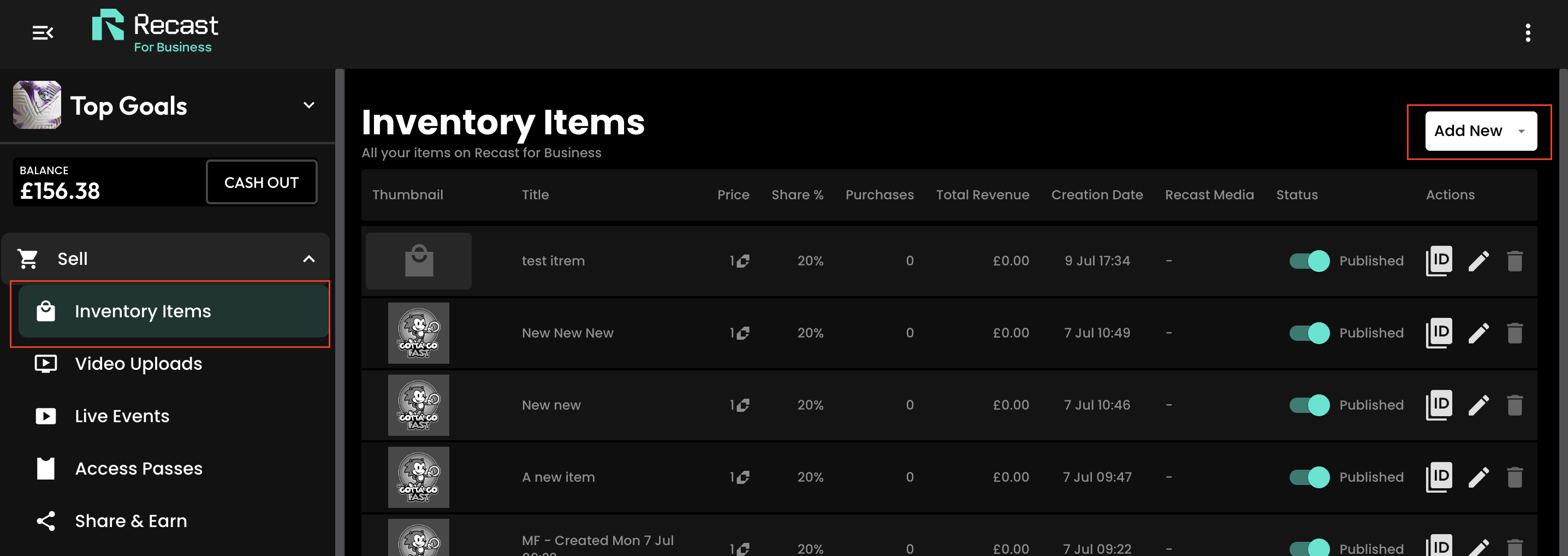


You’ll now have the choice of how you publish your video with 2 options:

You'll be directed back to your inventory list. Here you'll see a view of your entire inventory list, with relevant information and actions including the ability to:
As an API client you may find it useful to copy your inventory item ID for use with your integration. To copy the item ID:

Recast's live streaming is delivered using Mux Live Streaming software.
As explained by Mux, these streaming settings are provided to offer a very simple recommendation of where to start, but we do recommend playing with your settings to see what works best for your content.
RTMP or SRT
H.264 (Main Profile)
AAC
We support resolutions up to 1080p. We suggest streaming at one of these standard resolutions:
We support input frame rates up to 60fps.
As shown above, for most HD quality streams, we suggest between 3 and 6 Mbps for the video Bitrate. Here is some more detail:

CBR (Constant bitrate)
25% is generally a safe starting value
Set to the percentage of overhead you have available in your internet connection for bursts of retransmission. For example, if you have a 5Mbps internet connection, and you set your encoder's target bitrate to 4Mbps, a value of 25% would be appropriate, as it would allow the encoder to burst to 5Mbps for retransmission purposes.
We suggest using the main or high profile based on your output resolution and frame rate:

128 kbps
Stereo
We only support progressive scans on streams. You can stream using an interlaced feed, but we are unable to deinterlace a stream input, so artefacting will appear.
You can stream for up to 6 hours continuously. If you need to stream for a longer duration, please contact techsupport@recastpay.com, and we can discuss your requirements.
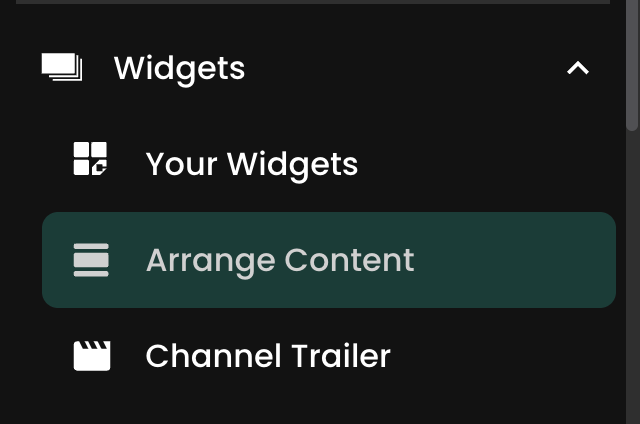
Recast’s ‘Arrange Content’ feature enables you to curate any live or on-demand videos into a ‘Custom Section’ within your Recast Embed Widget, and order this content as you see fit. This is perfect for episodic or related content, i.e. highlights videos from a competition, all episodes from one series of a drama or simply any related content you think your audience would be interested in.
For a complete guide on how to create a Custom Section, click here.
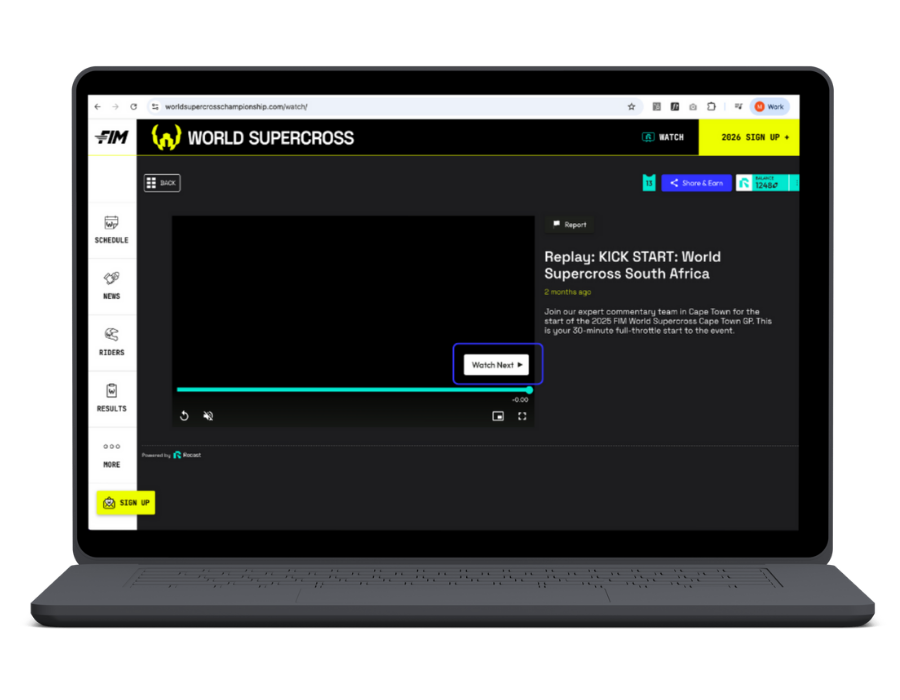
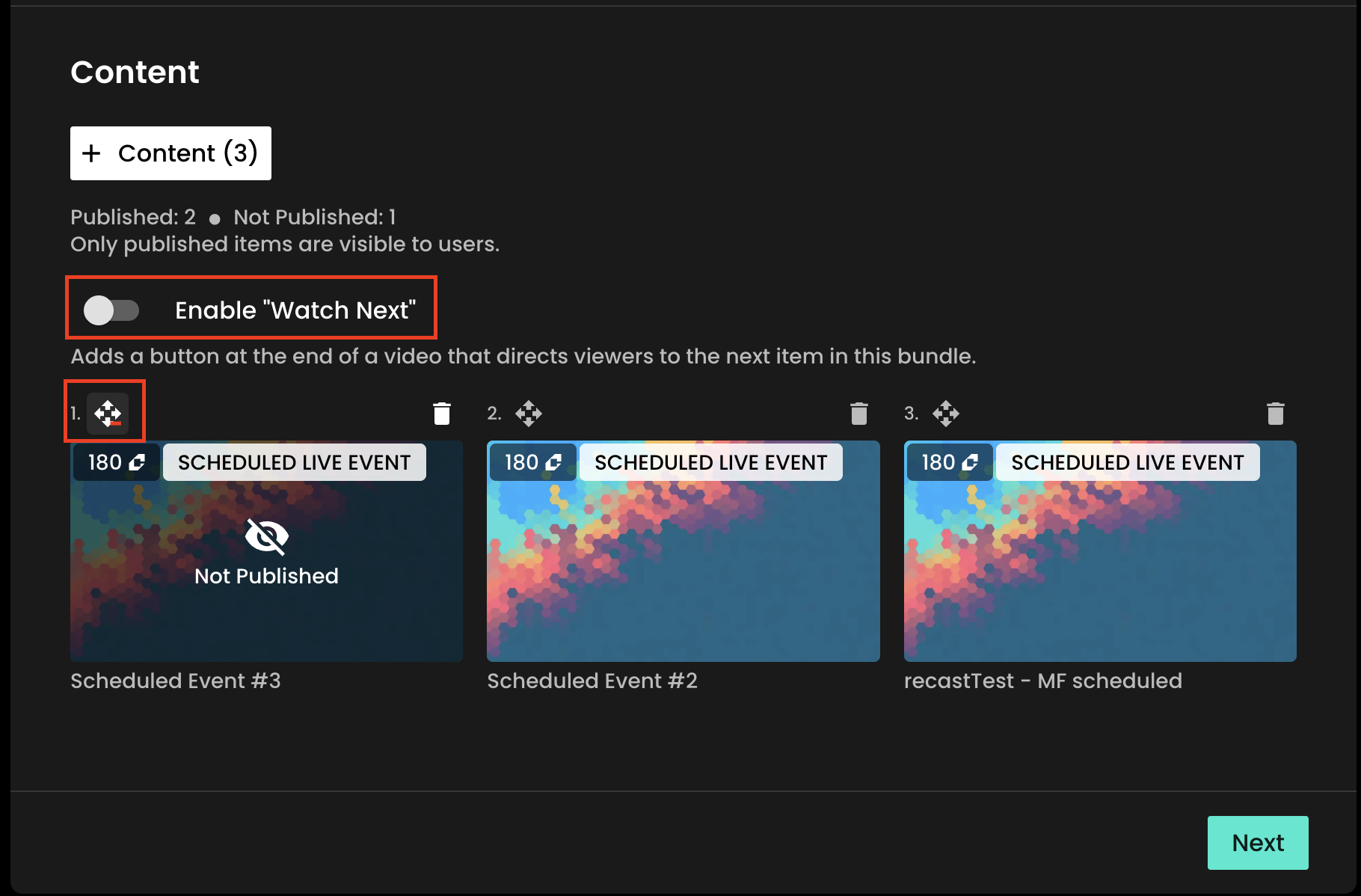
Once you have created your Custom Section within your widget, enabling the “Watch Next” prompt for users couldn’t be easier.
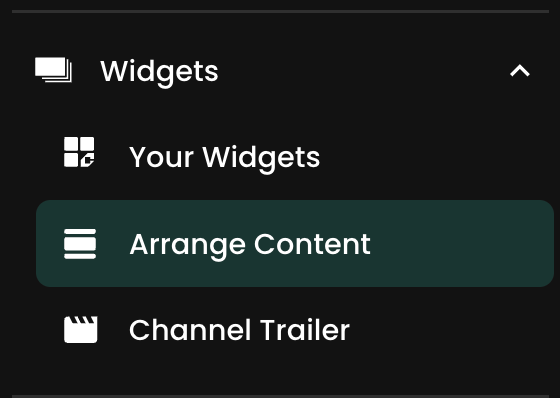


Now, every time a user finishes watching a video in this section of your widget, they be prompted to watch the next video, in the order that you have arranged your content.
1. Go to Sell > Live Events and click the ‘+ Live Event’ button from the toolbar within Recast for Business

Please note: If this option is not available you can contact partnersupport@recast.tv to enable it on your account.
2. You will need to add a title, description and thumbnail image for your event.
Thumbnail specifications:

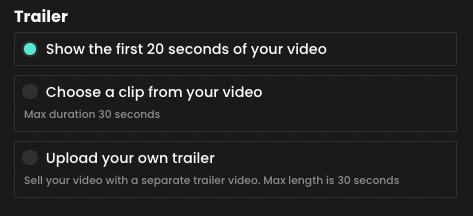
3. Select whether or not you wish to upload your own promo trailer for the event. This will appear on your Widget.
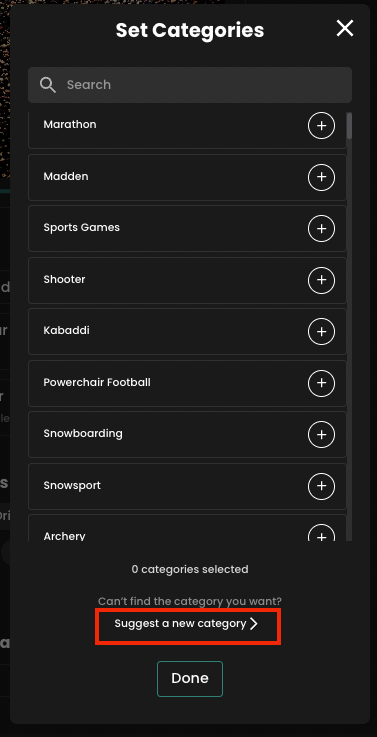
4. Select the appropriate categories. Categories appear on your widget to allow your users to find your content easily. You can automatically request new categories to be added if required.
5. Select whether or not your stream contains advertising.
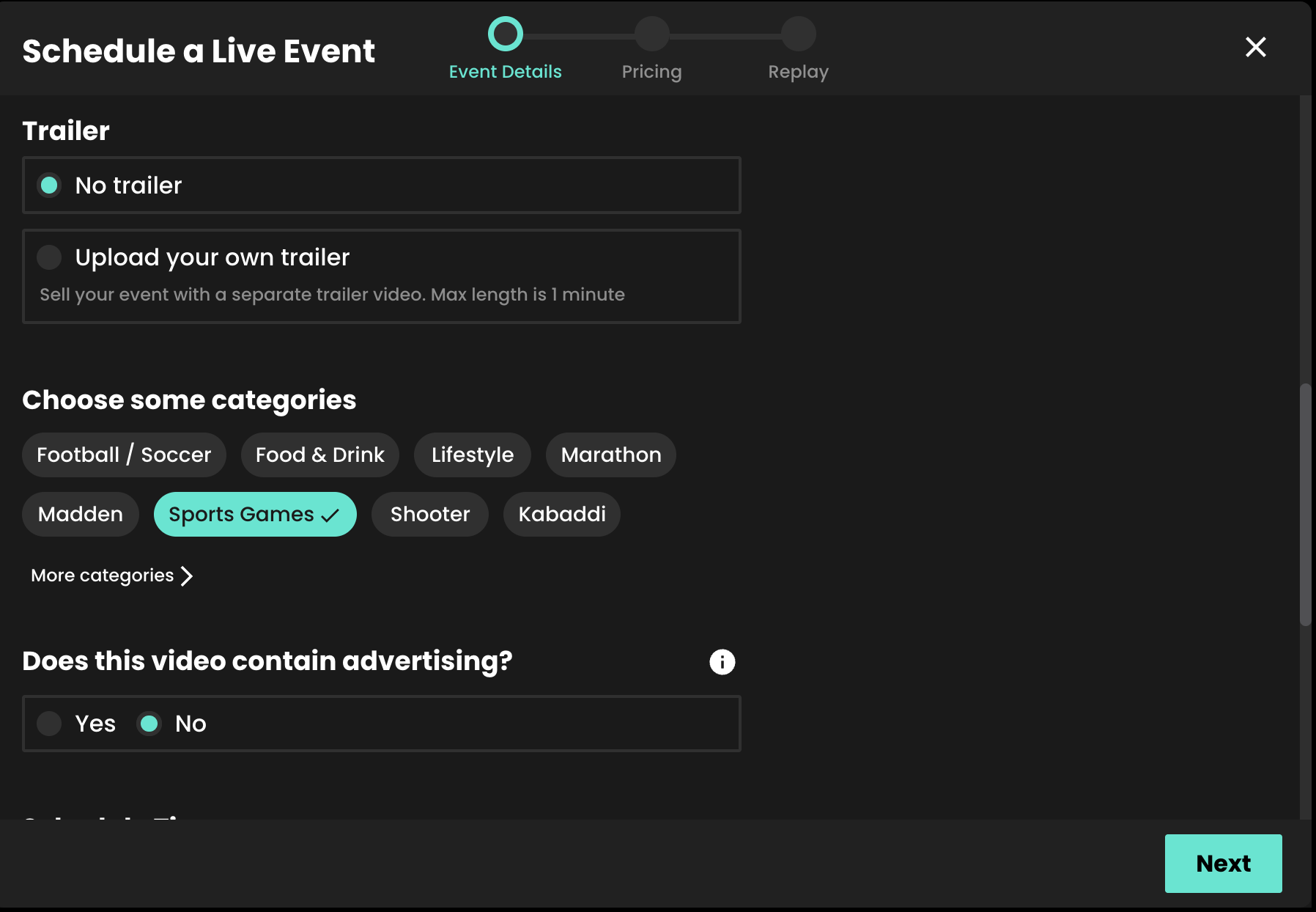
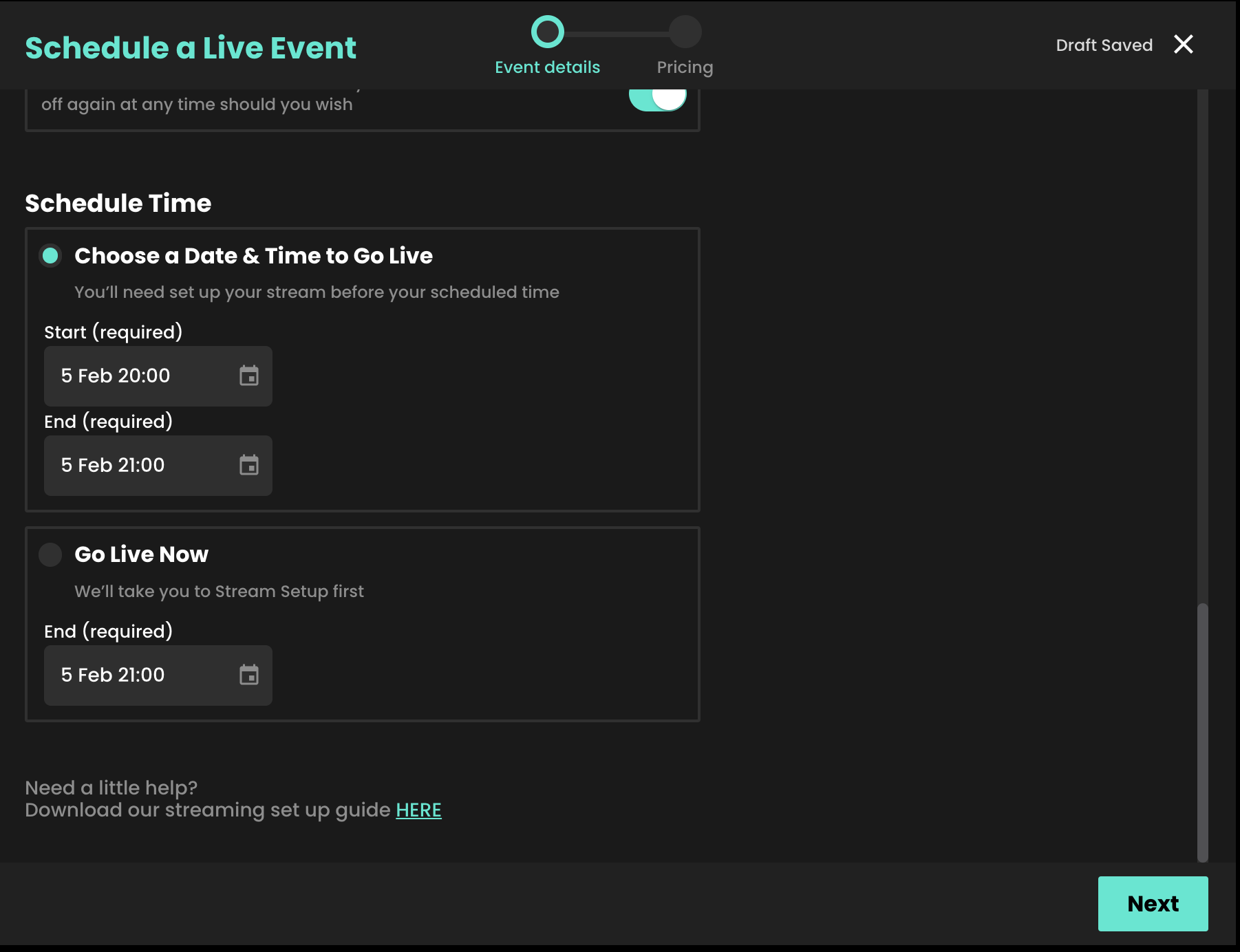
6. When setting up an event, you can either choose to go live immediately or schedule your event for a later date.
7. Select your price. Our recommended pricing guidance takes into consideration the length of your stream and what other Vendors would typically charge for a live event.
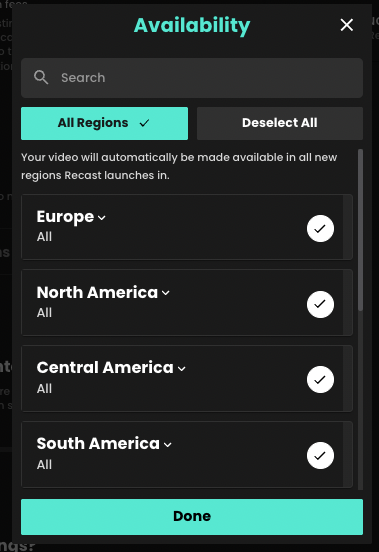
8. You can select which countries you want your content to be available in when scheduling an event. This can then be edited at any time, e.g. if you require temporary geo-blocking for broadcast deals already in place.

You can find an up-to-date list of the countries Recast is currently available here. You can also create a default list of countries you want your content to be available in, so you don’t have to select countries every time you set up an event.
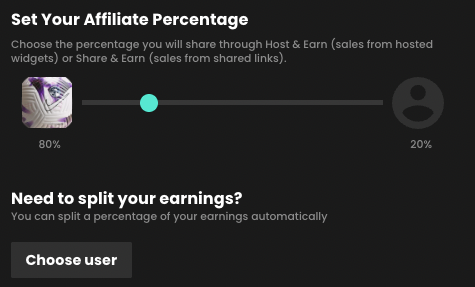
9. The share value is the amount any third party will earn when either Sharing your content using Share & Earn links, or hosting your content using Host & Earn Embed Widgets.

10. Adding DRM (Digital Rights Management) gives you additional protection on your content from being illegally downloaded and shared. To do so, click "Enable DRM:

11. Click Schedule Event to complete the set up of your live stream.
For more information on generating Replays, either manually or automatically, click here.
Influencers (ambassadors, personalities, celebrities, athletes etc.) can help you extend your reach by promoting your content using unique Share & Earn links.
This is ideal for people with large, engaged audiences but no website or publishing infrastructure.
With Recast, influencers can share their own unique link to your content and earn immediately from every purchase they generate.
Share & Earn links can help Content Owners:
Influencers can:
You set the commercial terms for approved Influencers.
You control:
When a fan purchases through an influencer’s Share & Earn link, revenue is attributed and split according to the content rules set by you.
.png)
Illustrative example:
When approaching influencers, focus on simplicity, audience relevance and the earning opportunity.
Strong influencer outreach should explain:
.png)
Once an influencer has agreed to promote your content, they need to create their trackable Share & Earn link.
The process is simple:
For tips and advice for Influencers on how to How to Maximise your revenue — As an Influencer, click here.
Influencers will perform better if they are given ready-to-use promotional assets and clear messaging.
Recommended assets for Influencers:
Watch [Event/Video Name] here - available in [Region X]. No subscription required. Watch through my link here: [insert Share & Earn link]
.png)
As an approved Publisher, you can host official content directly on your own website with a single line of code using a Recast embed widget.
This gives your audience access to premium live or on-demand content, while allowing you to earn revenue from every purchase you generate.
With Recast, you can embed either a full channel widget or a widget showing a specific number of individually selected events or videos.
Use a full channel widget when:
Use a selected-content widget when:
.png)
Placing content on your site can be done in less than 15 minutes, using a Recast widget. Simply:
For a full step-by-step guide on creating your widget, click here.
Your website/platform traffic is your primary audience - the easier you make it for audiences to find, understand and access the content, the more you’ll earn.
Add a clear “Watch” item to your main website navigation.
This should link directly to the page where your Recast widget is embedded. If your audience is coming to your site with intent to watch, the path to accessing the content should be immediate.
Suggested navigation labels:
Example:
.png)
Use your homepage to drive awareness before, during and after major content moments. Remember, you can create different widgets with different content, so you can create dedicated widgets/pages purely to promote individual content, replays, series etc.
Recommended placements include:
Example homepage banner copy:
Access [Event/Video Name] Now
Watch directly from [Your Site URL]. No subscriptions, just pay for what you watch.
CTA: Watch now
Do not rely on one standalone “watch” page alone. Link to your Recast widget page from any relevant content across your website.
Good linking opportunities include:
Example in-page copy:
Want to watch the action live?
[Event/Video Name] is available on PPV - no subscription needed. Watch directly from [Your site URL] CTA: Watch live
Some users may be new to RecastPay. A short explanation can reduce confusion and improve conversion. Plus, if you’re assisting in promoting the content to a specific region, a ‘How to Watch’ page will allow you to explain that the content is available exclusively on your site in this region.
Suggested copy:
You can watch [Event/Video Name] directly on [ your site] in [List Regions]
To access the content:
No subscription is required. You only pay for the content you want to watch.
Use simple, search-friendly language that reflects what your audience may be looking for.
Example page title:
Watch [Event/Video Name] Live & On Demand
Example page intro:
Watch [Event/Video Name] live and on demand directly from [your website URL].
No subscription is required. Simply create or sign in to your free RecastPay Wallet, purchase access using Recast Credits, and start watching.
Some users may be new to RecastPay. You may wish to link out to a short “how to watch” page from your widget page.
Suggested copy:
To watch [Event/Video Name]:
No subscription required.
For more user-facing wording, link to: Guide 6: Recast Explainer Messaging
Your homepage is your most important promotional channel. The easier it is for your audience to find the content, the more likely they are to watch.
Recommended placements include:
You can also link to your new widget page from:
Think about what your audience will search for when looking for content from this content owner. Use those terms in your page title, headings, body copy and metadata.
Include keywords such as:
Example page title:
Watch [Content Name] Now | [Brand Name]
Example meta description:
Watch [Content Name] here. Subscription-free pay-per-view access available directly from [Brand Name] on [Your website URL]
Example on-page heading:
Watch [Content Name] - No Subscriptions - simple PPV access
Once your widget page is live, promote it across your audience channels.
Recommended channels include:
Suggested social copy:
Watch [Event/Video Name] live and on demand directly from [website URL] via RecastPay.
No subscription required.
Watch here: [insert link]
Every promotional asset should link directly to your widget page.
Recommended CTAs:
Your audience may not be familiar with RecastPay, so it is important to explain the access flow clearly.
Key messages to include:
Download Recast's Explainer Assets, here.
For ready-to-use copy, click here: Recast Explainer Messaging
In Recast for Business, open Stream Inputs and choose + Stream Input. Pick RTMP or SRT — the choice is fixed once the input is created.
Recast then shows the values your encoder needs. Copy them from there rather than retyping them:
Note that an SRT input labels its credential STREAM ID, not Stream Key. It is the same value, under the name SRT uses for it.
Then confirm all three of these, or your stream will be refused:
A new stream input is switched off. Recast switches it on only when it is attached to a live, non-draft video.
Use no more than 50% of your measured upload bandwidth.
Streaming quality is set in Settings → Outputs / NDI → Streaming, then the cog beside your destination, under Quality.
Choose a preset that matches your tier, then check the custom settings behind it. vMix presets do not always use a 2-second keyframe interval, so set it explicitly:
Main2 seconds, or 60 frames at 30 fpsCBR12848000Which URL? Recast displays rtmp://global-live.mux.com:5222/app as your RTMP STREAM URL, and that works. This guide uses rtmps:// on port 443 instead: it is the same Mux ingest wrapped in TLS, so your stream key is not sent in clear text, and port 443 passes through restrictive venue networks that block port 5222. Use whichever your encoder supports.
This is the recommended path for vMix.
rtmps://global-live.mux.com:443/appEuropean users can use rtmps://eu-west.live.mux.com/app instead. If your vMix version will not accept an rtmps:// URL, use rtmp://global-live.mux.com:5222/app.
vMix uses separate fields rather than a single connection URL.
Callerglobal-live.mux.com600150016. vMix expresses key length as a number you multiply by 8 to get bits, so 16 is AES-128, which is what Recast requires. The default of 32 is 256-bit and will be refused at the handshake.Note that Type must be Caller. Mux listens for incoming connections; vMix places the call.
vMix can stream to several destinations at once. Useful, but each one consumes upload bandwidth and CPU. If you are also sending to a social platform, your 50% headroom rule applies to the total, not to the Recast stream alone.
Presets override your keyframe interval. Changing the quality preset can silently reset the GOP length. Set the keyframe interval last, and re-check it after any preset change.
Hardware encoding. vMix can use NVIDIA NVENC where available, which frees considerable CPU on a busy production. Confirm the profile is still Main and the keyframe interval is still 2 seconds after switching — hardware encoder defaults differ.
Do not chase low latency. Recast streams run at standard latency (20–30 seconds) by design. Shortening the keyframe interval will not change what viewers see and will make the stream more fragile.
One protocol per stream input. A Recast stream input is created as either RTMP or SRT and cannot be switched afterwards.
Check the stream input is attached to a video and that the video is not a draft. vMix will show a healthy stream while Recast rejects it.
Then wait a full 30 seconds before concluding anything.
rtmps:// unsupported by your vMix version — try rtmp:// on port 5222Usually bandwidth, especially if vMix is sending to more than one destination. Disable the other destinations and see whether Recast stabilises.
Then: use a cable rather than wifi, and check that recording to disk is not saturating the same drive vMix is streaming from.
You have 30 minutes to reconnect before Recast treats the stream as ended.
Check the dropped-frame count on the streaming indicator. If it is climbing, reduce the bitrate or drop a tier.
If it is not, look at vMix's Performance meters. A render load near 100% means the production itself is the bottleneck — reduce the number of active inputs, or lower the vMix master resolution.
Confirm the stream audio is AAC at 48 kHz stereo in the streaming quality settings. 44.1 kHz is a common default and produces silence rather than an error.
For drift, check that your audio source and video source are not on separate clocks. vMix offers a per-input audio delay under the input's settings if you need to correct a fixed offset.
Include your vMix version and edition, the protocol, the bitrate and resolution, your measured upload speed, and how many destinations you are streaming to simultaneously.
More detail: Recast live ingest reference
Access Passes are an alternative way for your users to enjoy your content. Passes give fans access to all your content for a specific time period (currently you can activate a 1 day, 3 day, 7 day 14 day and 28 day pass for your widget) and you set the price.
You can activate up to 4 different durations at a time, they will be available for fans to purchase when you make them available.
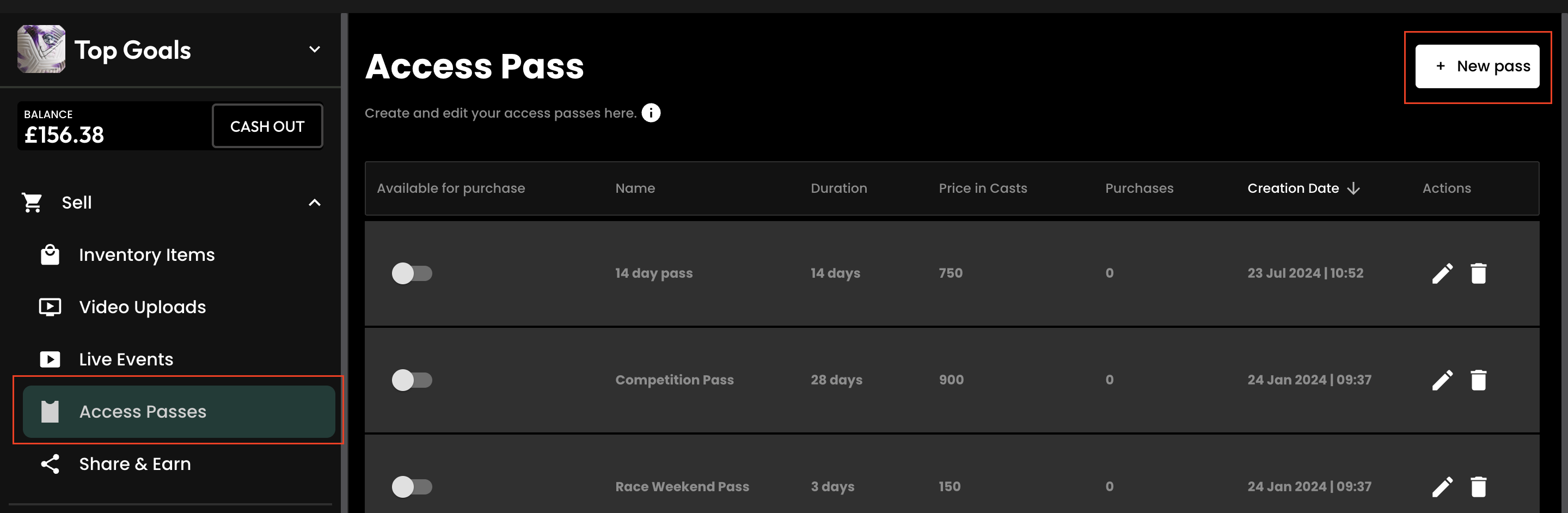
You can create, view and edit your Access Passes by selecting ‘Access Pass’ under "Sell' on the left-hand menu of your Recast for Business account.
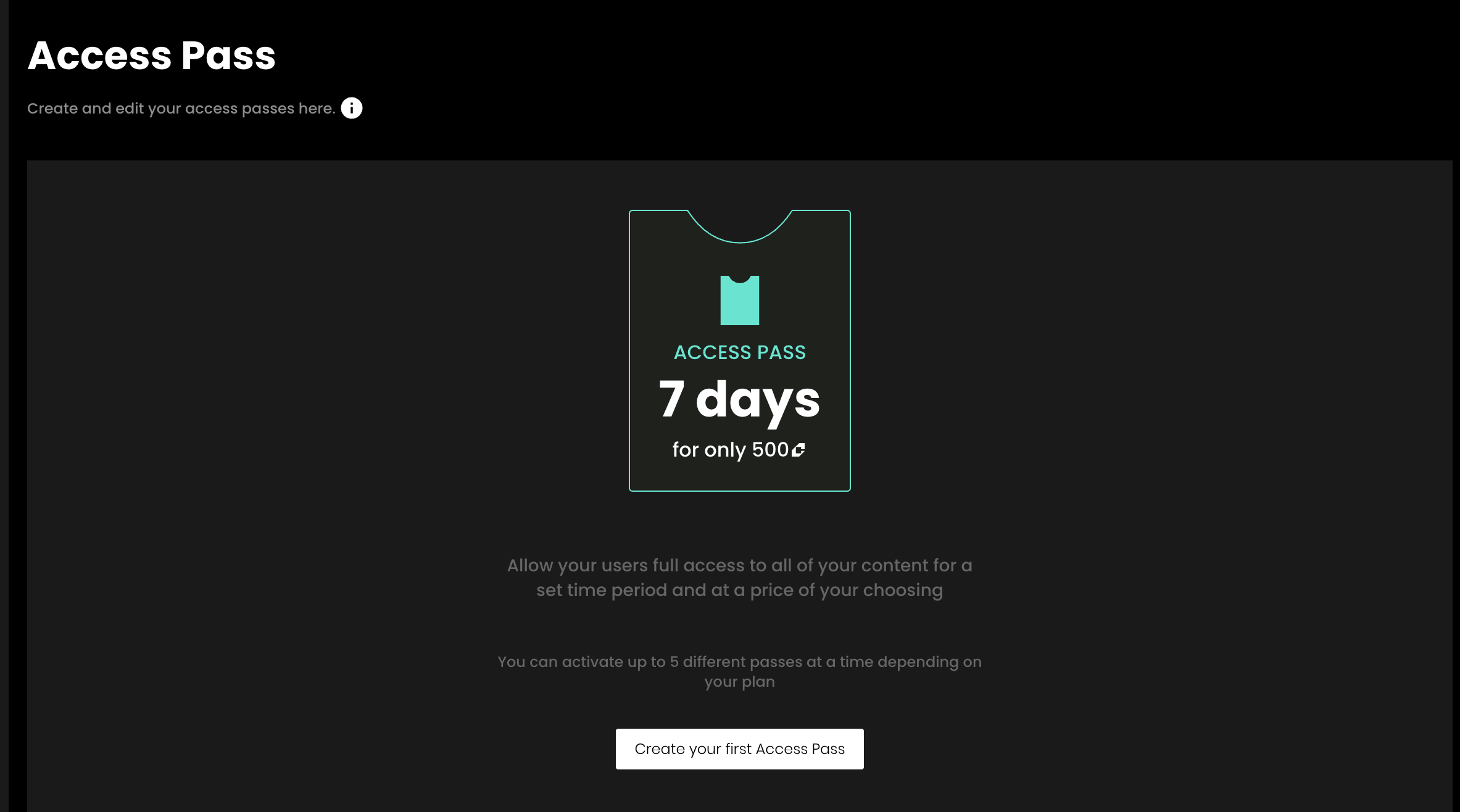
When you first land on the Access Pass section you will see our initial screen with a button which allows you to ‘Create your first Access Pass’. Simply tap this button to get started.
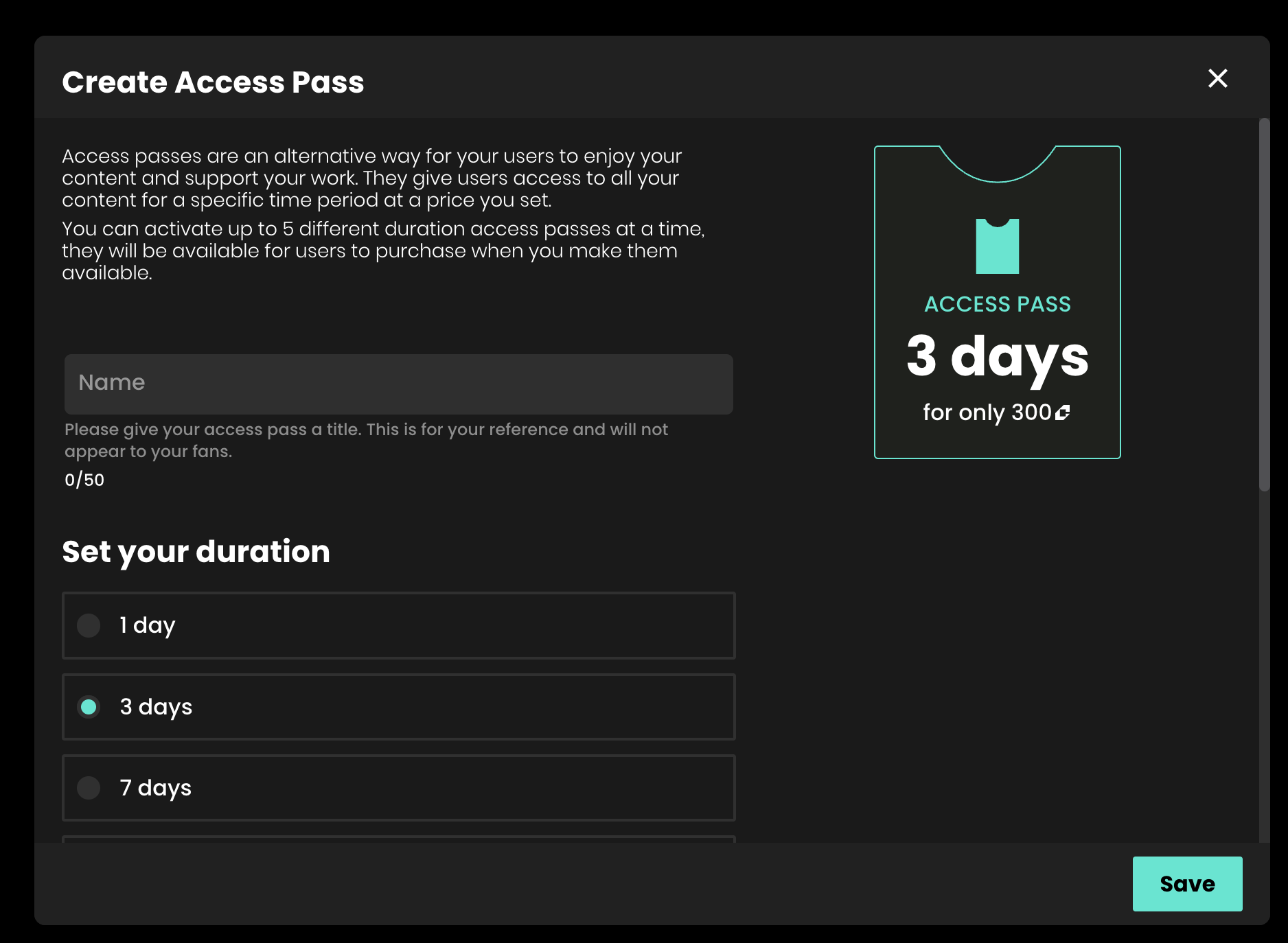
You will now see the ‘Create Access Pass’ screen.
Firstly from here, give your Access Pass a name. This will not be visible to any of your fans, but acts as an internal reference for you to track the success of different channel passes you may have active at certain times.
Secondly, set the duration for your Access Pass. This can be either 1 day, 3 days, 7 days or 28 days. nb. you can only have a maximum of 1 pass of each type (1, 3, 7, 14 or 28 days) available for purchase on your widget at any time.
Finally choose a price for your Access Pass. Remember for this price, users can access all of your videos and live events whilst the pass is active so make sure your pass reflects the value of this access.
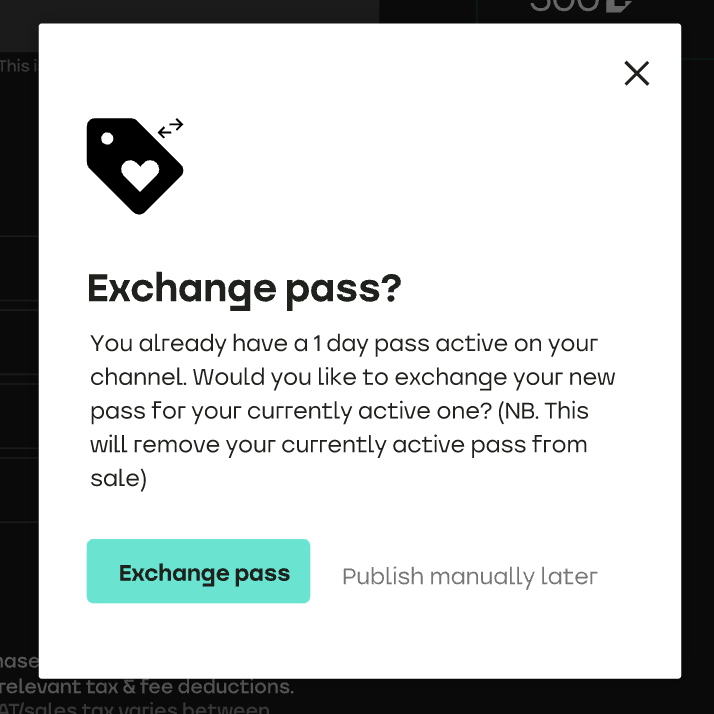
You can then choose to save and publish the pass immediately (which will enable the pass for sale straight away) or choose to ‘Publish manually later’.
Then when you are happy with your selection, simply tap the ‘Save’ button in the bottom right corner.
Once you have created your first pass, you will then be able to see any passes you have created under the Access Passes section.
You can see:
From this section you can also edit or delete your passes using the edit and delete icons respectively.
You can easily make your passes available or unavailable for sale from this toggling ‘Available for purchase’ on / off.
Please note that setting a pass to unavailable stops it from being available for sale, but will not invalid any active passes your fans may have previously purchased. This will remain active until their expiry date (1, 3, 7 or 28 days from the purchase date as relevant).
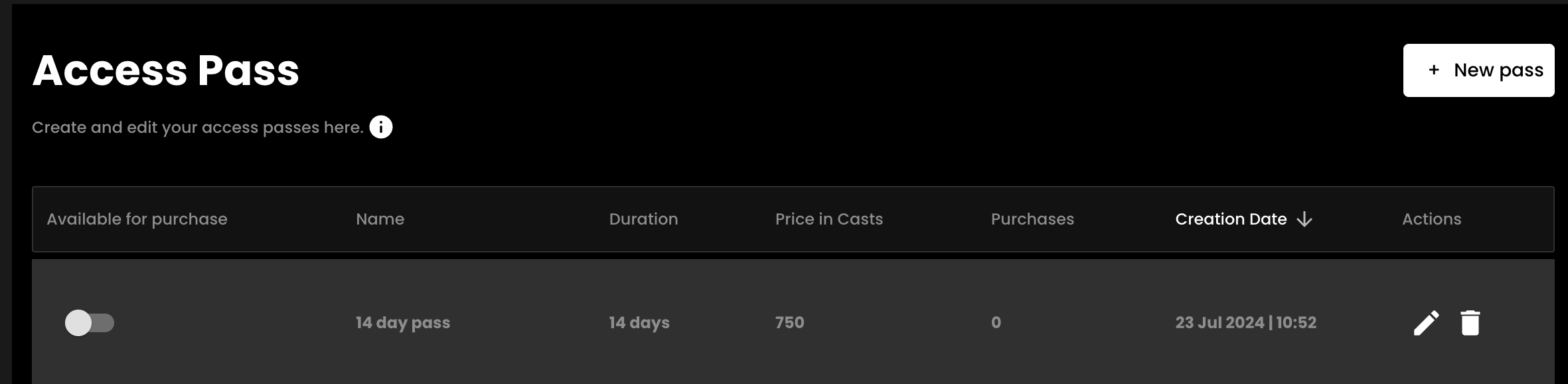
You can edit your pass by tapping the pencil icon. You can currently only edit the title of your pass, or change whether the pass is published (available for sale) from the edit screen.
You cannot change the price or duration of the pass. This is so that you can keep track of passes of different lengths and price points easily.
If you would like to change the price of a certain pass, simply create a new pass of the same length and set it to the new price. You will receive a warning when doing this that the currently active pass of the same length will be disabled.
If you have a pass that has yet to have any purchases, your can delete this from your list by tapping the delete icon on the Access Pass list view.
It's important that you run a test stream ahead of your first live stream, or any subsequent steams in different venues or using different equipment, to ensure that your streaming set up has no issues when connecting to Recast. It's easy to run a test stream, in such a way that it does not show to the public. Here's how:
Firstly, please let us know when you are planning on running your test stream so we can arrange to be on hand to support. Email us at partnersupport@recast.tv to agree a time.
1. Log in to Recast for Business
2. Go to Sell > Live Events and click on the ‘+ Live Event’ Button
3. Add a title and description. IMPORTANT - To get this to work in such a way that the public will not see this on your widget(s), you need to make sure the Title starts with ‘recastTest’ (minus the quotes) exactly as typed here. (The capital T is important!). You can add a space at the end and add some more text if you wish.
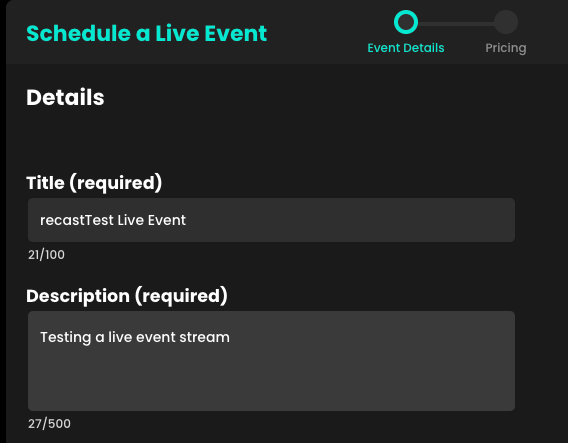
4. Just fill in the rest of the details and your test event is all set up.
5. You should “un-publish” the event as soon as you’ve created it. It’ll still be visible to allow you to continue your later on.
Streaming with Recast requires you to connect your broadcasting equipment to Recast, using a stream input method. Recast supports live streaming using two different streaming protocols: RTMP or SRT. Those managing the stream will have a preference.
One you've determined which streaming protocol you'd like to use, you need to set up the stream input:
RTMP Example
Firstly, make sure your streaming equipment is on, and that it's sending a signal to Recast via the stream input method you selected. You do this by inputing the information you copied in the step above into the relevant fields in your streaming solution.
For SRT this is typically the Endpoint, Stream ID and Passphrase.
For RTMP this either the Endpoint, the Stream Key, or a combination of both which makes up the Stream URL.
RecastPay gives you flexible, subscription-free access to premium content. Create a free wallet, buy credits and use them to unlock the content you want to watch.
RecastPay is a digital wallet that gives you flexible, subscription-free access to premium content. Create a free wallet, buy credits and use them to unlock the content you want, when you want it. Access to content can also be unlocked by engaging, shopping, redeeming loyalty or sharing data.
RecastPay is a digital wallet that gives you a flexible way to access premium content without needing a subscription.
Create a free wallet, purchase credits and use them to unlock the content you want to watch. Depending on the content, you may also be able to access it through a value exchange: engage, shop, redeem loyalty or share data.
However you unlock access, RecastPay makes it simple to watch premium content wherever it's discovered.
We’re making [Event/Video Name] available on a subscription-free basis, giving fans a simple access, directly from [Brand Name Site URL].
You can watch [content name] using RecastPay - a free, universal wallet for content.
Watch live and on demand here: [insert link]
Watching via RecastPay is simple:
01. Go to [widget page URL]
02. Select the content you want and sign in to RecastPay
Click to purchase the stream, video, pass or bundle you want and then create/log in to your free RecastPay wallet.
03. Top up your credits
Content is priced in Recast Credits. Add credits to your wallet by card, Apple Pay or Google Pay.
04.Unlock and Watch
Spend credits to unlock the stream, then watch it right here in the player. No app to install.
Get more access with a [X-Day / Event / Season] Pass.
The [Access Pass Name] gives you access to [insert included content] via RecastPay, with no subscription required.
Buy your pass here: [insert link]
Bundles give you access to a specific list of your content, curated by us.
The [Bundle Name] gives you access to [insert included content] via RecastPay, with no subscription required.
Buy your bundle here: [insert link]
Elemental Link cannot send to Recast directly. It is a contribution encoder that feeds MediaLive, so configure the MediaLive channel it feeds.
In Recast for Business, open Stream Inputs and choose + Stream Input. Pick RTMP or SRT — the choice is fixed once the input is created.
Recast then shows the values your encoder needs. Copy them from there rather than retyping them:
Note that an SRT input labels its credential STREAM ID, not Stream Key. It is the same value, under the name SRT uses for it.
Then confirm all three of these, or your stream will be refused:
A new stream input is switched off. Recast switches it on only when it is attached to a live, non-draft video.
This matters more here than with any other encoder.
Mux identifies your stream by the SRT Stream ID. Without that field there is no way to tell Mux which stream you are, so Elemental Live below 2.25 physically cannot deliver SRT to Recast — the connection will be refused every time regardless of your settings.
Do not use 2.25 through 2.26.2 for SRT. AWS fixed a defect in 2.26.3 where the web interface could double-enter the Reliable TS Stream ID field (GLV-3713). A doubled Stream ID sends Mux a doubled stream key, and the handshake fails with an error that points nowhere near the real cause. If you are on 2.25–2.26.2 and cannot upgrade, use RTMP.
Version is shown in the Elemental Live web interface under the support or about screen. If you are not sure, ask whoever maintains the appliance — do not guess, because the failure mode is silent and misleading.
Use no more than 50% of your measured upload bandwidth. On an appliance in a facility this is rarely the constraint, but on a remote site it usually is.
In Elemental Live, the keyframe interval is set as GOP Size in the video stream settings. With GOP Size Units set to seconds, enter 2. If your workflow uses frames, enter 60 for 30 fps or 50 for 25 fps.
Which URL? Recast displays rtmp://global-live.mux.com:5222/app as your RTMP STREAM URL, and that works. This guide uses rtmps:// on port 443 instead: it is the same Mux ingest wrapped in TLS, so your stream key is not sent in clear text, and port 443 passes through restrictive venue networks that block port 5222. Use whichever your encoder supports.
rtmp://global-live.mux.com:5222/app - European facilities can use rtmp://eu-west.live.mux.com/app instead.Elemental Live supports both RTMP and RTMPS output. Use RTMPS if you want the contribution feed encrypted in transit — the settings are otherwise identical, and the only change is the scheme and port in the URL we give you. If your Elemental Live system is on an older software version and RTMPS is not available in the output group, plain RTMP is fully supported and nothing else in this guide changes.
MediaLive reaches Recast through an RTMP output group.
rtmps://global-live.mux.com:443/apprtmps:// here.MediaLive channels normally have two pipelines for redundancy. Recast accepts one stream per stream input, so either configure a single-pipeline channel, or point only one pipeline at Recast.
Requires version 2.26.3 or later. See the version table above.
SRT output lives in the Reliable TS output group, not the RTMP one.
srt://global-live.mux.com:6001500Do not put the stream key in the destination URL as a query parameter. Elemental Live does not parse query parameters out of that field — it needs the dedicated Stream ID field, which is exactly why the version matters.
Encryption must be AES-128. Mux requires a 128-bit key. Elemental's Encryption field offers several key lengths and 256-bit is a tempting default, but it will fail the handshake with an unhelpful error.
Passphrase length is capped at 72 characters. Elemental Live accepts passphrases between 10 and 72 characters. Recast's SRT passphrases fall inside this range, but if you ever see the field reject a pasted value, check for trailing whitespace before assuming the passphrase is wrong.
MediaLive can send SRT directly to Recast. You do not need MediaConnect in front of it. Create an SRT caller output group and point it at the endpoint on your Recast stream input.
Fill in the destination as follows:
Filler NAL units and CBR. Before Elemental Live 2.25.2, an RTMP output group stripped filler NAL units from CBR video, which can make a stream that is nominally constant bitrate behave as variable downstream. From 2.25.2 the RTMP output group has an Include Filler NAL Units field. If you are on 2.25.2 or later and want genuine CBR into Recast, enable it.
Reliable TS is MPEG-TS. The SRT path wraps your output in an MPEG transport stream. That is what Mux expects, so no action is needed — but it is why the setting lives under Reliable TS rather than with the RTMP outputs.
The SRT option is not for MediaConnect. AWS notes that the SRT delivery option is intended for downstream systems other than MediaConnect. Recast is such a system, so this is the correct choice.
One protocol per stream input. A Recast stream input is created as either RTMP or SRT and cannot be switched. If you want to move Elemental Live from RTMP to SRT, create a new stream input of the right type.
A standard channel needs two destinations. MediaLive requires one destination for a single-pipeline channel and two for a standard channel. Recast issues one SRT endpoint per stream input, so a single-pipeline channel is the straightforward setup. If you need to run a standard channel, contact us before your event and we will issue a second stream input, or use RTMP instead.
The passphrase has to be 10–79 characters. MediaLive enforces this. Recast passphrases sit inside that range, but if you regenerate one and it falls outside, regenerate again rather than trimming it.
Check the stream input is attached to a video and that the video is not a draft. This is the most common cause and it is invisible from the AWS side — Elemental will happily report a healthy output.
Likely cause: Encryption set to AES 192 or 256
What to do: Change the output group to AES 128 and restart the channel
On an appliance this is usually the network path rather than bandwidth. Check whether UDP 6001 outbound is permitted if you are using SRT; many facility firewalls allow TCP freely and restrict UDP. Switching to RTMP over TCP is a fast way to test that theory.
You have 30 minutes to reconnect before the stream is treated as ended.
Check the event's dropped-frame and output-buffer statistics in the Elemental Live interface, or the MediaLive OutputDroppedFrames metric in CloudWatch. If frames are being dropped, reduce bitrate or resolution. If they are not, look at the source — a 25 fps source into a 30 fps encode causes visible judder.
Confirm the audio encode is AAC-LC at 48 kHz stereo. Elemental Live will happily encode formats Mux does not accept, and the symptom is silence rather than an error.
For drift, prefer audio embedded in the SDI signal over a separate analogue or AES input, so audio and video share a clock.
Include your exact Elemental Live or MediaLive version, the output group type, the protocol, and the verbatim error. For SRT problems the version is the first thing Recast support will ask for.
More detail: Recast live ingest reference
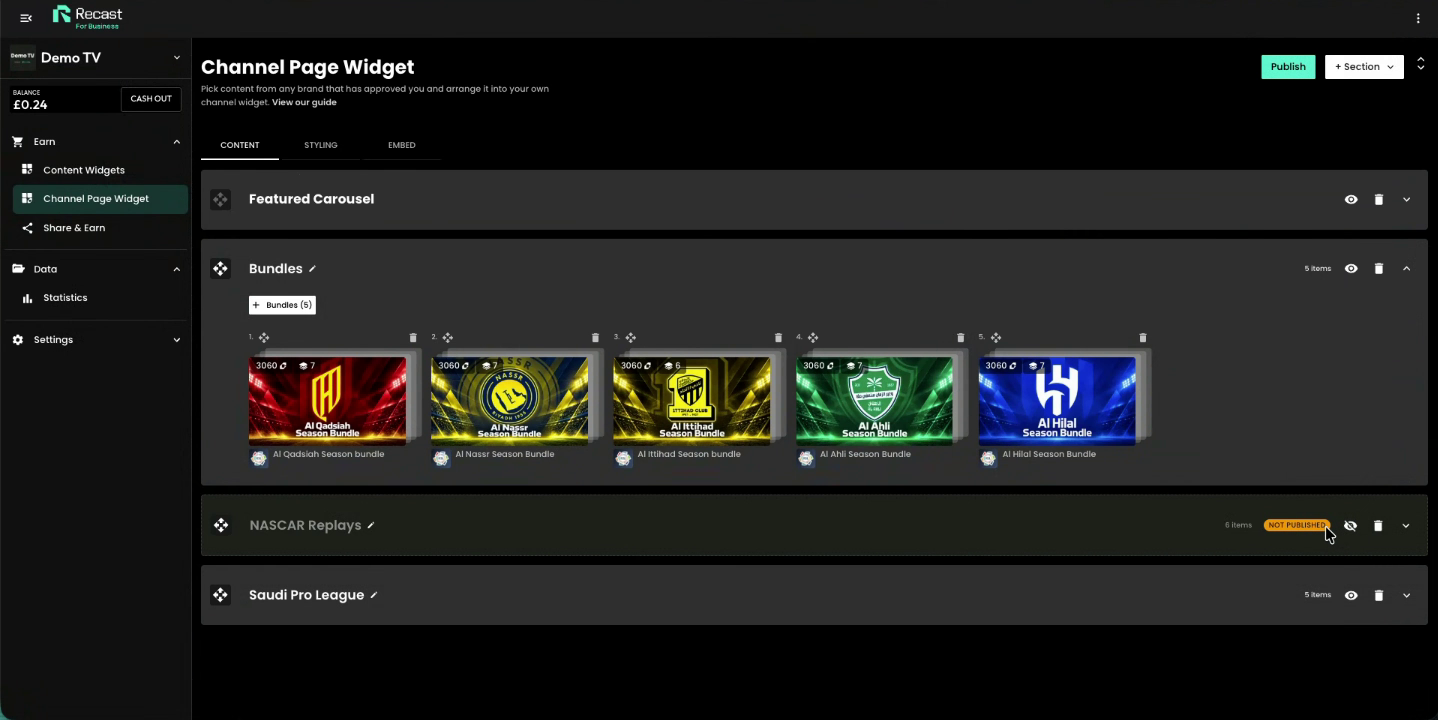
A Channel Page Widget lets publishers choose selected content and bundles from multiple approved brands. Arrange them in your Channel Page Widget, plus create your own Featured Content Carousel.
A Channel Page Widget builds on a Content Widget. Instead of embedding one brand's full catalogue of content, or a simple widget with only videos and events from brands, you can build a full channel page on your own site, made up of:
You then style the page to match your site and embed it with a single line of code.
To open the builder, go to Earn > Channel Page Widget in the left-hand menu. A new channel page starts empty.
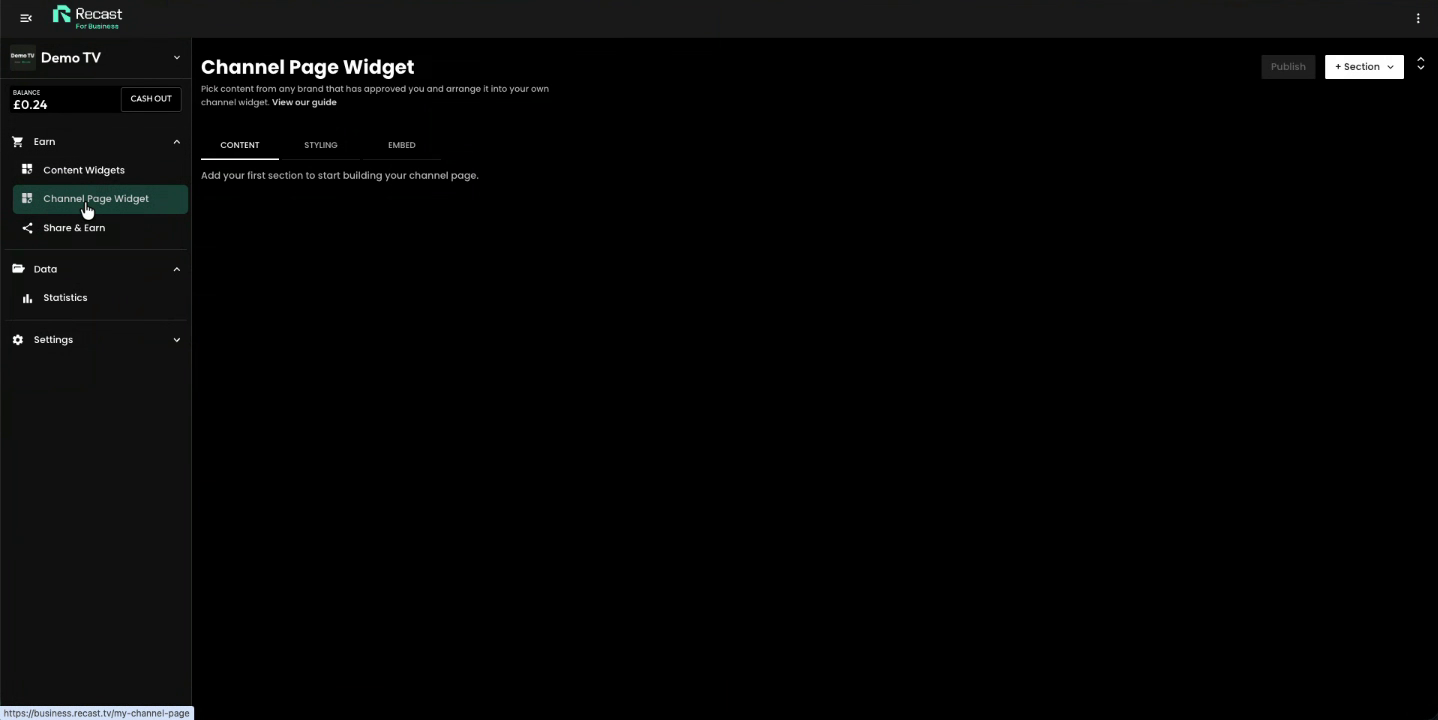
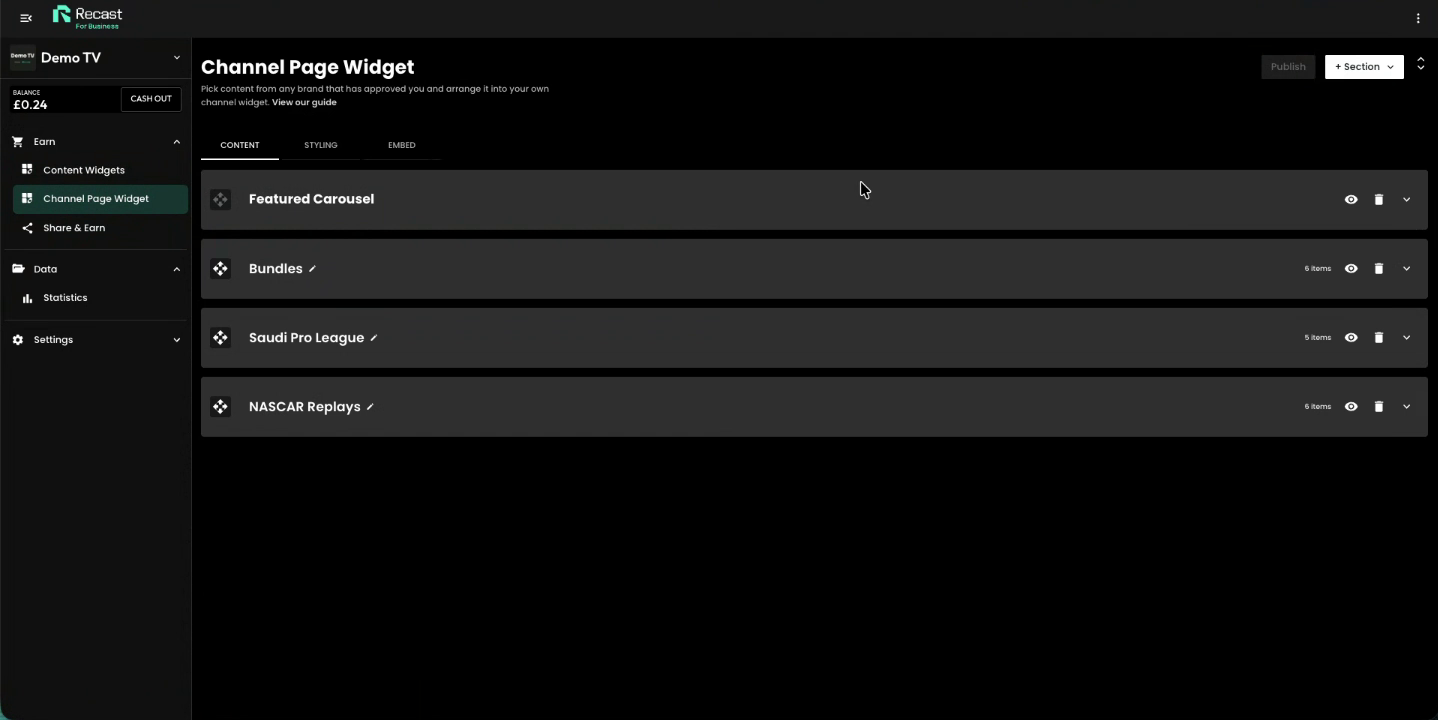
Sections are the rows of content on your channel page. You can add as many as you like and mix content from different brands.
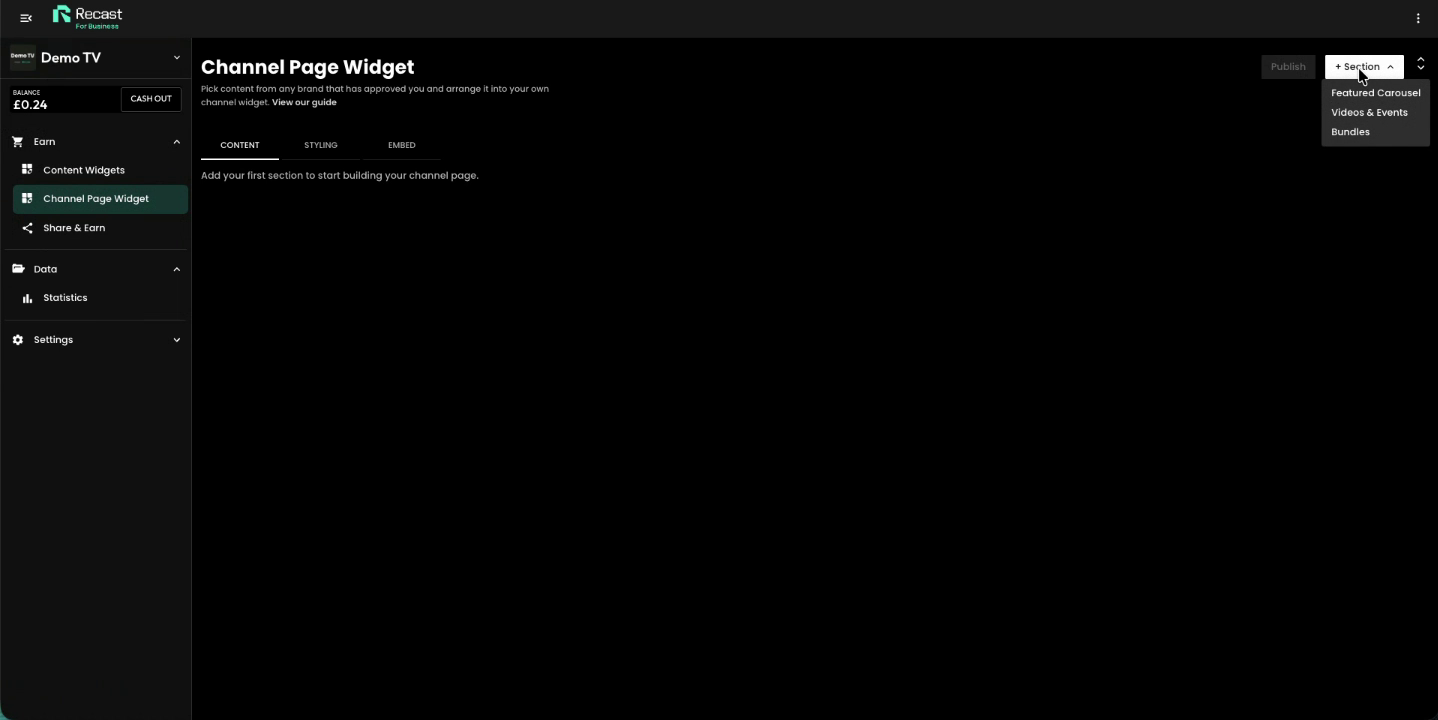
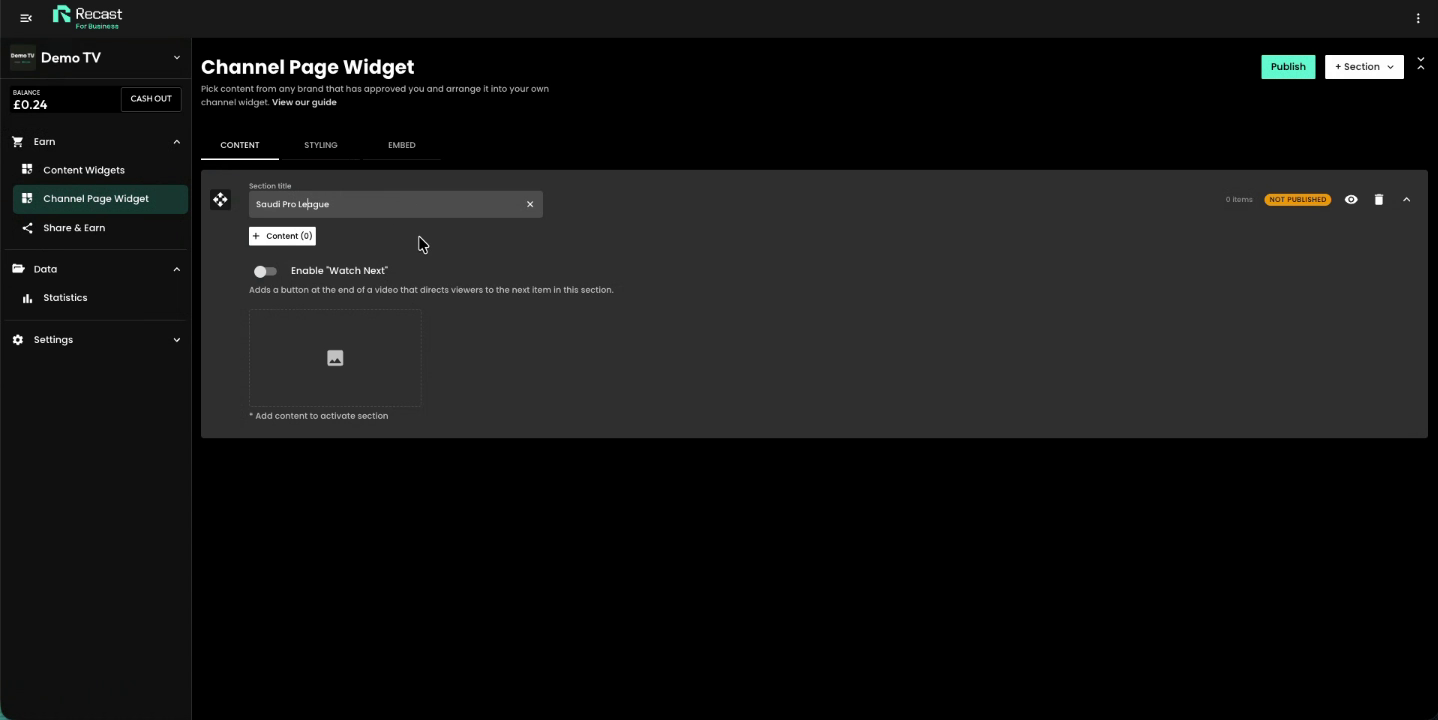
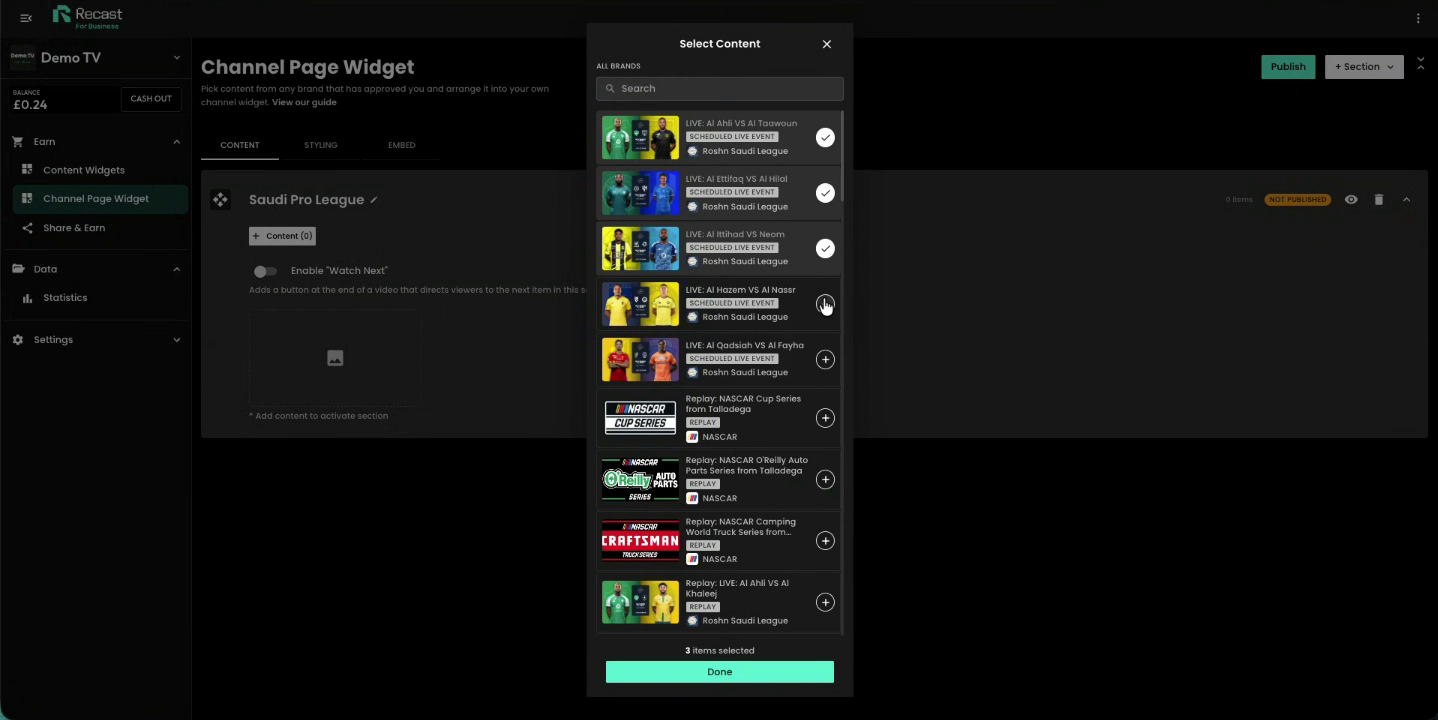
Your items now appear in the section in order. The number on each item is its price in Recast Credits. From here you can:
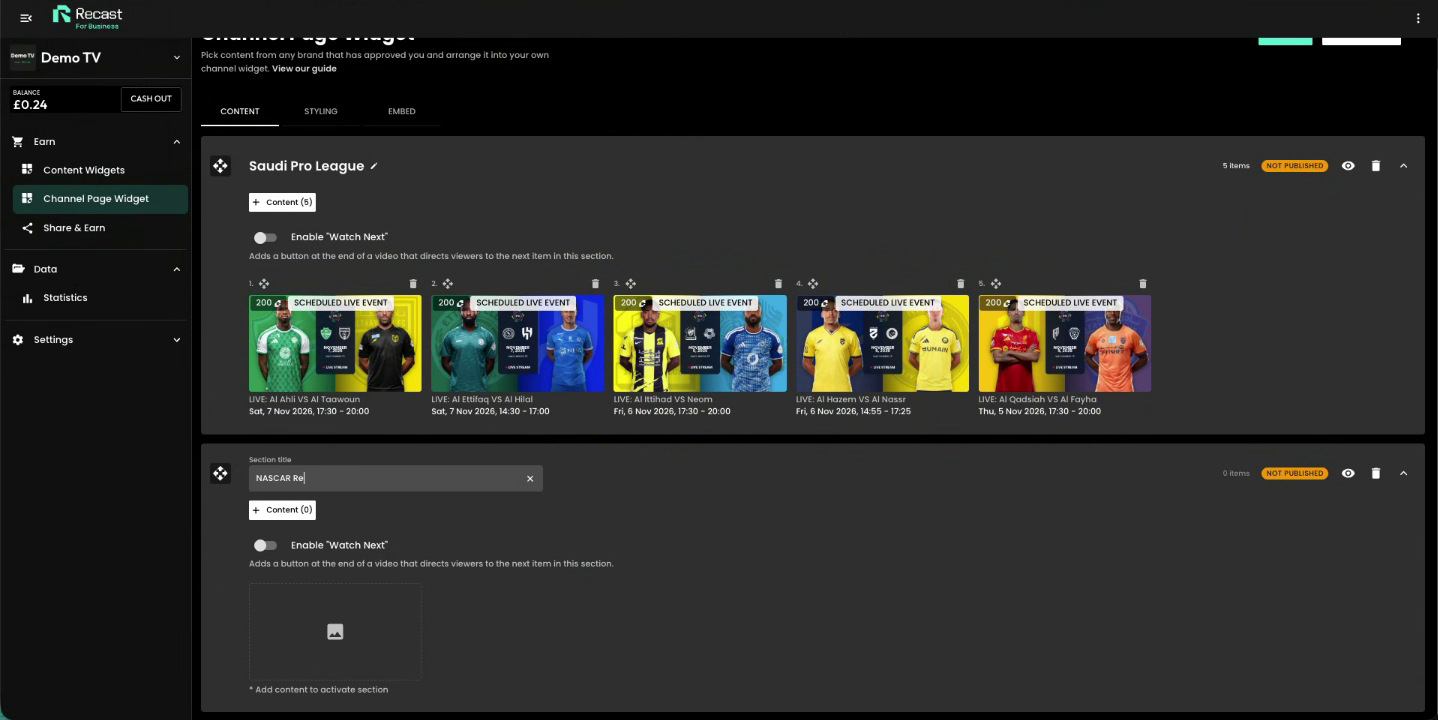
Repeat for each section you want, for example a second section of NASCAR replays.
Note: A section stays inactive until it has at least one item. You'll see Add content to activate section until you add some.
Bundles sections promote the bundles a content owner sells, such as season passes, alongside your individual events.
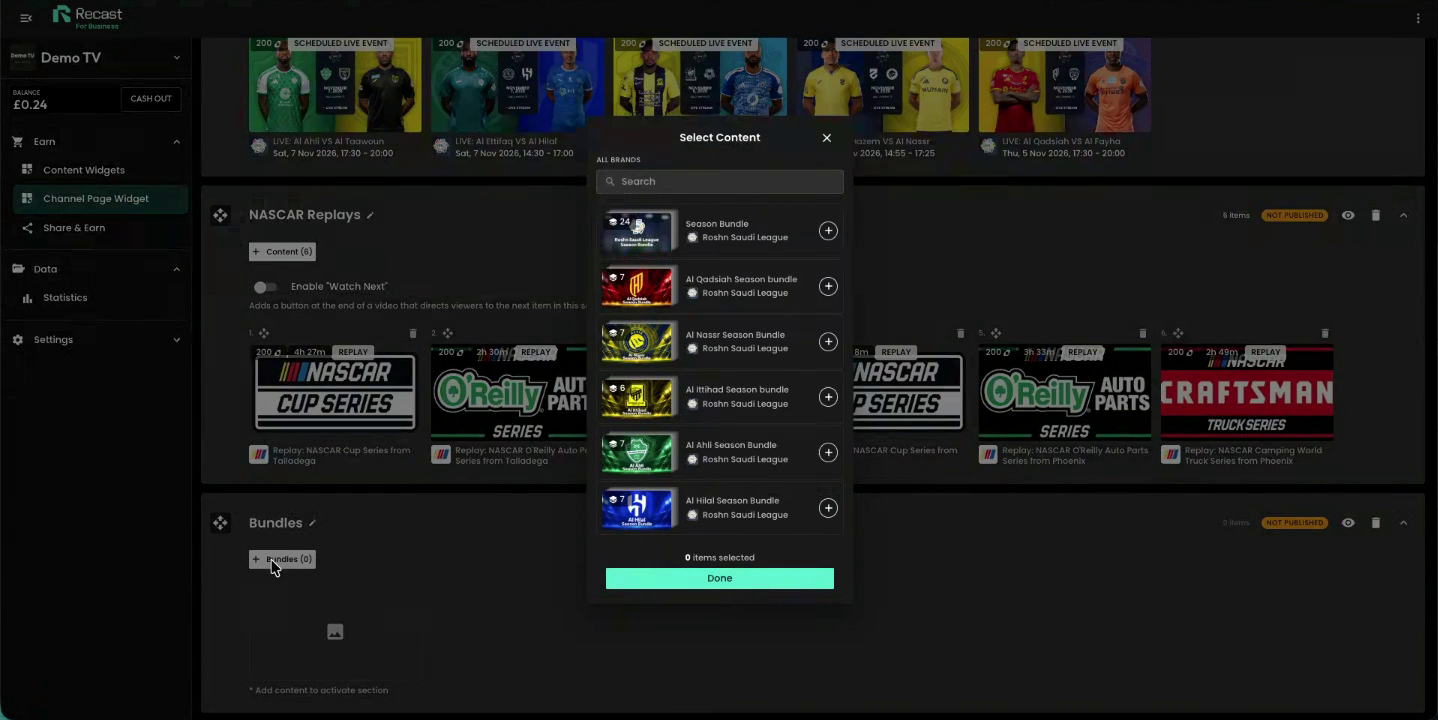
Sections appear on your page in the order shown in the builder. The Featured Carousel is the exception: it's locked to the top. To move a section, drag it by the move handle to the left of its title. In the example below, the Bundles section has been dragged to the top.
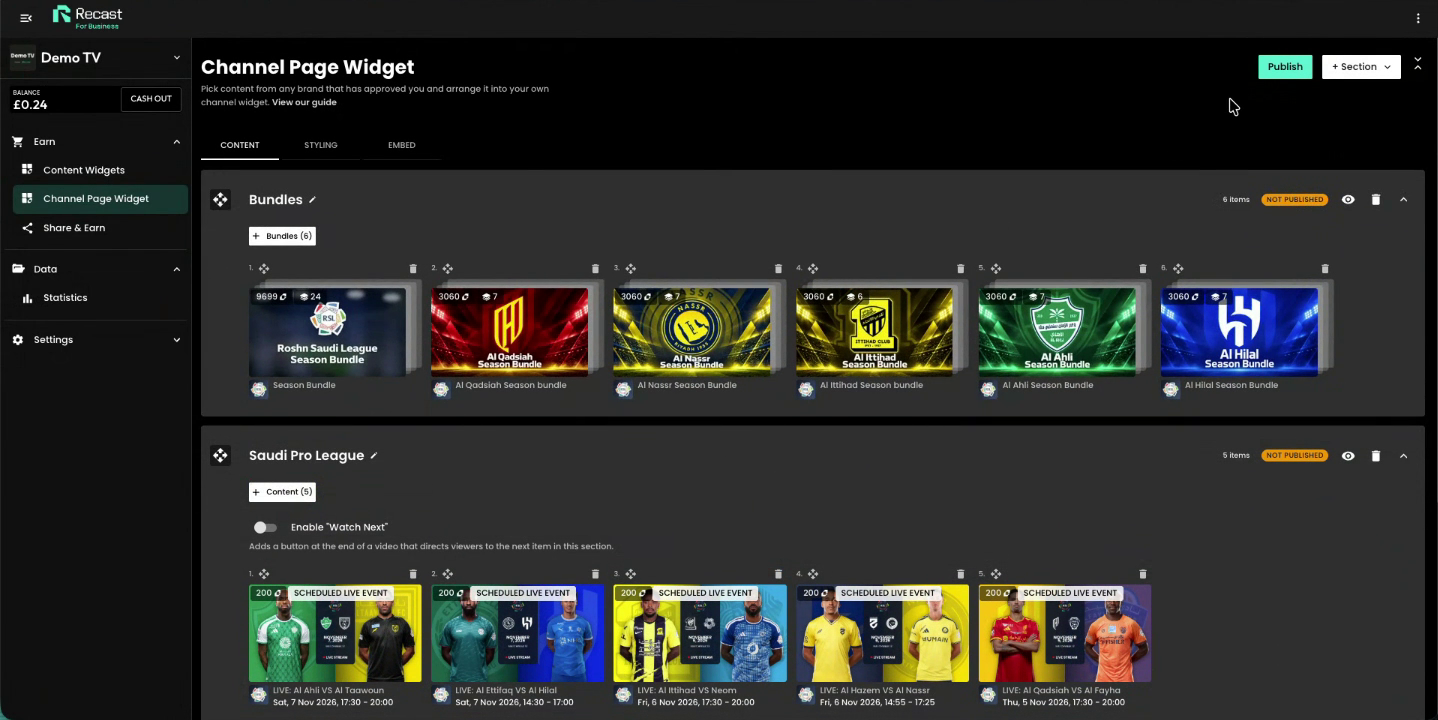
Each section header also has these controls:
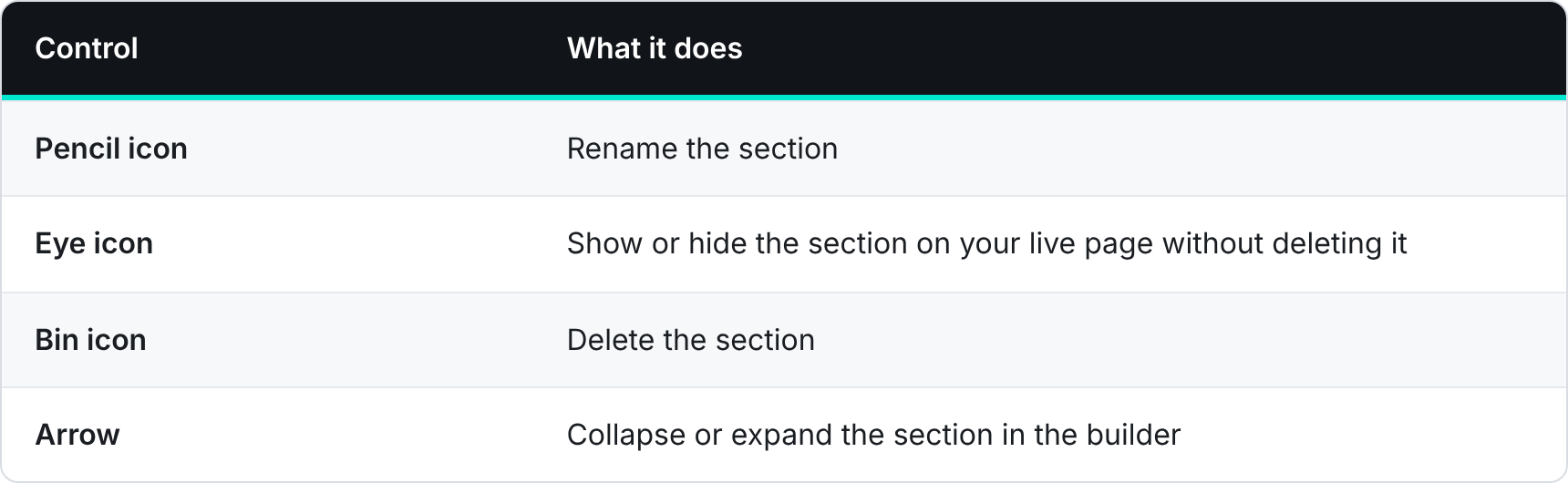
The double-arrow icon next to + Section collapses or expands every section at once, which makes reordering easier on a long page.
The Featured Carousel is the large banner at the top of your channel page. Use it for the events you most want viewers to see, from any of your approved brands.
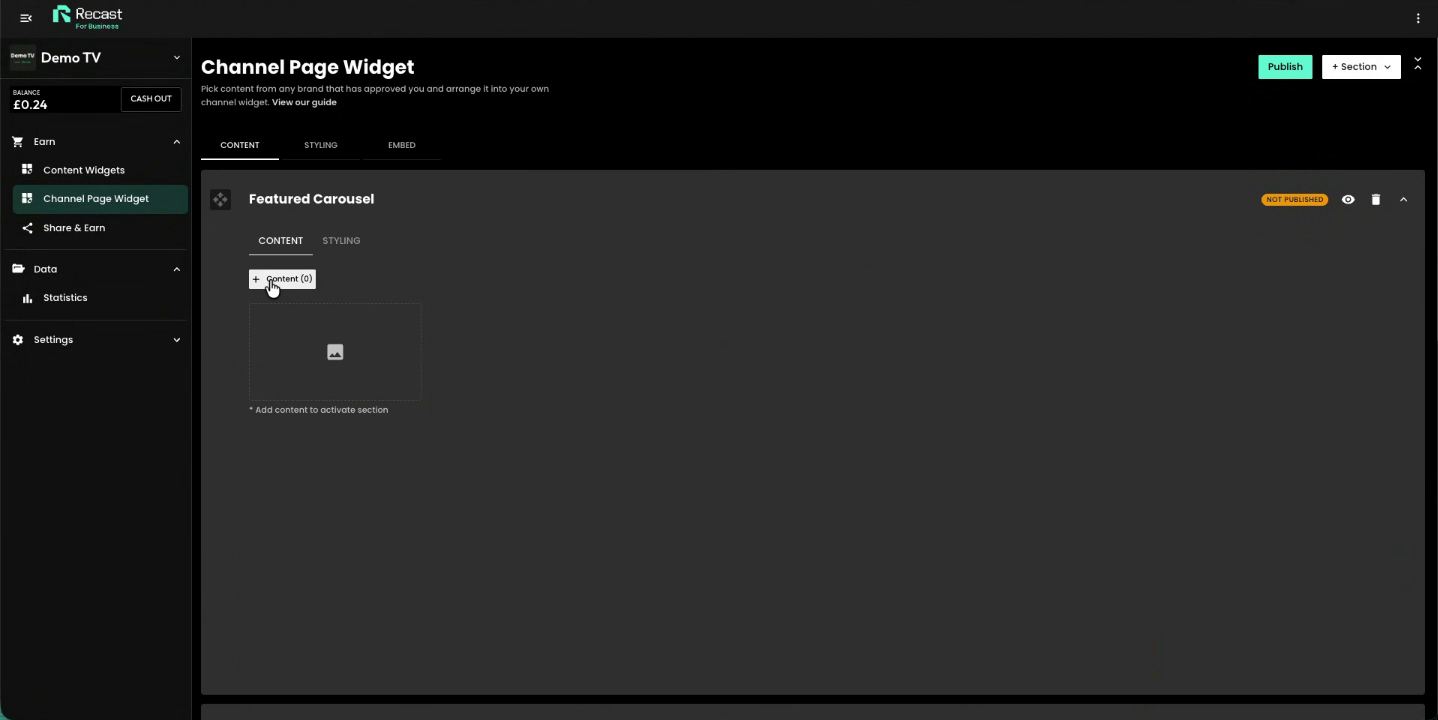
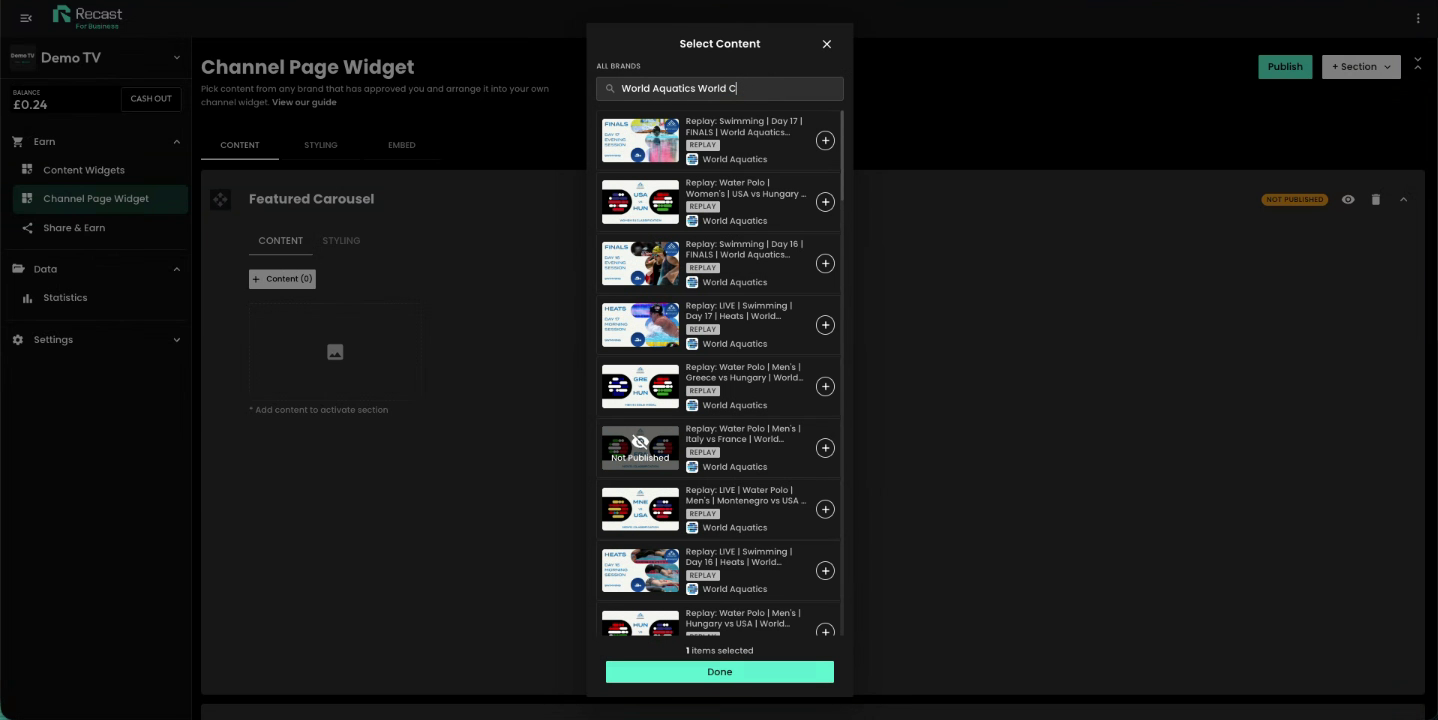
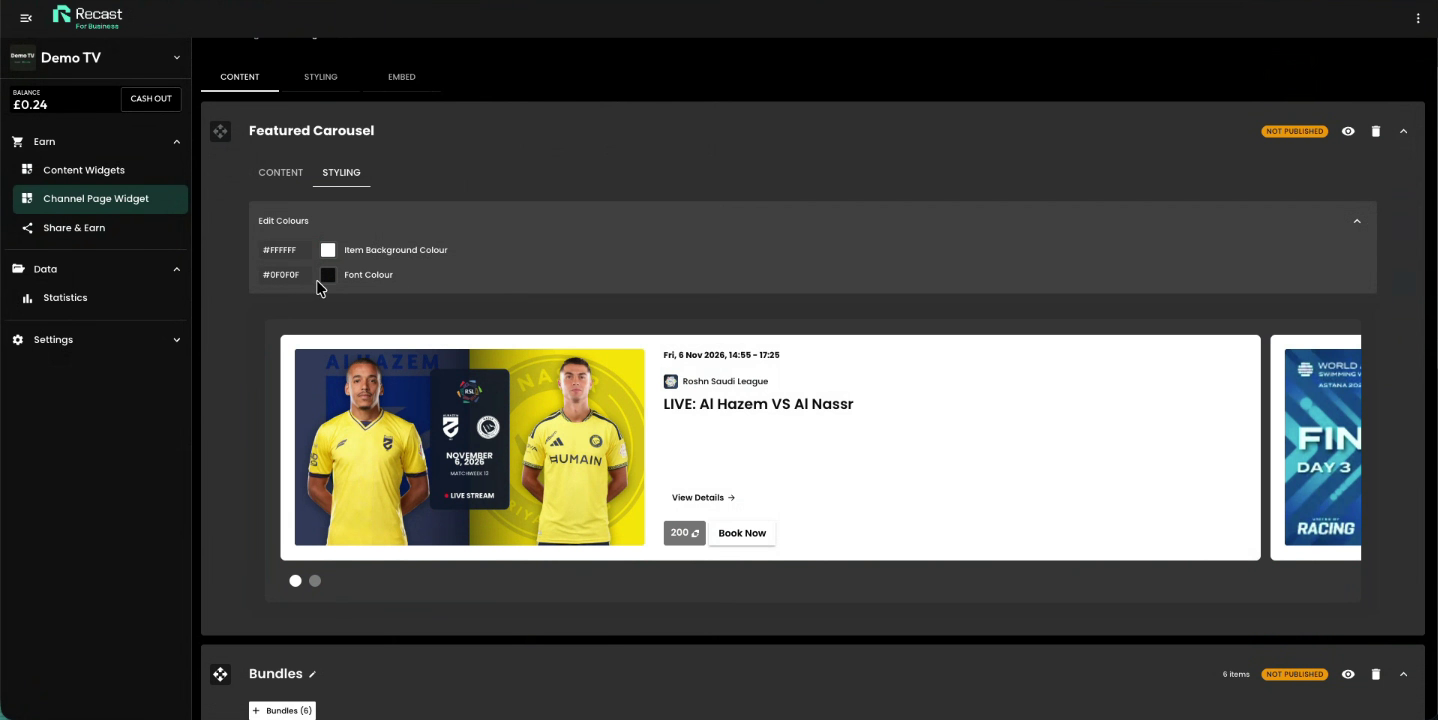
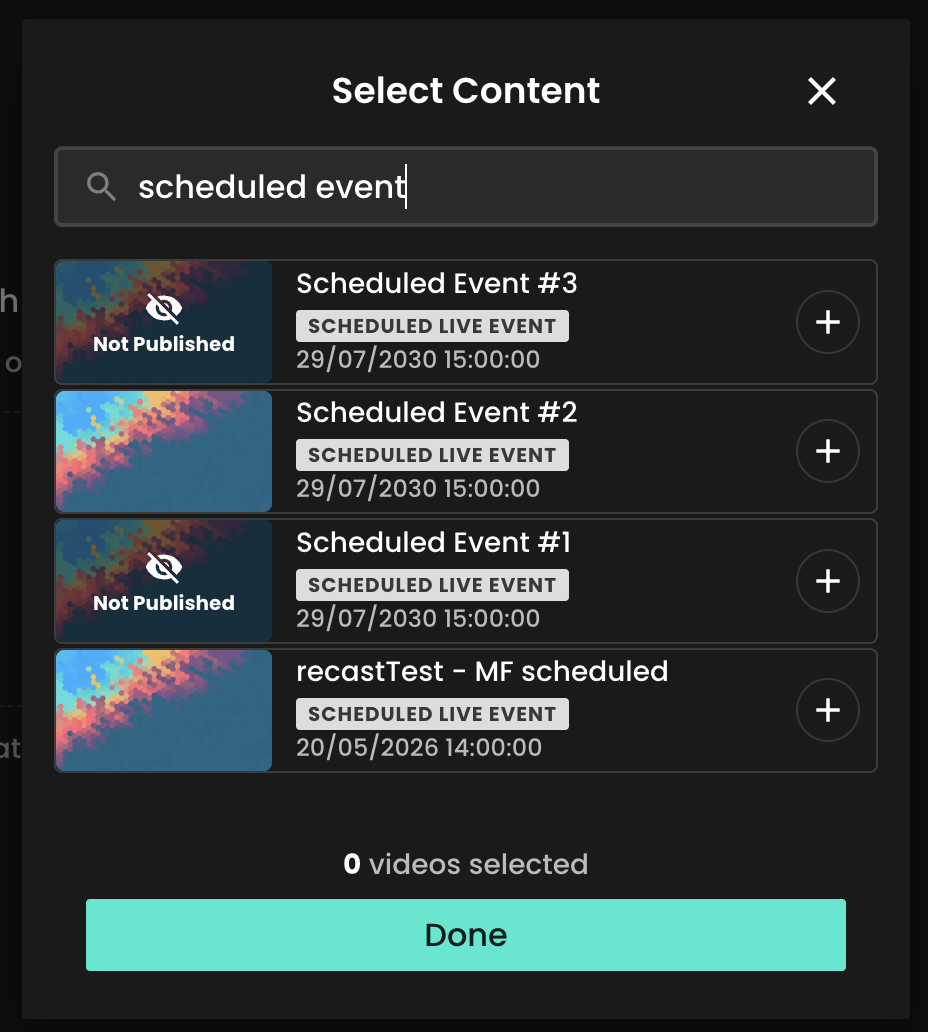
Tip: Items marked Not Published in the Select Content window aren't live yet on the brand's side, so check them before you feature them.
The Styling tab (next to Content, at the top of the builder) sets the look of the whole page so it matches your site.
Edit Colours has three groups. Enter a hex code or click a swatch to pick a colour.
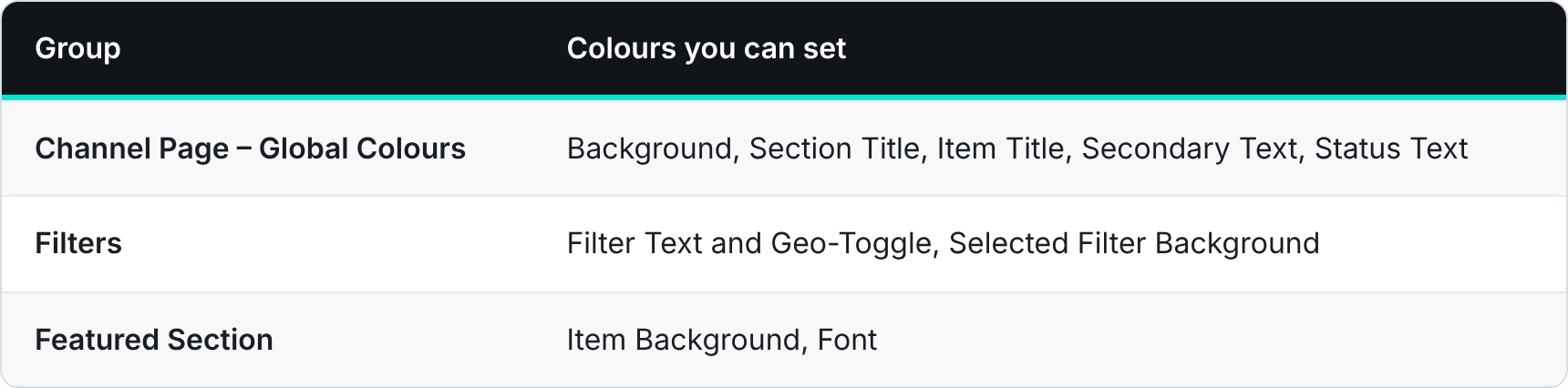
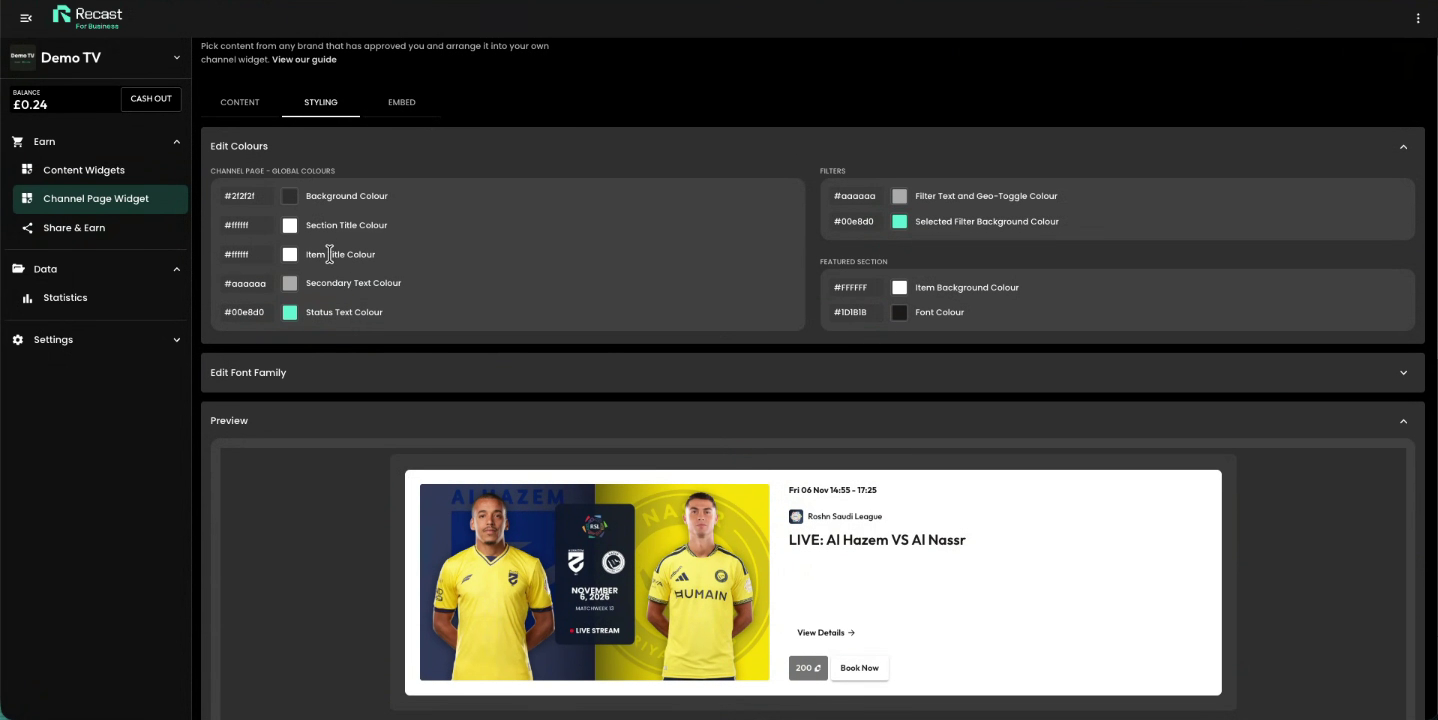
Edit Font Family sets separate fonts for Section Title, Item Title, and Secondary and Status Text. Type the font name, for example Georgia.
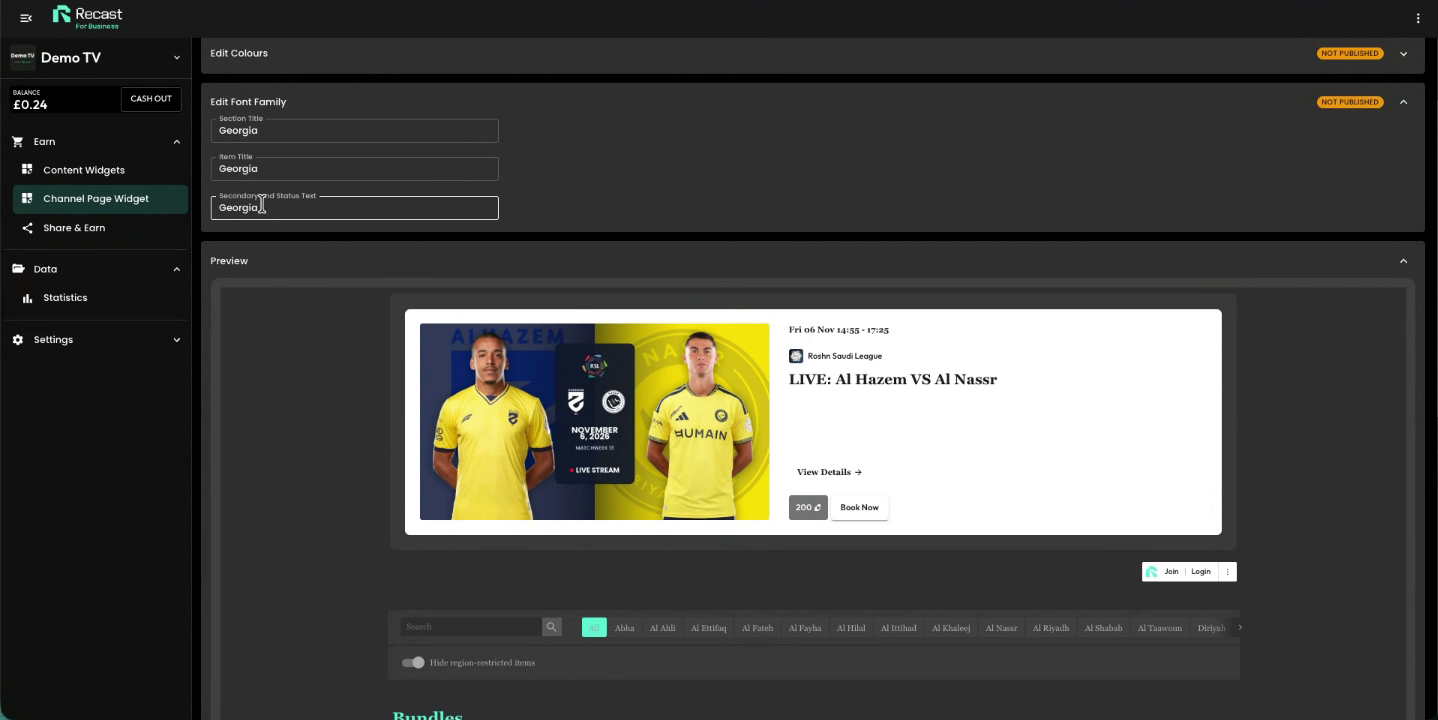
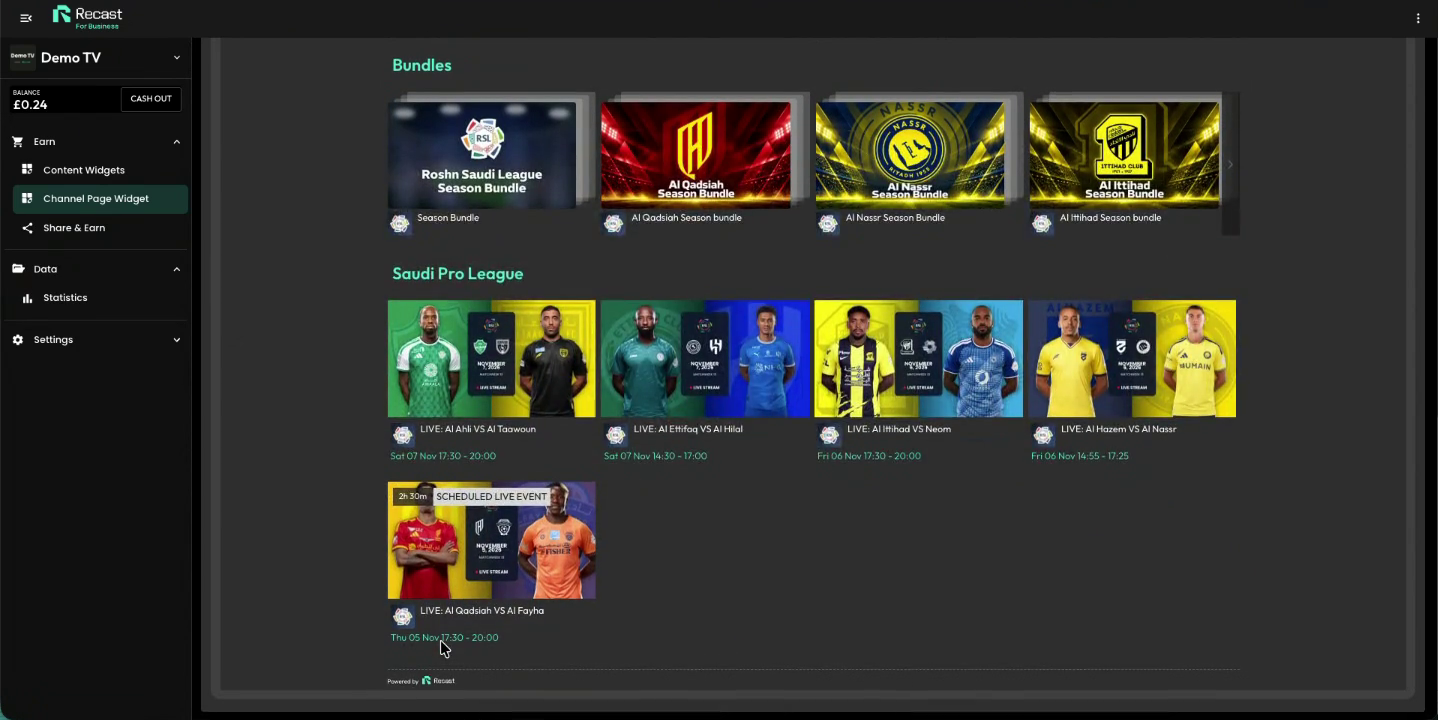
The Preview panel shows your page as viewers will see it, including the carousel, the search and filter bar, and every section.
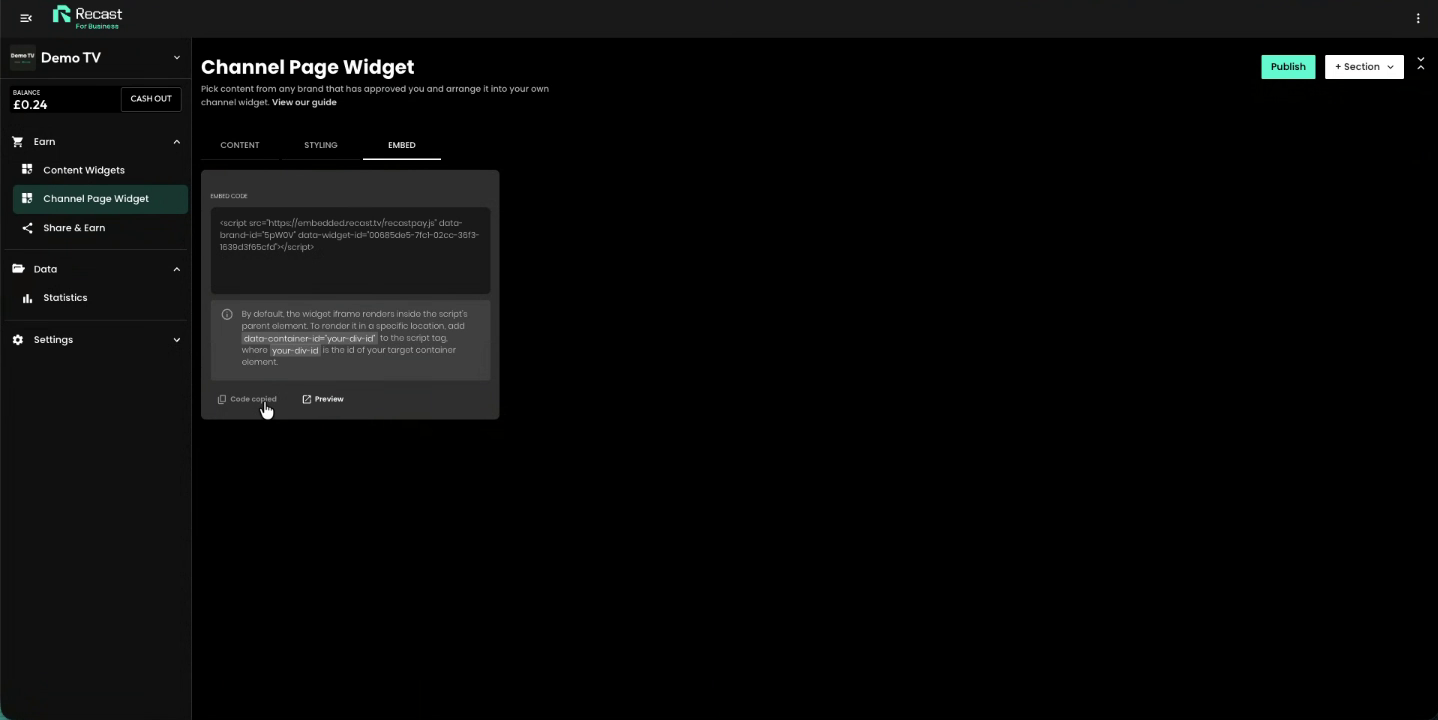
By default, the widget renders inside the script's parent element. To place it somewhere specific, add data-container-id="your-div-id" to the script tag, where your-div-id is the id of the element you want it to appear in.
You only need to embed the code once. Changes you make in the builder reach your site the next time you click Publish; you don't need to update the code.
Each change shows a Not Published label until you publish it, so you can see at a glance what's waiting to go live.
Why can't I see a brand's content in Select Content? Only brands that have approved you as a publisher appear. If a brand is missing, email partnersupport@recastpay.com to request approval.
My section says "Add content to activate section". What does that mean? The section is empty. Add at least one item or bundle and it becomes active.
I made changes but my site hasn't updated. Check for orange Not Published labels and click Publish.
How is this different from Host & Earn content widgets? Content widgets embed all content from a single brand, or allow you to show selected videos and events (from one or multiple brands). A Channel Page Widget combines content and bundles from all your approved brands on one page, with your own Featured Carousel and styling.
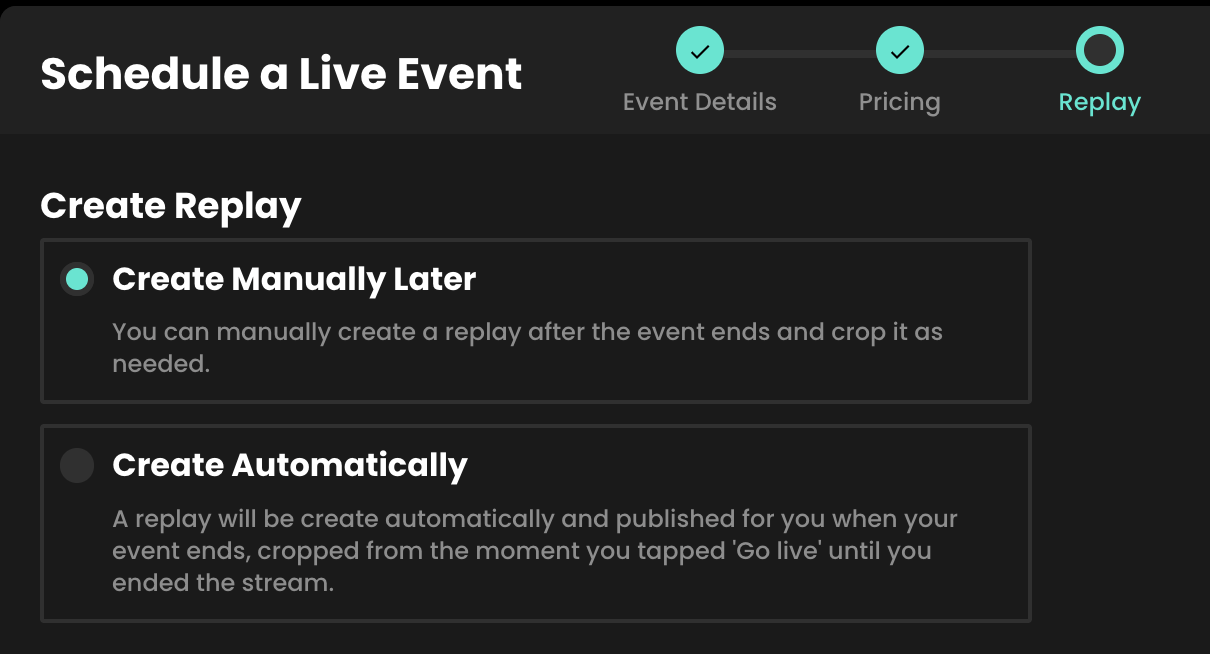
There are two ways to create replays of live streams:
Benefits:
Benefits:

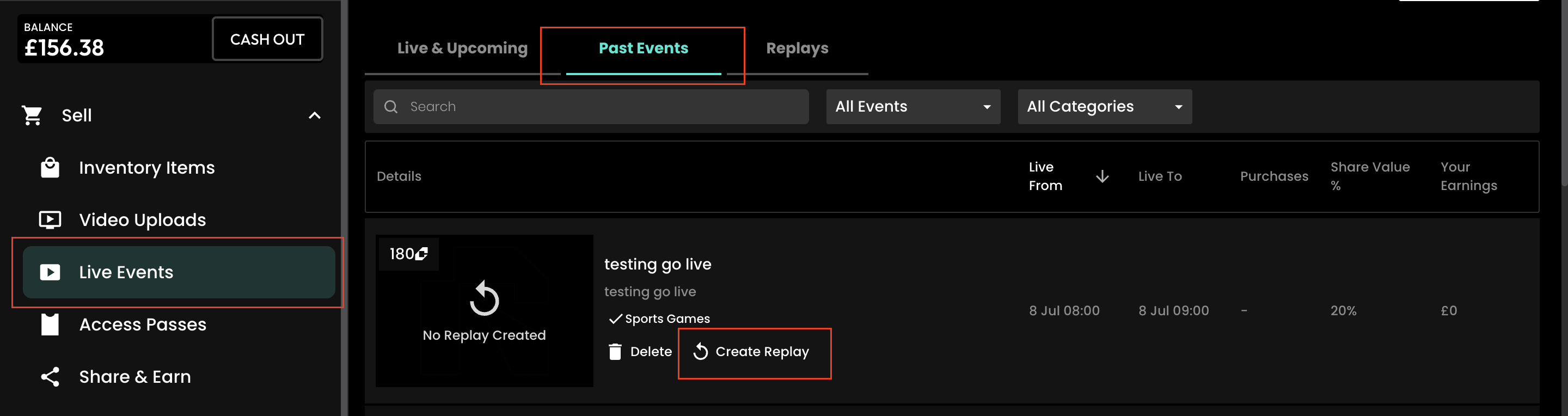
Once your live event has concluded it’s easy to create a replay of your stream.
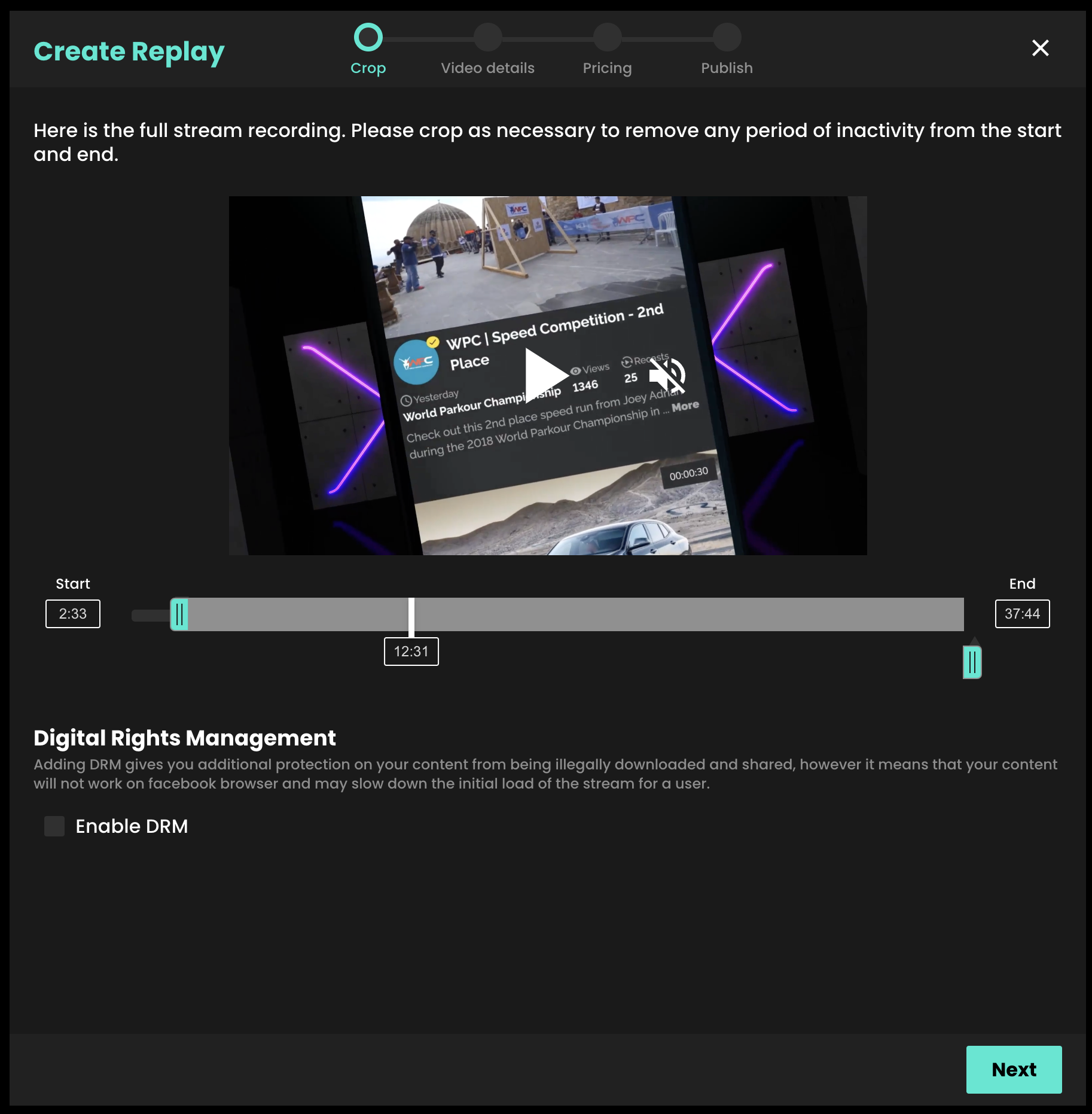
On the next page you have the option to crop your replay. Below the video player, drag the two blue markers to your required start and end time. You can also move through the video using the white playhead on the timeline.
Tip: If you need more precisely timed cuts, you can enter specific crop times using the time selection boxes either side of the timeline.
Click next once you are happy with the crop on your replay
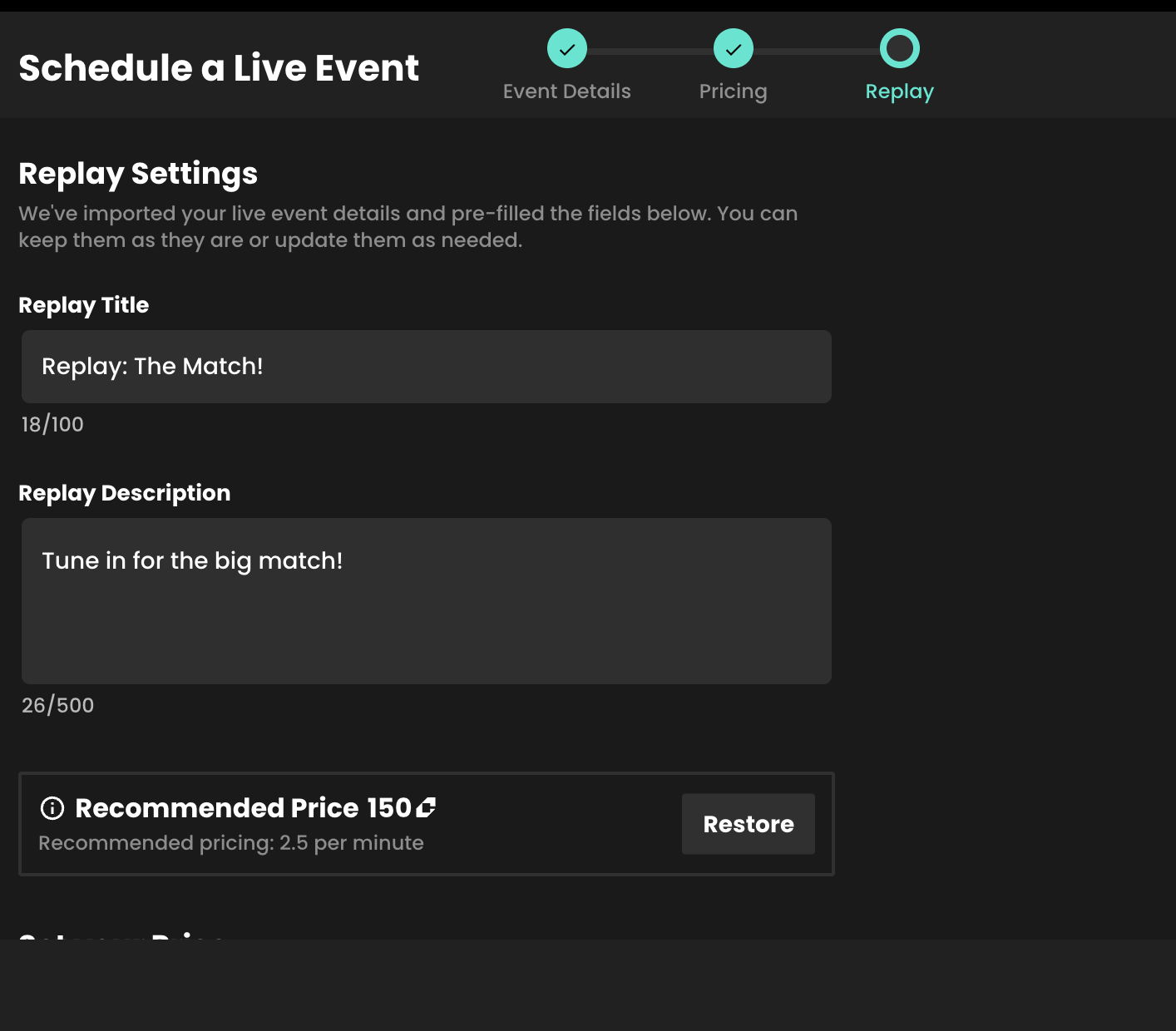
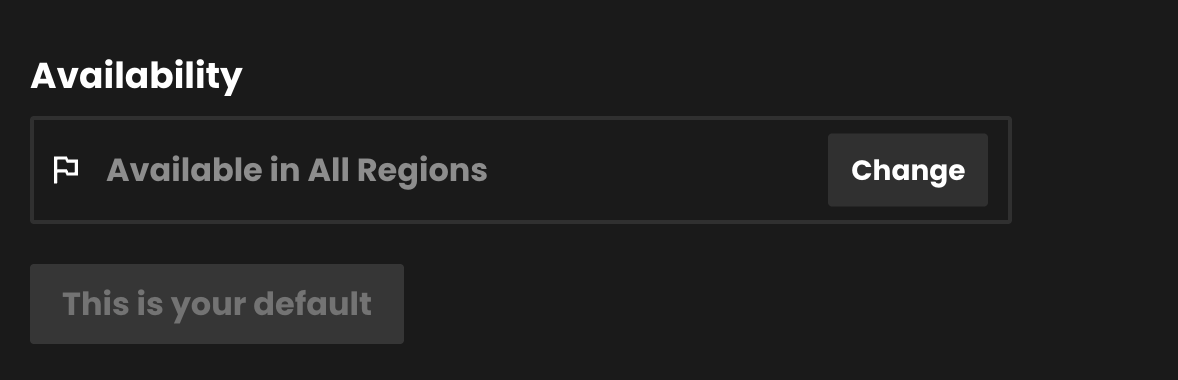
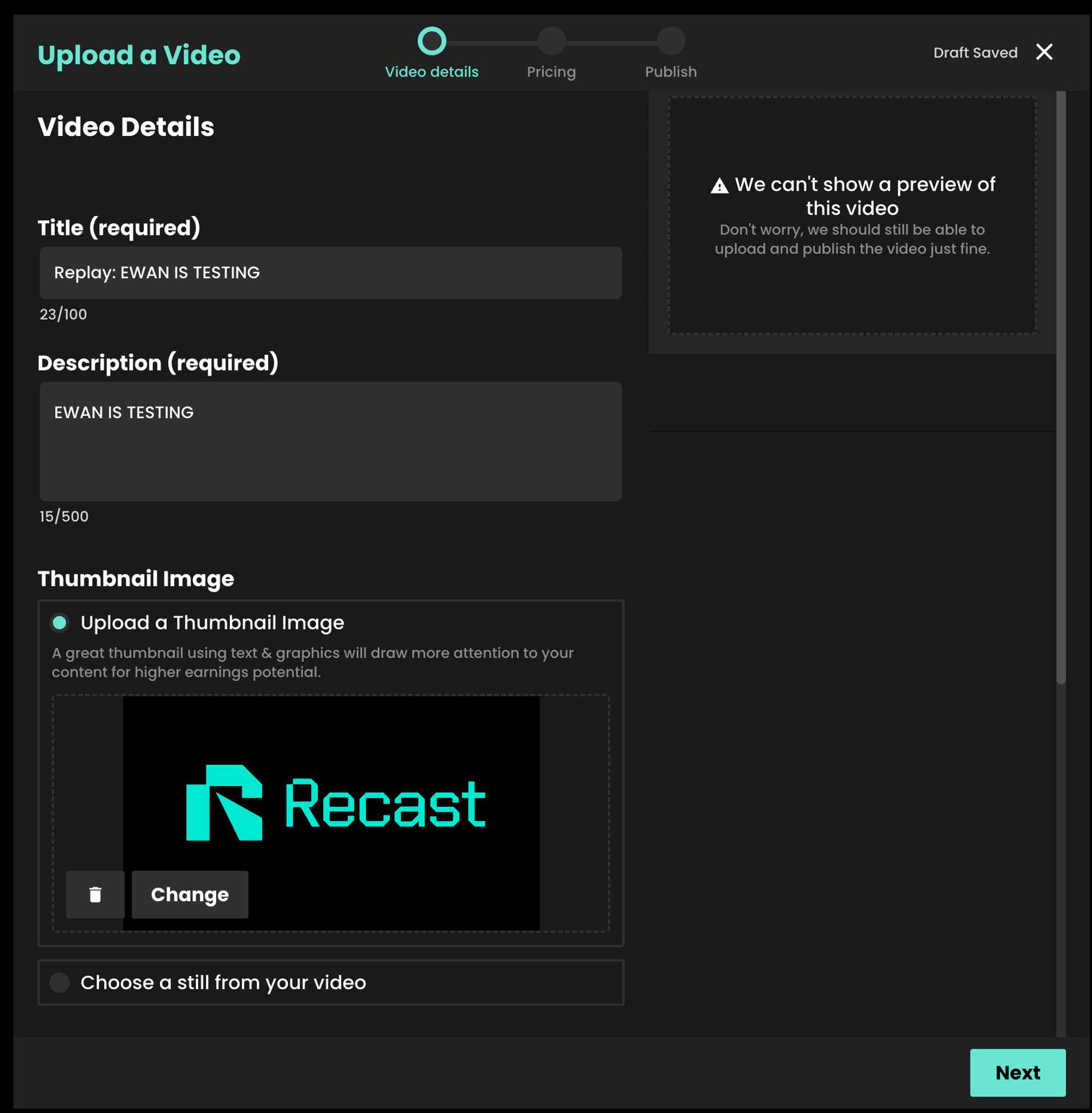
On the next screen you’ll see our regular video upload form. We automatically carry over all the information from your live stream such as the description, price and geo-blocking settings. We also carry over the title and add ‘Replay’ to the start of it. You can edit all of this information before publishing your replay.
Like video uploads, you have the same options to publish the replay as soon as it is ready, publish it manually later or at a scheduled time.
As a reminder, the widget for your live event will not automatically show your replay. To show the replay on your website, create a new Embed Widget containing this on demand content. Learn more in our "Embed Recast into your website" guide.
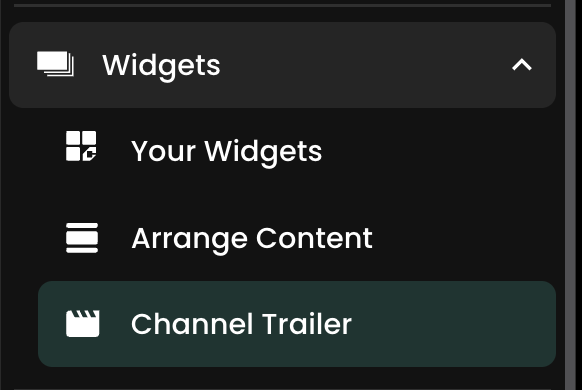

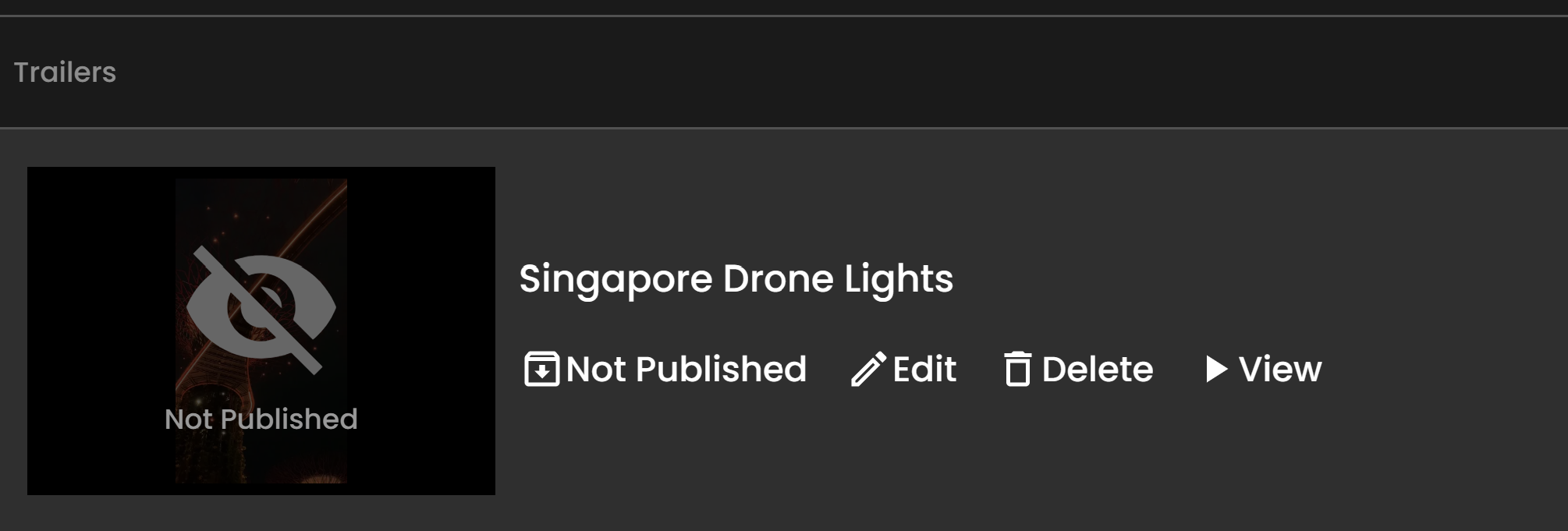
From the Channel Trailer page, you can manage the trailers you have uploaded.
Making this content available via RecastPay allows us to offer direct, subscription-free access while ensuring the people and organisations behind the content are paid for every purchase.
No. RecastPay is subscription-free. You only pay for the content you want to watch.
You can watch [Brand Name] content here: [insert link]
RecastPay is a universal digital wallet that lets you access content without a subscription. You can create a free wallet, buy credits and use them to watch live events, replays, Access Passes and other content.
Recast Credits are used to purchase access to content via RecastPay.
You may be able to watch on your TV by connecting your laptop to your TV, using Chromecast, or using Apple AirPlay, depending on your device and setup.
It can take a short time for Credits to appear. Try logging out and back in. If they still do not appear, contact Recast support at [insert current support email].
First, check that Recast is available in your country. If you have not received a verification email, check your spam or junk folder. If you still need help, contact Recast support at [insert current support email].
Refund policies may vary depending on the content, event and circumstances. Please contact support at [insert support email] with your account details and purchase information.
Some content may be restricted by geography due to rights or broadcast agreements. If the content is not available in your location, this may be because access has been limited in that territory. See all available countries here.
If the content is available on demand, you will be able to watch the replay from the same page. Availability may vary by event, rights or Access Pass type.
Access duration depends on the content or Access Pass purchased. Please check the information shown on the content page before purchasing.
Bundles are an alternative way for your users to enjoy your content. They give users access to a specific list of your content, curated by you.
You can activate as many bundles as you wish, they will be available for users to purchase on your widget as soon as you publish them.
You can create, view and edit your bundles by selecting ‘Bundles' under 'Sell' on the left-hand menu of your Recast for Business account.
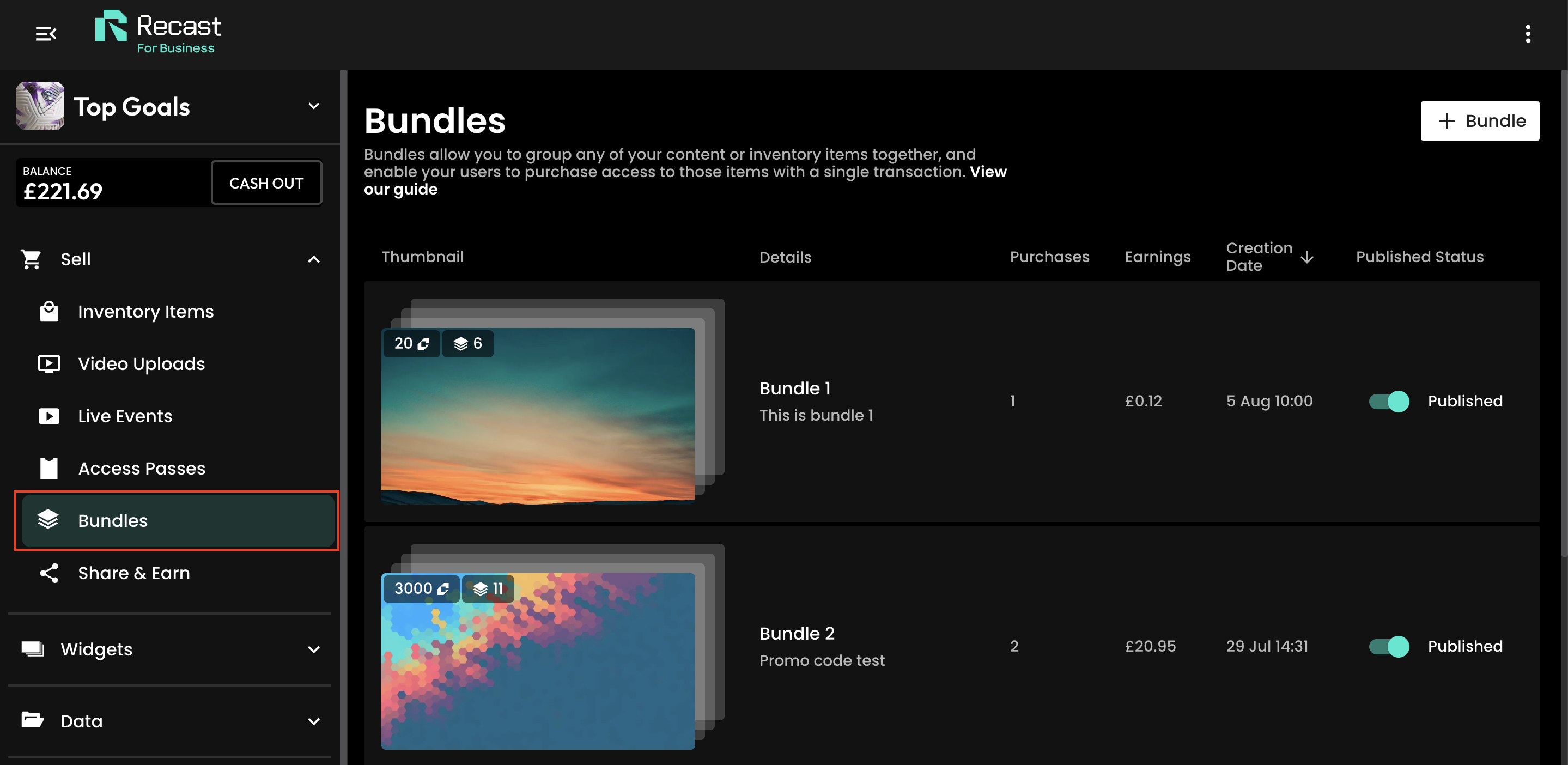
When you first land on the Bundle section you will see our initial screen with a button which allows you to ‘Create your first Bundle’. Simply tap this button to get started.

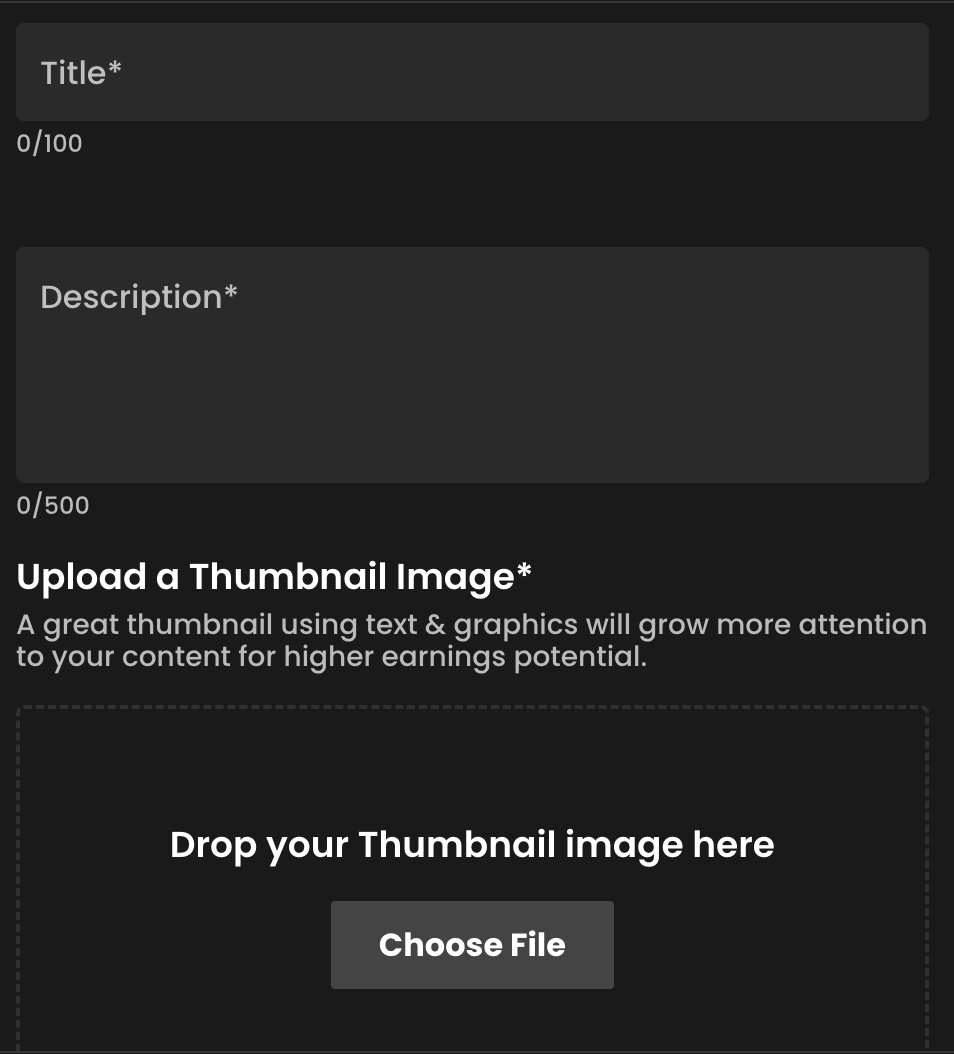
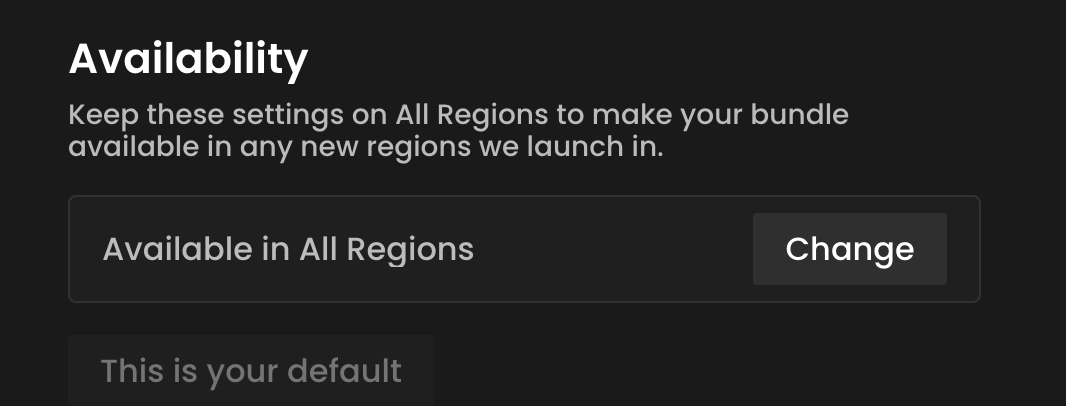
You will first need to add the initial details of the bundle:

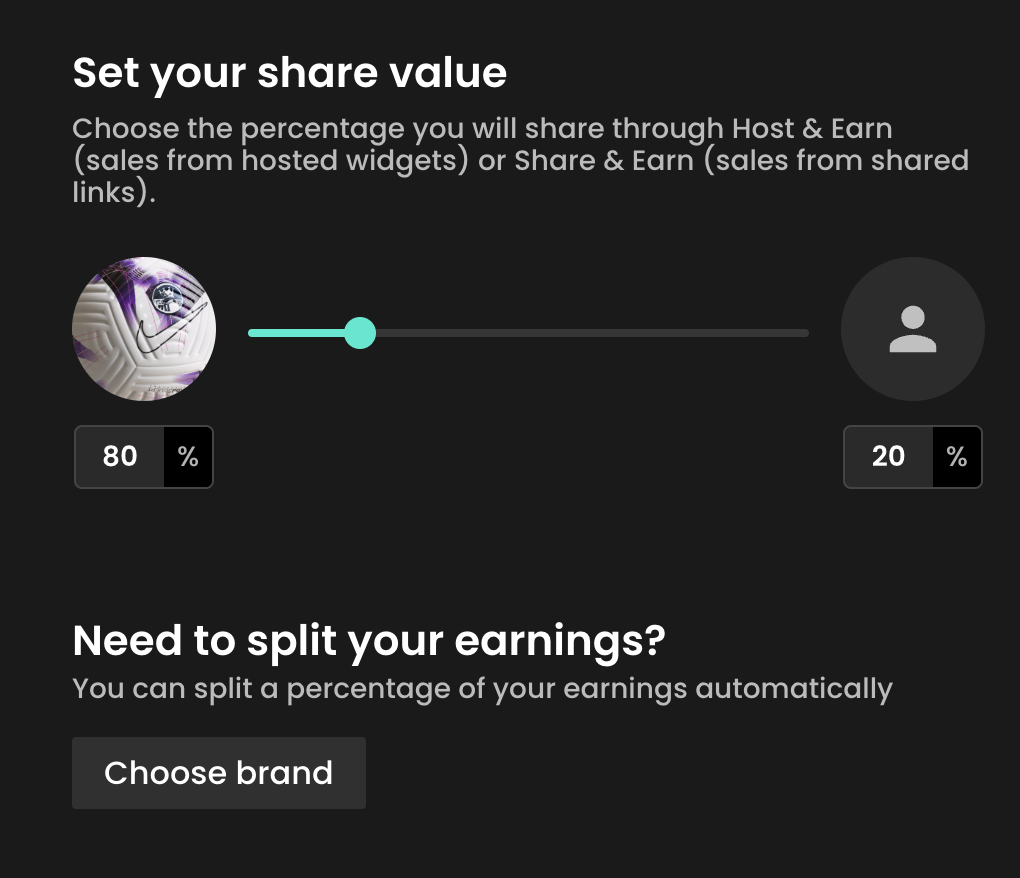
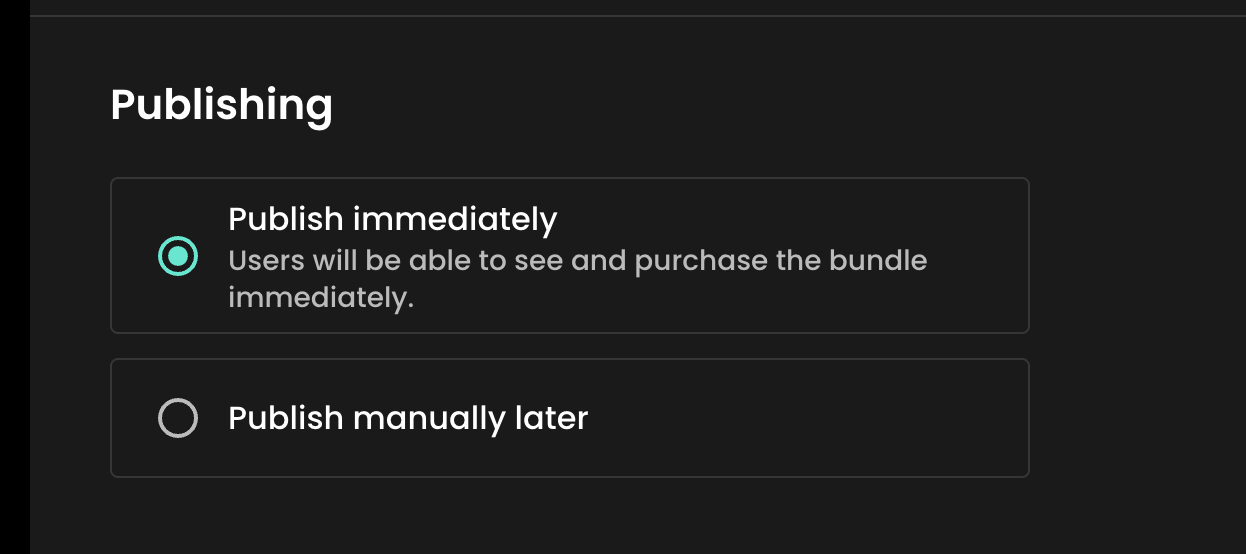
Unlike content, when a bundle is published it will not immediately appear on your widget until you create a custom section in your widget for your bundle(s).
To do so:
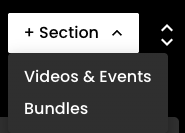
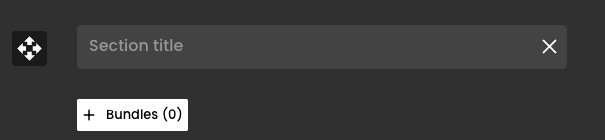
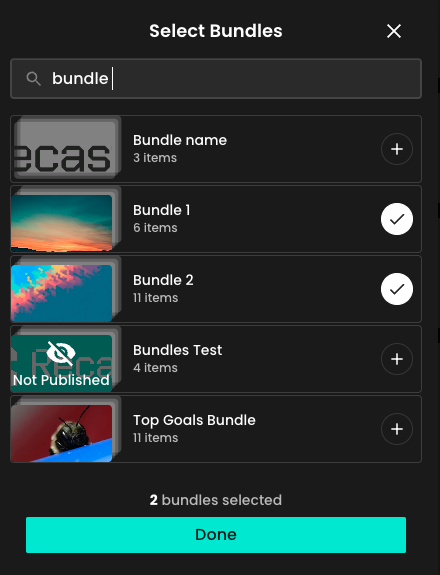

Once you have created your bundle you will then be able to see both published and unpublished bundles on the bundles page.
You can see:
From this section you can also edit or delete your bundle(s) using the edit and delete icons respectively.
You can easily make your bundles available or unavailable for sale from this toggling ‘Published' on / off.
In Recast for Business, open Stream Inputs and choose + Stream Input. Pick RTMP or SRT — the choice is fixed once the input is created.
Recast then shows the values your encoder needs. Copy them from there rather than retyping them:
Note that an SRT input labels its credential STREAM ID, not Stream Key. It is the same value, under the name SRT uses for it.
Then confirm all three of these, or your stream will be refused:
A new stream input is switched off. Recast switches it on only when it is attached to a live, non-draft video.
Configuration is done through the unit's web interface. Find its address from your network, or from the device's display where fitted.
Use no more than 50% of your measured upload bandwidth.
Encode in H.264, not HEVC. Videon units support HEVC and it is tempting on a constrained link, but Mux's live ingest expects H.264. Set it explicitly.
These are set under Encoder Control → Encoders. The keyframe interval appears as GOP Size or Keyframe Interval; at 30 fps use 60, at 25 fps use 50.
global-live.mux.com6001pbkeylen 16)500 msKey length must be 128-bit. Mux requires it, and 256-bit fails the handshake with an error that does not point at the cause. This is the most common SRT mistake across all encoders.
Do not put the stream key in the URL field as a query parameter. Videon takes host and port as discrete values and will not parse ?streamid= out of them — that is what the dedicated Stream ID field is for.
European facilities can use eu-west.live.mux.com instead of the global host.
Which URL? Recast displays rtmp://global-live.mux.com:5222/app as your RTMP STREAM URL, and that works. This guide uses rtmps:// on port 443 instead: it is the same Mux ingest wrapped in TLS, so your stream key is not sent in clear text, and port 443 passes through restrictive venue networks that block port 5222. Use whichever your encoder supports.
rtmps://global-live.mux.com:443/appIf your firmware will not accept rtmps://, use rtmp://global-live.mux.com:5222/app.
Three SRT outputs, one uplink. The unit can run several outputs at once, but they share your connection. The 50% bandwidth headroom rule applies to the total of everything the unit is sending, not to the Recast output alone.
Outputs need a source assigned. An output with no encoder selected will appear configured but send nothing, and the symptom is a stream that connects and then shows no video. Check the source assignment before anything else.
HEVC is not supported by Mux live ingest. Set H.264 explicitly on the encoder feeding this output.
Do not chase low latency. Recast streams run at standard latency (20–30 seconds) by design. Videon hardware can do very low latency point-to-point, but that is not what is happening here.
One protocol per stream input. A Recast stream input is created as either RTMP or SRT and cannot be switched afterwards.
Check the stream input is attached to a video and that the video is not a draft. The unit will report a healthy output while Recast rejects it.
Then check the output has an encoder assigned as its source — an unassigned output connects and sends nothing.
Then wait a full 30 seconds before concluding anything.
Check the SRT statistics. A rising retransmission rate means the link cannot sustain the bitrate — reduce it, or raise the latency to give SRT more room.
You have 30 minutes to reconnect before Recast treats the stream as ended.
Compare the encoder's configured bitrate with what the output statistics report actually leaving the unit. A gap between them means the network is the constraint; no gap means look at the source signal instead.
Confirm the audio encoder is AAC-LC at 48 kHz stereo, and that the correct embedded audio pair is selected.
Prefer embedded SDI or HDMI audio over a discrete input so audio and video share a clock.
Include the model and firmware version, which output slot you used, the protocol, and a screenshot of the output statistics page.
More detail: Recast live ingest reference
To live stream from device to Recast.tv, you’ll need:
Note: Please be aware of the following details when streaming from device;
Visit the app store on your mobile device and install an app called ‘Larix Broadcaster’ (Andriod or iOS). Once installed, familiarise yourself with the app. You can find an in-depth guide here that provides more detail about the app and its various settings.
You will need to schedule your live event on Recast Publish before you use Larix Broadcaster app.
Steps to create a live stream from device on Recast.tv:
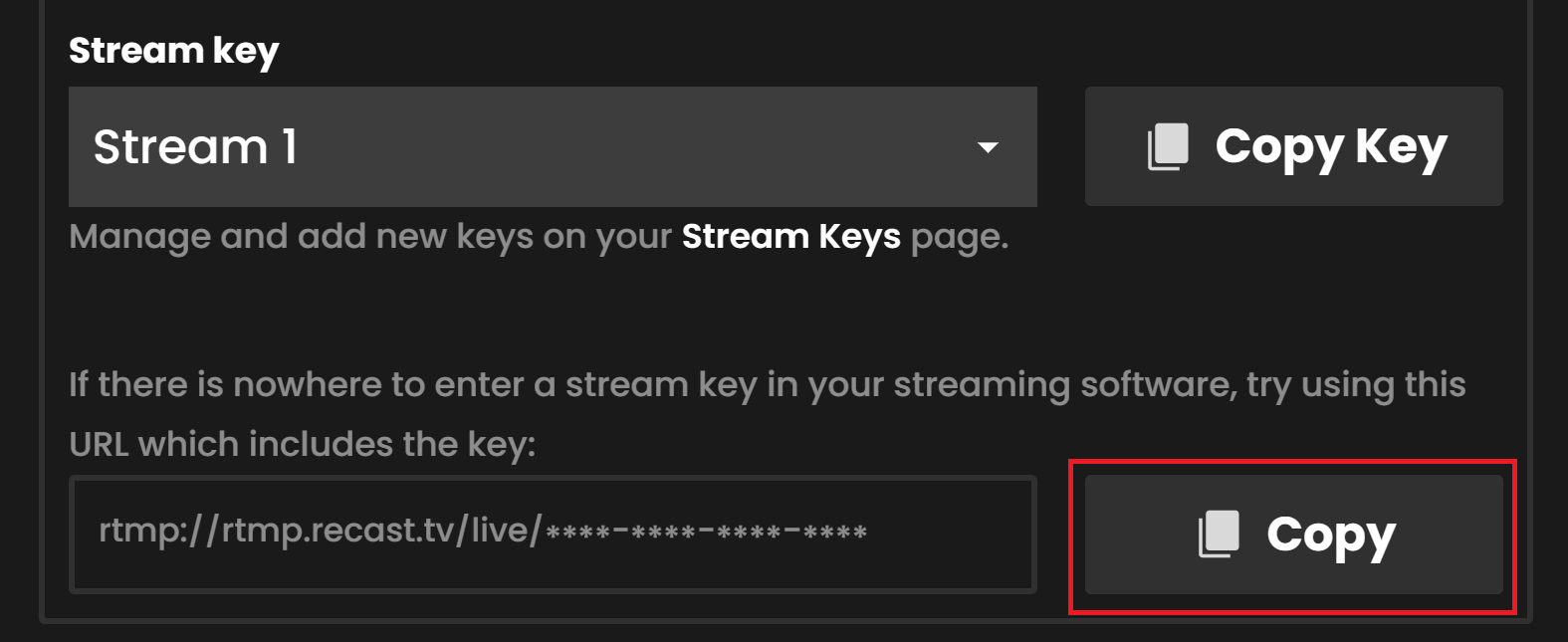
When using the supported Larix broadcaster App, you can stream from device on Recast.tv by following the steps:
1. Open the Larix Broadcaster App
2. Set up a new connection by going to:
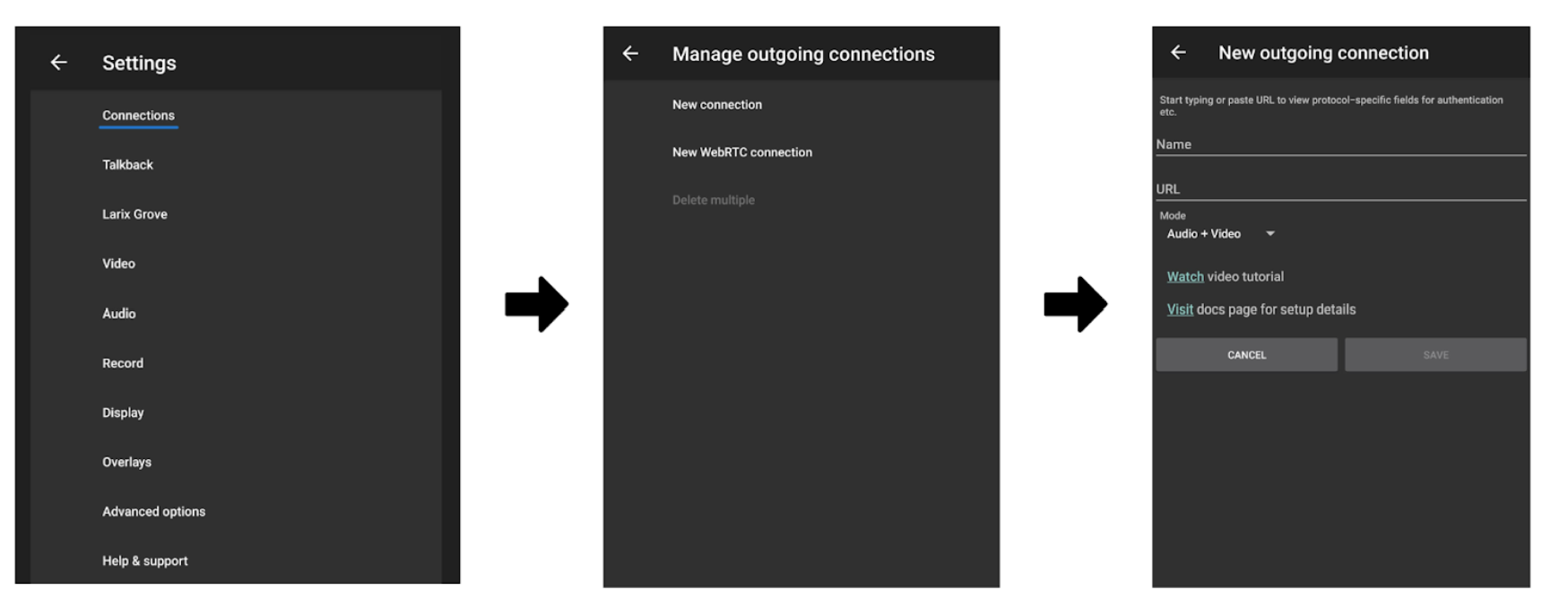
3. Fill in the following details for the new connection
4. Save your changes
5. Return to the camera view and click go live.
Please note: Your stream will not be live through your widget until you have retuned to Recast Publish and clicked on go live.
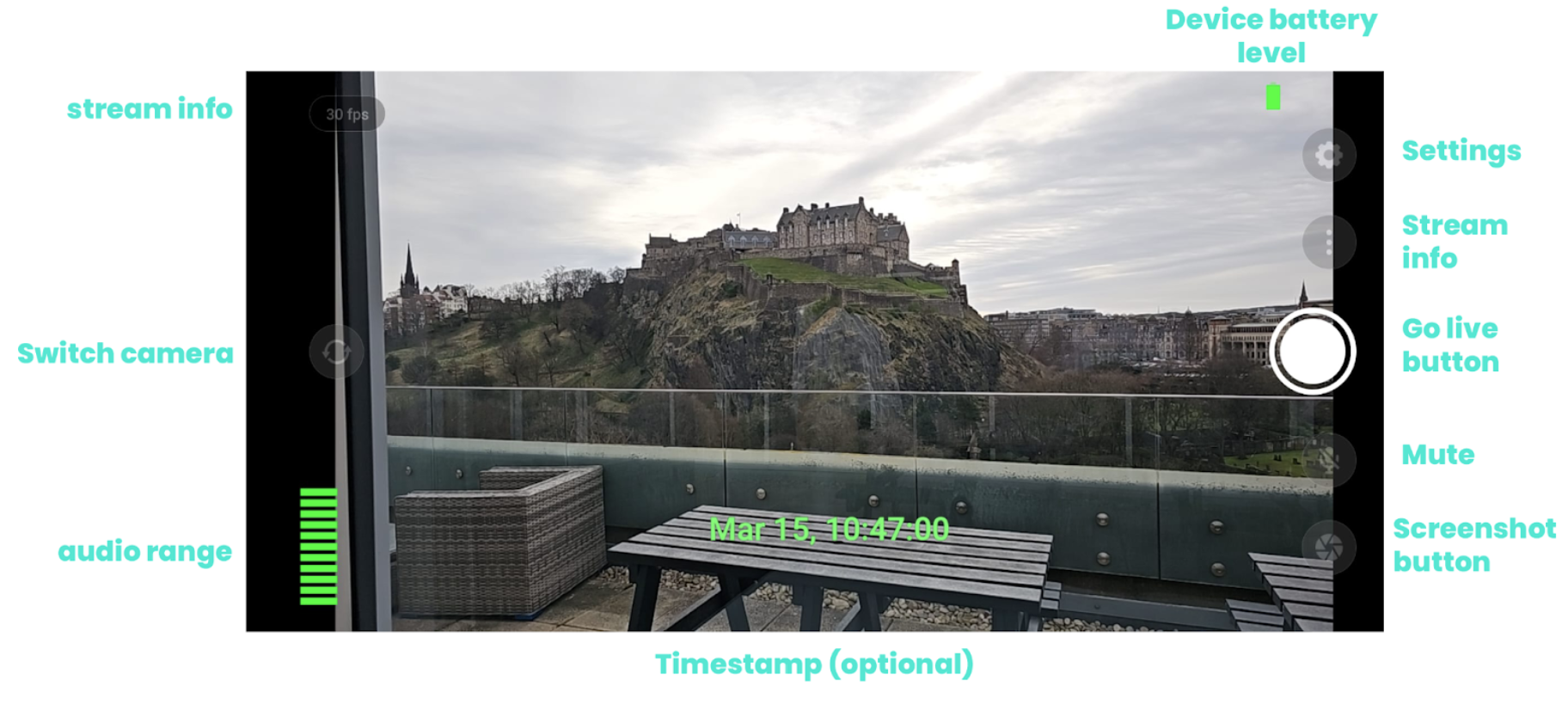
6. Return to Recast for Business to view your preview on the ‘Stream Setup’ page.
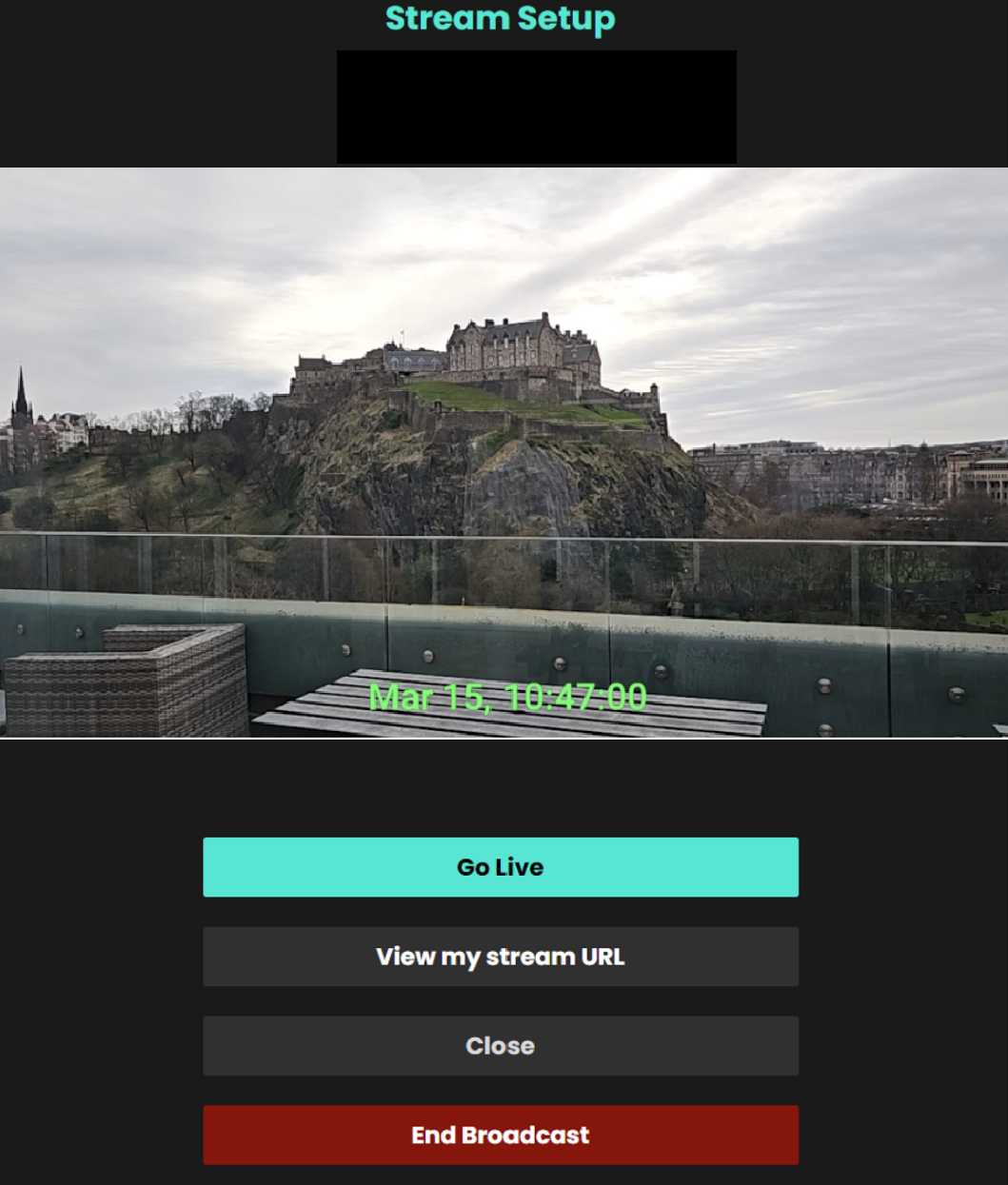
7. Click go live for the stream to be visible on your Recast channel
8. Once you are ready to end your stream remember to select ‘End Broadcast’.
9. Head back to the Larix App and end the broadcast there too.
Please Note: it takes around 1 minute to end the broadcast, please wait for the ‘stream deleted’ message to appear before closing.
Recast lets you set up your video content so it's purchasable before it’s available to watch. And you don’t need to have the video ready to upload to make it purchasable.
This guide explains the two options you have when enabling pre-ordering of content:
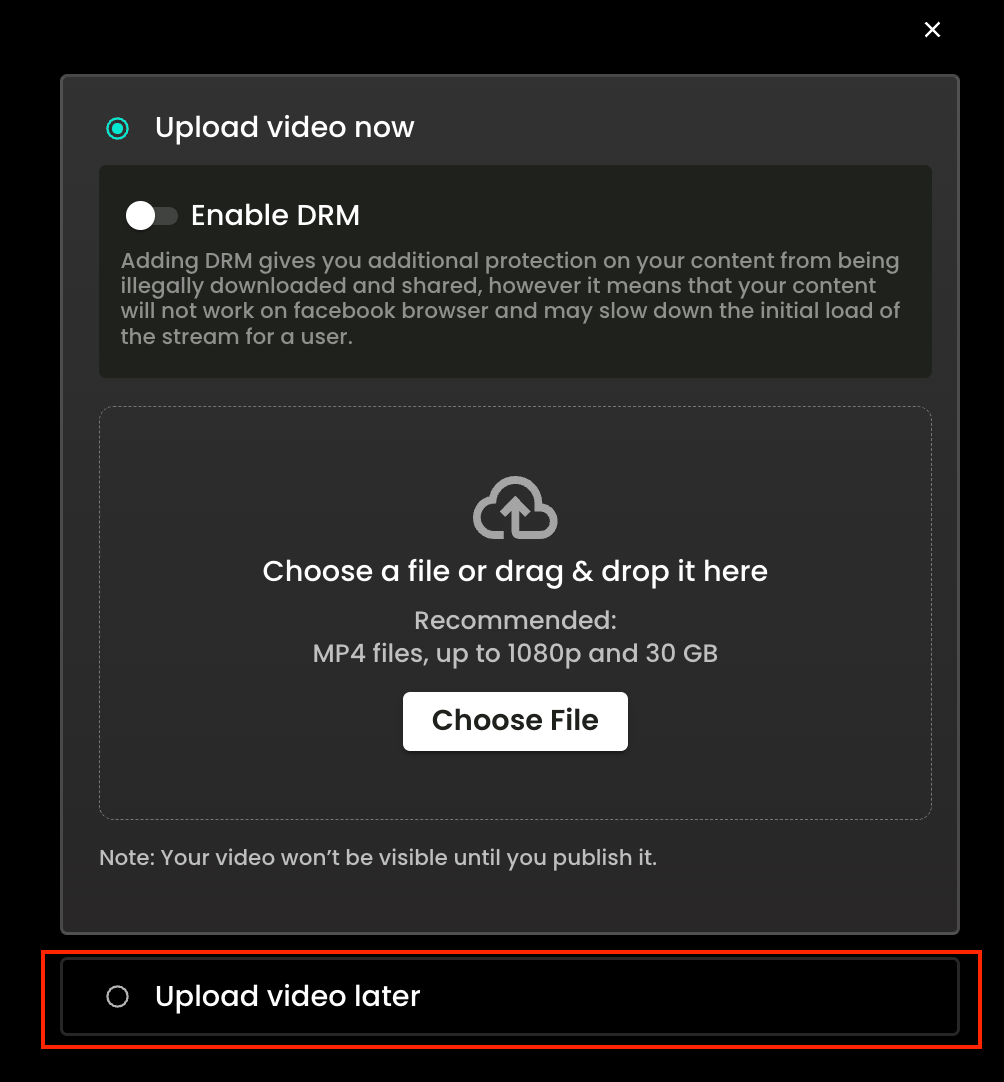
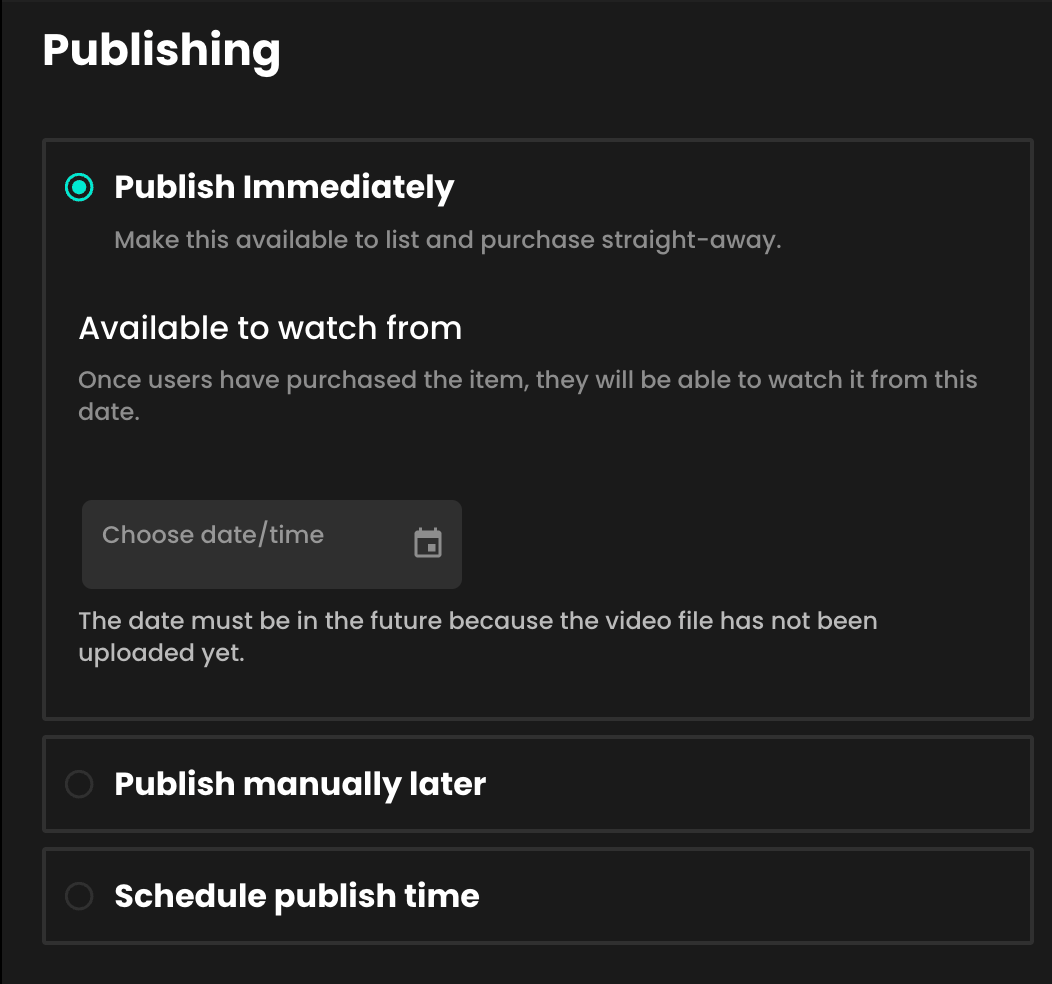
*You can also “Schedule publish time” as you would with a normal video, and you will need to set the Available from time in the same way.
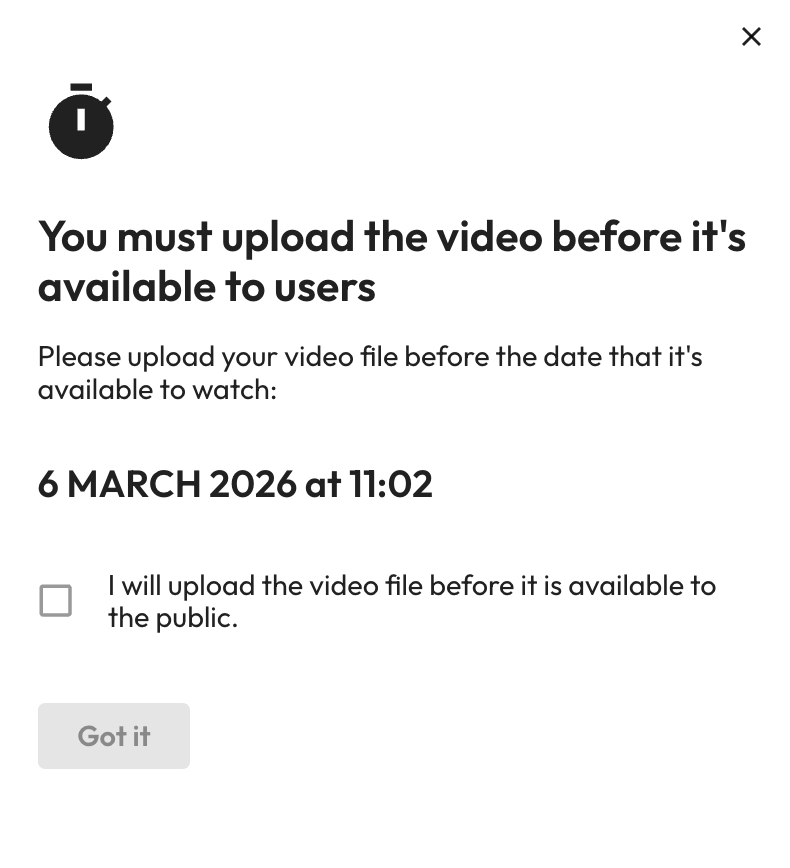
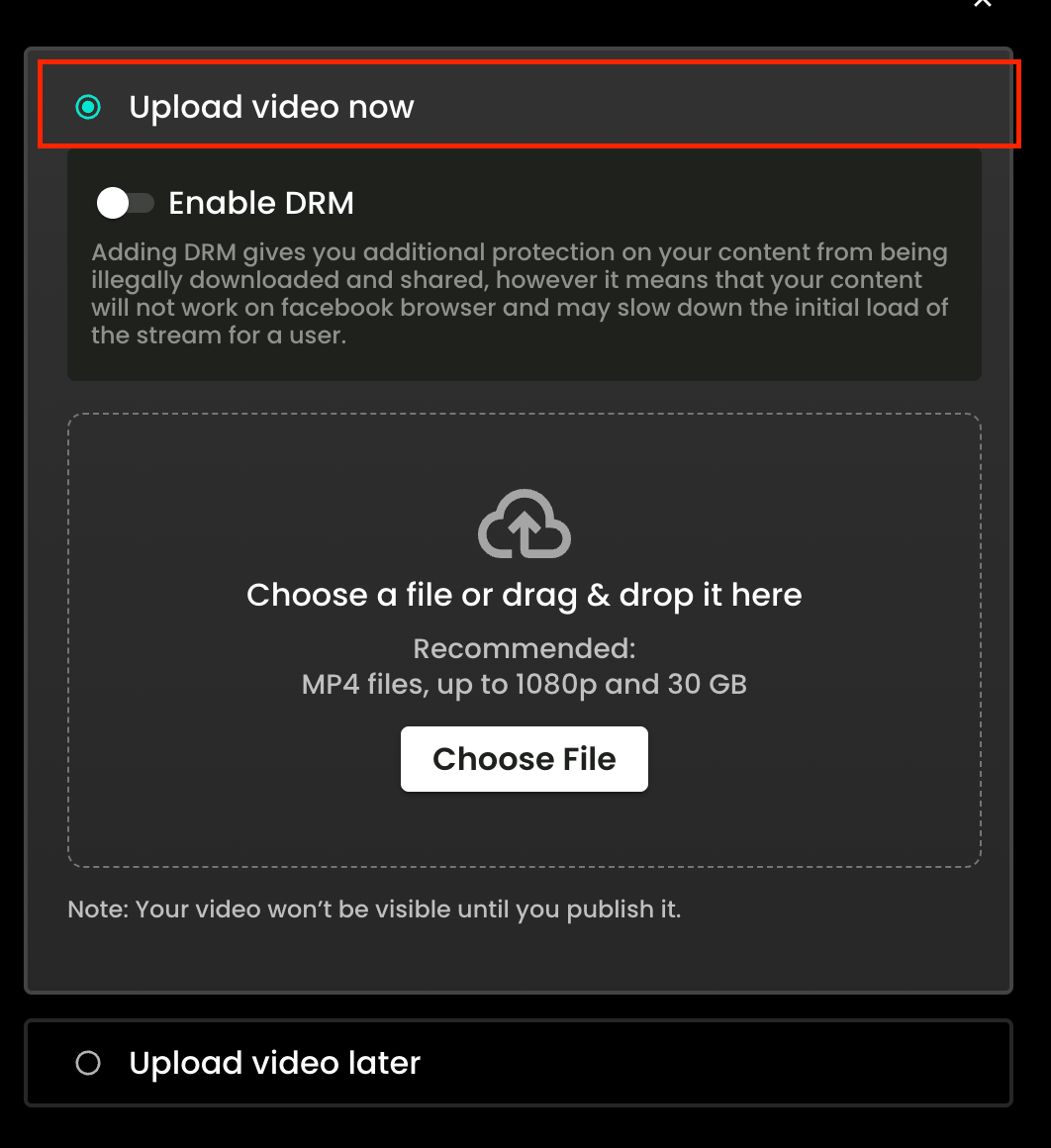
In this scenario, as you want to enable Pre-Sales now, but delay making the video available to watch, then you can either select:
Or you can decide to publish it manually later - details as follows:
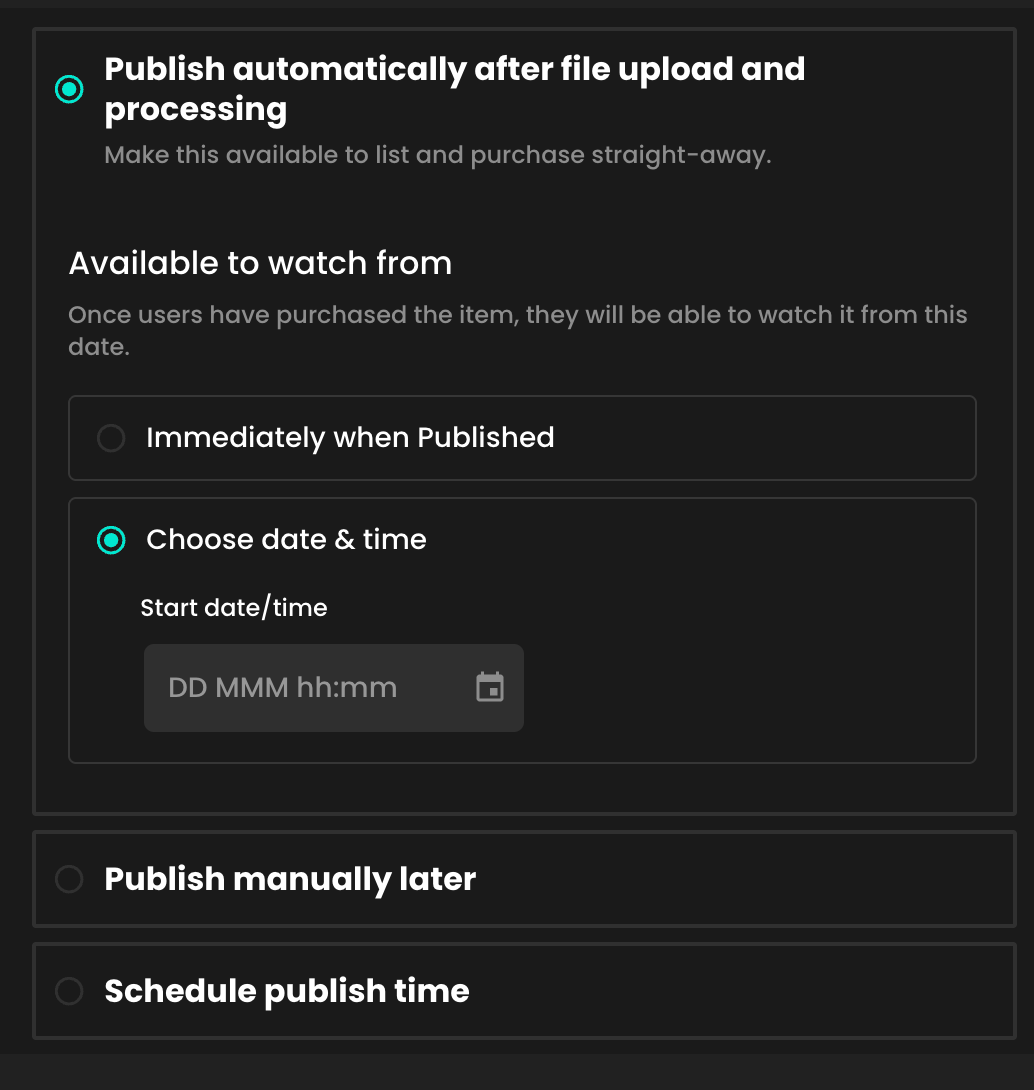
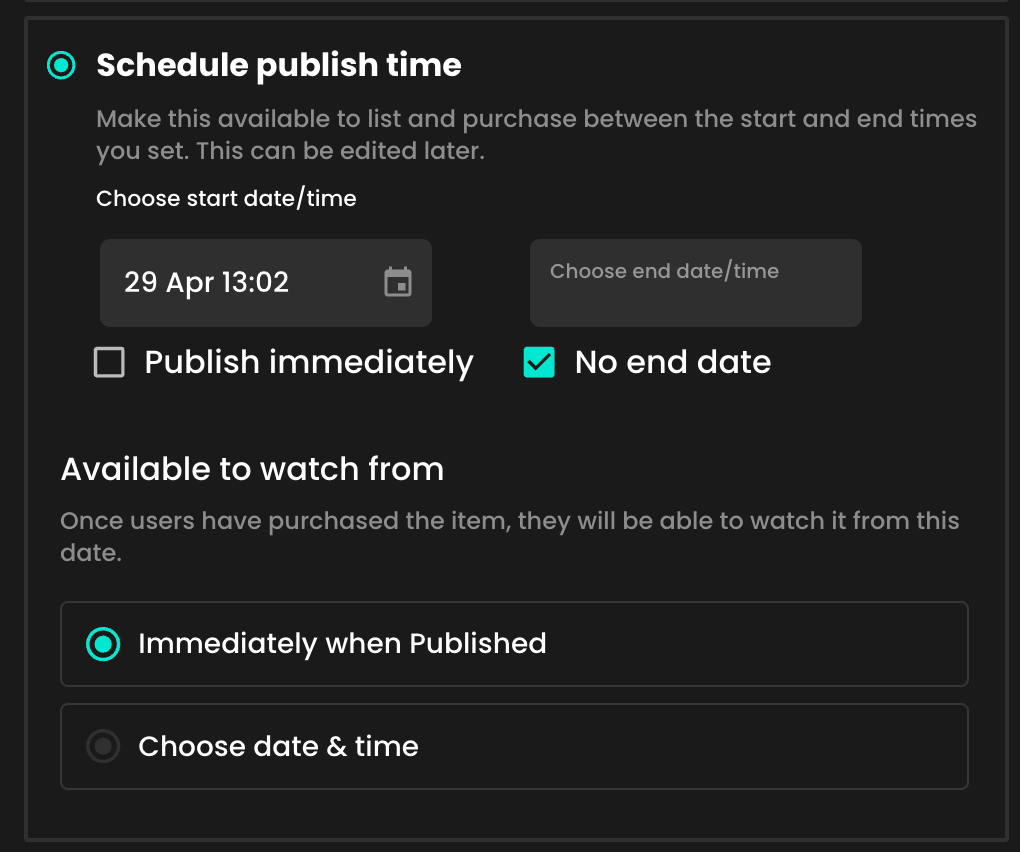
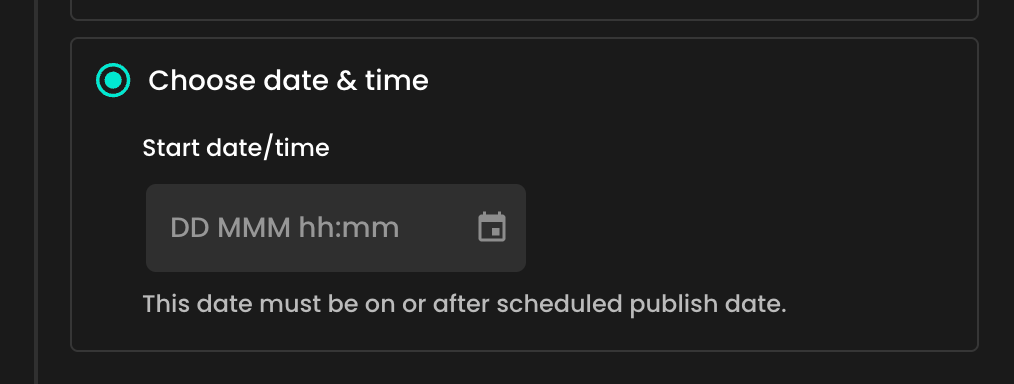
If you choose to publish manually later (saving your item as a draft), your inventory item will be stored in Video Uploads for now, and when you’re ready to publish and start selling it, just search for the video title or filter by “Unpublished” videos.
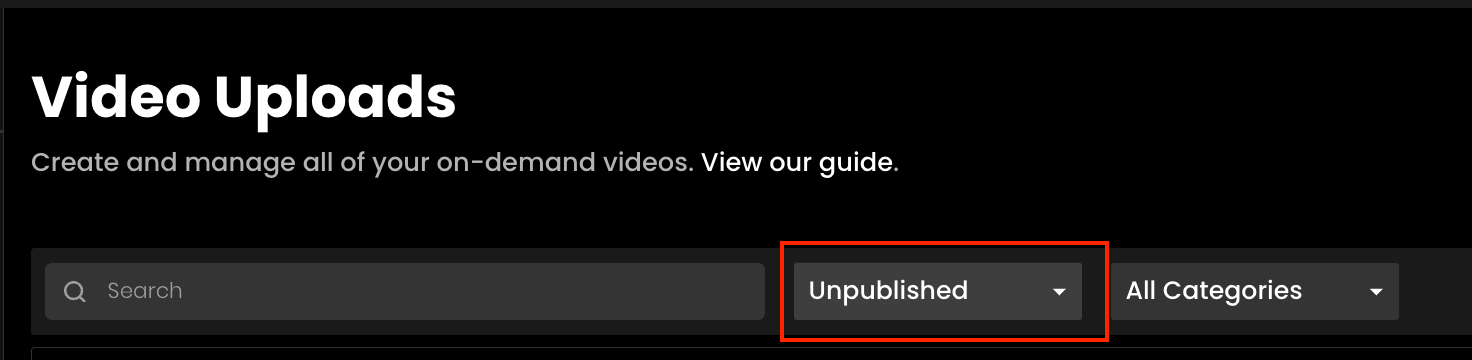
If you’ve integrated Recast using an Embed Widget, every published pre-order video will now appear in a new, dedicated section titled “Available for pre-order”:
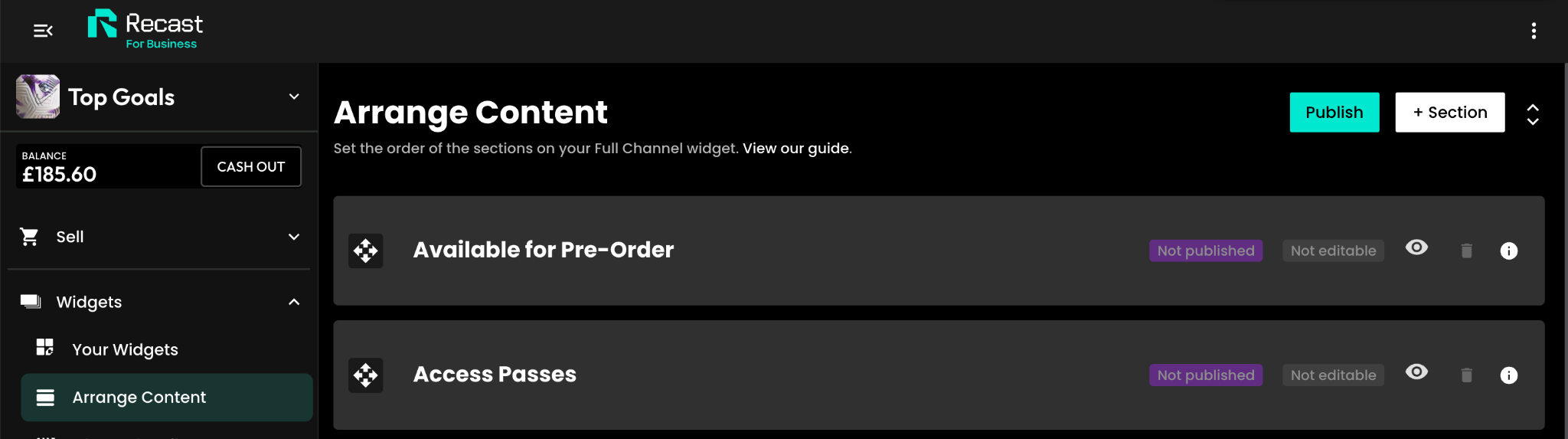
If you’d like a more customised layout, you can hide this section and/or add your pre-order videos to a new, custom section, alongside other videos. For more information on custom sections, click here.
In Recast for Business, open Stream Inputs and choose + Stream Input. Pick RTMP or SRT — the choice is fixed once the input is created.
Recast then shows the values your encoder needs. Copy them from there rather than retyping them:
Note that an SRT input labels its credential STREAM ID, not Stream Key. It is the same value, under the name SRT uses for it.
Then confirm all three of these, or your stream will be refused:
A new stream input is switched off. Recast switches it on only when it is attached to a live, non-draft video. This is the most common reason a correctly configured encoder is rejected.
Version: any recent OBS release works for RTMP. For SRT you need OBS 25 or later, and OBS 30 or later is strongly preferred — SRT is a first-class protocol there, with fewer rough edges.
Use no more than 50% of your measured upload bandwidth. A 5000 kbps stream needs a genuine, sustained 10 Mbps up.
Settings → Output, with Output Mode set to Advanced:
CBR2veryfastmain(none)Settings → Audio: set Sample Rate to 48 kHz. This is a global OBS setting and changing it requires a restart, so do it before the day.
Settings → Output → Audio: set the track's bitrate to 128.
Settings → Video: set Output (Scaled) Resolution and Common FPS Values to match the tier you chose. Leave Base (Canvas) Resolution at your monitor's size.
Which URL? Recast displays rtmp://global-live.mux.com:5222/app as your RTMP STREAM URL, and that works. This guide uses rtmps:// on port 443 instead: it is the same Mux ingest wrapped in TLS, so your stream key is not sent in clear text, and port 443 passes through restrictive venue networks that block port 5222. Use whichever your encoder supports.
rtmps://global-live.mux.com:443/appUse RTMPS on port 443 rather than plain RTMP. It encrypts your stream key in transit and port 443 is open on effectively every network. If you need plain RTMP, the server is rtmp://global-live.mux.com:5222/app.
European users can use rtmps://eu-west.live.mux.com/app instead of the global URL.
Requires OBS 25 or later. OBS 30+ recommended.
OBS takes the whole SRT connection as a single URL, with the stream key and passphrase as query parameters — there are no separate fields.
srt://global-live.mux.com:6001?streamid=YOUR_STREAM_KEY&passphrase=YOUR_SRT_PASSPHRASE&pbkeylen=16&latency=500The URL is unforgiving and OBS gives poor feedback when it is malformed. Build it in a text editor, not in the OBS field:
YOUR_STREAM_KEY with the STREAM ID from RecastYOUR_SRT_PASSPHRASE with the PASSPHRASE from Recastpbkeylen=16 exactly as written — Mux requires a 128-bit key, and16 is how that is expressed here. This is the most common SRT mistake.
? before the first parameter and & between the othersIf your connection has a long round trip — bonded cellular, or streaming from another continent — raise latency=500 to latency=1000. Check with:
ping global-live.mux.com
The value should be at least four times the round-trip time.
If the status bar shows a red square, or the bitrate is far below what you set, stop and read the troubleshooting section rather than going live.
The sample rate trap. OBS defaults to 44.1 kHz on some systems. Mux expects 48 kHz. The symptom is not an error — it is silence, or audio that drifts out of sync over a long stream. Set it in Settings → Audio and restart OBS.
Streamlabs and other forks. They use the same underlying settings but move them. Look for a "Custom RTMP" or "Custom" destination and the same Server and Stream Key pair. SRT support varies by fork and version; if a fork will not accept an srt:// URL, use RTMPS.
Dynamic Bitrate. Under Settings → Advanced → Network, OBS offers "Dynamically change bitrate to manage congestion". It helps on an unstable connection but means you are no longer sending CBR. Leave it off for a wired venue; consider it on contended wifi where the alternative is dropping out.
Do not chase low latency. Recast streams run at standard latency (20–30 seconds) by design. Disabling B-frames or shortening the keyframe interval will not reduce what viewers see and will make the stream more fragile.
One protocol per stream input. A Recast stream input is created as either RTMP or SRT and cannot be switched afterwards. To move OBS from RTMP to SRT, create a new stream input of the right type.
Check the stream input is attached to a video and that the video is not a draft. OBS will show a healthy green connection while Recast rejects the stream, because the rejection happens after the connection is accepted.
Then wait a full 30 seconds before concluding anything is wrong.
pbkeylen missing or wrong — it must be 16Almost always the passphrase or the key length. Re-copy the passphrase from Recast and confirm pbkeylen=16 is present in the URL.
If both are right, raise latency to 1000 and try again — a value too low for your round-trip time produces exactly this symptom.
Nearly always bandwidth. Halve the bitrate; if it stabilises, the connection is the problem and not OBS.
Then: use a cable rather than wifi, disable any VPN, and stop other uploads on the network. On a laptop, plug in the power — some machines throttle hard on battery.
You have 30 minutes to reconnect before Recast treats the stream as ended.
Dropped frames mean the network cannot carry what you are sending. Reduce the bitrate or drop a tier.
If the status bar instead shows rendering or encoding lag, the bottleneck is your computer, not the network — lower the resolution, raise the CPU preset to veryfast or superfast, or switch to a hardware encoder.
Check Settings → Audio → Sample Rate is 48 kHz. This is the usual cause and it produces silence rather than an error.
For drift over a long stream, check that OBS is not mixing sources on different clocks — a USB microphone and a capture card, for example. OBS has a per-source Sync Offset in the audio mixer's advanced properties if you need to correct a fixed offset.
Include your OBS version, the protocol, your bitrate and resolution, your measured upload speed, and the log from Help → Log Files → Upload Current Log File. That log answers most questions on its own.
More detail: Recast live ingest reference
This guide includes the best settings to use when streaming from OBS to Recast.
Recast can accept both RTMP and SRT Streaming Protocols from OBS. To select and set up an SRT or RTMP stream input in Recast for Business, go to Technical Tools > Stream Inputs. Learn more here.

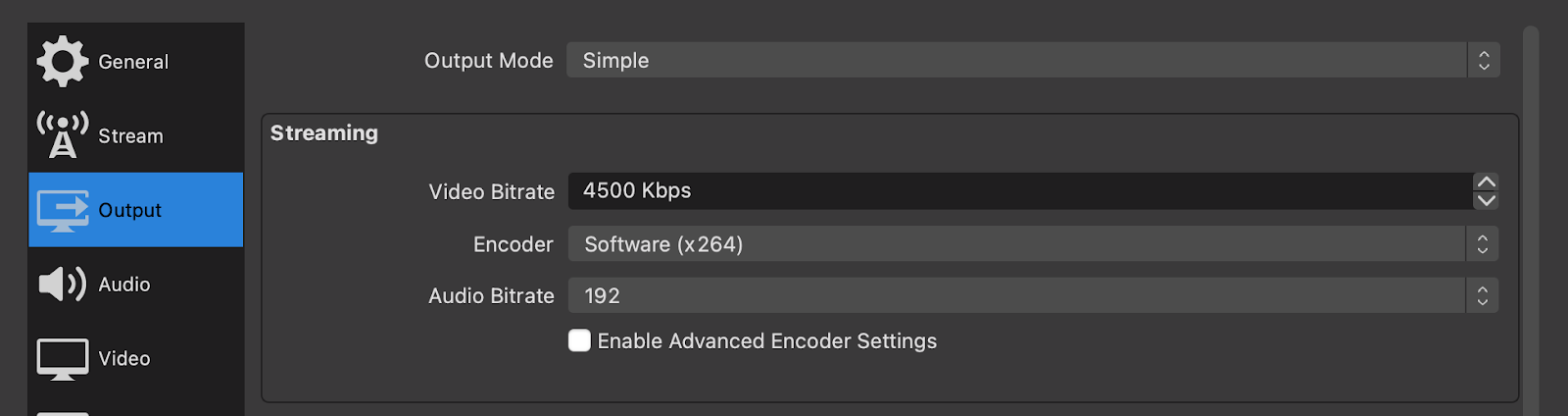
Depending on whether you are streaming using SRT or RTMP, the fields you need to copy from Recast for Business and enter into OBS will differ. We've laid out both scenarios as follows.

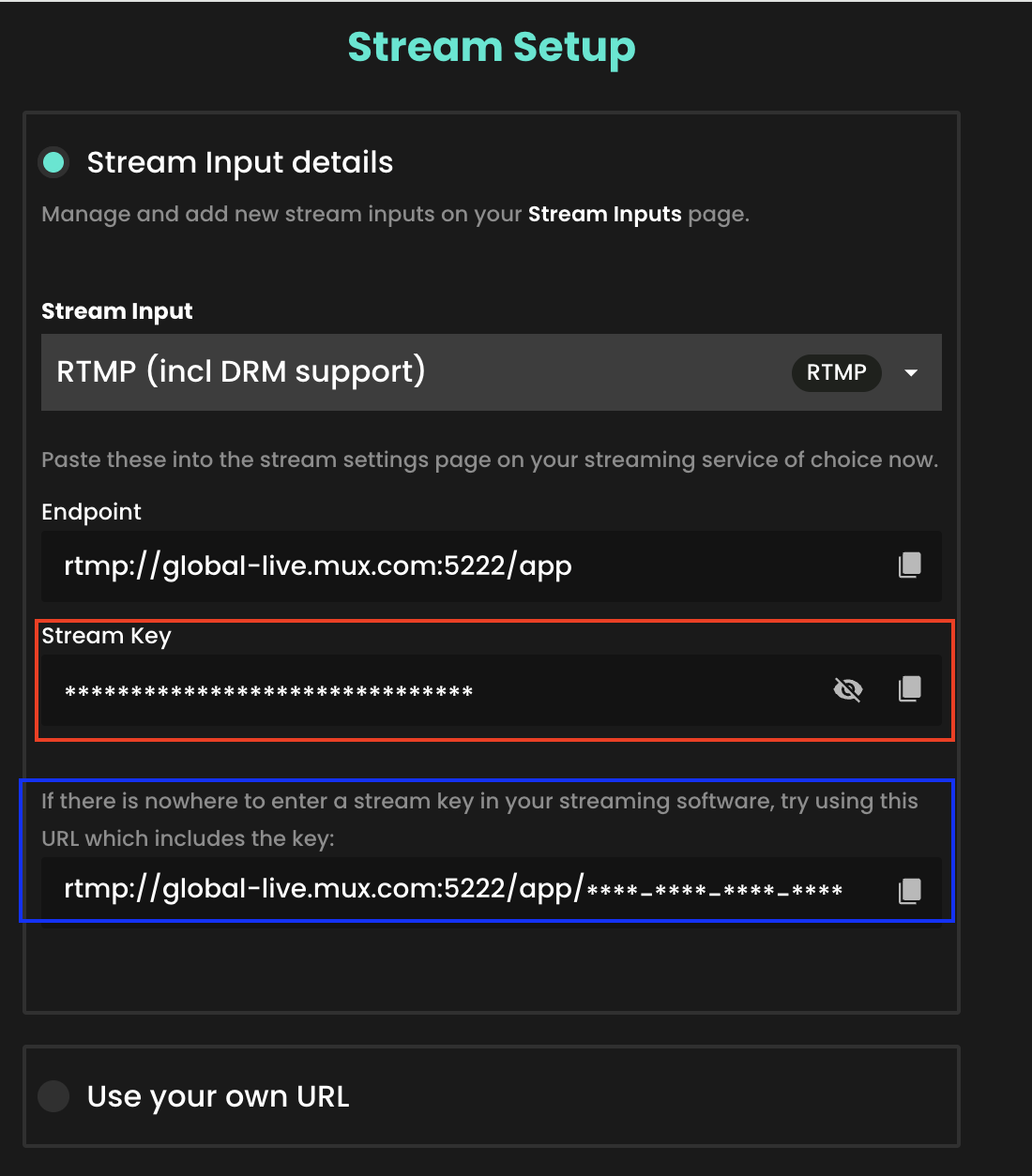

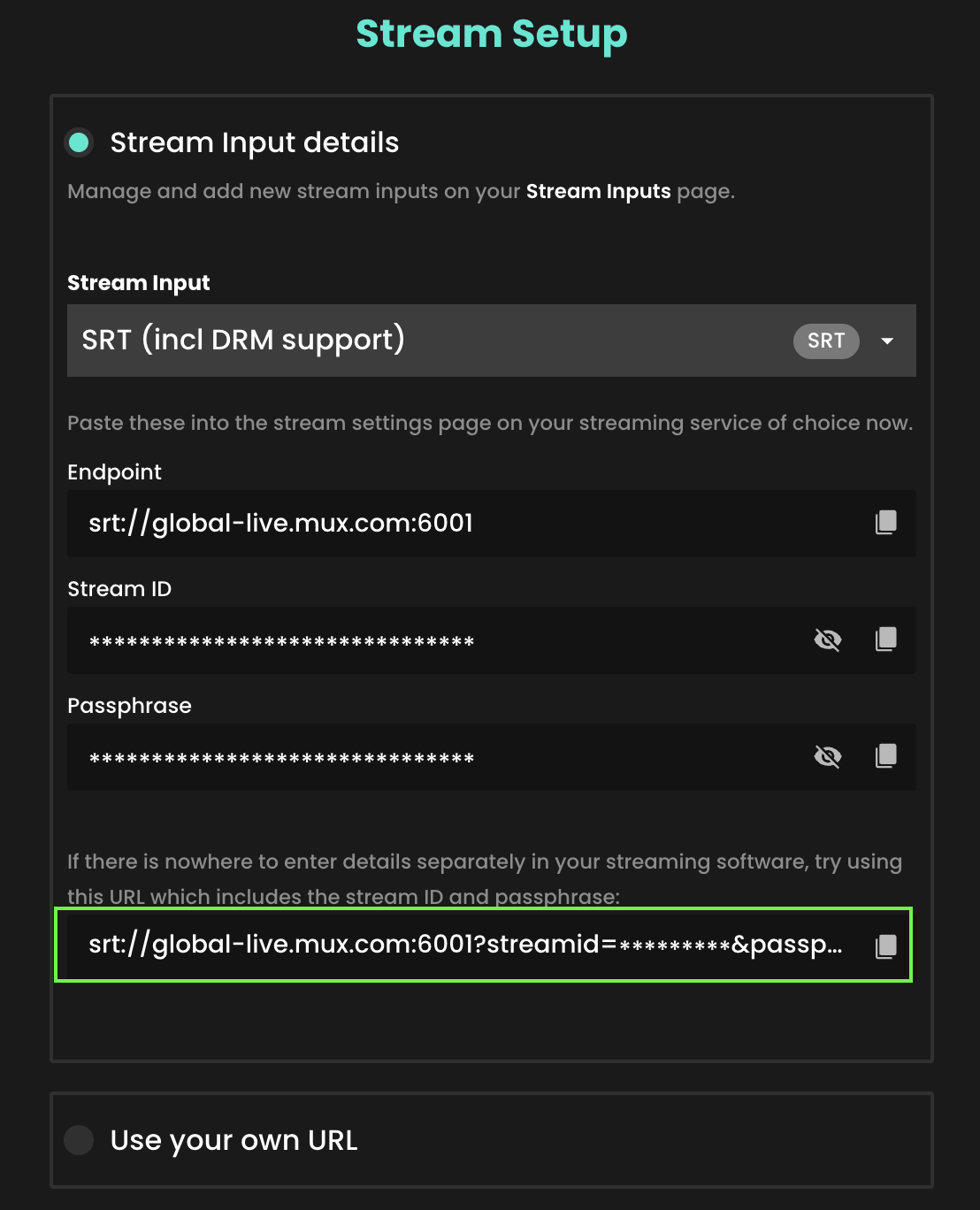
In Recast for Business, open Stream Inputs and choose + Stream Input. Pick RTMP or SRT — the choice is fixed once the input is created.
Recast then shows the values your encoder needs. Copy them from there rather than retyping them:
Note that an SRT input labels its credential STREAM ID, not Stream Key. It is the same value, under the name SRT uses for it.
Then confirm all three of these, or your stream will be refused:
A new stream input is switched off. Recast switches it on only when it is attached to a live, non-draft video.
Use no more than 50% of your measured upload bandwidth.
Encoding settings live in the output's own configuration dialog, reached by editing the custom RTMP output you create below. Set:
x264, or a hardware encoder if available302 secondsMainAAC128 kbps48000 Hz, stereoWhich URL? Recast displays rtmp://global-live.mux.com:5222/app as your RTMP STREAM URL, and that works. This guide uses rtmps:// on port 443 instead: it is the same Mux ingest wrapped in TLS, so your stream key is not sent in clear text, and port 443 passes through restrictive venue networks that block port 5222. Use whichever your encoder supports.
Recast (anything you like)rtmps://global-live.mux.com:443/appEuropean users can use rtmps://eu-west.live.mux.com/app. If your version rejects rtmps://, use rtmp://global-live.mux.com:5222/app.
Check Broadcast → Set up a new output for an SRT entry. If one exists, it will use separate fields:
Callerglobal-live.mux.com6001pbkeylen 16)500 msIf there is no SRT output type, use RTMP — it is fully supported and, on a stable connection, no worse.
Bandwidth-based auto-adjustment. XSplit can lower your bitrate automatically when it detects congestion. This keeps you on air but means you are no longer sending CBR. It is a reasonable trade on contended wifi and worth turning off on a reliable wired connection.
Resolution is per output. XSplit scales per output rather than globally, so check the output's resolution rather than the canvas size.
Do not chase low latency. Recast streams run at standard latency (20–30 seconds) by design.
One protocol per stream input. A Recast stream input is created as either RTMP or SRT and cannot be switched afterwards.
Check the stream input is attached to a video and that the video is not a draft. XSplit will report a healthy output while Recast rejects it.
Then wait a full 30 seconds before concluding anything.
Usually bandwidth. Halve the bitrate and see whether it stabilises. Then use a cable rather than wifi and close other uploading applications.
You have 30 minutes to reconnect before Recast treats the stream as ended.
Check the dropped-frame counter. If it is climbing, reduce the bitrate or drop a tier. If it is not, the bottleneck is likely the machine — reduce the number of live sources in the scene or switch to a hardware encoder.
Confirm the output's audio format is 48000 Hz stereo AAC. 44.1 kHz produces silence rather than an error.
Include your XSplit Broadcaster version, the output type, your bitrate and resolution, and your measured upload speed.
More detail: Recast live ingest reference
This guide explains how to add a simple and controllable scoreboard overlay onto your stream.
Go to overlays.uno, then select Login, or Sign up if you don’t have an account.
Once logged in, you should be taken to this page:
Click on the ‘+ New Overlay’ Button, which will show you different options:
Here you can search for the type of overlay you want. For this guide, we have selected the following as an example:
Click on the item, and you should receive the pop-up below:
Click ‘Add to My Overlays’
This should take you to the Dashboard below.
Double-click on the item you want to use under ‘My Overlays’ and you are ready to move on!
Take some time to familiarise yourself with the dashboard. It is split up into several sections, with the navigation along the middle of the page.
Please note: These options may change depending on the template being used.
The next step is to customise your scoreboard. This example scoreboard has a few options that can be changed, such as teams names, colours, logos etc. Each scoreboard has different options available.
To change the team names click on the ‘Setup’ tab, once these have been changed when you click off the text box you will see the scoreboard in the preview has been updated. If you click on the ‘Customize’ tab you will be able to add your colours, logos to change the branding of the team sections which will be updated in the preview.
Once customised, you are ready to connect you scoreboard overlay to OBS.
Before heading to OBS, in the overlays.uno scoreboard control page, click on the ‘Copy Output URL’ button on the top left;
When you press this a little green pop-up will appear at the top letting you know the link has been copied to the clipboard;

Now head over to OBS, navigate to the Sources panel and click on the (+) symbol to add a new source, then select the Browser option, Name your source, ‘Scoreboard – Uno’ for example and select OK;
On the next screen in the URL text box delete the default link and paste the link from Uno. Change the width and height to match your video source (Most likely HD so 1920×1080).
When finished, select ‘OK’.
After a few seconds, the scoreboard should animate into the screen. The position of the scoreboard can be changed and once you’re happy with this then you can move on to the next step.
If you want to control the scoreboard from the same computer that’s running OBS then we would suggest using dual monitors so you can monitor OBS and use the scoreboard functions at the same time. If you are limited to a single screen you can use a smartphone or iPad to control the scoreboard, which may be useful as you can control this from anywhere.
Changing the score
To control the scoreboard from the web browser on your computer, simply head back to singular.live, and you should still be on the control page and click on the ‘Score tab’.
Adjusting the time
Next, click on the Clock tab:
These two tabs will be used when the game is about to start and while it is live. This will require human input throughout the broadcast to keep scoring live. There is an option to have an outside source such as the system that runs the digital scoreboards in a stadium (this requires a paid version).
Smartphone/iPad Control
On Uno, next to the ‘Copy Output URL’ there is the the ‘Copt Control URL’:
This will copy the controller page link (another way is to just copy the link in the address bar), and open that link on your mobile device, such as a smartphone or iPad.
The controller page will open, and you can control the scoreboard from this, even if you close the browser on the computer.
A few tips for using the mobile version;
It is typically best practice to have the scoreboard set to ‘overlay – off’ when going live, with most scoreboards appearing several seconds after the event start time/kick-off time. Here’s a football-specific flow to follow below;
In Recast for Business, open Stream Inputs and choose + Stream Input. Pick RTMP or SRT — the choice is fixed once the input is created.
Recast then shows the values your encoder needs. Copy them from there rather than retyping them:
Note that an SRT input labels its credential STREAM ID, not Stream Key. It is the same value, under the name SRT uses for it.
Then confirm all three of these, or your stream will be refused:
A new stream input is switched off. Recast switches it on only when it is attached to a live, non-draft video.
Not on the device. Destinations are configured in the LiveU Solo web portal (solo.liveu.tv), and the unit collects them when it comes online. Set up your Recast destination before you leave for the venue — you do not want to be doing this on a phone in a car park.
SRT on the Solo needs both of the following:
LiveU Reliable Transport (LRT) is the Solo's own bonding protocol. The unit sends LRT to the LiveU cloud, and the cloud converts it to SRT for delivery to Recast. This means SRT is not a device-to-Mux connection — it is a device-to-cloud-to-Mux connection, which has consequences described below.
Without an LRT subscription, use RTMP.
Bonded cellular bandwidth varies constantly. 720p is the sensible default for a Solo; reserve 1080p for situations where you have tested the bonded uplink at the venue and know it holds up.
Use no more than 50% of your measured upload bandwidth. On bonded cellular, measure with the Solo's own bandwidth display at the venue, at the time of day you will be streaming — cell congestion at 3pm tells you nothing about 8pm.
Which URL? Recast displays rtmp://global-live.mux.com:5222/app as your RTMP STREAM URL, and that works. This guide uses rtmps:// on port 443 instead: it is the same Mux ingest wrapped in TLS, so your stream key is not sent in clear text, and port 443 passes through restrictive venue networks that block port 5222. Use whichever your encoder supports.
Recastrtmps://global-live.mux.com:443/appThe Solo supports RTMPS in the Generic destination type, so use the rtmps:// URL on port 443.
The Solo offers an RTMP Direct mode that bypasses the LiveU cloud and sends straight from the device. It removes a hop, but it also removes bonding — you are on a single interface. Use it only when you have one reliable connection and no LRT subscription.
Requires firmware 7.1 or later and an active LRT subscription.
Recast SRTsrt://global-live.mux.com:6001Key length must be 128-bit if the portal exposes the choice. Mux requires it.
Because the SRT leg runs from the LiveU cloud to Mux — not from the device — SRT does not improve the resilience of the cellular link itself. That job is already done by LRT between the unit and the cloud.
What SRT buys you is a more robust cloud-to-Mux hop than RTMP provides. That is worth having, but if your problem is patchy cellular at the venue, SRT is not the fix. More modems, better antenna placement, or a lower bitrate is.
The delay includes a cloud hop. LiveU adds its own latency between the unit and the cloud, configurable in the portal, on top of Recast's standard latency. Expect noticeably more than 30 seconds end to end. This is normal.
Check your data allowance. A 3500 kbps stream is roughly 1.5 GB per hour, per bonded modem carrying a share of it. Long events on metered SIMs get expensive quickly, and a SIM hitting its cap mid-event looks exactly like a coverage failure.
Modem placement matters more than settings. The Solo's antennas are directional enough that moving the unit a metre, or off a metal surface, can change available bandwidth substantially. Do this before lowering the bitrate.
Configure destinations in advance. Portal changes take effect when the unit next contacts the cloud, which is not instant.
One protocol per stream input. A Recast stream input is created as either RTMP or SRT and cannot be switched afterwards.
Check the stream input is attached to a video and that the video is not a draft. The Solo will report a healthy stream to the LiveU cloud while Recast rejects the final delivery.
Then wait a full 40 seconds — the extra cloud hop means longer than usual.
Look at the modem status on the unit's display. Losing modems means losing bandwidth, and the Solo will reduce quality to compensate before it drops.
Move the unit. Then reduce the bitrate a tier. Then check SIM data allowances.
You have 30 minutes to reconnect before Recast treats the stream as ended.
On a bonded uplink this nearly always means the bitrate is too high for the cellular conditions. Drop to 480p rather than persisting at 720p — a stable lower resolution looks considerably better than an unstable higher one.
Confirm the audio source on the Solo's input — the unit takes embedded SDI or HDMI audio, or an analogue input, and selecting the wrong one produces silence.
Prefer embedded audio so the audio and video share a clock across the cloud hop.
Include the unit model and firmware version, whether you have an LRT subscription, the destination type, the number of modems connected, and the bitrate you were sending.
More detail: Recast live ingest reference
In Recast for Business, open Stream Inputs and choose + Stream Input. Pick RTMP or SRT — the choice is fixed once the input is created.
Recast then shows the values your encoder needs. Copy them from there rather than retyping them:
Note that an SRT input labels its credential STREAM ID, not Stream Key. It is the same value, under the name SRT uses for it.
Then confirm all three of these, or your stream will be refused:
A new stream input is switched off. Recast switches it on only when it is attached to a live, non-draft video.
Makito X4 encoder firmware 1.2 or later is required for SRT to Recast.
Mux identifies your stream by the SRT Stream ID. The Makito X4 gained a Stream ID field in firmware 1.2, alongside stream failover and dual-NIC support. Below 1.2 there is no way to tell Mux which stream you are, so the connection will be refused regardless of your other settings.
Firmware version is shown on the web interface's status or about page. If you manage a fleet through Haivision EMS, you can check and upgrade centrally.
Use no more than 50% of your measured upload bandwidth.
Encode in H.264, not HEVC. The Makito X4 is capable of HEVC and it is tempting on a constrained link, but Mux's live ingest expects H.264. Set the encoder's codec explicitly rather than trusting the preset.
The keyframe interval is set as GOP Size in the encoder's video settings. At 30 fps use 60; at 25 fps use 50.
This is the recommended path for Haivision hardware.
global-live.mux.com6001500 msEncryption must be AES-128. Mux requires a 128-bit key. The Makito X4 offers AES-128, AES-192 and AES-256; the latter two will fail the handshake with an error that does not identify the cause.
European facilities can use eu-west.live.mux.com in place of the global address.
500 ms is a good starting point on a facility connection. On a long-haul or satellite path, set it to at least four times the round-trip time. The Makito X4's statistics page reports the measured RTT once connected, so you can tune it with real numbers rather than guessing.
Which URL? Recast displays rtmp://global-live.mux.com:5222/app as your RTMP STREAM URL, and that works. This guide uses rtmps:// on port 443 instead: it is the same Mux ingest wrapped in TLS, so your stream key is not sent in clear text, and port 443 passes through restrictive venue networks that block port 5222. Use whichever your encoder supports.
rtmps://global-live.mux.com:443/appIf your firmware does not accept an rtmps:// URL, use rtmp://global-live.mux.com:5222/app.
Multiple simultaneous streams. The Makito X4 can run several outputs at once. Each consumes uplink bandwidth, so the 50% headroom rule applies to the total of everything the unit is sending.
Dual NIC. Where the unit has two network interfaces, make sure the stream is bound to the one with the internet route. A stream bound to a private production VLAN will fail to reach Mux with an error that looks like a credential problem.
HEVC is not supported by Mux live ingest. Set H.264 explicitly.
Do not chase low latency. Recast streams run at standard latency (20–30 seconds) by design. The Makito X4 can achieve very low glass-to-glass latency in a point-to-point workflow, but that is not what is happening here, and tightening the GOP will only make the stream more fragile.
One protocol per stream input. A Recast stream input is created as either RTMP or SRT and cannot be switched afterwards.
Check the stream input is attached to a video and that the video is not a draft. The encoder will report a healthy connection while Recast rejects it.
Then wait a full 30 seconds before concluding anything.
Check the SRT statistics page. A high retransmit rate with rising packet loss means the link cannot carry the bitrate — reduce it, or raise the latency to give SRT more room to recover.
You have 30 minutes to reconnect before Recast treats the stream as ended.
Look at the encoder's output statistics rather than guessing. If the encoder is sending cleanly and viewers still stutter, the problem is bandwidth between the encoder and Mux, not the encoder itself.
Confirm the audio encoder is AAC-LC at 48 kHz stereo, and that the correct audio pair is selected — the Makito X4 can carry many embedded pairs and will happily encode a silent one.
Prefer audio embedded in the SDI signal over a discrete input so both share a clock.
Include the model and exact firmware version, the protocol, the stream configuration, and a screenshot of the stream statistics page. For SRT issues the statistics page usually contains the answer.
More detail: Recast live ingest reference
The Featured Carousel puts your most important content right at the top of your Full Channel widget, so fans see what you most want them to buy or watch as soon as they arrive.
It's a special type of section that you set up in Arrange Content, in the same way as your custom sections. The carousel:
You can have one Featured Carousel, and it's only available on Full Channel widgets.
Fans can swipe or click through the slides, and use the dots under the carousel to jump between items.
.png)
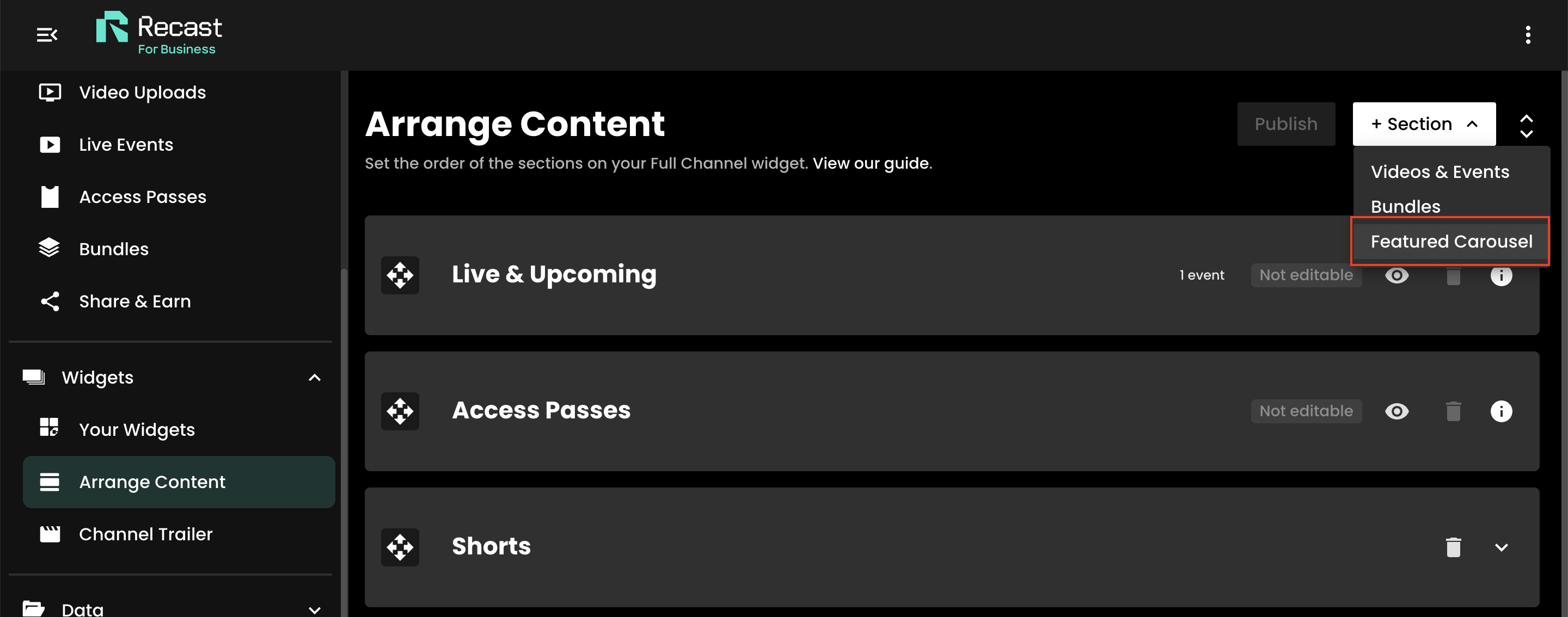
Your new Featured Carousel appears at the top of your list of sections, marked Not published. It has two tabs: Content and Styling.
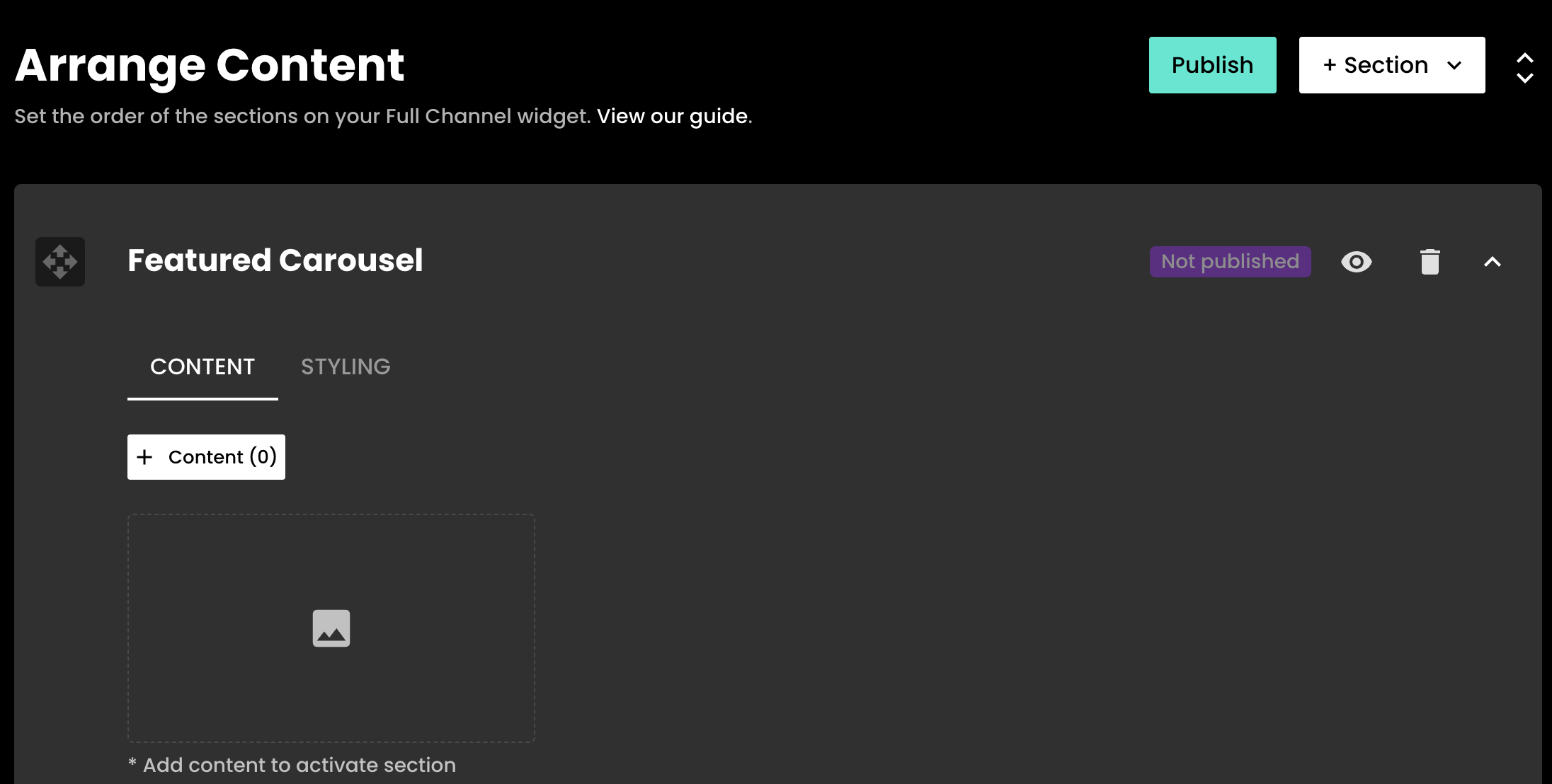
The Featured Carousel is the first section that lets you mix different types of content together. You can add any combination of:
Access Passes can't be added to the Featured Carousel. To feature a group of content together, create a bundle and add the bundle to your carousel instead.
Content must already be uploaded, scheduled or set up as a bundle in Recast for Business before you can add it.

The + Content button shows how many items are in your carousel, for example + Content (6). Underneath, you'll see how many are published, unpublished and scheduled for publish.
Good to know: only published content is shown to fans. Unpublished items are marked Not Published in the picker. If you add one, it won't appear on your widget until you publish that video or event, or it publishes automatically based on its scheduled publish settings.
Your items are shown as numbered cards, and the number is the order they'll appear in on your widget. To move an item, drag it by the handle next to its number.
Put the item you most want fans to see in position 1, as this is the first slide they'll see.
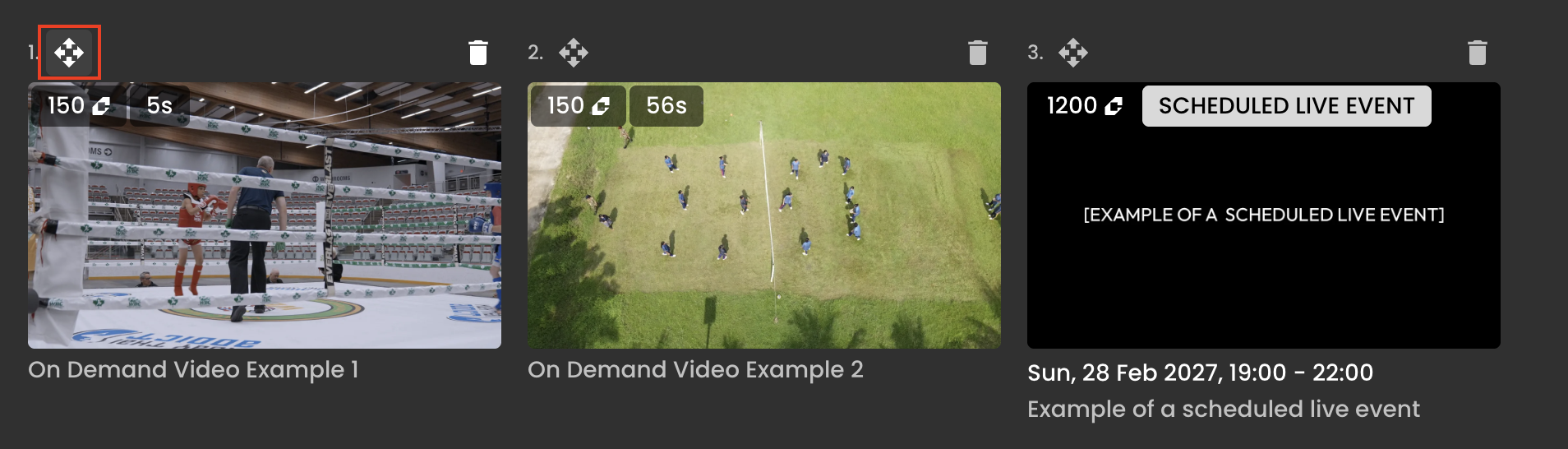
Click the bin icon in the top-right corner of the card. This only removes the item from the carousel; it doesn't delete the video, event or bundle.
The Featured Carousel has its own colours, separate from the rest of your widget. This lets you make it stand out, or match it to a campaign or event.
A live preview underneath updates as you make changes, so you can see exactly how your carousel will look.

This third setting is for the preview only. Set it to match your widget's background so the preview is realistic. It doesn't change your widget.
To change your widget's actual background colour, edit the widget on the Your Widgets page.
Tip: Make sure your font colour stands out clearly against your item background colour, so prices and buttons are easy to read.
When you're happy with your content, order and colours, click Publish at the top right of the Arrange Content screen. Your carousel will then appear at the top of your Full Channel widget.

Each slide shows the item's thumbnail, title, date and description, with one main button. The button changes depending on the type of content and whether the fan already has access to it.
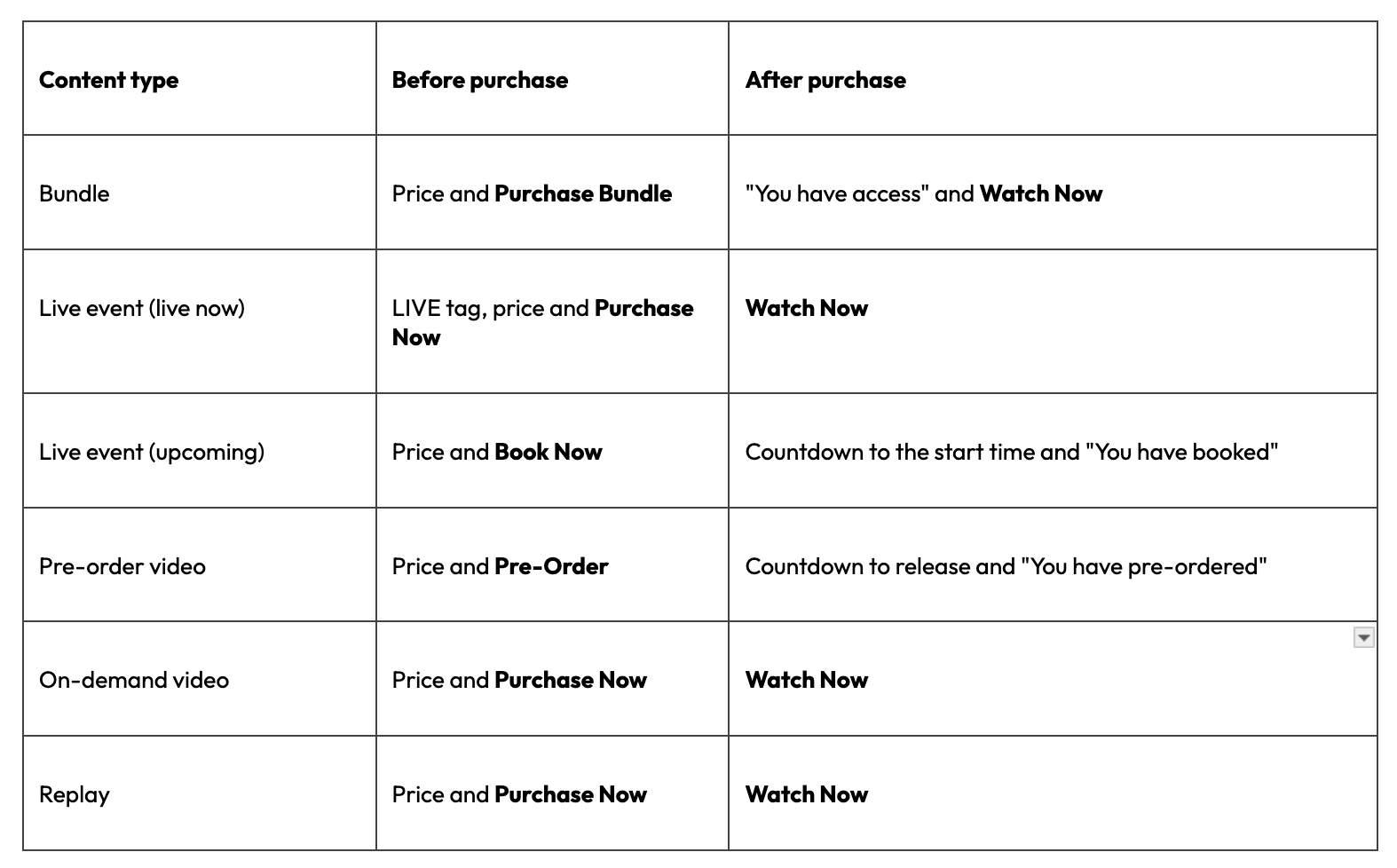
Every slide also has a View Details link that takes fans to the full page for that video, event, or bundle.
Purchase buttons open the usual Recast purchase journey. Once a fan has bought an item, they are taken to the relevant detail view to start watching or view the countdown timer, as relevant.
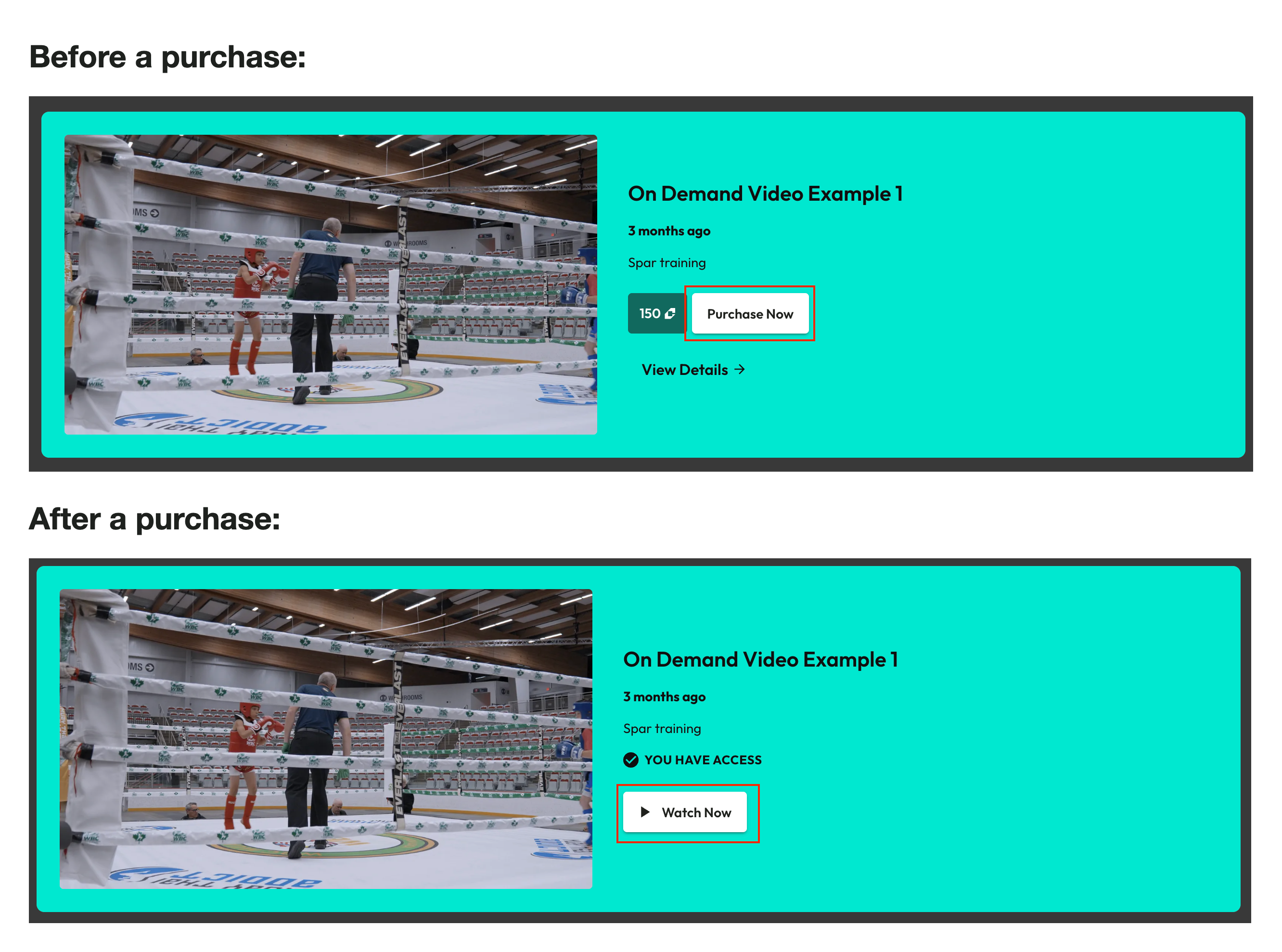
Fans who already own a bundle will also see "You have access" on the bundle page itself, in place of the price and purchase button.
In Recast for Business, open Stream Inputs and choose + Stream Input. Pick RTMP or SRT — the choice is fixed once the input is created.
Recast then shows the values your encoder needs. Copy them from there rather than retyping them:
Note that an SRT input labels its credential STREAM ID, not Stream Key. It is the same value, under the name SRT uses for it.
Then confirm all three of these, or your stream will be refused:
A new stream input is switched off. Recast switches it on only when it is attached to a live, non-draft video.
ffmpeg -version
ffmpeg -protocols | grep -E 'rtmps?|srt'
You need rtmp and rtmps for the RTMP path, and srt for the SRT path. SRT requires FFmpeg built with libsrt; many distribution packages omit it. If srt is missing, install a full build rather than trying to work around it.
Use no more than 50% of your measured upload bandwidth.
This sends a generated test pattern and a 1 kHz tone. It needs no camera, no capture card and no media file, so it isolates the network and the Recast configuration completely.
RTMP:
ffmpeg -re \
  -f lavfi -i "testsrc2=size=1280x720:rate=30" \
  -f lavfi -i "sine=frequency=1000:sample_rate=48000" \
  -c:v libx264 -preset veryfast -profile:v main -pix_fmt yuv420p \
  -b:v 3500k -maxrate 3500k -bufsize 7000k \
  -g 60 -keyint_min 60 -sc_threshold 0 \
  -c:a aac -b:a 128k -ar 48000 -ac 2 \
  -f flv "rtmps://global-live.mux.com:443/app/YOUR_STREAM_KEY"
If that appears in Recast, everything outside your production encoder is working. If it does not, the fault is upstream of the encoder and the troubleshooting section below applies.
Which URL? Recast displays rtmp://global-live.mux.com:5222/app as your RTMP STREAM URL, and that works. This guide uses rtmps:// on port 443 instead: it is the same Mux ingest wrapped in TLS, so your stream key is not sent in clear text, and port 443 passes through restrictive venue networks that block port 5222. Use whichever your encoder supports.
Streaming a file:
ffmpeg -re -i input.mp4 \
  -c:v libx264 -preset veryfast -profile:v main -pix_fmt yuv420p \
  -b:v 5000k -maxrate 5000k -bufsize 10000k \
  -g 60 -keyint_min 60 -sc_threshold 0 \
  -c:a aac -b:a 128k -ar 48000 -ac 2 \
  -f flv "rtmps://global-live.mux.com:443/app/YOUR_STREAM_KEY"
Note the URL shape: the stream key is the last path segment, appended after /app/. This is different from every GUI encoder in this set, where the server and the key are separate fields.
-re — Read the input at its native rate. Without it, FFmpeg sends a file as fast as it can and Mux rejects the stream. Omit it for live capture devices.-b:v -maxrate -bufsize — Set all three, with bufsize at twice the bitrate, to get true CBR-g 60 -keyint_min 60 — A 2-second keyframe interval at 30 fps. Use 50 at 25 fps.-sc_threshold 0 — Stops FFmpeg inserting extra keyframes on scene changes, which breaks a fixed GOP-pix_fmt yuv420p — Mux requires 4:2:0. Some sources default to 4:2:2 and the stream is rejected.-ar 48000 — Mux expects 48 kHzFor plain RTMP, use rtmp://global-live.mux.com:5222/app/YOUR_STREAM_KEY.
ffmpeg -re -i input.mp4 \
  -c:v libx264 -preset veryfast -profile:v main -pix_fmt yuv420p \
  -b:v 5000k -maxrate 5000k -bufsize 10000k \
  -g 60 -keyint_min 60 -sc_threshold 0 \
  -c:a aac -b:a 128k -ar 48000 -ac 2 \
  -f mpegts \
  "srt://global-live.mux.com:6001?streamid=YOUR_STREAM_KEY&passphrase=YOUR_SRT_PASSPHRASE&pbkeylen=16&latency=500000"
Three things differ from the RTMP command:
-f mpegts, not -f flv. SRT carries an MPEG transport stream.streamid=, a query parameter, not a path segment.latency is in microseconds. 500000 is 500 milliseconds. This catchesalmost everyone: entering 500 asks for half a millisecond of buffer, and the stream collapses immediately.
pbkeylen=16 selects the 128-bit key that Mux requires. Do not change it.
Always quote the whole URL. Unquoted, your shell will interpret & as a background operator and the command will fail in a confusing way.
FFmpeg prints a continuous status line:
frame= 1234 fps= 30 q=25.0 size= 12345kB time=00:00:41.13 bitrate=3500.2kbits/s speed=1.00x
Read three things:
fps should match your target. Lower means the machine cannot keep up.speed should sit at 1.00x. Below that, FFmpeg is falling behind realtime and the stream will drift and eventually fail.
bitrate should be near your configured value.Then open the video in Recast and allow 20 to 30 seconds — standard latency means that delay is expected.
Stop cleanly with q, not Ctrl-C, so the stream ends tidily.
-re with live devices. Use -re for files only. With a live capture device, the device already paces the stream and -re will make it drift.
Add -loglevel warning for a quieter run once you have it working, or -loglevel debug when diagnosing a handshake failure — the SRT errors in particular are far more informative at debug level.
Looping a file for a soak test:
ffmpeg -re -stream_loop -1 -i input.mp4 ...
Useful for confirming a venue connection holds up over an hour before the day.
Do not chase low latency. Recast streams run at standard latency (20–30 seconds) by design. Reducing -g will not change what viewers see.
One protocol per stream input. A Recast stream input is created as either RTMP or SRT and cannot be switched afterwards.
Check the stream input is attached to a video and that the video is not a draft. FFmpeg will keep sending happily while Recast rejects the stream.
Then wait a full 30 seconds before concluding anything.
Connection refused or Server returned 403streamid parameter for SRT&Connection timed out or immediate disconnectlatency in milliseconds instead of microseconds — it must be 500000pbkeylen missing or not 16speed below 1.00xYour machine cannot encode in real time. Use a faster preset (-preset superfast or ultrafast), drop a tier, or use a hardware encoder — h264_videotoolbox on macOS, h264_nvenc with NVIDIA, h264_qsv with Intel.
Usually bandwidth. Halve -b:v, -maxrate and -bufsize and see whether it stabilises.
You have 30 minutes to reconnect before Recast treats the stream as ended.
Check -ar 48000 is present, and that the audio codec is aac. Also confirm your input actually has an audio track:
ffprobe -hide_banner input.mp4
Invalid pixel format or the stream is rejected without explanationAdd -pix_fmt yuv420p. Sources in 4:2:2 or 10-bit are rejected, and the error is rarely clear about it.
Include the full command with the stream key redacted, your FFmpeg version, and the output from the last 20 lines of the run. Add -loglevel debug for SRT handshake failures.
More detail: Recast live ingest reference
Covers the Magewell Ultra Encode family and the Ultra Stream family.
Which one you have matters:
Ultra Stream is the simpler consumer-facing product and supports RTMP and RTMPS only. If you have an Ultra Stream and need SRT, you need different hardware — skip to the RTMP section, which works perfectly well.
In Recast for Business, open Stream Inputs and choose + Stream Input. Pick RTMP or SRT — the choice is fixed once the input is created.
Recast then shows the values your encoder needs. Copy them from there rather than retyping them:
Note that an SRT input labels its credential STREAM ID, not Stream Key. It is the same value, under the name SRT uses for it.
Then confirm all three of these, or your stream will be refused:
A new stream input is switched off. Recast switches it on only when it is attached to a live, non-draft video.
Configure the unit through its web interface. Both families expose one over the network, and on some models over a USB or wifi connection as well.
Use no more than 50% of your measured upload bandwidth.
Encode in H.264, not H.265. Ultra Encode supports H.265 and NDI HX, and H.265 is tempting on a constrained uplink, but Mux's live ingest expects H.264. Set the codec explicitly rather than trusting a preset.
Which URL? Recast displays rtmp://global-live.mux.com:5222/app as your RTMP STREAM URL, and that works. This guide uses rtmps:// on port 443 instead: it is the same Mux ingest wrapped in TLS, so your stream key is not sent in clear text, and port 443 passes through restrictive venue networks that block port 5222. Use whichever your encoder supports.
Works on both Ultra Encode and Ultra Stream.
rtmps://global-live.mux.com:443/appBoth families support RTMPS, so use the rtmps:// URL on port 443. European users can substitute eu-west.live.mux.com.
Ultra Encode only. Ultra Stream does not support SRT.
global-live.mux.com6001500 msKey length must be 16, meaning 128-bit. Mux requires it. Magewell exposes this as a key-length value where 16 is AES-128, 24 is AES-192 and 32 is AES-256. Choosing 32 fails the handshake with an unhelpful error, and it is the most common SRT mistake.
Ultra Encode runs many sessions at once. It supports several simultaneous SRT caller and listener sessions plus RTMP destinations. That flexibility is useful and it is also a trap: every active session shares your uplink, so the 50% bandwidth headroom rule applies to the total.
Recording and streaming together. Where the unit records to SD or USB while streaming, a slow card can affect the whole pipeline. Use a fast card, or record elsewhere.
Ultra Stream is deliberately simple. It targets non-technical users and hides much of the encoder configuration. If you cannot find a setting from the table above, the device is probably choosing it for you — set what you can and accept the defaults for the rest.
Do not chase low latency. Recast streams run at standard latency (20–30 seconds) by design.
One protocol per stream input. A Recast stream input is created as either RTMP or SRT and cannot be switched afterwards.
Check the stream input is attached to a video and that the video is not a draft. The unit will report a healthy stream while Recast rejects it.
Then wait a full 30 seconds before concluding anything.
Usually bandwidth, especially if several sessions are active. Disable the other destinations and see whether Recast stabilises.
You have 30 minutes to reconnect before Recast treats the stream as ended.
Reduce the bitrate or drop a tier. Then check whether the unit is also recording to a slow card, which can starve the encoder.
Confirm AAC-LC at 48 kHz stereo and that the correct audio source is selected — embedded HDMI or SDI audio, or an analogue input.
Prefer embedded audio so audio and video share a clock.
Include the exact model (Ultra Encode or Ultra Stream, and which variant), the firmware version, the protocol, how many destinations are active, and your bitrate and resolution.
More detail: Recast live ingest reference
In Recast for Business, open Stream Inputs and choose + Stream Input. Pick RTMP or SRT — the choice is fixed once the input is created.
Recast then shows the values your encoder needs. Copy them from there rather than retyping them:
Note that an SRT input labels its credential STREAM ID, not Stream Key. It is the same value, under the name SRT uses for it.
Then confirm all three of these, or your stream will be refused:
A new stream input is switched off. Recast switches it on only when it is attached to a live, non-draft video.
Use no more than 50% of your measured upload bandwidth.
Encoding is configured in Output → Output Settings, then Encoding. Start from a Wirecast preset near your tier, choose New Preset to make it editable, and set:
Main Concept H.264 or a hardware encoder30Main60 frames at 30 fps (2 seconds)AAC128 kbps48.000 kHzWirecast expresses the keyframe interval in frames, not seconds. At 30 fps that is 60; at 25 fps it is 50.
Which URL? Recast displays rtmp://global-live.mux.com:5222/app as your RTMP STREAM URL, and that works. This guide uses rtmps:// on port 443 instead: it is the same Mux ingest wrapped in TLS, so your stream key is not sent in clear text, and port 443 passes through restrictive venue networks that block port 5222. Use whichever your encoder supports.
rtmps://global-live.mux.com:443/appEuropean users can use rtmps://eu-west.live.mux.com/app. If your version rejects rtmps://, use rtmp://global-live.mux.com:5222/app.
Wirecast uses separate fields rather than a single connection URL.
global-live.mux.com6001500Set the key length to 128-bit. Mux requires it. Where Wirecast expresses this as pbkeylen, the value is 16. A 256-bit key fails the handshake with an error that gives no hint of the real cause — this is the most common SRT mistake.
Wirecast version 14.1 is the minimum version that uses SRT. If your Destination list has no SRT entry, your version predates it — use RTMP, or update Wirecast.
Presets are read-only. Wirecast's built-in encoding presets cannot be edited. You must choose New Preset and copy the settings before you can change the keyframe interval or profile. People frequently think they have changed a setting when they have not.
Keyframes are counted in frames. 2 in the Key Frame field means every two frames, which is catastrophic. It must be 60 at 30 fps.
Audio sample rate. Wirecast defaults vary by capture device. Confirm 48 kHz explicitly in the encoding preset.
Do not chase low latency. Recast streams run at standard latency (20–30 seconds) by design.
One protocol per stream input. A Recast stream input is created as either RTMP or SRT and cannot be switched afterwards.
Check the stream input is attached to a video and that the video is not a draft. Wirecast will report a healthy broadcast while Recast rejects it.
Then wait a full 30 seconds before concluding anything.
Usually bandwidth. Halve the bitrate and see whether it stabilises.
Wirecast is also demanding on disk if you are recording at the same time. Recording to the same drive as your media assets can starve the encoder — use a separate drive.
You have 30 minutes to reconnect before Recast treats the stream as ended.
Check Output Statistics for dropped frames. If frames are dropping, reduce the bitrate or drop a tier.
If they are not, check Wirecast's CPU usage. A complex shot layout with several live sources will bottleneck the machine before the network.
Confirm AAC at 48 kHz stereo in the encoding preset.
For drift, Wirecast offers an audio delay per source in the source's audio properties. Prefer audio embedded in the video signal where your capture device supports it, so both share a clock.
Include your Wirecast version, the encoding preset in use, the protocol, your bitrate and resolution, and your measured upload speed.
More detail: Recast live ingest reference
Covers Teradek Core (corecloud.tv), the cloud video management platform that sits between a Teradek encoder and its destinations. Use this guide when your encoder publishes to Core rather than directly to Recast.
If your encoder can reach Recast on its own, it should — go to the VidiU guide or your encoder's own guide instead. Core adds a hop, a subscription and a second thing that can fail.
Core is not an encoder. It ingests your encoder's feed and republishes it, so the path to Recast has two legs:
Camera ─▶ Teradek encoder ─Teradek transport─▶ Core ─RTMP(S)─▶ Mux ─▶ Recast
Recast credentials go into Core, not into the encoder. The encoder only needs to reach Core.
SRT earns its place on an unreliable first mile — a venue wifi, a bonded cellular uplink. That leg here is camera to Core, and Teradek already covers it with its own bonded transport. The Core to Mux leg is cloud to cloud over reliable networking, where SRT buys very little and adds a passphrase, a key length and a latency value to get wrong.
Send RTMP(S) from Core. The packet-loss protection you wanted is already being applied on the leg that needs it.
And if you have a Prism, consider skipping Core entirely. Prism encoders have a full SRT stream mode of their own, so a Prism can send SRT straight to Recast — one leg instead of two, and no subscription. See the Prism guide. Use Core when you want what Core adds: multistreaming, remote management, recording, transcoding, or bonded cellular, which needs a Teradek endpoint to reassemble and so cannot go direct to Recast.
Third-party software can publish into Core over RTMP, SRT or MPEG-TS, but that is a paid add-on. If OBS or vMix is your source and you have no other reason to use Core, send it straight to Recast.
In Recast for Business, open Stream Inputs and choose + Stream Input. Pick RTMP or SRT — the choice is fixed once the input is created.
Recast then shows the values Core needs. Copy them from there rather than retyping them:
Note that an SRT input labels its credential STREAM ID, not Stream Key. It is the same value, under the name SRT uses for it.
Then confirm all three of these, or your stream will be refused:
A new stream input is switched off. Recast switches it on only when it is attached to a live, non-draft video.
Set these on the encoder, not in Core. Core republishes what it receives.
Use no more than 50% of your measured upload bandwidth on the camera-to-Core leg, measured at the venue on the connection you will use.
Avoid Core's transcoder unless you need it. Core can transcode, including HEVC to H.264, but transcoding re-encodes an already-compressed picture and costs quality. Encode H.264 at the settings above on the device and let Core pass it through.
Which URL? Recast displays rtmp://global-live.mux.com:5222/app as your RTMP STREAM URL, and that works. This guide uses rtmps:// on port 443 instead: it is the same Mux ingest wrapped in TLS, so your stream key is not sent in clear text, and port 443 passes through restrictive venue networks that block port 5222. Use whichever your encoder supports.
This is the recommended path from Core.
rtmps://global-live.mux.com:443/appEuropean users can substitute rtmps://eu-west.live.mux.com/app. If Core will not accept an rtmps:// URL, use rtmp://global-live.mux.com:5222/app.
Use this only if you have a specific reason to prefer SRT on the Core-to-Mux leg. Read [how this fits together](#how-this-fits-together) first — for most setups RTMP(S) is the better choice.
srt://global-live.mux.com:6001pbkeylen 16)The defaults are already right. Teradek's SRT settings default to Caller, an encryption key size of 128 bits and 500 ms latency — the same values this guide asks for. On most other manufacturers' encoders the key size defaults to 256-bit and has to be found and changed, so this is one fewer thing to get wrong.
Unconfirmed — the passphrase field on Core's channel form. Teradek documents Passphrase and Encryption Key Size on its devices, but its description of Core's Create Channel form mentions only a URL and a stream key/ID. Recast always issues an SRT passphrase and Mux refuses a connection without one. Expect an Encryption toggle that reveals Passphrase and Encryption Key Size, as it does on Teradek hardware. If the form genuinely has no passphrase field, use RTMP(S) instead.
Two legs, two failure points. A stream can be perfectly healthy on one leg and dead on the other. Always establish which leg is broken before changing settings: Core's Dashboard tells you about camera-to-Core, and Recast tells you about Core-to-Mux.
The 30-minute reconnect window protects the wrong leg. Recast holds the slot open for 30 minutes if the connection to Mux drops — but with Core in the path, that is the Core-to-Mux connection. If your camera leg fails while Core stays up, Mux never sees a disconnect. Recast keeps the stream alive and your viewers watch whatever Core is still sending, usually a frozen frame or black.
Multistreaming is free of your uplink. Core can push to up to 10 destinations from one encoder, and it fans out in the cloud. Streaming to Recast and four other platforms costs your venue connection exactly one stream, which is the main reason to put Core in the path at all.
Engines cost money. Hyperion and Helios are around $75/month each on top of the subscription. Third-party encoder ingest is a Helios feature. Price this in before designing a workflow around it.
The VidiU hardware Core supports is discontinued. VidiU Go is end of life; Teradek's current line is Prism. Core itself is current and supported.
Do not chase low latency. Core Share can monitor at around 200 ms, but that is Core's own monitoring path, not what your Recast viewers receive. Recast streams run at standard latency by design.
One protocol per stream input. A Recast stream input is created as either RTMP or SRT and cannot be switched afterwards.
Check the stream input is attached to a video and that the video is not a draft. Core will report a healthy channel while Recast rejects it.
Then wait a full 40 seconds before concluding anything.
This is the camera leg, and nothing you change in Recast will help. Check the encoder's own network, and on legacy Teradek units check the firmware — Teradek recommends 7.3.14 for older generation encoders on Core.
Establish the leg first. If Core shows the encoder dropping in and out, the problem is the venue connection: move the unit, then drop a quality tier. If Core is stable but Recast keeps ending the stream, the problem is the Core channel — recreate it and re-copy the credentials.
You have 30 minutes to reconnect on the Core-to-Mux leg before Recast treats the stream as ended.
Compare the bitrate Core reports receiving with the bitrate the encoder is configured to send. A gap means the camera leg is the constraint — reduce the encoder bitrate. No gap means look at the source signal or Core's transcoding settings.
If Core is transcoding, turn it off and pass through H.264 instead.
Confirm the encoder is producing AAC-LC at 48 kHz stereo, and that the correct embedded audio pair is selected on the device.
Prefer embedded SDI or HDMI audio over a discrete input so audio and video share a clock. Where Core transcodes, check that its output audio settings have not been left at a different sample rate.
Include your Core account and engine type (Hyperion or Helios), the encoder model and firmware version, the channel protocol, and screenshots of both the Core Encoder Details page and the channel configuration. Say explicitly which leg you believe is failing.
More detail: Recast live ingest reference
Covers the Teradek Prism range — Prism Rack, Prism Flex, Prism Mobile and Prism Jetpack. This is Teradek's current encoder line and what they point former VidiU owners at.
Prism has a full SRT stream mode of its own, so it reaches Recast directly on either protocol with nothing else in the path. You do not need Teradek Core unless you want what Core itself adds.
Every model is both an encoder and a decoder depending on how it is configured. This guide only concerns the encoder side. All of them support H.264 and HEVC, and all of them do SRT and RTMP(S).
The setup is the same across the range. Only how you reach the web interface differs, and how much bonding you have available.
In Recast for Business, open Stream Inputs and choose + Stream Input. Pick RTMP or SRT — the choice is fixed once the input is created. Prism does both well, so this is a real choice; see [which should you use](#srt-or-rtmp-on-a-prism) below.
Recast then shows the values your encoder needs. Copy them from there rather than retyping them:
Note that an SRT input labels its credential STREAM ID, not Stream Key. It is the same value, under the name SRT uses for it.
Then confirm all three of these, or your stream will be refused:
A new stream input is switched off. Recast switches it on only when it is attached to a live, non-draft video.
172.16.1.1, or use its Ethernet IPThe default password is prism followed by the last five digits of the serial number — for example prism12345.
On a Rack unit, use one Ethernet port at a time. Both ports active at once is not a supported configuration.
Prism is one of the few encoders where SRT is the straightforward choice rather than the ambitious one. Its SRT defaults already match what Recast wants, and the field set is complete.
Pick SRT if you are on cellular, venue wifi, or any link you do not control. Pick RTMP(S) if you are on a wired connection you trust, or if the venue blocks outbound UDP — which is common enough to be worth testing before the day.
Use no more than 50% of your measured upload bandwidth, measured at the venue on the connection you will use.
Set the codec to H.264 before anything else. Prism encodes HEVC as well as H.264, and Teradek's own note is unambiguous: "Your device must be set to H.264 to stream to any streaming platform." Mux live ingest does not accept HEVC. A Prism left on HEVC will encode happily, connect, and deliver nothing playable — which looks like a Recast problem and is not.
This is the recommended path for a Prism.
global-live.mux.com60010 — let the encoder assign one500 ms, or higher on cellularEuropean users can substitute eu-west.live.mux.com as the Host.
Most of these are already the defaults. Teradek ships SRT set to Caller, 128-bit keys and 500 ms latency — the three values that most often need changing on other manufacturers' encoders. Check them rather than assuming, but expect to be changing Host, Port, Stream ID and Passphrase only.
Encryption must be on. Recast always issues an SRT passphrase, and Mux refuses an unencrypted connection. Key size must be 128 bits; 192 or 256 will fail the handshake.
The Interface field matters on a multi-homed unit. A Prism Mobile with modems and ethernet will send over whichever interface you select here, not over all of them. If you want the stream to leave by a specific SIM or by the wired connection, set it explicitly rather than leaving it to chance.
Which URL? Recast displays rtmp://global-live.mux.com:5222/app as your RTMP STREAM URL, and that works. This guide uses rtmps:// on port 443 instead: it is the same Mux ingest wrapped in TLS, so your stream key is not sent in clear text, and port 443 passes through restrictive venue networks that block port 5222. Use whichever your encoder supports.
rtmps://global-live.mux.com:443/appEuropean users can substitute rtmps://eu-west.live.mux.com/app. If the unit will not accept an rtmps:// URL on your firmware, use rtmp://global-live.mux.com:5222/app.
Turn Auto Reconnect on. Recast holds your stream slot open for 30 minutes after a drop, and reconnecting inside that window resumes the same recording. Auto Reconnect is what makes that automatic rather than something you have to notice and fix.
Leave Adaptive Bitrate off to match the CBR guidance above — a predictable stream is a reliable one. The exception is cellular, where a picture that dips in quality beats one that stalls. If you turn it on, set your tier's bitrate as the ceiling rather than the target.
User Agent can be left at its default. If a connection is refused for no other apparent reason, FMLE is the more broadly compatible of the two options.
HEVC is the trap on this range. It is the reason to buy a Prism and the reason a Prism stream fails. Mux live ingest is H.264 only. Confirm the codec before every event on a unit you share with anyone.
Bonding needs Core, and Core is a different path. Prism's bonded cellular needs a Teradek endpoint at the far end to reassemble the connections, which means Core. Mux cannot do that. So a direct stream to Recast uses one interface, however many the unit has. If you need genuine bonding, use the Teradek Core guide and accept the second hop.
Multiple SIMs is not the same as bonding. A Prism Mobile has two internal modems taking two SIMs each. Streaming direct to Recast, that gives you a choice of network and a fallback, not combined bandwidth.
Do not chase low latency. Recast streams run at standard latency (20–30 seconds) by design. Prism can do far better point-to-point, but that is not what is happening here.
One protocol per stream input. A Recast stream input is created as either RTMP or SRT and cannot be switched afterwards.
The unit is also a decoder. Configuration screens exist for both roles. Make sure you are setting the encoder's streaming output and not the decoder's ingest — the SRT field names are nearly identical on both.
Check the stream input is attached to a video and that the video is not a draft. The Prism will report a healthy stream while Recast rejects it.
Then check the codec is H.264, not HEVC. This is the most common cause on this range and it produces exactly this symptom.
Then wait a full 30 seconds before concluding anything.
Check the SRT statistics or the RTMP bitrate graph. A gap between the configured bitrate and what is actually leaving the unit means the network is the constraint — drop a tier, or raise the SRT latency to give it more room.
On a multi-homed unit, confirm the Interface setting is the connection you think it is.
You have 30 minutes to reconnect before Recast treats the stream as ended. Auto Reconnect on the RTMP path handles this for you.
Reduce the bitrate one tier. If Adaptive Bitrate is on, that is expected behaviour under congestion rather than a fault.
Confirm AAC-LC at 48 kHz stereo, and that the correct embedded SDI audio pair is selected.
Prefer embedded audio over a discrete input so audio and video share a clock.
Include the model and firmware version, the codec in use, the protocol, which interface the stream is leaving by, and whether Core is in the path. Say explicitly whether the Streaming tab reports the stream as running.
More detail: Recast live ingest reference
Covers the Teradek VidiU Go, VidiU X, VidiU Pro and the original VidiU on-camera encoders.
Use RTMP(S). No VidiU can send SRT to Recast. That is not a limitation of your firmware or your settings — the range has no SRT stream mode at all. [Full explanation below](#why-there-is-no-srt-here).
All VidiU hardware is discontinued. Teradek's current encoder line is Prism — see the Prism guide, which does SRT natively and needs nothing else in the path. The VidiU units keep working and Recast keeps accepting them; there will just be no more firmware.
All four follow the same RTMP setup below. What differs between them is the resolution ceiling and which cloud service, if any, the unit can reach.
In Recast for Business, open Stream Inputs and choose + Stream Input. Pick RTMP — the choice is fixed once the input is created, and an SRT input is of no use to a VidiU.
Recast then shows the two values your encoder needs. Copy them from there rather than retyping them:
Then confirm all three of these, or your stream will be refused:
A new stream input is switched off. Recast switches it on only when it is attached to a live, non-draft video.
You have three options, in order of practicality:
it. Much easier than the front panel for pasting a stream key.
Core for the VidiU Go, Sharelink for the VidiU X. The VidiU and VidiU Pro reach neither.
screen is slow and error-prone.
Use the web interface if you possibly can.
The VidiU range is usually used on cellular or venue wifi, so 720p is the sensible default.
Use no more than 50% of your measured upload bandwidth, measured at the venue on the connection you will use.
Which URL? Recast displays rtmp://global-live.mux.com:5222/app as your RTMP STREAM URL, and that works. This guide uses rtmps:// on port 443 instead: it is the same Mux ingest wrapped in TLS, so your stream key is not sent in clear text, and port 443 passes through restrictive venue networks that block port 5222. Use whichever your encoder supports.
This is the only path for VidiU hardware, and it works well.
rtmps://global-live.mux.com:443/appIf your firmware will not accept an rtmps:// URL, use rtmp://global-live.mux.com:5222/app. European users can substitute eu-west.live.mux.com.
The VidiU range does not have an SRT stream mode. Teradek's own reference guide lists the VidiU X's video transport protocols as RTMP, RTMPS, AirMix, Sharelink bonding and RTSP, and its Streaming menu offers Sharelink, RTMP(S), RTSP and AirMix — there is no SRT entry to find. The VidiU and VidiU Pro are older and more limited still.
The VidiU Go is the one model where SRT is mentioned, and the wording matters: Teradek says SRT, MPEG-TS and RTSP are unlocked "utilizing Core". SRT is a capability of Teradek's cloud platform, not of the box on your camera.
So there is no firmware update to wait for and no hidden Stream ID field to hunt down. If you need SRT into Recast from a VidiU Go, the SRT connection is made by Core, not by the unit:
VidiU Go ─Teradek transport─▶ Core ─RTMP(S) or SRT─▶ Mux ─▶ Recast
This is rarely worth doing for SRT alone. SRT earns its place on an unreliable first mile, and that leg is the VidiU to Core — which Teradek already protects with its own bonded transport. The Core to Mux leg is cloud to cloud over reliable networking. Adding Core buys you multistreaming, remote management and cloud recording; it does not meaningfully improve the resilience of a stream that was already going to be fine.
If you want Core for those other reasons, use the Teradek Core guide. If what you actually want is SRT, a Prism does it natively in one hop. Otherwise use RTMPS above, which is a perfectly good way to stream.
Sharelink bonding. The VidiU Go and VidiU X can bond cellular modems with wifi or ethernet for a more resilient uplink. Where you have it, use it — it does more for reliability than any encoder setting, and far more than SRT would have. Note that it changes your available bandwidth dynamically, so leave generous headroom. Sharelink is a paid subscription, separate from Core.
Battery and heat. These units run warm and drain quickly under sustained encoding. Use mains power or a large external battery for anything over about half an hour.
Front-panel entry is a false economy. Stream keys entered on the front panel are frequently wrong by one character, and the resulting failure looks like a server problem. Use the web interface.
Do not chase low latency. Recast streams run at standard latency (20–30 seconds) by design.
One protocol per stream input. A Recast stream input is created as either RTMP or SRT and cannot be switched afterwards. Create an RTMP one for a VidiU.
Check the stream input is attached to a video and that the video is not a draft. The unit will show a healthy broadcast while Recast rejects it.
Then wait a full 30 seconds before concluding anything.
On cellular or venue wifi this is nearly always signal or congestion. Move the unit, then drop a quality tier.
Where Sharelink is available, enabling it will ride out interruptions that would otherwise end the stream.
You have 30 minutes to reconnect before Recast treats the stream as ended.
Reduce the bitrate. On a small on-camera encoder the uplink is almost always the constraint, not the encoder.
Confirm the correct audio input is selected — embedded HDMI or SDI audio, or the analogue input. Selecting the wrong one gives silence with no error.
Prefer embedded audio so audio and video share a clock.
Include the model and firmware version, whether Sharelink or Core is in use, the connection type, and your bitrate and resolution.
More detail: Recast live ingest reference
Recast lets you set up your video content so it's purchasable before it’s available to watch. And you don’t need to have the video ready to upload to make it purchasable.
This guide explains the two options you have when enabling pre-ordering of content:
*You can also “Schedule publish time” as you would with a normal video, and you will need to set the Available from time in the same way.
In this scenario, as you want to enable Pre-Sales now, but delay making the video available to watch, then you can either select:
Or you can decide to publish it manually later - details as follows:
If you choose to publish manually later (saving your item as a draft), your inventory item will be stored in Video Uploads for now, and when you’re ready to publish and start selling it, just search for the video title or filter by “Unpublished” videos.
If you’ve integrated Recast using an Embed Widget, every published pre-order video will now appear in a new, dedicated section titled “Available for pre-order”:
If you’d like a more customised layout, you can hide this section and/or add your pre-order videos to a new, custom section, alongside other videos. For more information on custom sections, click here.
The Featured Carousel puts your most important content right at the top of your Full Channel widget, so fans see what you most want them to buy or watch as soon as they arrive.
It's a special type of section that you set up in Arrange Content, in the same way as your custom sections. The carousel:
You can have one Featured Carousel, and it's only available on Full Channel widgets.
Fans can swipe or click through the slides, and use the dots under the carousel to jump between items.
Your new Featured Carousel appears at the top of your list of sections, marked Not published. It has two tabs: Content and Styling.
The Featured Carousel is the first section that lets you mix different types of content together. You can add any combination of:
Access Passes can't be added to the Featured Carousel. To feature a group of content together, create a bundle and add the bundle to your carousel instead.
Content must already be uploaded, scheduled or set up as a bundle in Recast for Business before you can add it.
The + Content button shows how many items are in your carousel, for example + Content (6). Underneath, you'll see how many are published, unpublished and scheduled for publish.
Good to know: only published content is shown to fans. Unpublished items are marked Not Published in the picker. If you add one, it won't appear on your widget until you publish that video or event, or it publishes automatically based on its scheduled publish settings.
Your items are shown as numbered cards, and the number is the order they'll appear in on your widget. To move an item, drag it by the handle next to its number.
Put the item you most want fans to see in position 1, as this is the first slide they'll see.
Click the bin icon in the top-right corner of the card. This only removes the item from the carousel; it doesn't delete the video, event or bundle.
The Featured Carousel has its own colours, separate from the rest of your widget. This lets you make it stand out, or match it to a campaign or event.
A live preview underneath updates as you make changes, so you can see exactly how your carousel will look.
This third setting is for the preview only. Set it to match your widget's background so the preview is realistic. It doesn't change your widget.
To change your widget's actual background colour, edit the widget on the Your Widgets page.
Tip: Make sure your font colour stands out clearly against your item background colour, so prices and buttons are easy to read.
When you're happy with your content, order and colours, click Publish at the top right of the Arrange Content screen. Your carousel will then appear at the top of your Full Channel widget.
Each slide shows the item's thumbnail, title, date and description, with one main button. The button changes depending on the type of content and whether the fan already has access to it.
Every slide also has a View Details link that takes fans to the full page for that video, event, or bundle.
Purchase buttons open the usual Recast purchase journey. Once a fan has bought an item, they are taken to the relevant detail view to start watching or view the countdown timer, as relevant.
Fans who already own a bundle will also see "You have access" on the bundle page itself, in place of the price and purchase button.
Head to business.recast.tv/api-register. Before you set up your vendor account, you'll be asked to first create a Recast user account, or if you already have one, you can sign-in with your existing user account details.
Now you can set up your Vendor account. This is the person or business that will be paid out any earnings from your sales via Recast. You'll need to provide some details such as the primary contact for the vendor and once you've done that you can start setting up your Brand.
Your Brand is your public-facing part of your Vendor account. Give it a name, description, profile image, and cover image that makes you easily recognisable. You'll take this brand across the web as you (and affiliates) embed and share your content.
You are now signed up and are logged in to Recast for Business.
To add additional admins for your channel, first make sure they have signed up for a Recast fan account and ask them to share their account User Name
Congratulations, you're now all set up and ready to monetise your media. You can find out how to create inventory items and API keys:
You'll be able to manage all your API keys within the API Keys item on the left hand navigation. For each key, you'll be able to:
If you've integrated Recast using our API and have chosen to use Recast's user interface for managing your inventory, then this guide explains how to create and publish inventory items to make them available for to purchase.
You’ll now have the choice of how you publish your video with 2 options:
You'll be directed back to your inventory list. Here you'll see a view of your entire inventory list, with relevant information and actions including the ability to:
As an API client you may find it useful to copy your inventory item ID for use with your integration. To copy the item ID:
Your Brand is your public-facing part of your Vendor account. Add your logo and cover image that makes you easily recognisable to content owners on Recast's distribution marketplace.
You are now signed up and are logged in to Recast for Business.
IMPORTANT: In order to get whitelisted to publish third-party content, you must now contact partnersupport@recastpay.com, confirming the content you would like to publish.
Once whitelisted, a member of the Recast team will let you know, and you'll then be able to start publishing content. For more information on how to Publish content using a Publisher Embed Widget, click here.
And that’s it! You’ll earn from every purchase of content from the widget on your website in line with the revenue split you’ve agreed with the Content Owner.
To add additional admins for your account, first make sure they have signed up for a Recast user account and ask them to share their account User Name
After you have created your Recast for Business account, you can become a Publisher of other Recast Vendors. Please contact us at publishersupport@recast.tv if you’d like to get whitelisted. Once whitelisted, here's how to create an Embed Widget.
1. As a Publisher, you can create widgets containing content from Recast Vendors. First, head to the Your Widgets page in Recast for Business and select ‘Add New’.
2. Give the widget a name and select the option ‘Content from other channels’. You can also give the widget some header text which will be visible on the created widget.
At this point you have two options:
3. Select one (or multiple) channels whose content you’d like to include on your widget.
4. If you selected "Create with Selected videos and events, you'll now be asked to choose to create the widget from either on-demand or live content from the selected channel(s). And if you want to be more precise in the content you are selecting you can specify certain videos or categories of videos.
5. You can now style the widget to suit the colours and content of your brand's website. Use the colour picker or type in the hex ode of the colour you want to apply.
You can also change the font that is displayed on the widget by typing the font family name into the text fields. For this to work correctly:
Be sure to check that the transparency slider (see red box in the below image) is set to the right hand side, otherwise if may not be visible:
Then press ‘Next’ to move to the next stage.
6. Preview your widget and copy the iFrame code, ready for use on your website.
Once you've copied your widget code, go to the web page on your website where you want it to live. How you add the code will depend on the website CMS software you use, but typically website's will allow you to toggle between a "visual" view and a "code" or "text" view in the text editor section. If you go to the latter, you'll be able to drop the embed code straight into the text editor.
Other website CMS's may have a component called " Code embed" or similar, that you can just add to your page before pasting in your Recast Embed widget code. Remember to save and publish the page.
When a user purchases third-party content via a widget you have created, you will earn a percentage of the purchase. This percentage is determined by the content owner when they price their content and set their share percentage.
If you do not want to embed content on your site, you can still earn a revenue share of content you promote, by using Share & Earn links. For a full explanation of how these work, click here.
As an approved Publisher, you can host official content directly on your own website with a single line of code using a Recast embed widget.
This gives your audience access to premium live or on-demand content, while allowing you to earn revenue from every purchase you generate.
With Recast, you can embed either a full channel widget or a widget showing a specific number of individually selected events or videos.
Use a full channel widget when:
Use a selected-content widget when:
Placing content on your site can be done in less than 15 minutes, using a Recast widget. Simply:
For a full step-by-step guide on creating your widget, click here.
Your website/platform traffic is your primary audience - the easier you make it for audiences to find, understand and access the content, the more you’ll earn.
Add a clear “Watch” item to your main website navigation.
This should link directly to the page where your Recast widget is embedded. If your audience is coming to your site with intent to watch, the path to accessing the content should be immediate.
Suggested navigation labels:
Example:
Use your homepage to drive awareness before, during and after major content moments. Remember, you can create different widgets with different content, so you can create dedicated widgets/pages purely to promote individual content, replays, series etc.
Recommended placements include:
Example homepage banner copy:
Access [Event/Video Name] Now
Watch directly from [Your Site URL]. No subscriptions, just pay for what you watch.
CTA: Watch now
Do not rely on one standalone “watch” page alone. Link to your Recast widget page from any relevant content across your website.
Good linking opportunities include:
Example in-page copy:
Want to watch the action live?
[Event/Video Name] is available on PPV - no subscription needed. Watch directly from [Your site URL] CTA: Watch live
Some users may be new to RecastPay. A short explanation can reduce confusion and improve conversion. Plus, if you’re assisting in promoting the content to a specific region, a ‘How to Watch’ page will allow you to explain that the content is available exclusively on your site in this region.
Suggested copy:
You can watch [Event/Video Name] directly on [ your site] in [List Regions]
To access the content:
No subscription is required. You only pay for the content you want to watch.
Use simple, search-friendly language that reflects what your audience may be looking for.
Example page title:
Watch [Event/Video Name] Live & On Demand
Example page intro:
Watch [Event/Video Name] live and on demand directly from [your website URL].
No subscription is required. Simply create or sign in to your free RecastPay Wallet, purchase access using Recast Credits, and start watching.
Some users may be new to RecastPay. You may wish to link out to a short “how to watch” page from your widget page.
Suggested copy:
To watch [Event/Video Name]:
No subscription required.
For more user-facing wording, link to: Guide 6: Recast Explainer Messaging
Your homepage is your most important promotional channel. The easier it is for your audience to find the content, the more likely they are to watch.
Recommended placements include:
You can also link to your new widget page from:
Think about what your audience will search for when looking for content from this content owner. Use those terms in your page title, headings, body copy and metadata.
Include keywords such as:
Example page title:
Watch [Content Name] Now | [Brand Name]
Example meta description:
Watch [Content Name] here. Subscription-free pay-per-view access available directly from [Brand Name] on [Your website URL]
Example on-page heading:
Watch [Content Name] - No Subscriptions - simple PPV access
Once your widget page is live, promote it across your audience channels.
Recommended channels include:
Suggested social copy:
Watch [Event/Video Name] live and on demand directly from [website URL] via RecastPay.
No subscription required.
Watch here: [insert link]
Every promotional asset should link directly to your widget page.
Recommended CTAs:
Your audience may not be familiar with RecastPay, so it is important to explain the access flow clearly.
Key messages to include:
Download Recast's Explainer Assets, here.
For ready-to-use copy, click here: Recast Explainer Messaging
As an approved Influencer, you can promote official content using a trackable Share & Earn link. When someone purchases access through your link, the transaction is attributed to you, and you earn a share of the revenue.
Start by creating your unique link. To do so:
Earnings are instantly distributed. Cash out at any time once you’ve surpassed £100 GBP.
Your unique Share & Earn link is how purchases are attributed to you. Use it whenever you promote the content.
You can share your link through:
Make sure your audience knows what the content is, when it is available and how to watch.
The Content Owner should be able to provide you with promotional assets - for more info please email partnersupport@recastpay.com
Keep your messaging clear and direct.
Suggested copy:
[Event/Video Name] is available live and on demand via RecastPay.
No subscription required. Watch through my link here: [insert Share & Earn link]
Do not rely on one post. A consistent promotional schedule will give your audience more opportunities to see the content and take action.
Recommended approach:
Stories are useful because they make it easy to add a direct link.
Suggested story copy:
Live from [date/time]
Watch [Event/Video Name] via RecastPay
No subscription required
Tap here: [insert link]
Some of your audience may be new to RecastPay. It would be useful to create a post including a simple explanation when promoting your link.
Suggested copy:
To watch:
No subscription required.
Download Recast’s Explainer Assets here.
For more fan-facing wording, click here: Recast Explainer Messaging
Where available, use the official assets provided by the Content Owner.
These may include:
Using approved assets helps keep the promotion clear, accurate and consistent.
If you require promotional assets - please email partnersupport@recastpay.com
This guide explains how content owners can publish content on their own platform, using a Recast embed widget.
To create a new Recast widget on your website select ‘Widgets’ on the left-hand menu in your Recast for Business account.
Then press ‘Add New’ at the top right of the screen to add a new widget. Any widgets you have created previously will be listed here.
Then press ‘Next’ to continue
Then press ‘Next’ to move to the next stage.
You can apply your own custom styles to your widget. Use the colour picker or type in the hexcode of the colour you want to apply.
You can also change the font that is displayed on the widget by typing the font family name into the text fields. For this to work correctly:
Then press ‘Next’ to move to the next stage.
As shown below, the styles selected will apply to the widget when it’s added on your website.
You will now be provided with the code that needs to be embedded onto your website. Press ‘Copy to clipboard’ to copy the code.
Then press ‘Finish’ to save the widget.
Recast’s Embed Widgets are customisable, allowing you to create custom sections with specific content and organise the order of both your custom sections and default sections, such as your “Access Passes”, “Latest Videos” and “Live & Upcoming” sections.
If you have uploaded vertical (portrait) content, we recommend you place this in it’s own custom section, as we explain in the “Adding a new Custom Section”, below.
The Featured Carousel is the exception. If published, it always stays at the top of your widget.
Recast’s ‘Arrange Content’ feature enables you to curate any live or on-demand videos into a ‘Custom Section’ within your Recast Embed Widget, and order this content as you see fit. This is perfect for episodic or related content, i.e. highlights videos from a competition, all episodes from one series of a drama or simply any related content you think your audience would be interested in.
For a complete guide on how to create a Custom Section, click here.
Once you have created your Custom Section within your widget, enabling the “Watch Next” prompt for users couldn’t be easier.
Now, every time a user finishes watching a video in this section of your widget, they be prompted to watch the next video, in the order that you have arranged your content.
It's important that you run a test stream ahead of your first live stream, or any subsequent steams in different venues or using different equipment, to ensure that your streaming set up has no issues when connecting to Recast. It's easy to run a test stream, in such a way that it does not show to the public. Here's how:
Firstly, please let us know when you are planning on running your test stream so we can arrange to be on hand to support. Email us at partnersupport@recast.tv to agree a time.
1. Log in to Recast for Business
2. Go to Sell > Live Events and click on the ‘+ Live Event’ Button
3. Add a title and description. IMPORTANT - To get this to work in such a way that the public will not see this on your widget(s), you need to make sure the Title starts with ‘recastTest’ (minus the quotes) exactly as typed here. (The capital T is important!). You can add a space at the end and add some more text if you wish.
4. Just fill in the rest of the details and your test event is all set up.
5. You should “un-publish” the event as soon as you’ve created it. It’ll still be visible to allow you to continue your later on.
Streaming with Recast requires you to connect your broadcasting equipment to Recast, using a stream input method. Recast supports live streaming using two different streaming protocols: RTMP or SRT. Those managing the stream will have a preference.
One you've determined which streaming protocol you'd like to use, you need to set up the stream input:
RTMP Example
Firstly, make sure your streaming equipment is on, and that it's sending a signal to Recast via the stream input method you selected. You do this by inputing the information you copied in the step above into the relevant fields in your streaming solution.
For SRT this is typically the Endpoint, Stream ID and Passphrase.
For RTMP this either the Endpoint, the Stream Key, or a combination of both which makes up the Stream URL.
There are two ways to create replays of live streams:
Benefits:
Benefits:
Once your live event has concluded it’s easy to create a replay of your stream.
On the next page you have the option to crop your replay. Below the video player, drag the two blue markers to your required start and end time. You can also move through the video using the white playhead on the timeline.
Tip: If you need more precisely timed cuts, you can enter specific crop times using the time selection boxes either side of the timeline.
Click next once you are happy with the crop on your replay
On the next screen you’ll see our regular video upload form. We automatically carry over all the information from your live stream such as the description, price and geo-blocking settings. We also carry over the title and add ‘Replay’ to the start of it. You can edit all of this information before publishing your replay.
Like video uploads, you have the same options to publish the replay as soon as it is ready, publish it manually later or at a scheduled time.
As a reminder, the widget for your live event will not automatically show your replay. To show the replay on your website, create a new Embed Widget containing this on demand content. Learn more in our "Embed Recast into your website" guide.
To live stream from device to Recast.tv, you’ll need:
Note: Please be aware of the following details when streaming from device;
Visit the app store on your mobile device and install an app called ‘Larix Broadcaster’ (Andriod or iOS). Once installed, familiarise yourself with the app. You can find an in-depth guide here that provides more detail about the app and its various settings.
You will need to schedule your live event on Recast Publish before you use Larix Broadcaster app.
Steps to create a live stream from device on Recast.tv:
When using the supported Larix broadcaster App, you can stream from device on Recast.tv by following the steps:
1. Open the Larix Broadcaster App
2. Set up a new connection by going to:
3. Fill in the following details for the new connection
4. Save your changes
5. Return to the camera view and click go live.
Please note: Your stream will not be live through your widget until you have retuned to Recast Publish and clicked on go live.
6. Return to Recast for Business to view your preview on the ‘Stream Setup’ page.
7. Click go live for the stream to be visible on your Recast channel
8. Once you are ready to end your stream remember to select ‘End Broadcast’.
9. Head back to the Larix App and end the broadcast there too.
Please Note: it takes around 1 minute to end the broadcast, please wait for the ‘stream deleted’ message to appear before closing.
In Recast for Business, open Stream Inputs and choose + Stream Input. Pick RTMP or SRT — the choice is fixed once the input is created.
Recast then shows the values your encoder needs. Copy them from there rather than retyping them:
Note that an SRT input labels its credential STREAM ID, not Stream Key. It is the same value, under the name SRT uses for it.
Then confirm all three of these, or your stream will be refused:
A new stream input is switched off. Recast switches it on only when it is attached to a live, non-draft video.
Configuration is done through the Talon's web dashboard. Find its address on your network, or from the unit's front panel where fitted.
Use no more than 50% of your measured upload bandwidth.
The keyframe interval is set as GOP Size in the encoder settings. At 30 fps use 60; at 25 fps use 50.
global-live.mux.com6001500 msEncryption must be AES-128. Mux requires a 128-bit key. If the Talon offers AES-192 or AES-256, do not use them — the handshake will fail with an error that gives no indication of the real cause.
European facilities can use eu-west.live.mux.com in place of the global host.
The complete SRT URL Recast is expecting looks like this, for reference — but enter the parts in their own fields rather than pasting the whole string:
srt://global-live.mux.com:6001?streamid=YOUR_STREAM_KEY&passphrase=YOUR_SRT_PASSPHRASE
Which URL? Recast displays rtmp://global-live.mux.com:5222/app as your RTMP STREAM URL, and that works. This guide uses rtmps:// on port 443 instead: it is the same Mux ingest wrapped in TLS, so your stream key is not sent in clear text, and port 443 passes through restrictive venue networks that block port 5222. Use whichever your encoder supports.
rtmps://global-live.mux.com:443/appIf your firmware will not accept rtmps://, use rtmp://global-live.mux.com:5222/app.
Talon is a transport-stream encoder at heart. The SRT path wraps your output in MPEG-TS, which is exactly what Mux expects — hence the "TS over SRT" naming. No action needed, but it explains why the setting is not grouped with the RTMP options.
Multiple outputs share one uplink. If the Talon is feeding more than one destination, the 50% bandwidth headroom rule applies to the total.
Do not chase low latency. Recast streams run at standard latency (20–30 seconds) by design.
One protocol per stream input. A Recast stream input is created as either RTMP or SRT and cannot be switched afterwards.
Check the stream input is attached to a video and that the video is not a draft. The Talon will report a healthy stream while Recast rejects it.
Then wait a full 30 seconds before concluding anything.
Check the retransmission statistics. A rising rate means the link cannot carry the bitrate — reduce it, or raise the latency value.
You have 30 minutes to reconnect before Recast treats the stream as ended.
Compare the configured bitrate with what the statistics show actually leaving the unit. A gap indicates a network constraint rather than an encoder problem.
Confirm AAC-LC at 48 kHz stereo, and that the correct embedded audio pair is selected. The Talon will happily encode a silent pair without warning.
Prefer embedded SDI or HDMI audio over a discrete input so both share a clock.
Include the model and firmware version, the output type, the protocol, and a screenshot of the dashboard's stream statistics.
More detail: Recast live ingest reference
In Recast for Business, open Stream Inputs and choose + Stream Input. Pick RTMP or SRT — the choice is fixed once the input is created.
Recast then shows the values your encoder needs. Copy them from there rather than retyping them:
Note that an SRT input labels its credential STREAM ID, not Stream Key. It is the same value, under the name SRT uses for it.
Then confirm all three of these, or your stream will be refused:
A new stream input is switched off. Recast switches it on only when it is attached to a live, non-draft video.
SRT support arrived in the ATEM line at version 9.5 and is documented as requiring 9.6 on both the software and the switcher's own firmware. Updating one without the other is a common mistake: ATEM Software Control updates the switcher firmware when you connect, so run the updater and let it finish.
For RTMP, any recent version works.
Use no more than 50% of your measured upload bandwidth.
The ATEM Mini does not do true constant bitrate. Its streaming engine is variable-bitrate, and there is no setting to change that. This is fine for Recast — but because the peaks are higher than the average, leave more headroom than usual. Treat a 5000 kbps profile as needing 12 Mbps of real upload rather than 10.
Most encoder settings are not directly exposed. You choose a streaming quality profile and the hardware picks the rest.
Which URL? Recast displays rtmp://global-live.mux.com:5222/app as your RTMP STREAM URL, and that works. This guide uses rtmps:// on port 443 instead: it is the same Mux ingest wrapped in TLS, so your stream key is not sent in clear text, and port 443 passes through restrictive venue networks that block port 5222. Use whichever your encoder supports.
ATEM Software Control reads its list of streaming platforms from a file called Streaming.xml. Adding Recast means editing that file.
The file lives at:
/Library/Application Support/Blackmagic Design/Switchers/Streaming.xmlC:\Program Files (x86)\Blackmagic Design\Blackmagic ATEM Switchers\ATEM Software Control\Streaming.xmlDo this before the day. It needs administrator rights and an application restart.
Streaming.xml somewhere safe before you touch it.<service>
<name>Recast</name>
<servers>
<server>
<name>Primary</name>
<url>rtmps://global-live.mux.com:443/app</url>
</server>
</servers>
<profiles>
<profile>
<name>Streaming High</name>
<config resolution="1080p" fps="30">
<bitrate>5000000</bitrate>
<audio-bitrate>128000</audio-bitrate>
</config>
</profile>
<profile>
<name>Streaming Medium</name>
<config resolution="720p" fps="30">
<bitrate>3500000</bitrate>
<audio-bitrate>128000</audio-bitrate>
</config>
</profile>
</profiles>
</service>Match the structure and indentation of the service blocks already in your file — the exact schema varies between ATEM versions, and copying the shape of a working entry is more reliable than copying this one verbatim. Note that bitrates here are in bits per second, so 5000 kbps is 5000000.Streaming.xml in exactly that folder; renaming it breaks the list entirely.If you have a Web Presenter rather than an ATEM Mini, configure it through Blackmagic Web Presenter Setup, which accepts a custom RTMP server and key directly without the XML step.
Requires ATEM 9.6 or Web Presenter 3.4, as above.
Blackmagic's SRT implementation is configured in the Stream palette, or in Web Presenter Setup, with these values:
Callerglobal-live.mux.com6001500 msKey length must be 128-bit. Mux requires it.
If your version presents SRT as a single URL field rather than separate fields, use:
srt://global-live.mux.com:6001?streamid=YOUR_STREAM_KEY&passphrase=YOUR_SRT_PASSPHRASE&pbkeylen=16
If there is no SRT option at all, your firmware predates it. Update, or use RTMP.
Editing Streaming.xml is a per-computer job. The file lives on the computer running ATEM Software Control, not on the switcher. Move to a different laptop and you must do it again. Keep your edited file somewhere you can find it, and carry it to the venue with the kit.
Software updates overwrite the file. Updating ATEM Software Control usually replaces Streaming.xml and your Recast entry disappears. This is a nasty surprise on show day. Keep your edited copy and reapply it after every update.
No true CBR. As above — leave extra bandwidth headroom.
Keep the software and firmware in step. ATEM Software Control updates the switcher's firmware on connection. If SRT options are missing after an update, connect the switcher and let the updater run.
Do not chase low latency. Recast streams run at standard latency (20–30 seconds) by design.
One protocol per stream input. A Recast stream input is created as either RTMP or SRT and cannot be switched afterwards.
The Streaming.xml edit did not take. In order:
Streaming.xml, in the original folder?.txt extension? Windows hides this by default.Check the stream input is attached to a video and that the video is not a draft. The ATEM will show a healthy stream while Recast rejects it.
Then wait a full 30 seconds before concluding anything.
<url> elementUsually bandwidth, and the variable bitrate makes the ATEM more sensitive to a marginal connection than other encoders. Drop to the next quality profile down rather than adjusting anything else.
Then use ethernet rather than sharing a phone's connection, which is a common ATEM Mini setup and a common cause of dropouts.
You have 30 minutes to reconnect before Recast treats the stream as ended.
Drop a quality profile. Because you cannot fine-tune the bitrate, the profile list is your only lever — and the next one down is usually the right answer.
Check the audio mixer in ATEM Software Control: the relevant input may be muted or set to follow the programme source rather than being on. This is by far the most common cause of silence on an ATEM.
For sync, use the audio delay control in the mixer. Prefer audio embedded in the HDMI or SDI signal over the separate 3.5 mm input, so both share a clock.
Include the model, the ATEM Software Control version and switcher firmware version, the quality profile in use, the protocol, and your measured upload speed. If Recast is missing from the platform list, attach your Streaming.xml.
More detail: Recast live ingest reference
In Recast for Business, open Stream Inputs and choose + Stream Input. Pick RTMP or SRT — the choice is fixed once the input is created.
Recast then shows the values your encoder needs. Copy them from there rather than retyping them:
Note that an SRT input labels its credential STREAM ID, not Stream Key. It is the same value, under the name SRT uses for it.
Then confirm all three of these, or your stream will be refused:
A new stream input is switched off. Recast switches it on only when it is attached to a live, non-draft video.
Use no more than 50% of your measured upload bandwidth.
Streaming quality is set in Settings → Outputs / NDI → Streaming, then the cog beside your destination, under Quality.
Choose a preset that matches your tier, then check the custom settings behind it. vMix presets do not always use a 2-second keyframe interval, so set it explicitly:
Main2 seconds, or 60 frames at 30 fpsCBR12848000Which URL? Recast displays rtmp://global-live.mux.com:5222/app as your RTMP STREAM URL, and that works. This guide uses rtmps:// on port 443 instead: it is the same Mux ingest wrapped in TLS, so your stream key is not sent in clear text, and port 443 passes through restrictive venue networks that block port 5222. Use whichever your encoder supports.
This is the recommended path for vMix.
rtmps://global-live.mux.com:443/appEuropean users can use rtmps://eu-west.live.mux.com/app instead. If your vMix version will not accept an rtmps:// URL, use rtmp://global-live.mux.com:5222/app.
vMix uses separate fields rather than a single connection URL.
Callerglobal-live.mux.com600150016. vMix expresses key length as a number you multiply by 8 to get bits, so 16 is AES-128, which is what Recast requires. The default of 32 is 256-bit and will be refused at the handshake.Note that Type must be Caller. Mux listens for incoming connections; vMix places the call.
vMix can stream to several destinations at once. Useful, but each one consumes upload bandwidth and CPU. If you are also sending to a social platform, your 50% headroom rule applies to the total, not to the Recast stream alone.
Presets override your keyframe interval. Changing the quality preset can silently reset the GOP length. Set the keyframe interval last, and re-check it after any preset change.
Hardware encoding. vMix can use NVIDIA NVENC where available, which frees considerable CPU on a busy production. Confirm the profile is still Main and the keyframe interval is still 2 seconds after switching — hardware encoder defaults differ.
Do not chase low latency. Recast streams run at standard latency (20–30 seconds) by design. Shortening the keyframe interval will not change what viewers see and will make the stream more fragile.
One protocol per stream input. A Recast stream input is created as either RTMP or SRT and cannot be switched afterwards.
Check the stream input is attached to a video and that the video is not a draft. vMix will show a healthy stream while Recast rejects it.
Then wait a full 30 seconds before concluding anything.
rtmps:// unsupported by your vMix version — try rtmp:// on port 5222Usually bandwidth, especially if vMix is sending to more than one destination. Disable the other destinations and see whether Recast stabilises.
Then: use a cable rather than wifi, and check that recording to disk is not saturating the same drive vMix is streaming from.
You have 30 minutes to reconnect before Recast treats the stream as ended.
Check the dropped-frame count on the streaming indicator. If it is climbing, reduce the bitrate or drop a tier.
If it is not, look at vMix's Performance meters. A render load near 100% means the production itself is the bottleneck — reduce the number of active inputs, or lower the vMix master resolution.
Confirm the stream audio is AAC at 48 kHz stereo in the streaming quality settings. 44.1 kHz is a common default and produces silence rather than an error.
For drift, check that your audio source and video source are not on separate clocks. vMix offers a per-input audio delay under the input's settings if you need to correct a fixed offset.
Include your vMix version and edition, the protocol, the bitrate and resolution, your measured upload speed, and how many destinations you are streaming to simultaneously.
More detail: Recast live ingest reference
Elemental Link cannot send to Recast directly. It is a contribution encoder that feeds MediaLive, so configure the MediaLive channel it feeds.
In Recast for Business, open Stream Inputs and choose + Stream Input. Pick RTMP or SRT — the choice is fixed once the input is created.
Recast then shows the values your encoder needs. Copy them from there rather than retyping them:
Note that an SRT input labels its credential STREAM ID, not Stream Key. It is the same value, under the name SRT uses for it.
Then confirm all three of these, or your stream will be refused:
A new stream input is switched off. Recast switches it on only when it is attached to a live, non-draft video.
This matters more here than with any other encoder.
Mux identifies your stream by the SRT Stream ID. Without that field there is no way to tell Mux which stream you are, so Elemental Live below 2.25 physically cannot deliver SRT to Recast — the connection will be refused every time regardless of your settings.
Do not use 2.25 through 2.26.2 for SRT. AWS fixed a defect in 2.26.3 where the web interface could double-enter the Reliable TS Stream ID field (GLV-3713). A doubled Stream ID sends Mux a doubled stream key, and the handshake fails with an error that points nowhere near the real cause. If you are on 2.25–2.26.2 and cannot upgrade, use RTMP.
Version is shown in the Elemental Live web interface under the support or about screen. If you are not sure, ask whoever maintains the appliance — do not guess, because the failure mode is silent and misleading.
Use no more than 50% of your measured upload bandwidth. On an appliance in a facility this is rarely the constraint, but on a remote site it usually is.
In Elemental Live, the keyframe interval is set as GOP Size in the video stream settings. With GOP Size Units set to seconds, enter 2. If your workflow uses frames, enter 60 for 30 fps or 50 for 25 fps.
Which URL? Recast displays rtmp://global-live.mux.com:5222/app as your RTMP STREAM URL, and that works. This guide uses rtmps:// on port 443 instead: it is the same Mux ingest wrapped in TLS, so your stream key is not sent in clear text, and port 443 passes through restrictive venue networks that block port 5222. Use whichever your encoder supports.
rtmp://global-live.mux.com:5222/app - European facilities can use rtmp://eu-west.live.mux.com/app instead.Elemental Live supports both RTMP and RTMPS output. Use RTMPS if you want the contribution feed encrypted in transit — the settings are otherwise identical, and the only change is the scheme and port in the URL we give you. If your Elemental Live system is on an older software version and RTMPS is not available in the output group, plain RTMP is fully supported and nothing else in this guide changes.
MediaLive reaches Recast through an RTMP output group.
rtmps://global-live.mux.com:443/apprtmps:// here.MediaLive channels normally have two pipelines for redundancy. Recast accepts one stream per stream input, so either configure a single-pipeline channel, or point only one pipeline at Recast.
Requires version 2.26.3 or later. See the version table above.
SRT output lives in the Reliable TS output group, not the RTMP one.
srt://global-live.mux.com:6001500Do not put the stream key in the destination URL as a query parameter. Elemental Live does not parse query parameters out of that field — it needs the dedicated Stream ID field, which is exactly why the version matters.
Encryption must be AES-128. Mux requires a 128-bit key. Elemental's Encryption field offers several key lengths and 256-bit is a tempting default, but it will fail the handshake with an unhelpful error.
Passphrase length is capped at 72 characters. Elemental Live accepts passphrases between 10 and 72 characters. Recast's SRT passphrases fall inside this range, but if you ever see the field reject a pasted value, check for trailing whitespace before assuming the passphrase is wrong.
MediaLive can send SRT directly to Recast. You do not need MediaConnect in front of it. Create an SRT caller output group and point it at the endpoint on your Recast stream input.
Fill in the destination as follows:
Filler NAL units and CBR. Before Elemental Live 2.25.2, an RTMP output group stripped filler NAL units from CBR video, which can make a stream that is nominally constant bitrate behave as variable downstream. From 2.25.2 the RTMP output group has an Include Filler NAL Units field. If you are on 2.25.2 or later and want genuine CBR into Recast, enable it.
Reliable TS is MPEG-TS. The SRT path wraps your output in an MPEG transport stream. That is what Mux expects, so no action is needed — but it is why the setting lives under Reliable TS rather than with the RTMP outputs.
The SRT option is not for MediaConnect. AWS notes that the SRT delivery option is intended for downstream systems other than MediaConnect. Recast is such a system, so this is the correct choice.
One protocol per stream input. A Recast stream input is created as either RTMP or SRT and cannot be switched. If you want to move Elemental Live from RTMP to SRT, create a new stream input of the right type.
A standard channel needs two destinations. MediaLive requires one destination for a single-pipeline channel and two for a standard channel. Recast issues one SRT endpoint per stream input, so a single-pipeline channel is the straightforward setup. If you need to run a standard channel, contact us before your event and we will issue a second stream input, or use RTMP instead.
The passphrase has to be 10–79 characters. MediaLive enforces this. Recast passphrases sit inside that range, but if you regenerate one and it falls outside, regenerate again rather than trimming it.
Check the stream input is attached to a video and that the video is not a draft. This is the most common cause and it is invisible from the AWS side — Elemental will happily report a healthy output.
Likely cause: Encryption set to AES 192 or 256
What to do: Change the output group to AES 128 and restart the channel
On an appliance this is usually the network path rather than bandwidth. Check whether UDP 6001 outbound is permitted if you are using SRT; many facility firewalls allow TCP freely and restrict UDP. Switching to RTMP over TCP is a fast way to test that theory.
You have 30 minutes to reconnect before the stream is treated as ended.
Check the event's dropped-frame and output-buffer statistics in the Elemental Live interface, or the MediaLive OutputDroppedFrames metric in CloudWatch. If frames are being dropped, reduce bitrate or resolution. If they are not, look at the source — a 25 fps source into a 30 fps encode causes visible judder.
Confirm the audio encode is AAC-LC at 48 kHz stereo. Elemental Live will happily encode formats Mux does not accept, and the symptom is silence rather than an error.
For drift, prefer audio embedded in the SDI signal over a separate analogue or AES input, so audio and video share a clock.
Include your exact Elemental Live or MediaLive version, the output group type, the protocol, and the verbatim error. For SRT problems the version is the first thing Recast support will ask for.
More detail: Recast live ingest reference
In Recast for Business, open Stream Inputs and choose + Stream Input. Pick RTMP or SRT — the choice is fixed once the input is created.
Recast then shows the values your encoder needs. Copy them from there rather than retyping them:
Note that an SRT input labels its credential STREAM ID, not Stream Key. It is the same value, under the name SRT uses for it.
Then confirm all three of these, or your stream will be refused:
A new stream input is switched off. Recast switches it on only when it is attached to a live, non-draft video.
Configuration is done through the unit's web interface. Find its address from your network, or from the device's display where fitted.
Use no more than 50% of your measured upload bandwidth.
Encode in H.264, not HEVC. Videon units support HEVC and it is tempting on a constrained link, but Mux's live ingest expects H.264. Set it explicitly.
These are set under Encoder Control → Encoders. The keyframe interval appears as GOP Size or Keyframe Interval; at 30 fps use 60, at 25 fps use 50.
global-live.mux.com6001pbkeylen 16)500 msKey length must be 128-bit. Mux requires it, and 256-bit fails the handshake with an error that does not point at the cause. This is the most common SRT mistake across all encoders.
Do not put the stream key in the URL field as a query parameter. Videon takes host and port as discrete values and will not parse ?streamid= out of them — that is what the dedicated Stream ID field is for.
European facilities can use eu-west.live.mux.com instead of the global host.
Which URL? Recast displays rtmp://global-live.mux.com:5222/app as your RTMP STREAM URL, and that works. This guide uses rtmps:// on port 443 instead: it is the same Mux ingest wrapped in TLS, so your stream key is not sent in clear text, and port 443 passes through restrictive venue networks that block port 5222. Use whichever your encoder supports.
rtmps://global-live.mux.com:443/appIf your firmware will not accept rtmps://, use rtmp://global-live.mux.com:5222/app.
Three SRT outputs, one uplink. The unit can run several outputs at once, but they share your connection. The 50% bandwidth headroom rule applies to the total of everything the unit is sending, not to the Recast output alone.
Outputs need a source assigned. An output with no encoder selected will appear configured but send nothing, and the symptom is a stream that connects and then shows no video. Check the source assignment before anything else.
HEVC is not supported by Mux live ingest. Set H.264 explicitly on the encoder feeding this output.
Do not chase low latency. Recast streams run at standard latency (20–30 seconds) by design. Videon hardware can do very low latency point-to-point, but that is not what is happening here.
One protocol per stream input. A Recast stream input is created as either RTMP or SRT and cannot be switched afterwards.
Check the stream input is attached to a video and that the video is not a draft. The unit will report a healthy output while Recast rejects it.
Then check the output has an encoder assigned as its source — an unassigned output connects and sends nothing.
Then wait a full 30 seconds before concluding anything.
Check the SRT statistics. A rising retransmission rate means the link cannot sustain the bitrate — reduce it, or raise the latency to give SRT more room.
You have 30 minutes to reconnect before Recast treats the stream as ended.
Compare the encoder's configured bitrate with what the output statistics report actually leaving the unit. A gap between them means the network is the constraint; no gap means look at the source signal instead.
Confirm the audio encoder is AAC-LC at 48 kHz stereo, and that the correct embedded audio pair is selected.
Prefer embedded SDI or HDMI audio over a discrete input so audio and video share a clock.
Include the model and firmware version, which output slot you used, the protocol, and a screenshot of the output statistics page.
More detail: Recast live ingest reference
In Recast for Business, open Stream Inputs and choose + Stream Input. Pick RTMP or SRT — the choice is fixed once the input is created.
Recast then shows the values your encoder needs. Copy them from there rather than retyping them:
Note that an SRT input labels its credential STREAM ID, not Stream Key. It is the same value, under the name SRT uses for it.
Then confirm all three of these, or your stream will be refused:
A new stream input is switched off. Recast switches it on only when it is attached to a live, non-draft video. This is the most common reason a correctly configured encoder is rejected.
Version: any recent OBS release works for RTMP. For SRT you need OBS 25 or later, and OBS 30 or later is strongly preferred — SRT is a first-class protocol there, with fewer rough edges.
Use no more than 50% of your measured upload bandwidth. A 5000 kbps stream needs a genuine, sustained 10 Mbps up.
Settings → Output, with Output Mode set to Advanced:
CBR2veryfastmain(none)Settings → Audio: set Sample Rate to 48 kHz. This is a global OBS setting and changing it requires a restart, so do it before the day.
Settings → Output → Audio: set the track's bitrate to 128.
Settings → Video: set Output (Scaled) Resolution and Common FPS Values to match the tier you chose. Leave Base (Canvas) Resolution at your monitor's size.
Which URL? Recast displays rtmp://global-live.mux.com:5222/app as your RTMP STREAM URL, and that works. This guide uses rtmps:// on port 443 instead: it is the same Mux ingest wrapped in TLS, so your stream key is not sent in clear text, and port 443 passes through restrictive venue networks that block port 5222. Use whichever your encoder supports.
rtmps://global-live.mux.com:443/appUse RTMPS on port 443 rather than plain RTMP. It encrypts your stream key in transit and port 443 is open on effectively every network. If you need plain RTMP, the server is rtmp://global-live.mux.com:5222/app.
European users can use rtmps://eu-west.live.mux.com/app instead of the global URL.
Requires OBS 25 or later. OBS 30+ recommended.
OBS takes the whole SRT connection as a single URL, with the stream key and passphrase as query parameters — there are no separate fields.
srt://global-live.mux.com:6001?streamid=YOUR_STREAM_KEY&passphrase=YOUR_SRT_PASSPHRASE&pbkeylen=16&latency=500The URL is unforgiving and OBS gives poor feedback when it is malformed. Build it in a text editor, not in the OBS field:
YOUR_STREAM_KEY with the STREAM ID from RecastYOUR_SRT_PASSPHRASE with the PASSPHRASE from Recastpbkeylen=16 exactly as written — Mux requires a 128-bit key, and16 is how that is expressed here. This is the most common SRT mistake.
? before the first parameter and & between the othersIf your connection has a long round trip — bonded cellular, or streaming from another continent — raise latency=500 to latency=1000. Check with:
ping global-live.mux.com
The value should be at least four times the round-trip time.
If the status bar shows a red square, or the bitrate is far below what you set, stop and read the troubleshooting section rather than going live.
The sample rate trap. OBS defaults to 44.1 kHz on some systems. Mux expects 48 kHz. The symptom is not an error — it is silence, or audio that drifts out of sync over a long stream. Set it in Settings → Audio and restart OBS.
Streamlabs and other forks. They use the same underlying settings but move them. Look for a "Custom RTMP" or "Custom" destination and the same Server and Stream Key pair. SRT support varies by fork and version; if a fork will not accept an srt:// URL, use RTMPS.
Dynamic Bitrate. Under Settings → Advanced → Network, OBS offers "Dynamically change bitrate to manage congestion". It helps on an unstable connection but means you are no longer sending CBR. Leave it off for a wired venue; consider it on contended wifi where the alternative is dropping out.
Do not chase low latency. Recast streams run at standard latency (20–30 seconds) by design. Disabling B-frames or shortening the keyframe interval will not reduce what viewers see and will make the stream more fragile.
One protocol per stream input. A Recast stream input is created as either RTMP or SRT and cannot be switched afterwards. To move OBS from RTMP to SRT, create a new stream input of the right type.
Check the stream input is attached to a video and that the video is not a draft. OBS will show a healthy green connection while Recast rejects the stream, because the rejection happens after the connection is accepted.
Then wait a full 30 seconds before concluding anything is wrong.
pbkeylen missing or wrong — it must be 16Almost always the passphrase or the key length. Re-copy the passphrase from Recast and confirm pbkeylen=16 is present in the URL.
If both are right, raise latency to 1000 and try again — a value too low for your round-trip time produces exactly this symptom.
Nearly always bandwidth. Halve the bitrate; if it stabilises, the connection is the problem and not OBS.
Then: use a cable rather than wifi, disable any VPN, and stop other uploads on the network. On a laptop, plug in the power — some machines throttle hard on battery.
You have 30 minutes to reconnect before Recast treats the stream as ended.
Dropped frames mean the network cannot carry what you are sending. Reduce the bitrate or drop a tier.
If the status bar instead shows rendering or encoding lag, the bottleneck is your computer, not the network — lower the resolution, raise the CPU preset to veryfast or superfast, or switch to a hardware encoder.
Check Settings → Audio → Sample Rate is 48 kHz. This is the usual cause and it produces silence rather than an error.
For drift over a long stream, check that OBS is not mixing sources on different clocks — a USB microphone and a capture card, for example. OBS has a per-source Sync Offset in the audio mixer's advanced properties if you need to correct a fixed offset.
Include your OBS version, the protocol, your bitrate and resolution, your measured upload speed, and the log from Help → Log Files → Upload Current Log File. That log answers most questions on its own.
More detail: Recast live ingest reference
In Recast for Business, open Stream Inputs and choose + Stream Input. Pick RTMP or SRT — the choice is fixed once the input is created.
Recast then shows the values your encoder needs. Copy them from there rather than retyping them:
Note that an SRT input labels its credential STREAM ID, not Stream Key. It is the same value, under the name SRT uses for it.
Then confirm all three of these, or your stream will be refused:
A new stream input is switched off. Recast switches it on only when it is attached to a live, non-draft video.
Use no more than 50% of your measured upload bandwidth.
Encoding settings live in the output's own configuration dialog, reached by editing the custom RTMP output you create below. Set:
x264, or a hardware encoder if available302 secondsMainAAC128 kbps48000 Hz, stereoWhich URL? Recast displays rtmp://global-live.mux.com:5222/app as your RTMP STREAM URL, and that works. This guide uses rtmps:// on port 443 instead: it is the same Mux ingest wrapped in TLS, so your stream key is not sent in clear text, and port 443 passes through restrictive venue networks that block port 5222. Use whichever your encoder supports.
Recast (anything you like)rtmps://global-live.mux.com:443/appEuropean users can use rtmps://eu-west.live.mux.com/app. If your version rejects rtmps://, use rtmp://global-live.mux.com:5222/app.
Check Broadcast → Set up a new output for an SRT entry. If one exists, it will use separate fields:
Callerglobal-live.mux.com6001pbkeylen 16)500 msIf there is no SRT output type, use RTMP — it is fully supported and, on a stable connection, no worse.
Bandwidth-based auto-adjustment. XSplit can lower your bitrate automatically when it detects congestion. This keeps you on air but means you are no longer sending CBR. It is a reasonable trade on contended wifi and worth turning off on a reliable wired connection.
Resolution is per output. XSplit scales per output rather than globally, so check the output's resolution rather than the canvas size.
Do not chase low latency. Recast streams run at standard latency (20–30 seconds) by design.
One protocol per stream input. A Recast stream input is created as either RTMP or SRT and cannot be switched afterwards.
Check the stream input is attached to a video and that the video is not a draft. XSplit will report a healthy output while Recast rejects it.
Then wait a full 30 seconds before concluding anything.
Usually bandwidth. Halve the bitrate and see whether it stabilises. Then use a cable rather than wifi and close other uploading applications.
You have 30 minutes to reconnect before Recast treats the stream as ended.
Check the dropped-frame counter. If it is climbing, reduce the bitrate or drop a tier. If it is not, the bottleneck is likely the machine — reduce the number of live sources in the scene or switch to a hardware encoder.
Confirm the output's audio format is 48000 Hz stereo AAC. 44.1 kHz produces silence rather than an error.
Include your XSplit Broadcaster version, the output type, your bitrate and resolution, and your measured upload speed.
More detail: Recast live ingest reference
In Recast for Business, open Stream Inputs and choose + Stream Input. Pick RTMP or SRT — the choice is fixed once the input is created.
Recast then shows the values your encoder needs. Copy them from there rather than retyping them:
Note that an SRT input labels its credential STREAM ID, not Stream Key. It is the same value, under the name SRT uses for it.
Then confirm all three of these, or your stream will be refused:
A new stream input is switched off. Recast switches it on only when it is attached to a live, non-draft video.
Not on the device. Destinations are configured in the LiveU Solo web portal (solo.liveu.tv), and the unit collects them when it comes online. Set up your Recast destination before you leave for the venue — you do not want to be doing this on a phone in a car park.
SRT on the Solo needs both of the following:
LiveU Reliable Transport (LRT) is the Solo's own bonding protocol. The unit sends LRT to the LiveU cloud, and the cloud converts it to SRT for delivery to Recast. This means SRT is not a device-to-Mux connection — it is a device-to-cloud-to-Mux connection, which has consequences described below.
Without an LRT subscription, use RTMP.
Bonded cellular bandwidth varies constantly. 720p is the sensible default for a Solo; reserve 1080p for situations where you have tested the bonded uplink at the venue and know it holds up.
Use no more than 50% of your measured upload bandwidth. On bonded cellular, measure with the Solo's own bandwidth display at the venue, at the time of day you will be streaming — cell congestion at 3pm tells you nothing about 8pm.
Which URL? Recast displays rtmp://global-live.mux.com:5222/app as your RTMP STREAM URL, and that works. This guide uses rtmps:// on port 443 instead: it is the same Mux ingest wrapped in TLS, so your stream key is not sent in clear text, and port 443 passes through restrictive venue networks that block port 5222. Use whichever your encoder supports.
Recastrtmps://global-live.mux.com:443/appThe Solo supports RTMPS in the Generic destination type, so use the rtmps:// URL on port 443.
The Solo offers an RTMP Direct mode that bypasses the LiveU cloud and sends straight from the device. It removes a hop, but it also removes bonding — you are on a single interface. Use it only when you have one reliable connection and no LRT subscription.
Requires firmware 7.1 or later and an active LRT subscription.
Recast SRTsrt://global-live.mux.com:6001Key length must be 128-bit if the portal exposes the choice. Mux requires it.
Because the SRT leg runs from the LiveU cloud to Mux — not from the device — SRT does not improve the resilience of the cellular link itself. That job is already done by LRT between the unit and the cloud.
What SRT buys you is a more robust cloud-to-Mux hop than RTMP provides. That is worth having, but if your problem is patchy cellular at the venue, SRT is not the fix. More modems, better antenna placement, or a lower bitrate is.
The delay includes a cloud hop. LiveU adds its own latency between the unit and the cloud, configurable in the portal, on top of Recast's standard latency. Expect noticeably more than 30 seconds end to end. This is normal.
Check your data allowance. A 3500 kbps stream is roughly 1.5 GB per hour, per bonded modem carrying a share of it. Long events on metered SIMs get expensive quickly, and a SIM hitting its cap mid-event looks exactly like a coverage failure.
Modem placement matters more than settings. The Solo's antennas are directional enough that moving the unit a metre, or off a metal surface, can change available bandwidth substantially. Do this before lowering the bitrate.
Configure destinations in advance. Portal changes take effect when the unit next contacts the cloud, which is not instant.
One protocol per stream input. A Recast stream input is created as either RTMP or SRT and cannot be switched afterwards.
Check the stream input is attached to a video and that the video is not a draft. The Solo will report a healthy stream to the LiveU cloud while Recast rejects the final delivery.
Then wait a full 40 seconds — the extra cloud hop means longer than usual.
Look at the modem status on the unit's display. Losing modems means losing bandwidth, and the Solo will reduce quality to compensate before it drops.
Move the unit. Then reduce the bitrate a tier. Then check SIM data allowances.
You have 30 minutes to reconnect before Recast treats the stream as ended.
On a bonded uplink this nearly always means the bitrate is too high for the cellular conditions. Drop to 480p rather than persisting at 720p — a stable lower resolution looks considerably better than an unstable higher one.
Confirm the audio source on the Solo's input — the unit takes embedded SDI or HDMI audio, or an analogue input, and selecting the wrong one produces silence.
Prefer embedded audio so the audio and video share a clock across the cloud hop.
Include the unit model and firmware version, whether you have an LRT subscription, the destination type, the number of modems connected, and the bitrate you were sending.
More detail: Recast live ingest reference
In Recast for Business, open Stream Inputs and choose + Stream Input. Pick RTMP or SRT — the choice is fixed once the input is created.
Recast then shows the values your encoder needs. Copy them from there rather than retyping them:
Note that an SRT input labels its credential STREAM ID, not Stream Key. It is the same value, under the name SRT uses for it.
Then confirm all three of these, or your stream will be refused:
A new stream input is switched off. Recast switches it on only when it is attached to a live, non-draft video.
Makito X4 encoder firmware 1.2 or later is required for SRT to Recast.
Mux identifies your stream by the SRT Stream ID. The Makito X4 gained a Stream ID field in firmware 1.2, alongside stream failover and dual-NIC support. Below 1.2 there is no way to tell Mux which stream you are, so the connection will be refused regardless of your other settings.
Firmware version is shown on the web interface's status or about page. If you manage a fleet through Haivision EMS, you can check and upgrade centrally.
Use no more than 50% of your measured upload bandwidth.
Encode in H.264, not HEVC. The Makito X4 is capable of HEVC and it is tempting on a constrained link, but Mux's live ingest expects H.264. Set the encoder's codec explicitly rather than trusting the preset.
The keyframe interval is set as GOP Size in the encoder's video settings. At 30 fps use 60; at 25 fps use 50.
This is the recommended path for Haivision hardware.
global-live.mux.com6001500 msEncryption must be AES-128. Mux requires a 128-bit key. The Makito X4 offers AES-128, AES-192 and AES-256; the latter two will fail the handshake with an error that does not identify the cause.
European facilities can use eu-west.live.mux.com in place of the global address.
500 ms is a good starting point on a facility connection. On a long-haul or satellite path, set it to at least four times the round-trip time. The Makito X4's statistics page reports the measured RTT once connected, so you can tune it with real numbers rather than guessing.
Which URL? Recast displays rtmp://global-live.mux.com:5222/app as your RTMP STREAM URL, and that works. This guide uses rtmps:// on port 443 instead: it is the same Mux ingest wrapped in TLS, so your stream key is not sent in clear text, and port 443 passes through restrictive venue networks that block port 5222. Use whichever your encoder supports.
rtmps://global-live.mux.com:443/appIf your firmware does not accept an rtmps:// URL, use rtmp://global-live.mux.com:5222/app.
Multiple simultaneous streams. The Makito X4 can run several outputs at once. Each consumes uplink bandwidth, so the 50% headroom rule applies to the total of everything the unit is sending.
Dual NIC. Where the unit has two network interfaces, make sure the stream is bound to the one with the internet route. A stream bound to a private production VLAN will fail to reach Mux with an error that looks like a credential problem.
HEVC is not supported by Mux live ingest. Set H.264 explicitly.
Do not chase low latency. Recast streams run at standard latency (20–30 seconds) by design. The Makito X4 can achieve very low glass-to-glass latency in a point-to-point workflow, but that is not what is happening here, and tightening the GOP will only make the stream more fragile.
One protocol per stream input. A Recast stream input is created as either RTMP or SRT and cannot be switched afterwards.
Check the stream input is attached to a video and that the video is not a draft. The encoder will report a healthy connection while Recast rejects it.
Then wait a full 30 seconds before concluding anything.
Check the SRT statistics page. A high retransmit rate with rising packet loss means the link cannot carry the bitrate — reduce it, or raise the latency to give SRT more room to recover.
You have 30 minutes to reconnect before Recast treats the stream as ended.
Look at the encoder's output statistics rather than guessing. If the encoder is sending cleanly and viewers still stutter, the problem is bandwidth between the encoder and Mux, not the encoder itself.
Confirm the audio encoder is AAC-LC at 48 kHz stereo, and that the correct audio pair is selected — the Makito X4 can carry many embedded pairs and will happily encode a silent one.
Prefer audio embedded in the SDI signal over a discrete input so both share a clock.
Include the model and exact firmware version, the protocol, the stream configuration, and a screenshot of the stream statistics page. For SRT issues the statistics page usually contains the answer.
More detail: Recast live ingest reference
In Recast for Business, open Stream Inputs and choose + Stream Input. Pick RTMP or SRT — the choice is fixed once the input is created.
Recast then shows the values your encoder needs. Copy them from there rather than retyping them:
Note that an SRT input labels its credential STREAM ID, not Stream Key. It is the same value, under the name SRT uses for it.
Then confirm all three of these, or your stream will be refused:
A new stream input is switched off. Recast switches it on only when it is attached to a live, non-draft video.
ffmpeg -version
ffmpeg -protocols | grep -E 'rtmps?|srt'
You need rtmp and rtmps for the RTMP path, and srt for the SRT path. SRT requires FFmpeg built with libsrt; many distribution packages omit it. If srt is missing, install a full build rather than trying to work around it.
Use no more than 50% of your measured upload bandwidth.
This sends a generated test pattern and a 1 kHz tone. It needs no camera, no capture card and no media file, so it isolates the network and the Recast configuration completely.
RTMP:
ffmpeg -re \
  -f lavfi -i "testsrc2=size=1280x720:rate=30" \
  -f lavfi -i "sine=frequency=1000:sample_rate=48000" \
  -c:v libx264 -preset veryfast -profile:v main -pix_fmt yuv420p \
  -b:v 3500k -maxrate 3500k -bufsize 7000k \
  -g 60 -keyint_min 60 -sc_threshold 0 \
  -c:a aac -b:a 128k -ar 48000 -ac 2 \
  -f flv "rtmps://global-live.mux.com:443/app/YOUR_STREAM_KEY"
If that appears in Recast, everything outside your production encoder is working. If it does not, the fault is upstream of the encoder and the troubleshooting section below applies.
Which URL? Recast displays rtmp://global-live.mux.com:5222/app as your RTMP STREAM URL, and that works. This guide uses rtmps:// on port 443 instead: it is the same Mux ingest wrapped in TLS, so your stream key is not sent in clear text, and port 443 passes through restrictive venue networks that block port 5222. Use whichever your encoder supports.
Streaming a file:
ffmpeg -re -i input.mp4 \
  -c:v libx264 -preset veryfast -profile:v main -pix_fmt yuv420p \
  -b:v 5000k -maxrate 5000k -bufsize 10000k \
  -g 60 -keyint_min 60 -sc_threshold 0 \
  -c:a aac -b:a 128k -ar 48000 -ac 2 \
  -f flv "rtmps://global-live.mux.com:443/app/YOUR_STREAM_KEY"
Note the URL shape: the stream key is the last path segment, appended after /app/. This is different from every GUI encoder in this set, where the server and the key are separate fields.
-re — Read the input at its native rate. Without it, FFmpeg sends a file as fast as it can and Mux rejects the stream. Omit it for live capture devices.-b:v -maxrate -bufsize — Set all three, with bufsize at twice the bitrate, to get true CBR-g 60 -keyint_min 60 — A 2-second keyframe interval at 30 fps. Use 50 at 25 fps.-sc_threshold 0 — Stops FFmpeg inserting extra keyframes on scene changes, which breaks a fixed GOP-pix_fmt yuv420p — Mux requires 4:2:0. Some sources default to 4:2:2 and the stream is rejected.-ar 48000 — Mux expects 48 kHzFor plain RTMP, use rtmp://global-live.mux.com:5222/app/YOUR_STREAM_KEY.
ffmpeg -re -i input.mp4 \
  -c:v libx264 -preset veryfast -profile:v main -pix_fmt yuv420p \
  -b:v 5000k -maxrate 5000k -bufsize 10000k \
  -g 60 -keyint_min 60 -sc_threshold 0 \
  -c:a aac -b:a 128k -ar 48000 -ac 2 \
  -f mpegts \
  "srt://global-live.mux.com:6001?streamid=YOUR_STREAM_KEY&passphrase=YOUR_SRT_PASSPHRASE&pbkeylen=16&latency=500000"
Three things differ from the RTMP command:
-f mpegts, not -f flv. SRT carries an MPEG transport stream.streamid=, a query parameter, not a path segment.latency is in microseconds. 500000 is 500 milliseconds. This catchesalmost everyone: entering 500 asks for half a millisecond of buffer, and the stream collapses immediately.
pbkeylen=16 selects the 128-bit key that Mux requires. Do not change it.
Always quote the whole URL. Unquoted, your shell will interpret & as a background operator and the command will fail in a confusing way.
FFmpeg prints a continuous status line:
frame= 1234 fps= 30 q=25.0 size= 12345kB time=00:00:41.13 bitrate=3500.2kbits/s speed=1.00x
Read three things:
fps should match your target. Lower means the machine cannot keep up.speed should sit at 1.00x. Below that, FFmpeg is falling behind realtime and the stream will drift and eventually fail.
bitrate should be near your configured value.Then open the video in Recast and allow 20 to 30 seconds — standard latency means that delay is expected.
Stop cleanly with q, not Ctrl-C, so the stream ends tidily.
-re with live devices. Use -re for files only. With a live capture device, the device already paces the stream and -re will make it drift.
Add -loglevel warning for a quieter run once you have it working, or -loglevel debug when diagnosing a handshake failure — the SRT errors in particular are far more informative at debug level.
Looping a file for a soak test:
ffmpeg -re -stream_loop -1 -i input.mp4 ...
Useful for confirming a venue connection holds up over an hour before the day.
Do not chase low latency. Recast streams run at standard latency (20–30 seconds) by design. Reducing -g will not change what viewers see.
One protocol per stream input. A Recast stream input is created as either RTMP or SRT and cannot be switched afterwards.
Check the stream input is attached to a video and that the video is not a draft. FFmpeg will keep sending happily while Recast rejects the stream.
Then wait a full 30 seconds before concluding anything.
Connection refused or Server returned 403streamid parameter for SRT&Connection timed out or immediate disconnectlatency in milliseconds instead of microseconds — it must be 500000pbkeylen missing or not 16speed below 1.00xYour machine cannot encode in real time. Use a faster preset (-preset superfast or ultrafast), drop a tier, or use a hardware encoder — h264_videotoolbox on macOS, h264_nvenc with NVIDIA, h264_qsv with Intel.
Usually bandwidth. Halve -b:v, -maxrate and -bufsize and see whether it stabilises.
You have 30 minutes to reconnect before Recast treats the stream as ended.
Check -ar 48000 is present, and that the audio codec is aac. Also confirm your input actually has an audio track:
ffprobe -hide_banner input.mp4
Invalid pixel format or the stream is rejected without explanationAdd -pix_fmt yuv420p. Sources in 4:2:2 or 10-bit are rejected, and the error is rarely clear about it.
Include the full command with the stream key redacted, your FFmpeg version, and the output from the last 20 lines of the run. Add -loglevel debug for SRT handshake failures.
More detail: Recast live ingest reference
Covers the Magewell Ultra Encode family and the Ultra Stream family.
Which one you have matters:
Ultra Stream is the simpler consumer-facing product and supports RTMP and RTMPS only. If you have an Ultra Stream and need SRT, you need different hardware — skip to the RTMP section, which works perfectly well.
In Recast for Business, open Stream Inputs and choose + Stream Input. Pick RTMP or SRT — the choice is fixed once the input is created.
Recast then shows the values your encoder needs. Copy them from there rather than retyping them:
Note that an SRT input labels its credential STREAM ID, not Stream Key. It is the same value, under the name SRT uses for it.
Then confirm all three of these, or your stream will be refused:
A new stream input is switched off. Recast switches it on only when it is attached to a live, non-draft video.
Configure the unit through its web interface. Both families expose one over the network, and on some models over a USB or wifi connection as well.
Use no more than 50% of your measured upload bandwidth.
Encode in H.264, not H.265. Ultra Encode supports H.265 and NDI HX, and H.265 is tempting on a constrained uplink, but Mux's live ingest expects H.264. Set the codec explicitly rather than trusting a preset.
Which URL? Recast displays rtmp://global-live.mux.com:5222/app as your RTMP STREAM URL, and that works. This guide uses rtmps:// on port 443 instead: it is the same Mux ingest wrapped in TLS, so your stream key is not sent in clear text, and port 443 passes through restrictive venue networks that block port 5222. Use whichever your encoder supports.
Works on both Ultra Encode and Ultra Stream.
rtmps://global-live.mux.com:443/appBoth families support RTMPS, so use the rtmps:// URL on port 443. European users can substitute eu-west.live.mux.com.
Ultra Encode only. Ultra Stream does not support SRT.
global-live.mux.com6001500 msKey length must be 16, meaning 128-bit. Mux requires it. Magewell exposes this as a key-length value where 16 is AES-128, 24 is AES-192 and 32 is AES-256. Choosing 32 fails the handshake with an unhelpful error, and it is the most common SRT mistake.
Ultra Encode runs many sessions at once. It supports several simultaneous SRT caller and listener sessions plus RTMP destinations. That flexibility is useful and it is also a trap: every active session shares your uplink, so the 50% bandwidth headroom rule applies to the total.
Recording and streaming together. Where the unit records to SD or USB while streaming, a slow card can affect the whole pipeline. Use a fast card, or record elsewhere.
Ultra Stream is deliberately simple. It targets non-technical users and hides much of the encoder configuration. If you cannot find a setting from the table above, the device is probably choosing it for you — set what you can and accept the defaults for the rest.
Do not chase low latency. Recast streams run at standard latency (20–30 seconds) by design.
One protocol per stream input. A Recast stream input is created as either RTMP or SRT and cannot be switched afterwards.
Check the stream input is attached to a video and that the video is not a draft. The unit will report a healthy stream while Recast rejects it.
Then wait a full 30 seconds before concluding anything.
Usually bandwidth, especially if several sessions are active. Disable the other destinations and see whether Recast stabilises.
You have 30 minutes to reconnect before Recast treats the stream as ended.
Reduce the bitrate or drop a tier. Then check whether the unit is also recording to a slow card, which can starve the encoder.
Confirm AAC-LC at 48 kHz stereo and that the correct audio source is selected — embedded HDMI or SDI audio, or an analogue input.
Prefer embedded audio so audio and video share a clock.
Include the exact model (Ultra Encode or Ultra Stream, and which variant), the firmware version, the protocol, how many destinations are active, and your bitrate and resolution.
More detail: Recast live ingest reference
In Recast for Business, open Stream Inputs and choose + Stream Input. Pick RTMP or SRT — the choice is fixed once the input is created.
Recast then shows the values your encoder needs. Copy them from there rather than retyping them:
Note that an SRT input labels its credential STREAM ID, not Stream Key. It is the same value, under the name SRT uses for it.
Then confirm all three of these, or your stream will be refused:
A new stream input is switched off. Recast switches it on only when it is attached to a live, non-draft video.
Use no more than 50% of your measured upload bandwidth.
Encoding is configured in Output → Output Settings, then Encoding. Start from a Wirecast preset near your tier, choose New Preset to make it editable, and set:
Main Concept H.264 or a hardware encoder30Main60 frames at 30 fps (2 seconds)AAC128 kbps48.000 kHzWirecast expresses the keyframe interval in frames, not seconds. At 30 fps that is 60; at 25 fps it is 50.
Which URL? Recast displays rtmp://global-live.mux.com:5222/app as your RTMP STREAM URL, and that works. This guide uses rtmps:// on port 443 instead: it is the same Mux ingest wrapped in TLS, so your stream key is not sent in clear text, and port 443 passes through restrictive venue networks that block port 5222. Use whichever your encoder supports.
rtmps://global-live.mux.com:443/appEuropean users can use rtmps://eu-west.live.mux.com/app. If your version rejects rtmps://, use rtmp://global-live.mux.com:5222/app.
Wirecast uses separate fields rather than a single connection URL.
global-live.mux.com6001500Set the key length to 128-bit. Mux requires it. Where Wirecast expresses this as pbkeylen, the value is 16. A 256-bit key fails the handshake with an error that gives no hint of the real cause — this is the most common SRT mistake.
Wirecast version 14.1 is the minimum version that uses SRT. If your Destination list has no SRT entry, your version predates it — use RTMP, or update Wirecast.
Presets are read-only. Wirecast's built-in encoding presets cannot be edited. You must choose New Preset and copy the settings before you can change the keyframe interval or profile. People frequently think they have changed a setting when they have not.
Keyframes are counted in frames. 2 in the Key Frame field means every two frames, which is catastrophic. It must be 60 at 30 fps.
Audio sample rate. Wirecast defaults vary by capture device. Confirm 48 kHz explicitly in the encoding preset.
Do not chase low latency. Recast streams run at standard latency (20–30 seconds) by design.
One protocol per stream input. A Recast stream input is created as either RTMP or SRT and cannot be switched afterwards.
Check the stream input is attached to a video and that the video is not a draft. Wirecast will report a healthy broadcast while Recast rejects it.
Then wait a full 30 seconds before concluding anything.
Usually bandwidth. Halve the bitrate and see whether it stabilises.
Wirecast is also demanding on disk if you are recording at the same time. Recording to the same drive as your media assets can starve the encoder — use a separate drive.
You have 30 minutes to reconnect before Recast treats the stream as ended.
Check Output Statistics for dropped frames. If frames are dropping, reduce the bitrate or drop a tier.
If they are not, check Wirecast's CPU usage. A complex shot layout with several live sources will bottleneck the machine before the network.
Confirm AAC at 48 kHz stereo in the encoding preset.
For drift, Wirecast offers an audio delay per source in the source's audio properties. Prefer audio embedded in the video signal where your capture device supports it, so both share a clock.
Include your Wirecast version, the encoding preset in use, the protocol, your bitrate and resolution, and your measured upload speed.
More detail: Recast live ingest reference
Covers Teradek Core (corecloud.tv), the cloud video management platform that sits between a Teradek encoder and its destinations. Use this guide when your encoder publishes to Core rather than directly to Recast.
If your encoder can reach Recast on its own, it should — go to the VidiU guide or your encoder's own guide instead. Core adds a hop, a subscription and a second thing that can fail.
Core is not an encoder. It ingests your encoder's feed and republishes it, so the path to Recast has two legs:
Camera ─▶ Teradek encoder ─Teradek transport─▶ Core ─RTMP(S)─▶ Mux ─▶ Recast
Recast credentials go into Core, not into the encoder. The encoder only needs to reach Core.
SRT earns its place on an unreliable first mile — a venue wifi, a bonded cellular uplink. That leg here is camera to Core, and Teradek already covers it with its own bonded transport. The Core to Mux leg is cloud to cloud over reliable networking, where SRT buys very little and adds a passphrase, a key length and a latency value to get wrong.
Send RTMP(S) from Core. The packet-loss protection you wanted is already being applied on the leg that needs it.
And if you have a Prism, consider skipping Core entirely. Prism encoders have a full SRT stream mode of their own, so a Prism can send SRT straight to Recast — one leg instead of two, and no subscription. See the Prism guide. Use Core when you want what Core adds: multistreaming, remote management, recording, transcoding, or bonded cellular, which needs a Teradek endpoint to reassemble and so cannot go direct to Recast.
Third-party software can publish into Core over RTMP, SRT or MPEG-TS, but that is a paid add-on. If OBS or vMix is your source and you have no other reason to use Core, send it straight to Recast.
In Recast for Business, open Stream Inputs and choose + Stream Input. Pick RTMP or SRT — the choice is fixed once the input is created.
Recast then shows the values Core needs. Copy them from there rather than retyping them:
Note that an SRT input labels its credential STREAM ID, not Stream Key. It is the same value, under the name SRT uses for it.
Then confirm all three of these, or your stream will be refused:
A new stream input is switched off. Recast switches it on only when it is attached to a live, non-draft video.
Set these on the encoder, not in Core. Core republishes what it receives.
Use no more than 50% of your measured upload bandwidth on the camera-to-Core leg, measured at the venue on the connection you will use.
Avoid Core's transcoder unless you need it. Core can transcode, including HEVC to H.264, but transcoding re-encodes an already-compressed picture and costs quality. Encode H.264 at the settings above on the device and let Core pass it through.
Which URL? Recast displays rtmp://global-live.mux.com:5222/app as your RTMP STREAM URL, and that works. This guide uses rtmps:// on port 443 instead: it is the same Mux ingest wrapped in TLS, so your stream key is not sent in clear text, and port 443 passes through restrictive venue networks that block port 5222. Use whichever your encoder supports.
This is the recommended path from Core.
rtmps://global-live.mux.com:443/appEuropean users can substitute rtmps://eu-west.live.mux.com/app. If Core will not accept an rtmps:// URL, use rtmp://global-live.mux.com:5222/app.
Use this only if you have a specific reason to prefer SRT on the Core-to-Mux leg. Read [how this fits together](#how-this-fits-together) first — for most setups RTMP(S) is the better choice.
srt://global-live.mux.com:6001pbkeylen 16)The defaults are already right. Teradek's SRT settings default to Caller, an encryption key size of 128 bits and 500 ms latency — the same values this guide asks for. On most other manufacturers' encoders the key size defaults to 256-bit and has to be found and changed, so this is one fewer thing to get wrong.
Unconfirmed — the passphrase field on Core's channel form. Teradek documents Passphrase and Encryption Key Size on its devices, but its description of Core's Create Channel form mentions only a URL and a stream key/ID. Recast always issues an SRT passphrase and Mux refuses a connection without one. Expect an Encryption toggle that reveals Passphrase and Encryption Key Size, as it does on Teradek hardware. If the form genuinely has no passphrase field, use RTMP(S) instead.
Two legs, two failure points. A stream can be perfectly healthy on one leg and dead on the other. Always establish which leg is broken before changing settings: Core's Dashboard tells you about camera-to-Core, and Recast tells you about Core-to-Mux.
The 30-minute reconnect window protects the wrong leg. Recast holds the slot open for 30 minutes if the connection to Mux drops — but with Core in the path, that is the Core-to-Mux connection. If your camera leg fails while Core stays up, Mux never sees a disconnect. Recast keeps the stream alive and your viewers watch whatever Core is still sending, usually a frozen frame or black.
Multistreaming is free of your uplink. Core can push to up to 10 destinations from one encoder, and it fans out in the cloud. Streaming to Recast and four other platforms costs your venue connection exactly one stream, which is the main reason to put Core in the path at all.
Engines cost money. Hyperion and Helios are around $75/month each on top of the subscription. Third-party encoder ingest is a Helios feature. Price this in before designing a workflow around it.
The VidiU hardware Core supports is discontinued. VidiU Go is end of life; Teradek's current line is Prism. Core itself is current and supported.
Do not chase low latency. Core Share can monitor at around 200 ms, but that is Core's own monitoring path, not what your Recast viewers receive. Recast streams run at standard latency by design.
One protocol per stream input. A Recast stream input is created as either RTMP or SRT and cannot be switched afterwards.
Check the stream input is attached to a video and that the video is not a draft. Core will report a healthy channel while Recast rejects it.
Then wait a full 40 seconds before concluding anything.
This is the camera leg, and nothing you change in Recast will help. Check the encoder's own network, and on legacy Teradek units check the firmware — Teradek recommends 7.3.14 for older generation encoders on Core.
Establish the leg first. If Core shows the encoder dropping in and out, the problem is the venue connection: move the unit, then drop a quality tier. If Core is stable but Recast keeps ending the stream, the problem is the Core channel — recreate it and re-copy the credentials.
You have 30 minutes to reconnect on the Core-to-Mux leg before Recast treats the stream as ended.
Compare the bitrate Core reports receiving with the bitrate the encoder is configured to send. A gap means the camera leg is the constraint — reduce the encoder bitrate. No gap means look at the source signal or Core's transcoding settings.
If Core is transcoding, turn it off and pass through H.264 instead.
Confirm the encoder is producing AAC-LC at 48 kHz stereo, and that the correct embedded audio pair is selected on the device.
Prefer embedded SDI or HDMI audio over a discrete input so audio and video share a clock. Where Core transcodes, check that its output audio settings have not been left at a different sample rate.
Include your Core account and engine type (Hyperion or Helios), the encoder model and firmware version, the channel protocol, and screenshots of both the Core Encoder Details page and the channel configuration. Say explicitly which leg you believe is failing.
More detail: Recast live ingest reference
Covers the Teradek Prism range — Prism Rack, Prism Flex, Prism Mobile and Prism Jetpack. This is Teradek's current encoder line and what they point former VidiU owners at.
Prism has a full SRT stream mode of its own, so it reaches Recast directly on either protocol with nothing else in the path. You do not need Teradek Core unless you want what Core itself adds.
Every model is both an encoder and a decoder depending on how it is configured. This guide only concerns the encoder side. All of them support H.264 and HEVC, and all of them do SRT and RTMP(S).
The setup is the same across the range. Only how you reach the web interface differs, and how much bonding you have available.
In Recast for Business, open Stream Inputs and choose + Stream Input. Pick RTMP or SRT — the choice is fixed once the input is created. Prism does both well, so this is a real choice; see [which should you use](#srt-or-rtmp-on-a-prism) below.
Recast then shows the values your encoder needs. Copy them from there rather than retyping them:
Note that an SRT input labels its credential STREAM ID, not Stream Key. It is the same value, under the name SRT uses for it.
Then confirm all three of these, or your stream will be refused:
A new stream input is switched off. Recast switches it on only when it is attached to a live, non-draft video.
172.16.1.1, or use its Ethernet IPThe default password is prism followed by the last five digits of the serial number — for example prism12345.
On a Rack unit, use one Ethernet port at a time. Both ports active at once is not a supported configuration.
Prism is one of the few encoders where SRT is the straightforward choice rather than the ambitious one. Its SRT defaults already match what Recast wants, and the field set is complete.
Pick SRT if you are on cellular, venue wifi, or any link you do not control. Pick RTMP(S) if you are on a wired connection you trust, or if the venue blocks outbound UDP — which is common enough to be worth testing before the day.
Use no more than 50% of your measured upload bandwidth, measured at the venue on the connection you will use.
Set the codec to H.264 before anything else. Prism encodes HEVC as well as H.264, and Teradek's own note is unambiguous: "Your device must be set to H.264 to stream to any streaming platform." Mux live ingest does not accept HEVC. A Prism left on HEVC will encode happily, connect, and deliver nothing playable — which looks like a Recast problem and is not.
This is the recommended path for a Prism.
global-live.mux.com60010 — let the encoder assign one500 ms, or higher on cellularEuropean users can substitute eu-west.live.mux.com as the Host.
Most of these are already the defaults. Teradek ships SRT set to Caller, 128-bit keys and 500 ms latency — the three values that most often need changing on other manufacturers' encoders. Check them rather than assuming, but expect to be changing Host, Port, Stream ID and Passphrase only.
Encryption must be on. Recast always issues an SRT passphrase, and Mux refuses an unencrypted connection. Key size must be 128 bits; 192 or 256 will fail the handshake.
The Interface field matters on a multi-homed unit. A Prism Mobile with modems and ethernet will send over whichever interface you select here, not over all of them. If you want the stream to leave by a specific SIM or by the wired connection, set it explicitly rather than leaving it to chance.
Which URL? Recast displays rtmp://global-live.mux.com:5222/app as your RTMP STREAM URL, and that works. This guide uses rtmps:// on port 443 instead: it is the same Mux ingest wrapped in TLS, so your stream key is not sent in clear text, and port 443 passes through restrictive venue networks that block port 5222. Use whichever your encoder supports.
rtmps://global-live.mux.com:443/appEuropean users can substitute rtmps://eu-west.live.mux.com/app. If the unit will not accept an rtmps:// URL on your firmware, use rtmp://global-live.mux.com:5222/app.
Turn Auto Reconnect on. Recast holds your stream slot open for 30 minutes after a drop, and reconnecting inside that window resumes the same recording. Auto Reconnect is what makes that automatic rather than something you have to notice and fix.
Leave Adaptive Bitrate off to match the CBR guidance above — a predictable stream is a reliable one. The exception is cellular, where a picture that dips in quality beats one that stalls. If you turn it on, set your tier's bitrate as the ceiling rather than the target.
User Agent can be left at its default. If a connection is refused for no other apparent reason, FMLE is the more broadly compatible of the two options.
HEVC is the trap on this range. It is the reason to buy a Prism and the reason a Prism stream fails. Mux live ingest is H.264 only. Confirm the codec before every event on a unit you share with anyone.
Bonding needs Core, and Core is a different path. Prism's bonded cellular needs a Teradek endpoint at the far end to reassemble the connections, which means Core. Mux cannot do that. So a direct stream to Recast uses one interface, however many the unit has. If you need genuine bonding, use the Teradek Core guide and accept the second hop.
Multiple SIMs is not the same as bonding. A Prism Mobile has two internal modems taking two SIMs each. Streaming direct to Recast, that gives you a choice of network and a fallback, not combined bandwidth.
Do not chase low latency. Recast streams run at standard latency (20–30 seconds) by design. Prism can do far better point-to-point, but that is not what is happening here.
One protocol per stream input. A Recast stream input is created as either RTMP or SRT and cannot be switched afterwards.
The unit is also a decoder. Configuration screens exist for both roles. Make sure you are setting the encoder's streaming output and not the decoder's ingest — the SRT field names are nearly identical on both.
Check the stream input is attached to a video and that the video is not a draft. The Prism will report a healthy stream while Recast rejects it.
Then check the codec is H.264, not HEVC. This is the most common cause on this range and it produces exactly this symptom.
Then wait a full 30 seconds before concluding anything.
Check the SRT statistics or the RTMP bitrate graph. A gap between the configured bitrate and what is actually leaving the unit means the network is the constraint — drop a tier, or raise the SRT latency to give it more room.
On a multi-homed unit, confirm the Interface setting is the connection you think it is.
You have 30 minutes to reconnect before Recast treats the stream as ended. Auto Reconnect on the RTMP path handles this for you.
Reduce the bitrate one tier. If Adaptive Bitrate is on, that is expected behaviour under congestion rather than a fault.
Confirm AAC-LC at 48 kHz stereo, and that the correct embedded SDI audio pair is selected.
Prefer embedded audio over a discrete input so audio and video share a clock.
Include the model and firmware version, the codec in use, the protocol, which interface the stream is leaving by, and whether Core is in the path. Say explicitly whether the Streaming tab reports the stream as running.
More detail: Recast live ingest reference
Covers the Teradek VidiU Go, VidiU X, VidiU Pro and the original VidiU on-camera encoders.
Use RTMP(S). No VidiU can send SRT to Recast. That is not a limitation of your firmware or your settings — the range has no SRT stream mode at all. [Full explanation below](#why-there-is-no-srt-here).
All VidiU hardware is discontinued. Teradek's current encoder line is Prism — see the Prism guide, which does SRT natively and needs nothing else in the path. The VidiU units keep working and Recast keeps accepting them; there will just be no more firmware.
All four follow the same RTMP setup below. What differs between them is the resolution ceiling and which cloud service, if any, the unit can reach.
In Recast for Business, open Stream Inputs and choose + Stream Input. Pick RTMP — the choice is fixed once the input is created, and an SRT input is of no use to a VidiU.
Recast then shows the two values your encoder needs. Copy them from there rather than retyping them:
Then confirm all three of these, or your stream will be refused:
A new stream input is switched off. Recast switches it on only when it is attached to a live, non-draft video.
You have three options, in order of practicality:
it. Much easier than the front panel for pasting a stream key.
Core for the VidiU Go, Sharelink for the VidiU X. The VidiU and VidiU Pro reach neither.
screen is slow and error-prone.
Use the web interface if you possibly can.
The VidiU range is usually used on cellular or venue wifi, so 720p is the sensible default.
Use no more than 50% of your measured upload bandwidth, measured at the venue on the connection you will use.
Which URL? Recast displays rtmp://global-live.mux.com:5222/app as your RTMP STREAM URL, and that works. This guide uses rtmps:// on port 443 instead: it is the same Mux ingest wrapped in TLS, so your stream key is not sent in clear text, and port 443 passes through restrictive venue networks that block port 5222. Use whichever your encoder supports.
This is the only path for VidiU hardware, and it works well.
rtmps://global-live.mux.com:443/appIf your firmware will not accept an rtmps:// URL, use rtmp://global-live.mux.com:5222/app. European users can substitute eu-west.live.mux.com.
The VidiU range does not have an SRT stream mode. Teradek's own reference guide lists the VidiU X's video transport protocols as RTMP, RTMPS, AirMix, Sharelink bonding and RTSP, and its Streaming menu offers Sharelink, RTMP(S), RTSP and AirMix — there is no SRT entry to find. The VidiU and VidiU Pro are older and more limited still.
The VidiU Go is the one model where SRT is mentioned, and the wording matters: Teradek says SRT, MPEG-TS and RTSP are unlocked "utilizing Core". SRT is a capability of Teradek's cloud platform, not of the box on your camera.
So there is no firmware update to wait for and no hidden Stream ID field to hunt down. If you need SRT into Recast from a VidiU Go, the SRT connection is made by Core, not by the unit:
VidiU Go ─Teradek transport─▶ Core ─RTMP(S) or SRT─▶ Mux ─▶ Recast
This is rarely worth doing for SRT alone. SRT earns its place on an unreliable first mile, and that leg is the VidiU to Core — which Teradek already protects with its own bonded transport. The Core to Mux leg is cloud to cloud over reliable networking. Adding Core buys you multistreaming, remote management and cloud recording; it does not meaningfully improve the resilience of a stream that was already going to be fine.
If you want Core for those other reasons, use the Teradek Core guide. If what you actually want is SRT, a Prism does it natively in one hop. Otherwise use RTMPS above, which is a perfectly good way to stream.
Sharelink bonding. The VidiU Go and VidiU X can bond cellular modems with wifi or ethernet for a more resilient uplink. Where you have it, use it — it does more for reliability than any encoder setting, and far more than SRT would have. Note that it changes your available bandwidth dynamically, so leave generous headroom. Sharelink is a paid subscription, separate from Core.
Battery and heat. These units run warm and drain quickly under sustained encoding. Use mains power or a large external battery for anything over about half an hour.
Front-panel entry is a false economy. Stream keys entered on the front panel are frequently wrong by one character, and the resulting failure looks like a server problem. Use the web interface.
Do not chase low latency. Recast streams run at standard latency (20–30 seconds) by design.
One protocol per stream input. A Recast stream input is created as either RTMP or SRT and cannot be switched afterwards. Create an RTMP one for a VidiU.
Check the stream input is attached to a video and that the video is not a draft. The unit will show a healthy broadcast while Recast rejects it.
Then wait a full 30 seconds before concluding anything.
On cellular or venue wifi this is nearly always signal or congestion. Move the unit, then drop a quality tier.
Where Sharelink is available, enabling it will ride out interruptions that would otherwise end the stream.
You have 30 minutes to reconnect before Recast treats the stream as ended.
Reduce the bitrate. On a small on-camera encoder the uplink is almost always the constraint, not the encoder.
Confirm the correct audio input is selected — embedded HDMI or SDI audio, or the analogue input. Selecting the wrong one gives silence with no error.
Prefer embedded audio so audio and video share a clock.
Include the model and firmware version, whether Sharelink or Core is in use, the connection type, and your bitrate and resolution.
More detail: Recast live ingest reference
With Recast, you can offer direct-to-consumer PPV or brand-funded access to your content directly from your own website or platform.
This guide is designed to help you get the most from Recast by making your content easier to discover, access, and promote.
Your website/platform should be the primary destination for fans looking to watch your content. The easier you make it for audiences to find, understand and access your Recast-powered content, the more effective your campaign will be.
Add a clear “Watch” item to your main website navigation.
This should link directly to the page where your Recast widget is embedded. If your audience is coming to your site with intent to watch, the path to purchase should be immediate.
Suggested navigation labels:
Use your homepage to drive awareness before, during and after major content moments.
Recommended placements include:
Example homepage banner copy:
Access [Event/Video Name] Now
Watch directly from [Brand Name Site]. No subscriptions, just pay for what you watch.
CTA: Watch now
Example: Homepage Banners
Portrait
Landscape
Do not rely on one standalone “watch” page alone. Link to your Recast widget page from any relevant content across your website.
Good linking opportunities include:
Example in-page copy:
Want to watch [content name] without a subscription?
[Event/Video Name] is available live and on demand. Watch directly from [Content Owner site] with no subscription required.
CTA: Watch live
Some fans may be new to RecastPay. A short explanation can reduce confusion and improve conversion. Plus, if you sell your rights internationally, a ‘How to Watch’ page will allow you to explain where your content is available via RecastPay.
Suggested copy:
You can watch [Event/Video Name] directly on [Content Owner URL] using via RecastPay in [List Regions] - No subscriptions - just PPV access to what you want, when you want.
Enjoy the freedom to watch on your terms — no long-term commitments, no hidden costs, no limits. Powered by a credit-based wallet, RecastPay let's you purchase only for what you choose, making [Brand Name} content more accessible, affordable, and rewarding.
To access the content:
No subscription is required. You only pay for the content you want to watch.
With Recast, you can embed either a full channel widget or a widget showing a specific number of individually selected events or videos.
Use a full channel widget when:
Use a selected-content widget when:
Think about what your audience will search for when looking for your content. Use those terms in your page title, headings, body copy and metadata.
Include keywords such as:
Example page title:
Watch [Content Name] Now | [Brand Name]
Example meta description:
Watch [Content Name] here. Subscription-free pay-per-view access available directly from [Content Owner URL].
Example on-page heading:
Watch [Content Name] - No Subscriptions - simple PPV access
You should leverage your social media to create a consistent drumbeat of awareness before, during and after your content becomes available via RecastPay.
The goal is not just to announce that content exists - you should repeatedly give your audience clear reasons to watch and a simple route to access.
When you are actively promoting live or on-demand content, update your social media bio link to point directly to your “Watch” landing page.
Suggested bio copy:
Watch live and on demand: [insert link]
Or:
[Content Name] available here: [insert link]
Your audience may be new to RecastPay. Use explainer videos, social graphics, “how to watch” images and short copy to help fans understand the purchase flow.
Download Recast’s Explainer Assets here.
Key messages to communicate:
Suggested explainer post:
Watching [Event/Video Name] is simple.
→ Go to [widget page URL]
→ Click the stream
→ Create or sign in to your free RecastPay Wallet
→ Purchase instant access
→ Watch live or on demand
No subscription required. Watch here: [insert link]
Build a content calendar around each major video, event, stream, replay or Access Pass campaign.
A strong schedule should include:
Do not rely on a few launch posts. Audiences often need to see a message several times before taking action.
Recommended cadence for a live event:
Where possible, use formats that allow a direct link.
Useful formats include:
Suggested story copy:
Live today
[Content Name] is available, directly on [brand website].
No subscription required.
Tap to watch: [link]
Use social channels to create urgency around pricing, live availability and time-sensitive access.
Your existing database is one of your most valuable promotional channels. Email audiences already know your brand, understand your content and are more likely to convert than cold audiences.
Use email to drive traffic to your Recast widget page.
Example Email Campaign:
Recommended email types:
Where rights, pricing, availability or event times vary by market, segment your CRM by geography.
This allows you to give fans the most relevant “how to watch” information.
Examples:
Suggested copy:
Fans in [country/region] can watch [Event/Video Name] via RecastPay directly from [Brand Name].
The content will be available from [local time], with subscription-free access from [$X.XX].
As a reminder, you can ask your users opt-in to your marketing via the Recast purchase flow.
Simply send us your privacy policy, and we will add the opt-in box to your users.
You’ll be able to access all your opt-in data (plus all other sales data), directly from your Recast for Business dashboard.
Not every piece of content needs to sit behind a transaction. Free-to-air platforms can play an important role in driving awareness and demand for the premium content available via RecastPay.
Use platforms such as YouTube, Instagram Reels, TikTok, Facebook, X and LinkedIn to publish promotional content that drives audiences to your Recast widget page.
Useful top-funnel assets include:
Every top-funnel asset should include a direct call to action to your ‘Watch” page where your Recast widget lives.
Recast gives you the flexibility to test, optimise and adapt your pricing strategy.
You can change the price of a piece of content, or publish/unpublish Access Pass promotions at any time.
Early bird pricing can help drive early sales and create urgency before an event.
Suggested copy:
Early bird access is now available for [Event/Video Name].
Buy before [date/time] and save before standard pricing begins.
For major content launches, consider a short launch promotion.
Examples:
Suggested copy:
To celebrate the launch of [Content / Event / Series], fans can access the stream at a reduced price for the first 24 hours.
Pricing can change depending on where the content sits in its lifecycle.
Example structure:
This can help you maximise revenue from peak live demand while continuing to monetise long-tail on-demand viewing.
Once launch urgency has passed, consider lowering the price for on-demand replays or archive content.
Access Passes can help increase average order value by bundling multiple events or content windows.
Examples:
Suggested copy:
Get more from [Brand Name] with a [X-Day / Event / Season] Access Pass.
Watch multiple events and replays with one purchase.
Use pricing as an optimisation tool. Review performance after each campaign and look for patterns.
Useful questions:
Recast’s distribution enables you to maximize reach of your content by incentivizing Content Distributors to publish and promote your content. Learn more here:
Content publishers help you reach audiences beyond your owned channels at zero cost.
With Recast, approved publishers can host and promote your content directly on their own websites using Recast widgets. This allows publishers to offer you premium content to their audiences without negotiating traditional rights agreements, while earning a share of revenue from every transaction they generate.
For Content Owners, publishers can extend reach, create incremental revenue and place your content in trusted editorial environments where relevant audiences already exist.
Using publishers can help Content Owners:
Publishers can:
You set the terms for approved Publishers.
You control:
When a user purchases through a publisher’s widget, revenue is attributed and split according to the rules you have applied, in real-time.
Illustrative example:
When approaching publishers, focus on the value to their audience and the revenue opportunity.
Strong publisher outreach should explain:
Once a publisher has agreed to promote your content, they need to be approved and set up.
The process is simple:
This guide also offers tips and advice for publishers on how to maximise their revenue - How to Maximise your revenue — As a Publisher
Publishers will perform better if they are given ready-to-use promotional assets to help them promote your content effectively.
Recommended assets for Publishers:
Watch [Event/Video Name] live
Official live and on-demand coverage available on [Publisher site URL]
No subscription required.
CTA: Watch now
We’re excited to bring you official coverage of [Event/Video Name], available directly from [Publisher site URL], via RecastPay.
To watch:
No subscription required — just direct access to the content you want to watch.
Influencers (ambassadors, personalities, celebrities, athletes etc.) can help you extend your reach by promoting your content using unique Share & Earn links.
This is ideal for people with large, engaged audiences but no website or publishing infrastructure.
With Recast, influencers can share their own unique link to your content and earn immediately from every purchase they generate.
Share & Earn links can help Content Owners:
Influencers can:
You set the commercial terms for approved Influencers.
You control:
When a fan purchases through an influencer’s Share & Earn link, revenue is attributed and split according to the content rules set by you.
Illustrative example:
When approaching influencers, focus on simplicity, audience relevance and the earning opportunity.
Strong influencer outreach should explain:
Once an influencer has agreed to promote your content, they need to create their trackable Share & Earn link.
The process is simple:
For tips and advice for Influencers on how to How to Maximise your revenue — As an Influencer, click here.
Influencers will perform better if they are given ready-to-use promotional assets and clear messaging.
Recommended assets for Influencers:
Watch [Event/Video Name] here - available in [Region X]. No subscription required. Watch through my link here: [insert Share & Earn link]
Please note: Statistics are updated once daily on Recast for Business
Total Purchases: The sum of all purchases of your video(s) from this Channel (in the selected period and for selected videos)
Total Earnings: The sum of all your earnings across your Channel for purchases, shared video purchases (in the selected period and for selected videos)
Earnings Direct: The total of all your earnings from your own videos
Earnings From Videos You Share: The sum of your earnings from others’ videos after being shared by or on this Channel (in the selected time period)
Total Referrals: Total number of Users who have signed up after following a referral link from this brand's account
No. Referrals Spent 200: Total number of Users who have spent 200 Cast Credits after signing up after following a referral link from this brand's account
Avg. Earnings per Video: The average earnings amount per video (in the selected period and for selected videos)
Avg. Daily Referrals: The average per day of the number of Users who have signed up after following a referral link from this brand's account
Total Purchases From Shares: Quantity of all purchases made by Users from links you shared to others’ videos
Avg. Share Purchases Per Video: The average quantity of purchases generated from links you shared per selected video
Avg. Purchase Price: The average price of your videos (in the selected period and for selected videos)
Total Number of videos: The total quantity of all videos uploaded over time
The Data Download feature is now available to all Recast Vendors, which allows you to download opted-in data about your users.
Firstly, as a reminder, users are incentivised to opt-in to sharing their information. They can simply share their email address, or if they complete their Data Profile you’ll have access to the following info:
If this feature is not immediately available to you, you may not have provided us with your privacy policy. To get set up, please contact us on partnersupport@recast.tv to have this feature added to your Recast for Business account. Please provide:
We will ask you to read and agree to our Data Sharing Agreement
This will download a protected zip folder, which will need to be unlocked with a password. The password is available below the download option. Paste the password into your unzip software to gain access to a .csv file. This file contains the information shared from each of your opted-in fans.
When downloading a new version, it will replace the version below and you commit to updating the data you hold as a result. This should be completed at least once every 14 days to keep the user data you hold up to date and adhere to all opt-ins and outs of your fans as per the Data Sharing Agreement.
If you would like to create a new account, click here, sign up and create your new Vendor account and Brand.
TIP: A ‘Username’ can be found in Recast in the ‘account details' section of https://account.recast.tv/. If you do not know the correct ‘username’, please contact partnersupport@recast.tv
