
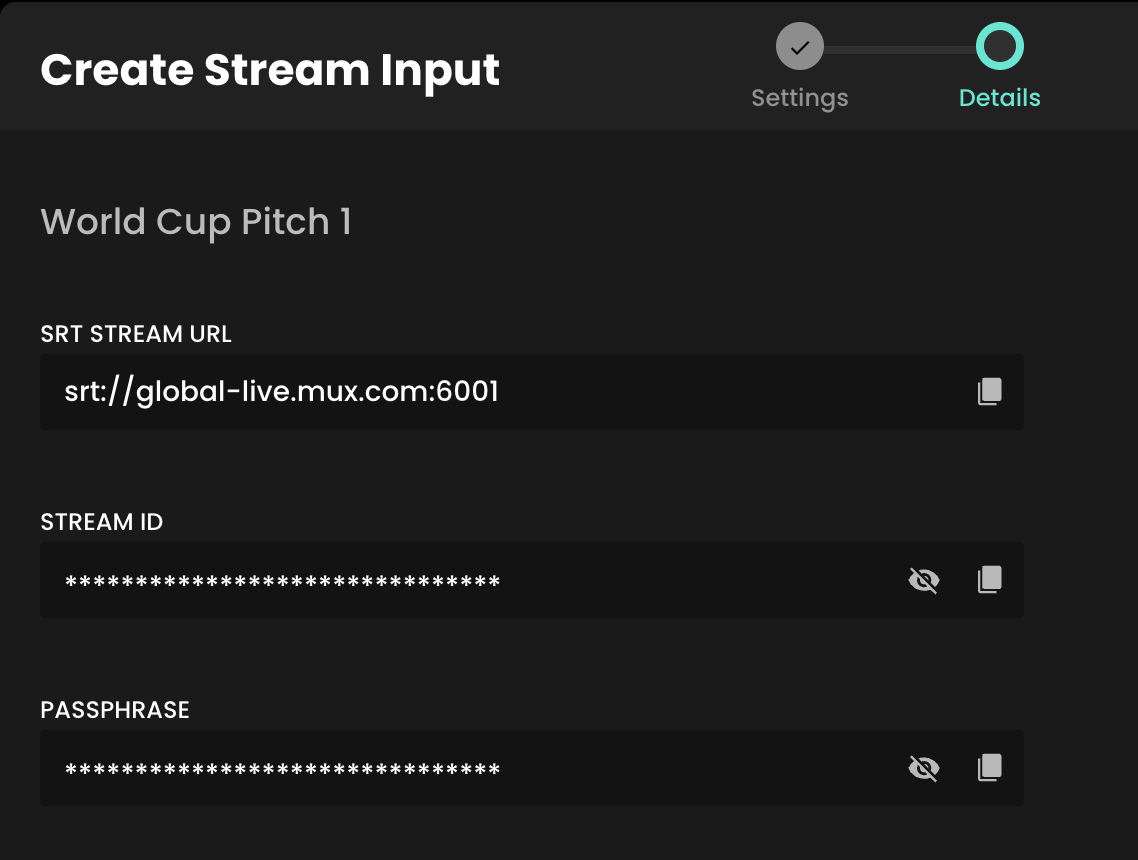
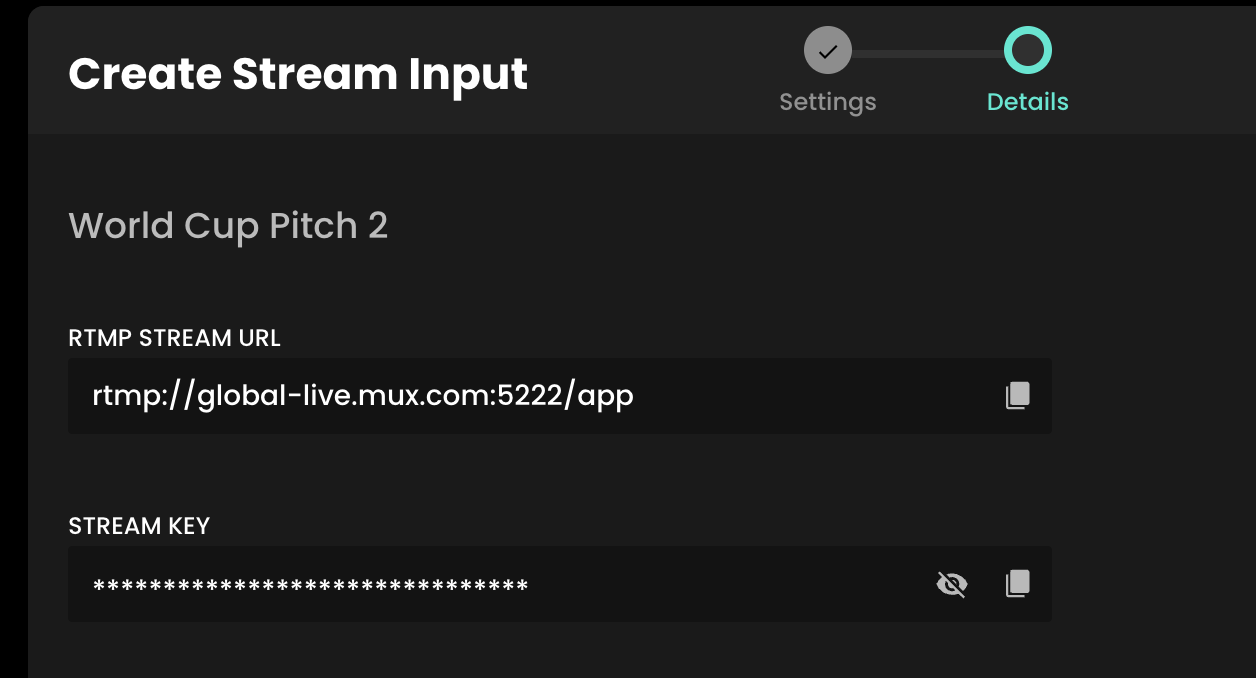
Streaming with Recast requires you to connect your broadcasting equipment to Recast, using a stream input method. Recast supports live streaming using two different streaming protocols: RTMP or SRT. Those managing the stream will have a preference.
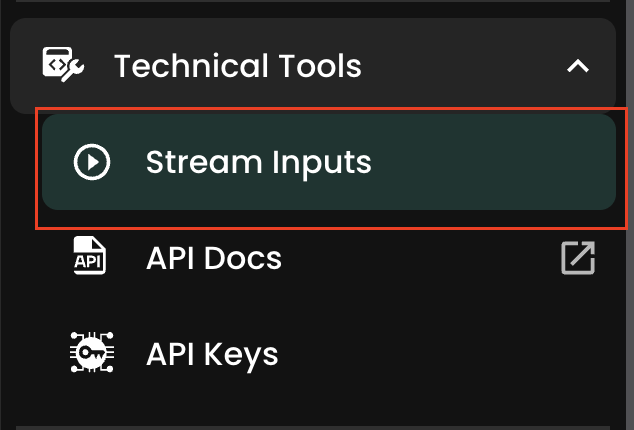
Once you've determined which streaming protocol you'd like to use, you need to set up the stream input:
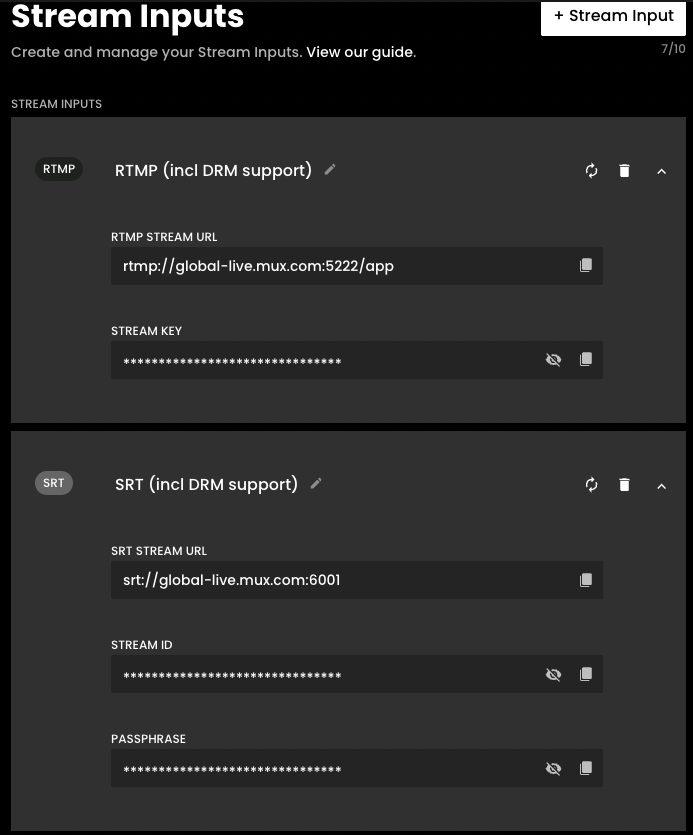
Edit name- edit the name of your stream input

Regenerate - If the security key has been compromised, the RTMP Key can be regenerated, which will renew the Stream Key

Delete - If there are two or more inputs set up, the delete icon becomes active. Please note, you'll be asked to confirm this action as it cannot be undone.

Copy: Click to copy the key if you need to paste it into your streaming software.

For security, this information is hidden by default. Click to view.

If you need help to live stream, view our guide How to live stream.


