This guide explains how to manage a live stream using Recast, from establishing a connection with the broadcast software, to starting and ending your stream.
Streaming with Recast requires you to connect your broadcasting equipment to Recast, using a stream input method. Recast supports live streaming using two different streaming protocols: RTMP or SRT. Those managing the stream will have a preference.
Please note: Recast’s SRT streaming option works on a Listener Mode basis. If you wish to use Caller mode, please select RTMP. If you are unsure, please get in touch at partnersupport@recastpay.com and we can assist.
One you've determined which streaming protocol you'd like to use, you need to set up the stream input:
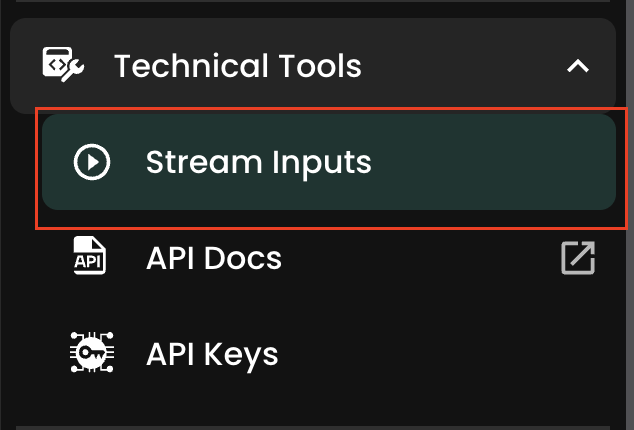
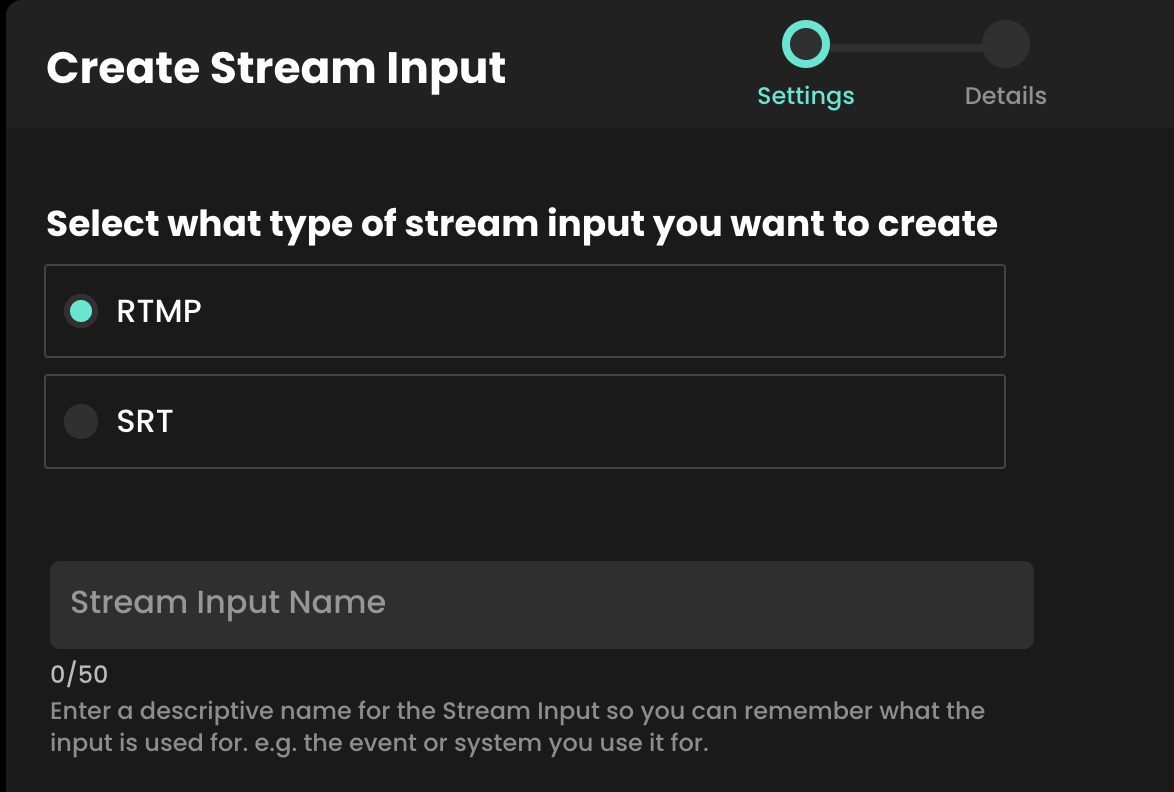
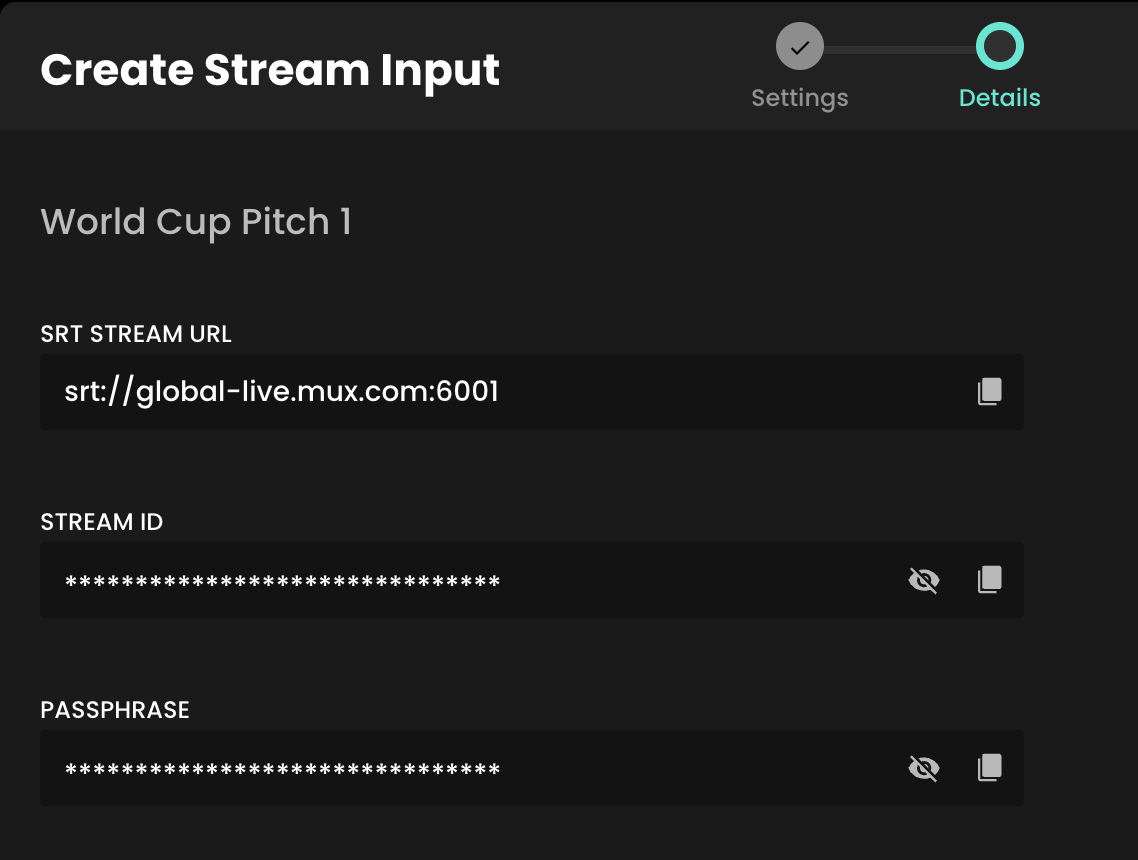
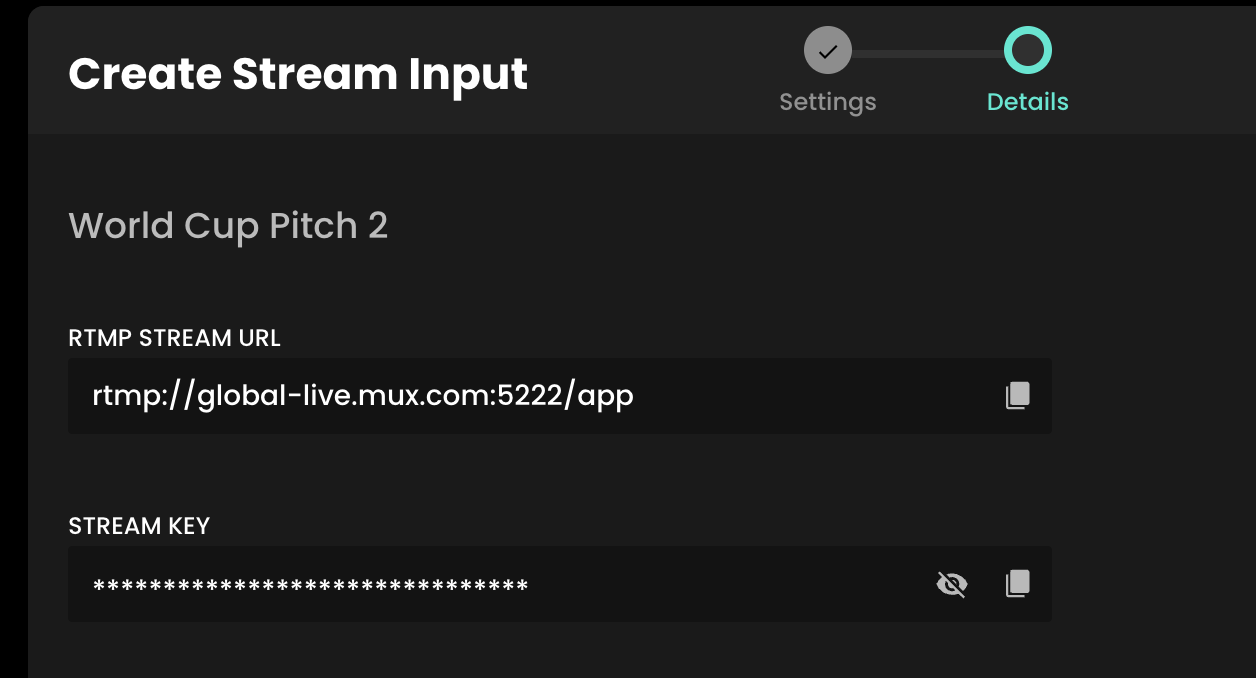
Firstly, make sure your streaming equipment is on, and that it's sending a signal to Recast via the stream input method you selected. You do this by inputing the information you copied from the step above into the relevant fields into your streaming solution.
For SRT this is typically the Endpoint, Stream ID and Passphrase.
For RTMP this either the Endpoint, the Stream Key, or a combination of both which makes up the Stream URL.

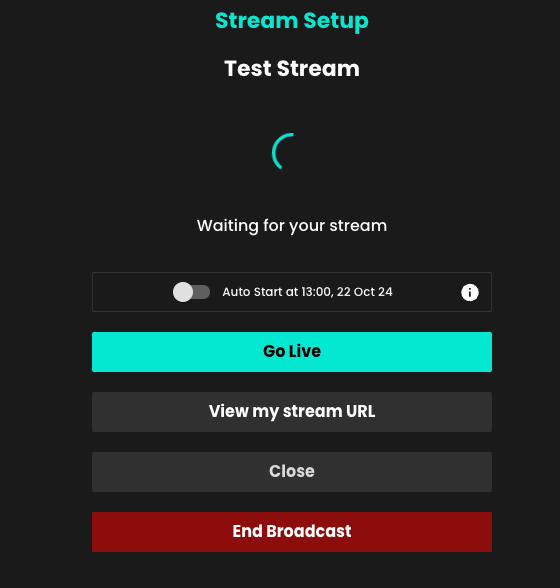
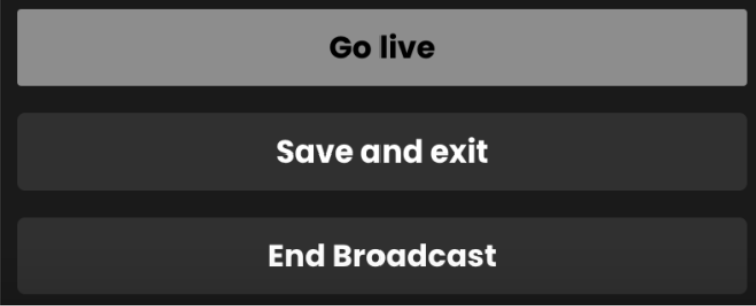
Once you have seen the preview you can click ‘Go live’ when you are ready to start the stream. The stream will then go live immediately on your Embed Widget(s).

If after a few minutes your steam is not appearing in the preview window, please contact Recast via our On Call support number provided or the dedicated WhatsApp group as the partnersupport@recast.tv inbox is not monitored 24/7.
You can now also set your stream to go live automatically simply by toggling on the Auto Start feature. Set up your stream using the above steps then, once you are happy with how things look, you can set the stream to go live automatically at the scheduled start time of the event.
Please note: You can only enable this earlier than 5 minutes before the scheduled start time.

Once the stream is live, you can close the event page and return to it at any time in the ‘Live Events’ tab in Recast for Business. Click ‘manage streaming’ to return to where you were, or if you just want to view the stream itself, choose ‘view’. You can then view it as an admin in Recast for Business or via an embed widget.
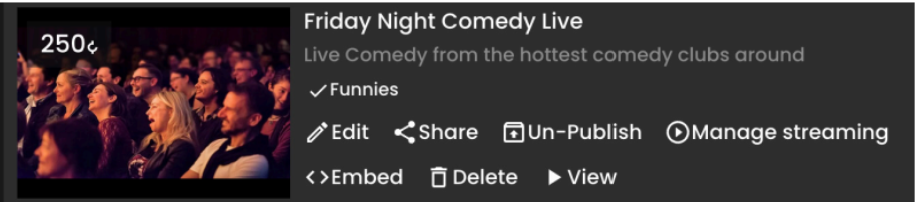
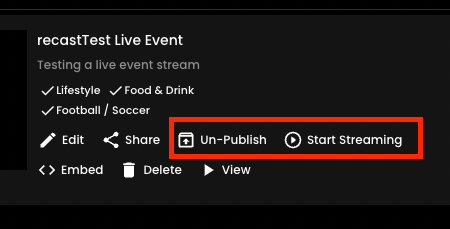
Live streams scheduled for a future date/time can be accessed via the ‘Upcoming’ tab in the ‘Live Events’ section. ‘Start streaming’ will take you to the stream page to start the stream. The scheduled time/date and thumbnail can be changed via the ‘edit’ function.
To end your stream, go to the ‘Live Events’ section of your Recast for Business page, click ‘Manage Streaming’ on the event and select ‘End Broadcast’. Once you have stopped a stream, there is no way to restart it. It takes around 1 minute to end the broadcast, please wait for the ‘stream deleted’ message to appear.