Recast’s Embed Widgets are customisable, allowing you to create custom sections with specific content and organise the order of both your custom sections and default sections, such as your “Access Passes”, “Latest Videos” and “Live & Upcoming” sections.
If you have uploaded vertical (portrait) content, we recommend you place this in it’s own custom section, as we explain in the “Adding a new Custom Section”, below.
Arranging Content
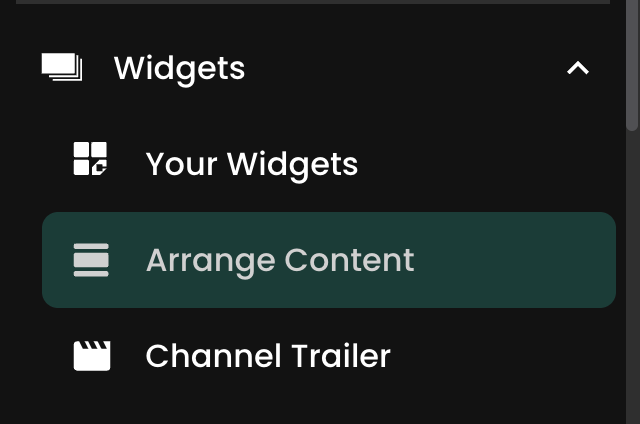
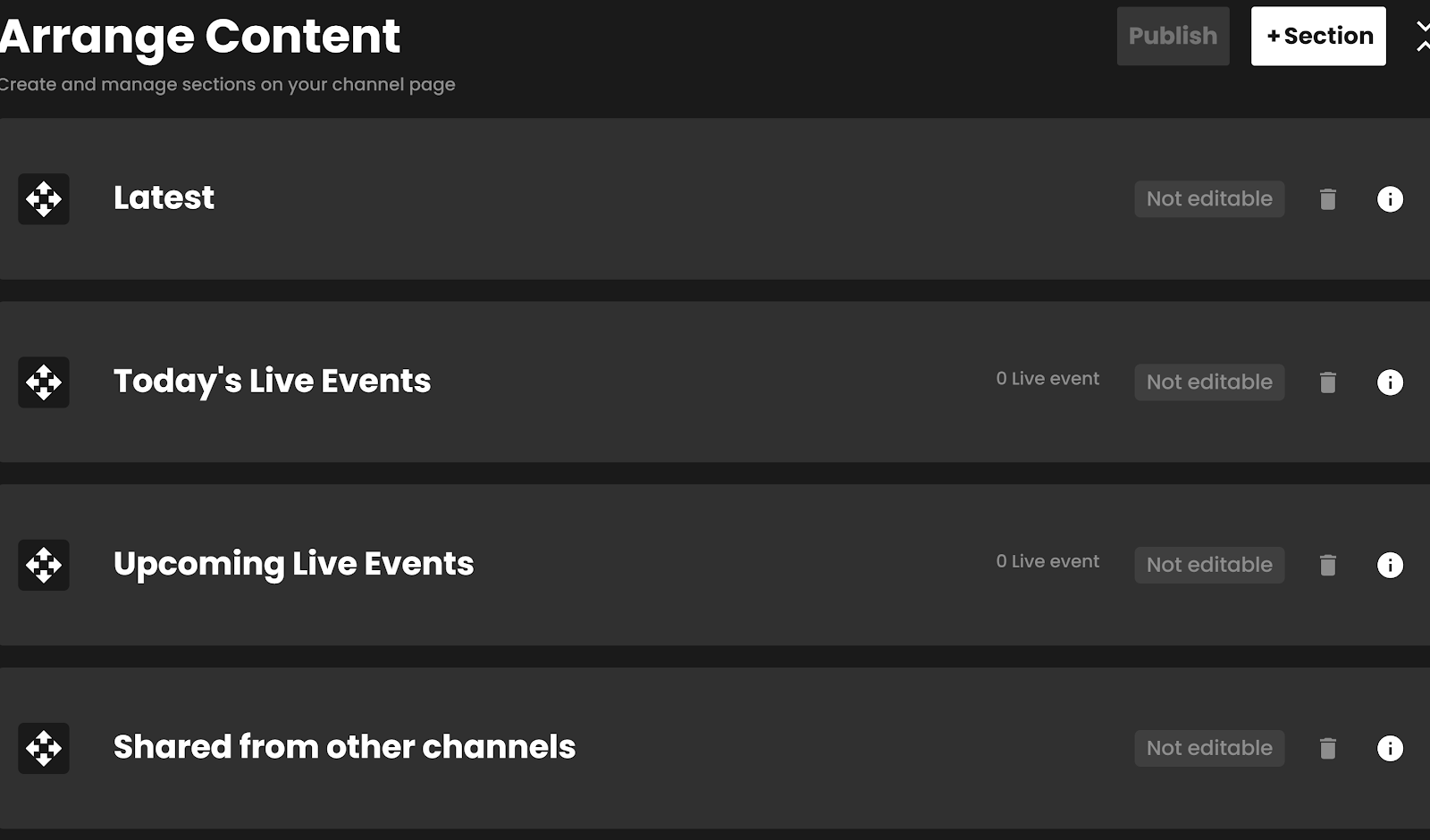
If you want to group content on your Full Channel Widget by competition, layout, series or genre of video, this can be done by selecting ‘Arrange Content’ in the Widgets section of the left-hand menu.
Recast’s default sections ( e.g. Latest Videos, Live & Upcoming and Access Passes) can’t be edited (as they follow specific dynamic rules) but can be re-ordered or hidden from your Full Channel widget. If you don’t have any content within these default sections (e.g. you don’t have any live events scheduled) then they will not appear on your channel.
Adding a new Custom Section
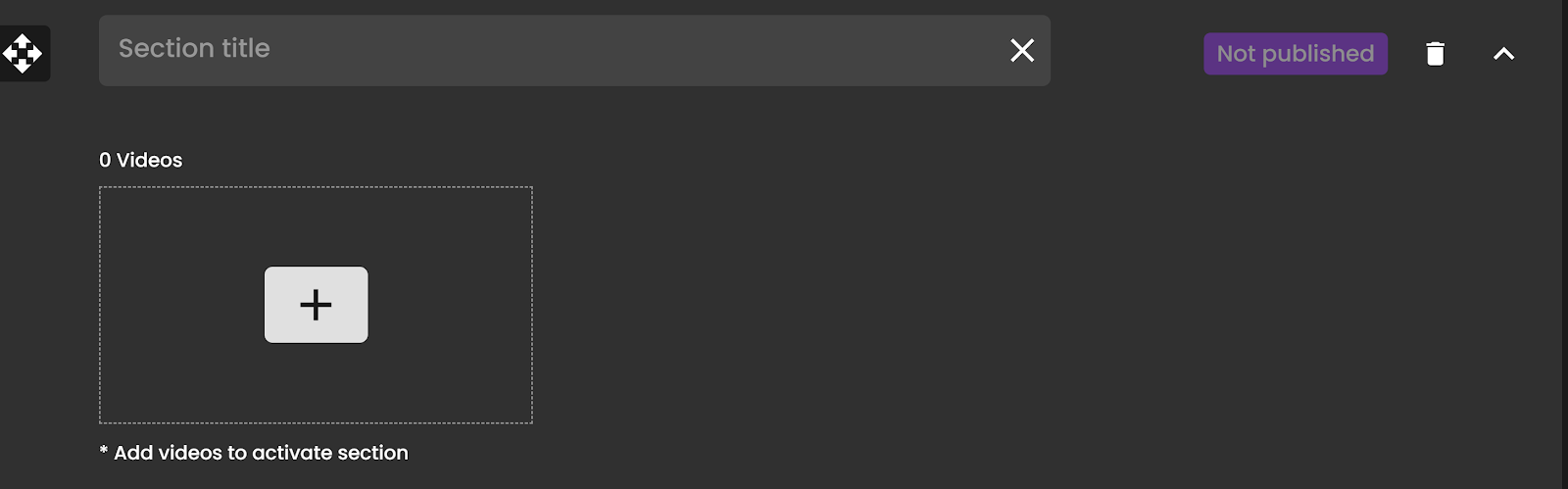
Click the "+Section" button at the top right of the screen and choose the type of section you want to add. The section can then be named, and videos or live events added to it.
Want to put your most important content front and centre? Choose Featured Carousel from the +Section menu to add a carousel to the very top of your Full Channel widget. It can hold a mix of bundles, live events, videos, pre-orders and replays, each with its own purchase button, and has its own colour settings. See our Featured Content Carousel guide for full details.
Videos must already be uploaded, or events scheduled, to Recast for Business before they can be added to a section. Once added to a section, videos and events can be re-ordered.
Once videos have been added to a new section, and you’re happy with the order, click the publish button at the top right-hand side of the screen to make the section visible to fans.
Any changes which aren’t published will be discarded and will not be saved.
Any unpublished videos within a section will not be shown on the widget.
Ordering sections on your widget
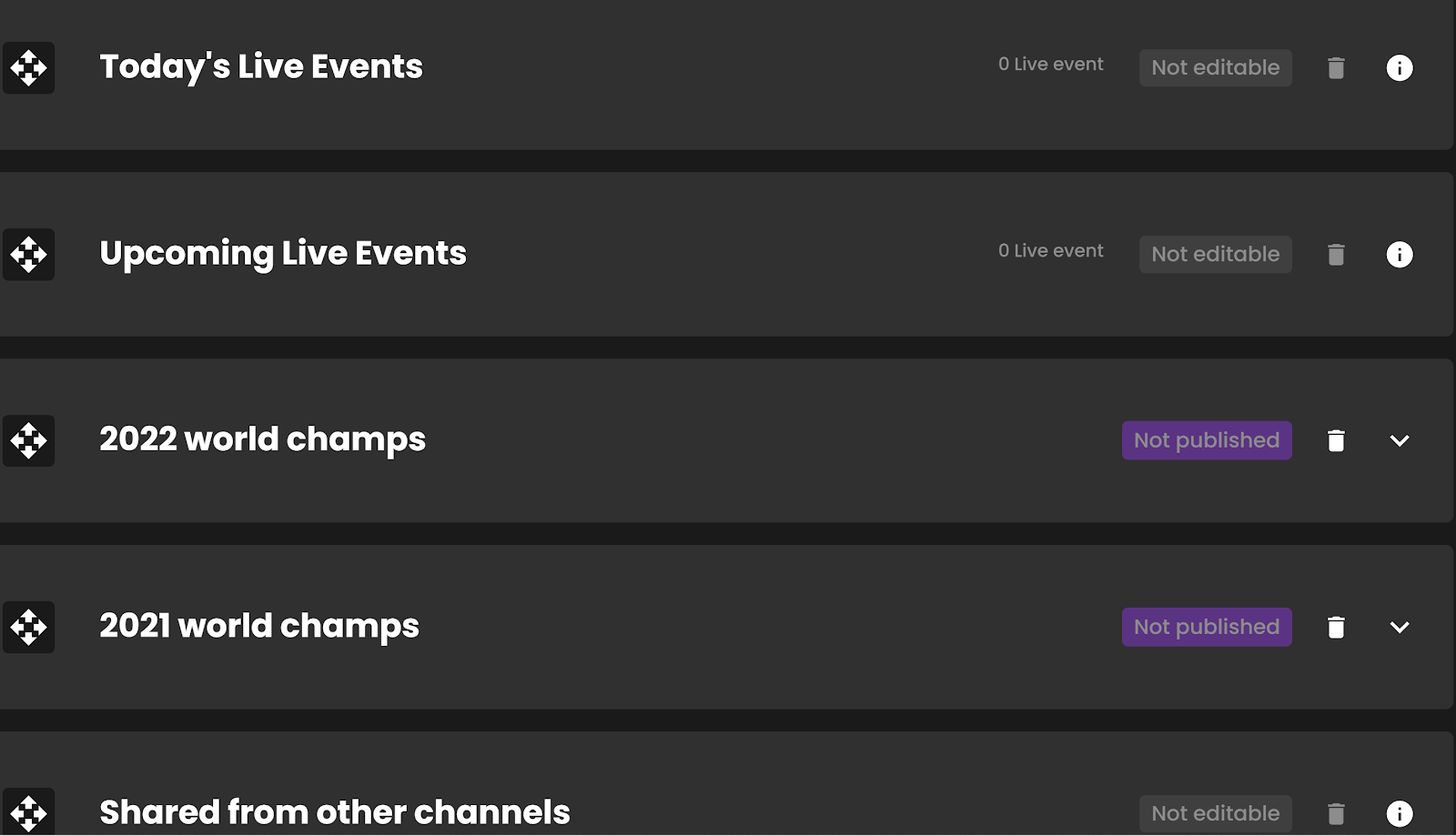
The order of the sections can be changed by moving them up or down using the drag and drop function:
All sections can be re-ordered, including Recast’s default sections. The order chosen in Recast For Business will be reflected on your full channel widget.
The Featured Carousel is the exception. If published, it always stays at the top of your widget.
Editing sections
The name of a section you have added can be edited by clicking on the pencil icon.
Videos can be added, deleted from and re-ordered within a section.
When you have finished editing a section, it must be republished for changes to be visible on your channel.