
The Featured Carousel puts your most important content right at the top of your Full Channel widget, so fans see what you most want them to buy or watch as soon as they arrive.
It's a special type of section that you set up in Arrange Content, in the same way as your custom sections. The carousel:
You can have one Featured Carousel, and it's only available on Full Channel widgets.
Fans can swipe or click through the slides, and use the dots under the carousel to jump between items.
.png)
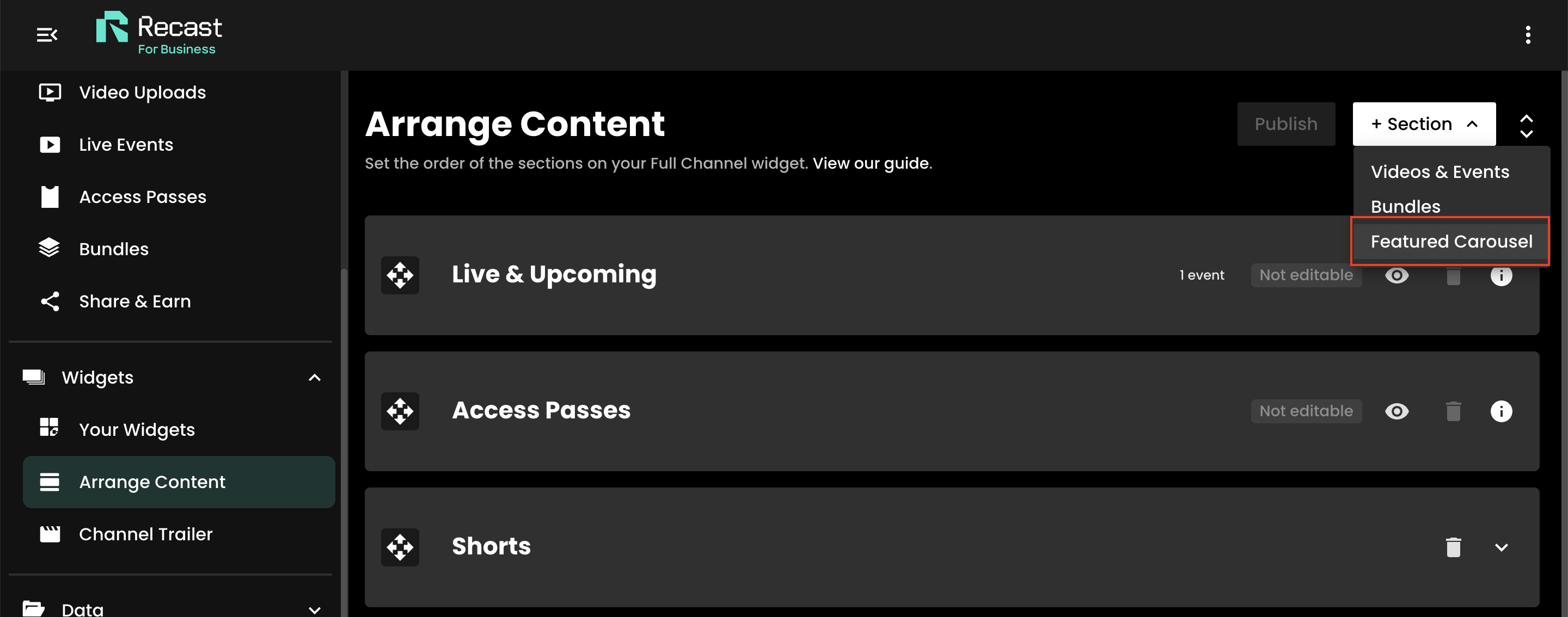
Your new Featured Carousel appears at the top of your list of sections, marked Not published. It has two tabs: Content and Styling.
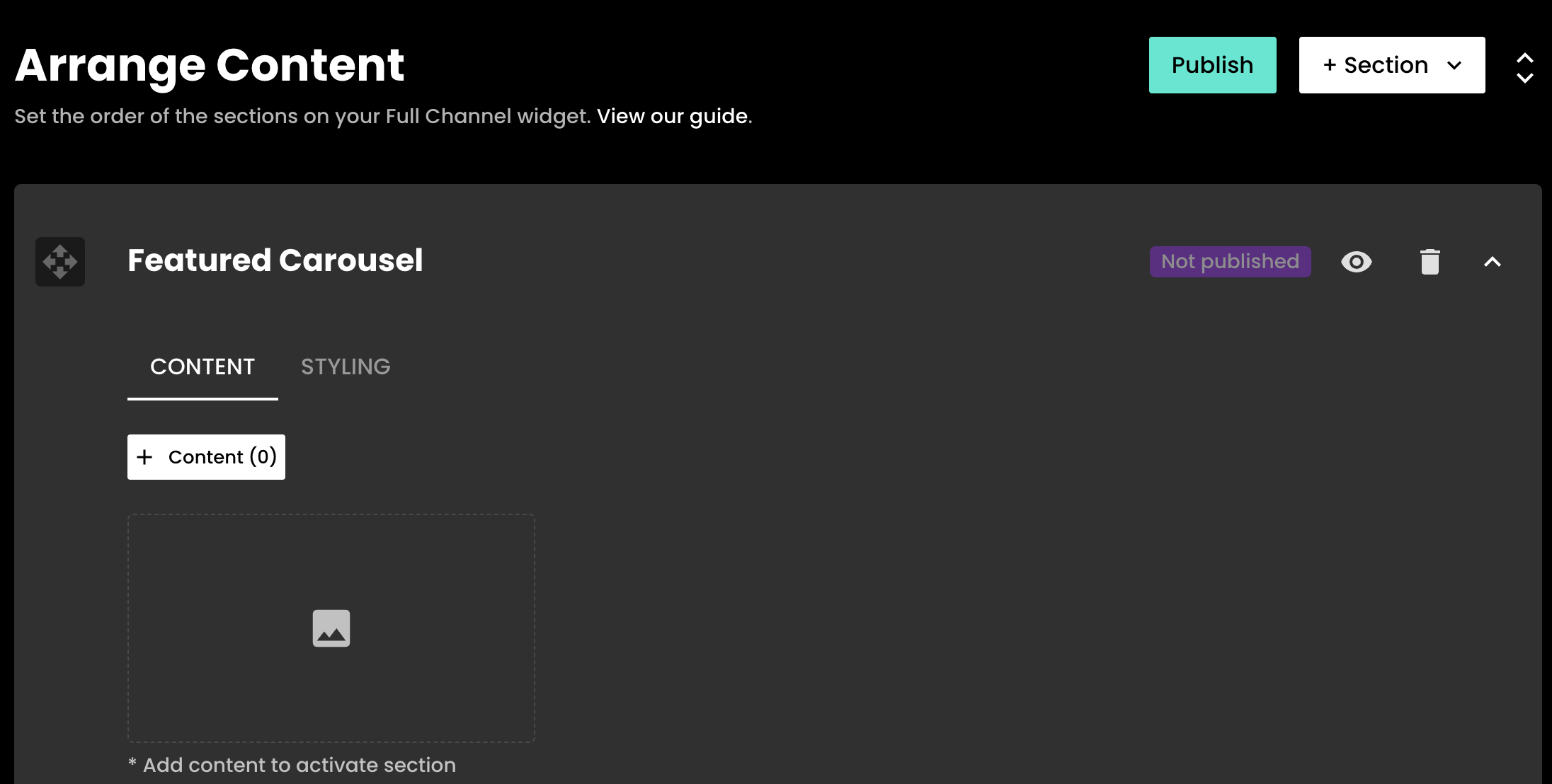
The Featured Carousel is the first section that lets you mix different types of content together. You can add any combination of:
Access Passes can't be added to the Featured Carousel. To feature a group of content together, create a bundle and add the bundle to your carousel instead.
Content must already be uploaded, scheduled or set up as a bundle in Recast for Business before you can add it.

The + Content button shows how many items are in your carousel, for example + Content (6). Underneath, you'll see how many are published, unpublished and scheduled for publish.
Good to know: only published content is shown to fans. Unpublished items are marked Not Published in the picker. If you add one, it won't appear on your widget until you publish that video or event, or it publishes automatically based on its scheduled publish settings.
Your items are shown as numbered cards, and the number is the order they'll appear in on your widget. To move an item, drag it by the handle next to its number.
Put the item you most want fans to see in position 1, as this is the first slide they'll see.
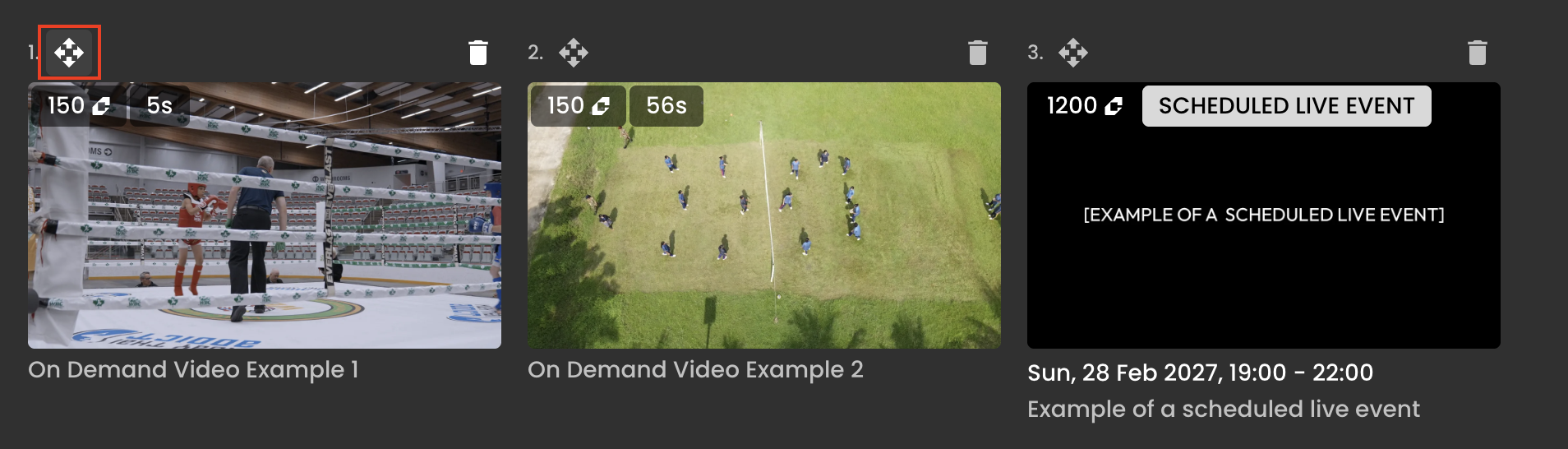
Click the bin icon in the top-right corner of the card. This only removes the item from the carousel; it doesn't delete the video, event or bundle.
The Featured Carousel has its own colours, separate from the rest of your widget. This lets you make it stand out, or match it to a campaign or event.
A live preview underneath updates as you make changes, so you can see exactly how your carousel will look.

This third setting is for the preview only. Set it to match your widget's background so the preview is realistic. It doesn't change your widget.
To change your widget's actual background colour, edit the widget on the Your Widgets page.
Tip: Make sure your font colour stands out clearly against your item background colour, so prices and buttons are easy to read.
When you're happy with your content, order and colours, click Publish at the top right of the Arrange Content screen. Your carousel will then appear at the top of your Full Channel widget.

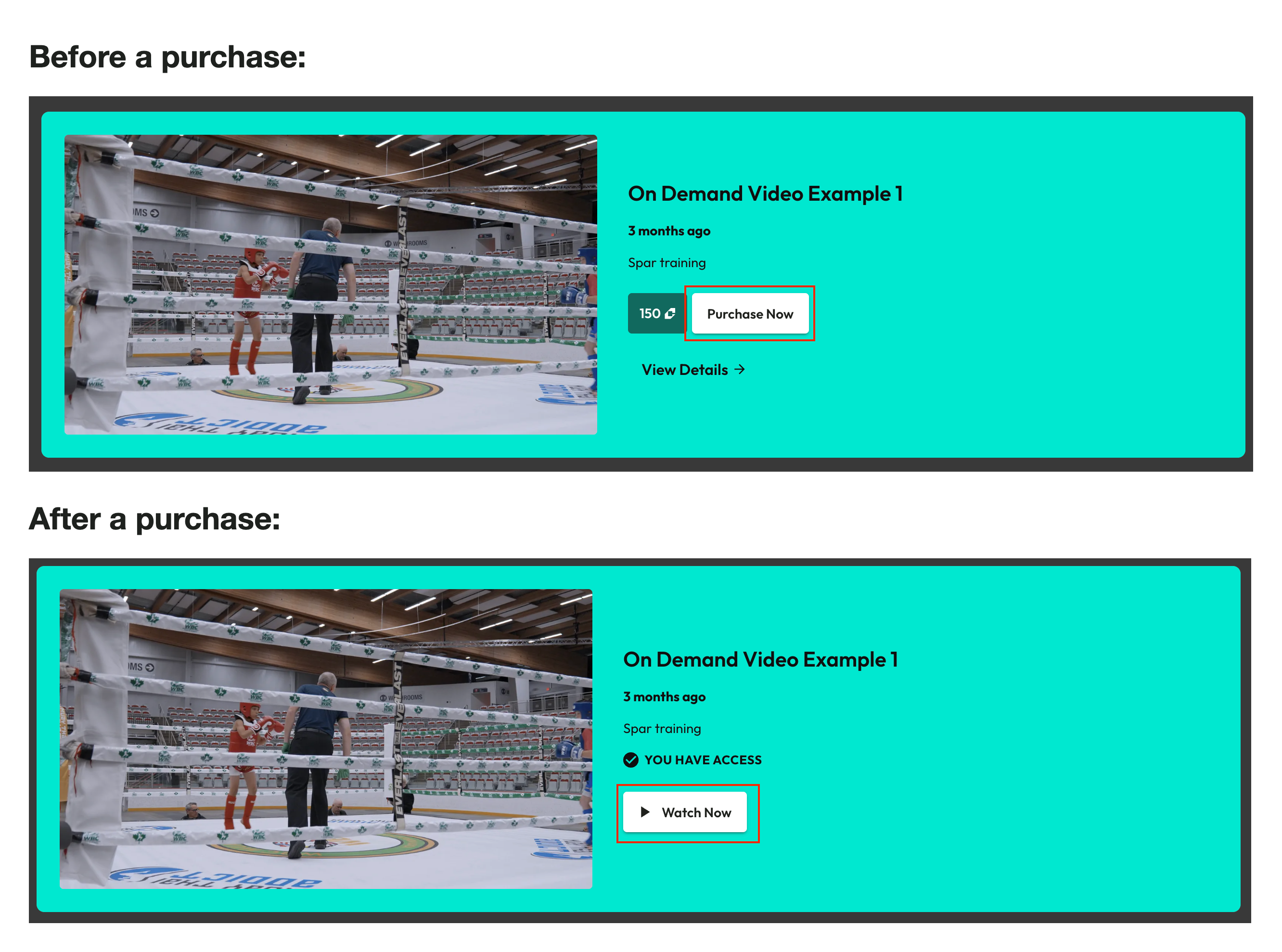
Each slide shows the item's thumbnail, title, date and description, with one main button. The button changes depending on the type of content and whether the fan already has access to it.
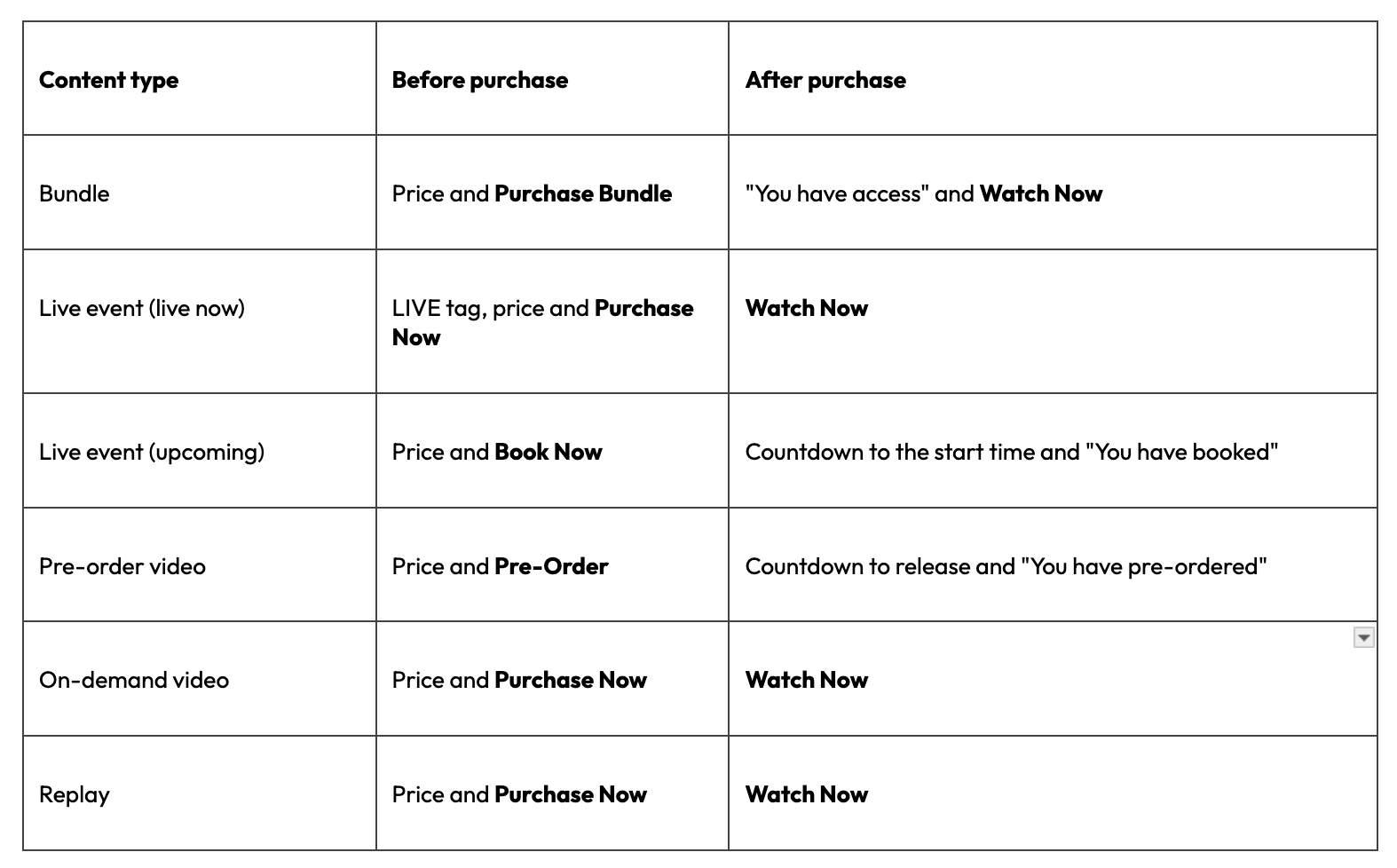
Every slide also has a View Details link that takes fans to the full page for that video, event, or bundle.
Purchase buttons open the usual Recast purchase journey. Once a fan has bought an item, they are taken to the relevant detail view to start watching or view the countdown timer, as relevant.
Fans who already own a bundle will also see "You have access" on the bundle page itself, in place of the price and purchase button.


