If you are the Owner of a Vendor account, you are able to view and edit the Vendor Account information i.e. company name, VAT details, registered address.
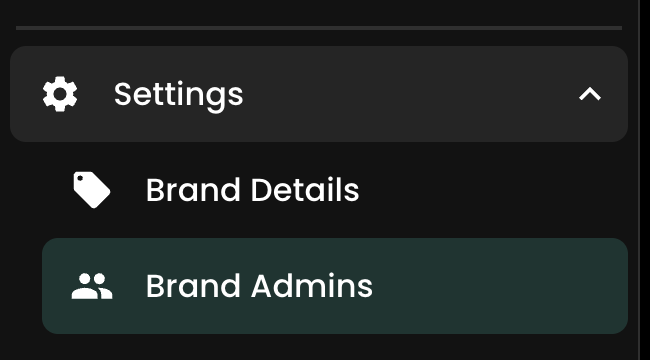
The option to edit this information is available by going to:
Settings
Vendor Details
Creating a new Brand Account
If you would like to create a new account, click here, sign up and create your new Vendor account and Brand.
Terms and Conditions
Vendors will be asked to accept Recast’s terms and conditions during the onboarding process in Recast Publish. Where a Vendor has not agreed to the terms and conditions they won’t be able to set their channel live and will be prompted to agree before continuing
The terms and conditions can be accepted during either the Vendor or Channel set-up process but must be accepted prior to making your content live.
View and manage your Admins
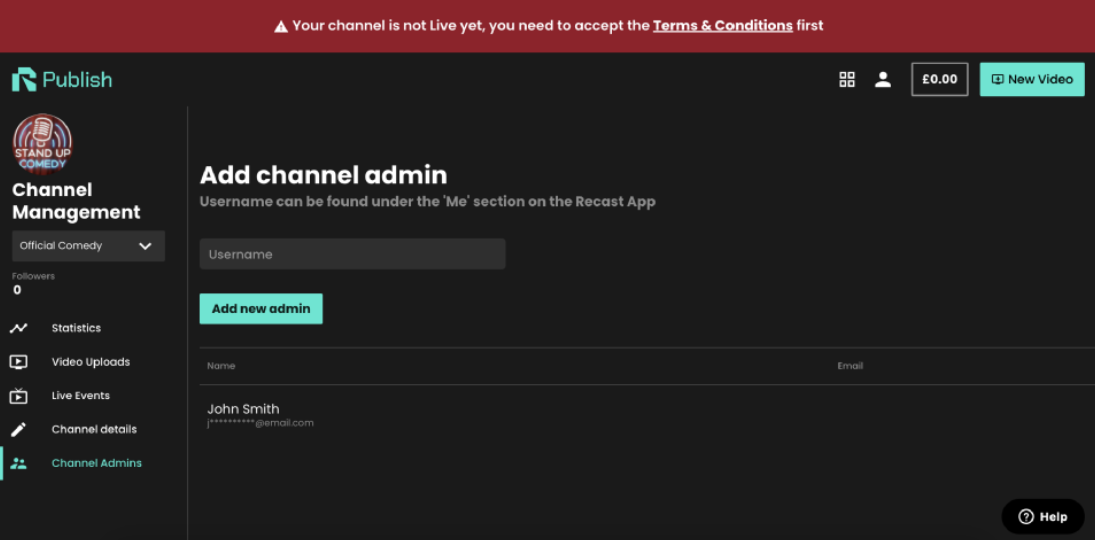
Visit the ‘Brand Admins’ to: a. View all Brand Admins b. Add new Brand Admins c. Remove Brand Admins
On the list of Brand Admins, you will find all users with Admin access to your brand.
Add New Brand Admin
You can add a new Brand Admin once they have become a Recast User
Insert the ‘Username’ of the Recast User who you want to become your Brand Admin
The entire ‘Username’ is required – it is not possible to search for an email account
Once you have inserted the ‘Username’ click on the ‘Add new admin’ button
The User will be added as a Channel Admin
If the incorrect ‘Username’ is inserted, you will see an error notification
TIP: A ‘Username’ can be found in Recast in the ‘account details' section of https://account.recast.tv/. If you do not know the correct ‘username’, please contact partnersupport@recast.tv
Remove a Channel Admin
You can remove a Brand Admin using the ‘Remove’ button
When you click ‘Remove’ you will have to confirm the Brand Admin’s removal
a. By confirming, the Admin will be removed and will no longer have Admin access to the Brand.
b. By cancelling, the Admin’s access to Brand management will remain in place
Owners cannot remove their own details from the Brand Admin list. If you wish to do so, please get in touch with your Recast point of contact.