
This guide explains how to add a simple and controllable scoreboard overlay onto your stream.
Go to overlays.uno, then select Login, or Sign up if you don’t have an account.
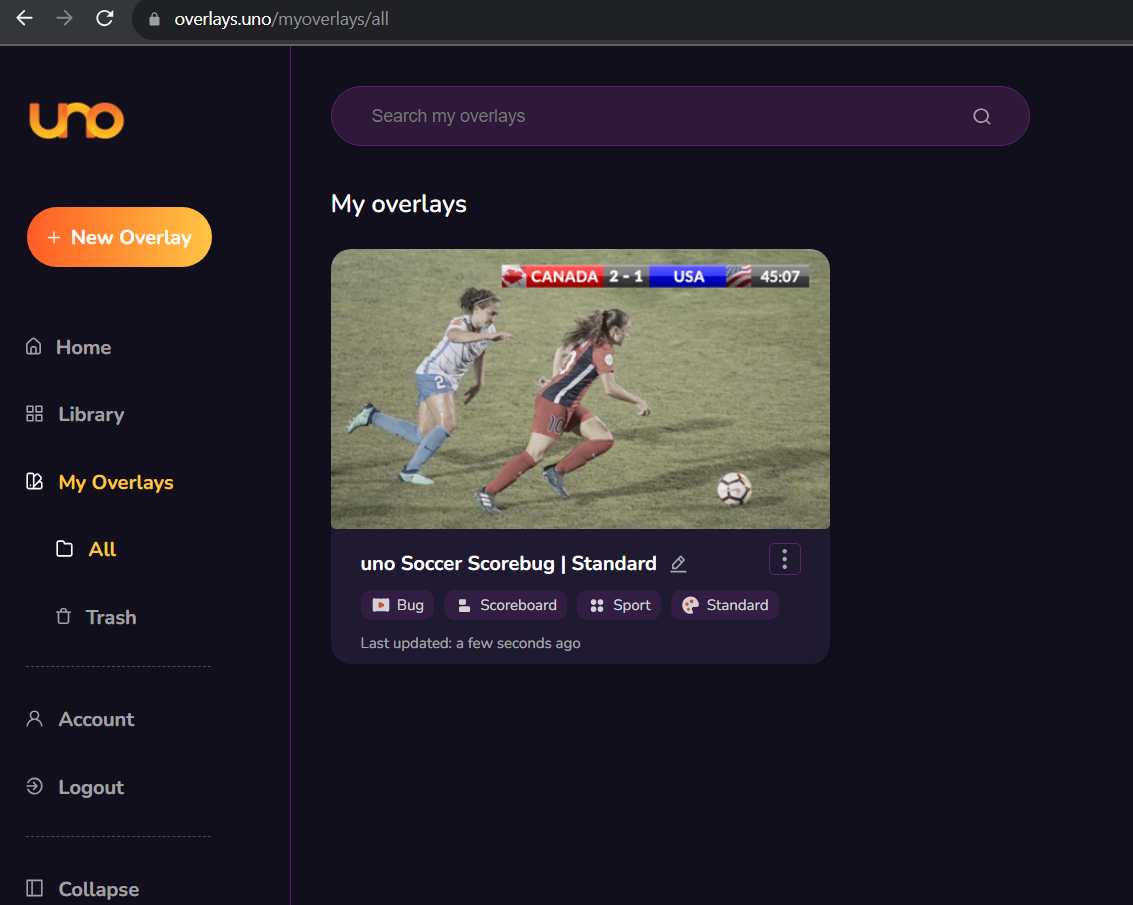
Once logged in, you should be taken to this page:
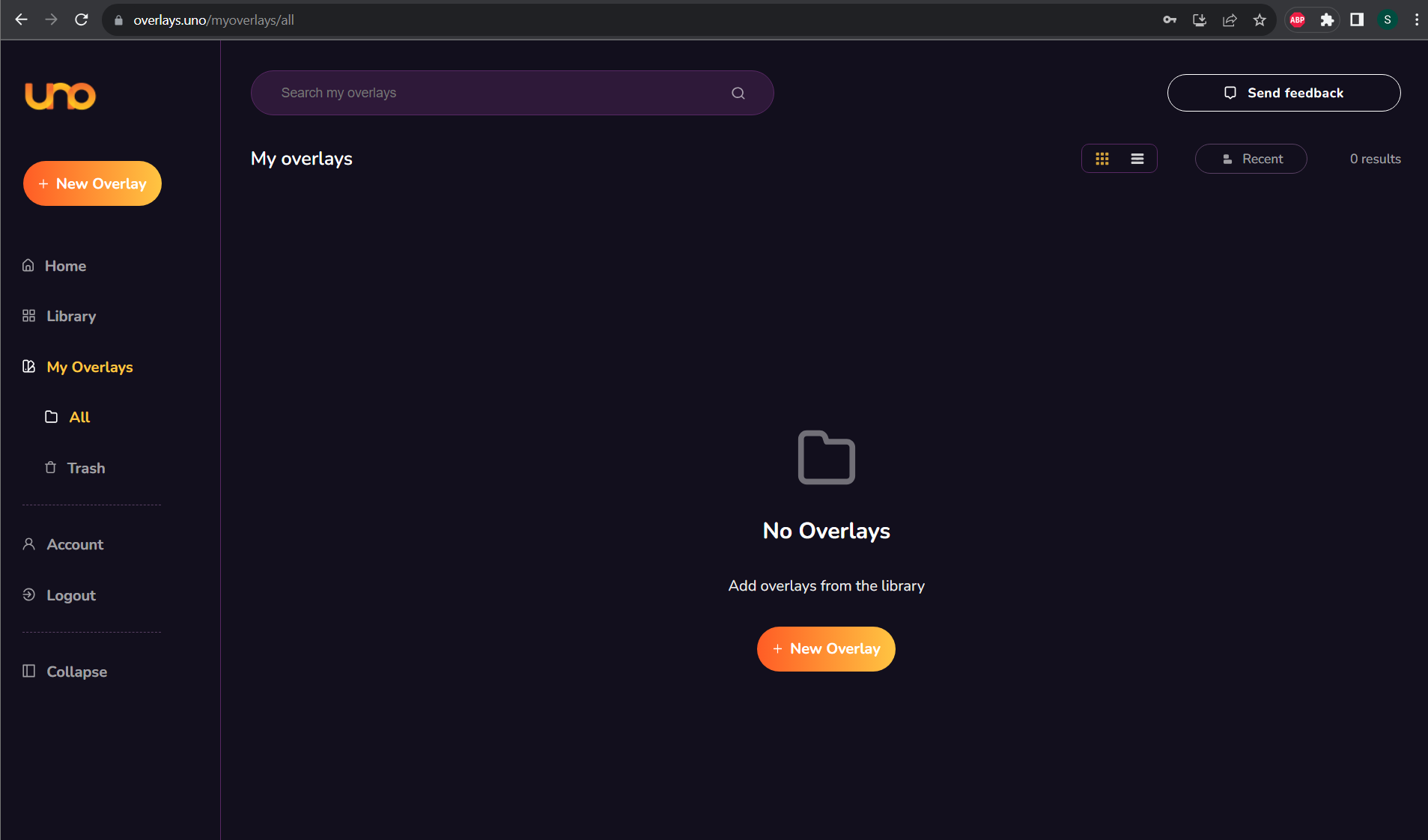
Click on the ‘+ New Overlay’ Button, which will show you different options:
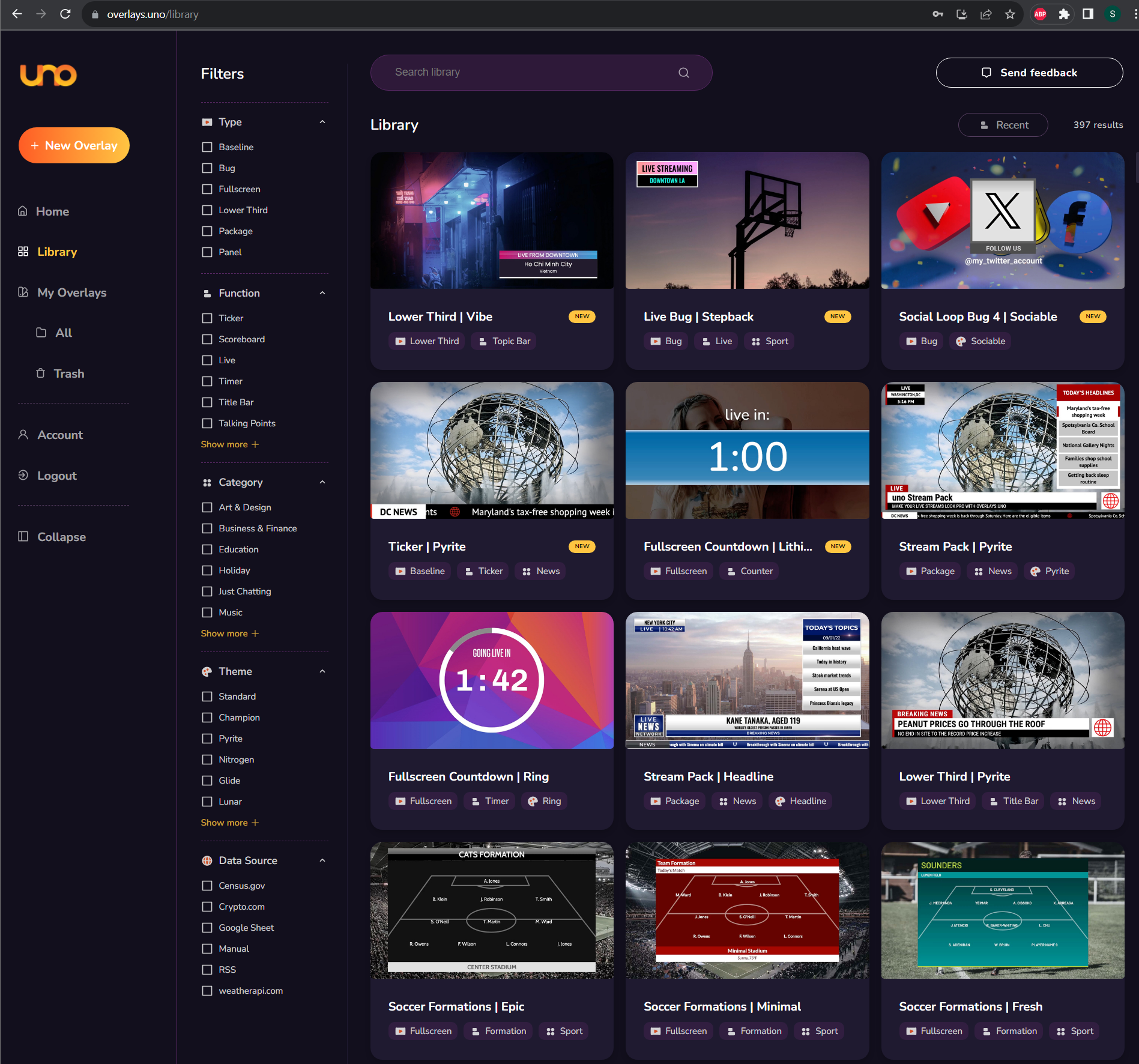
Here you can search for the type of overlay you want. For this guide, we have selected the following as an example:
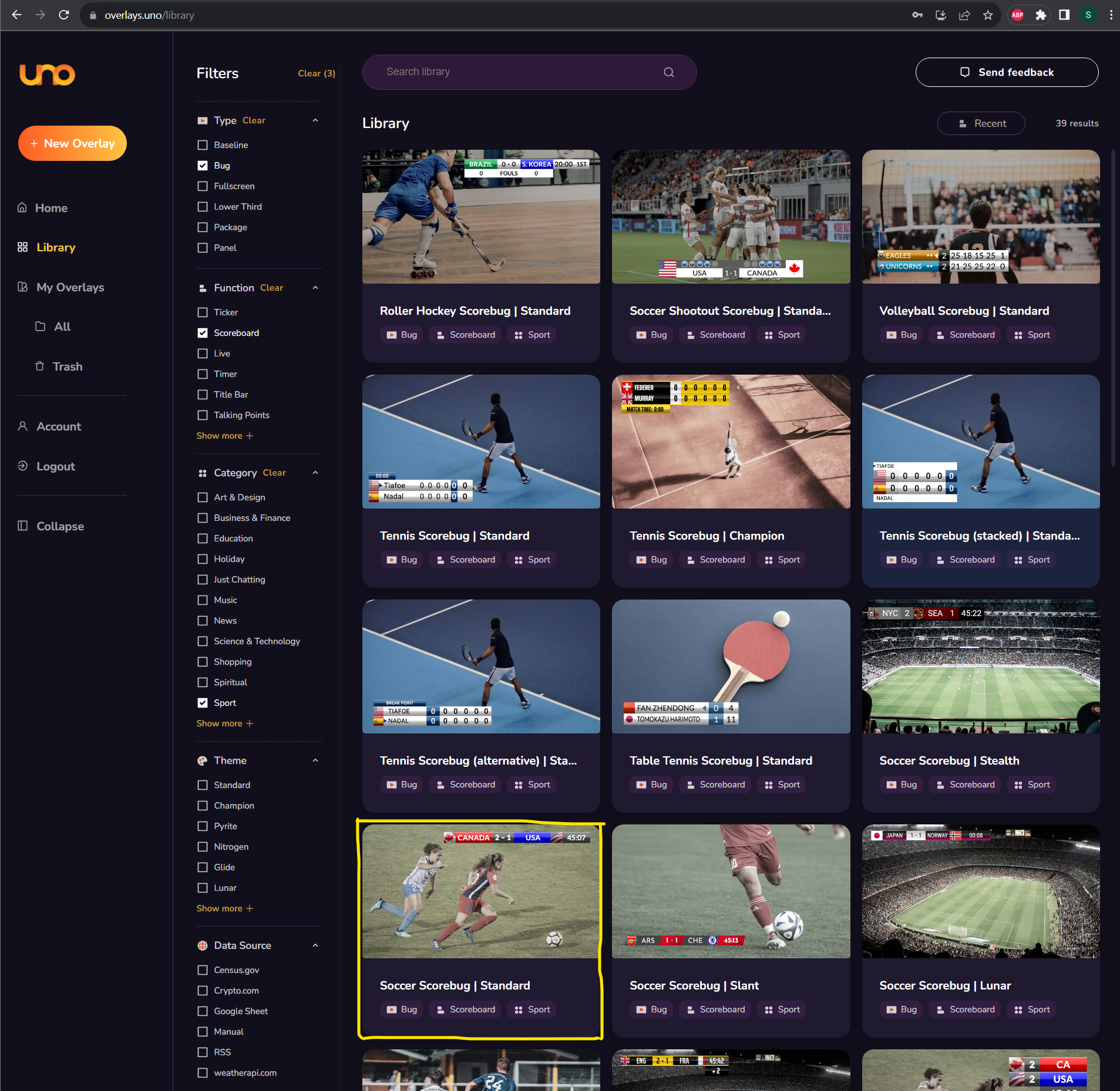
Click on the item, and you should receive the pop-up below:
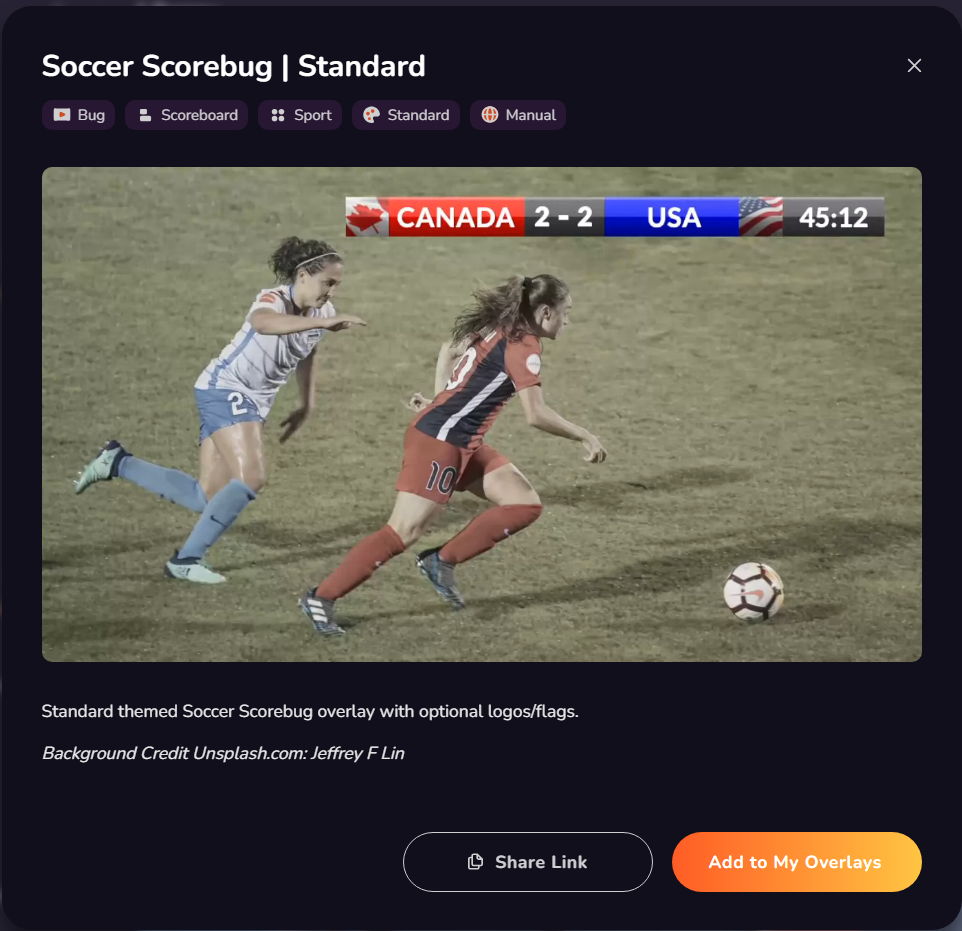
Click ‘Add to My Overlays’
This should take you to the Dashboard below.
Double-click on the item you want to use under ‘My Overlays’ and you are ready to move on!
Take some time to familiarise yourself with the dashboard. It is split up into several sections, with the navigation along the middle of the page.
Please note: These options may change depending on the template being used.
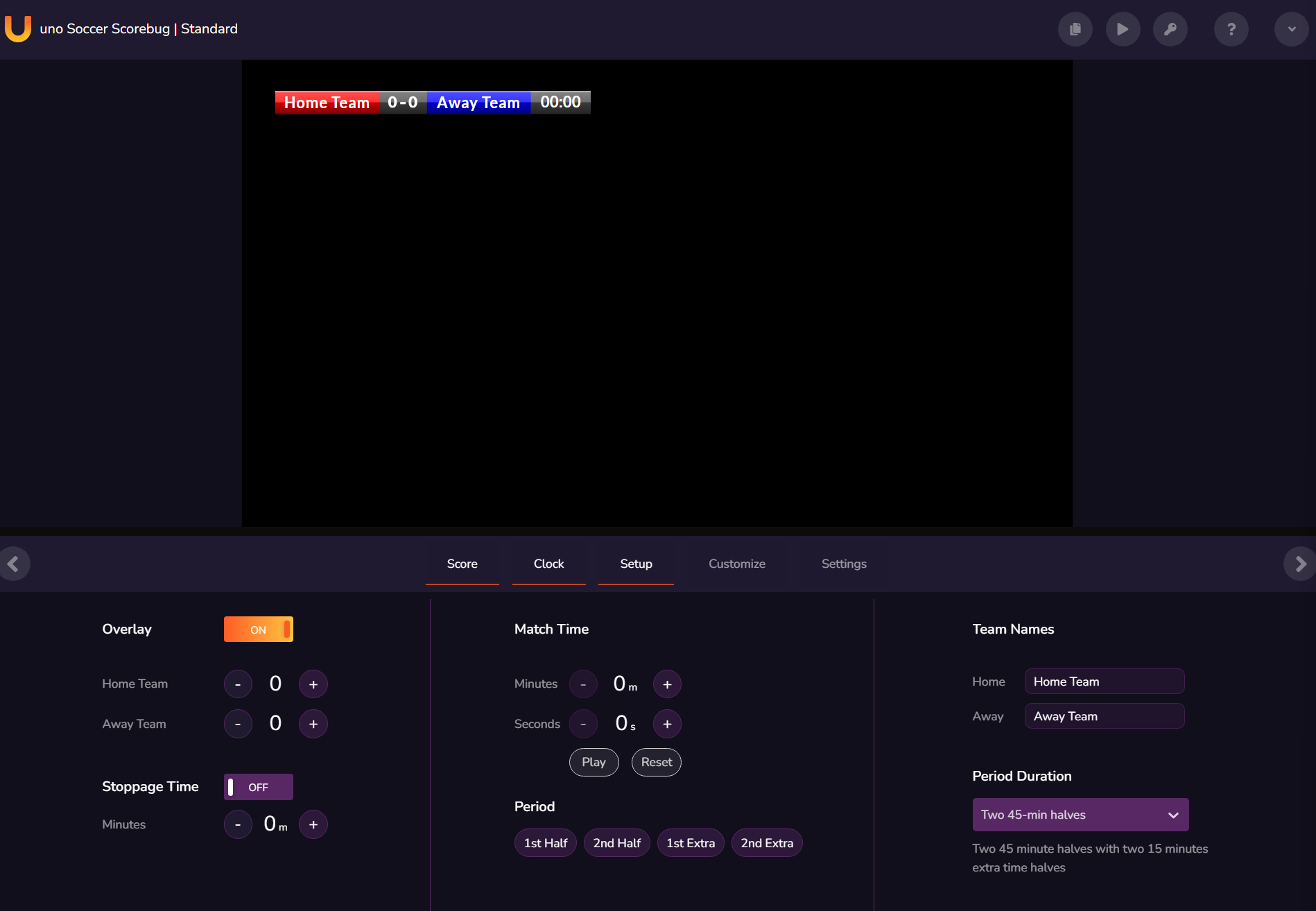
The next step is to customise your scoreboard. This example scoreboard has a few options that can be changed, such as teams names, colours, logos etc. Each scoreboard has different options available.
To change the team names click on the ‘Setup’ tab, once these have been changed when you click off the text box you will see the scoreboard in the preview has been updated. If you click on the ‘Customize’ tab you will be able to add your colours, logos to change the branding of the team sections which will be updated in the preview.
Once customised, you are ready to connect you scoreboard overlay to OBS.
Before heading to OBS, in the overlays.uno scoreboard control page, click on the ‘Copy Output URL’ button on the top left;
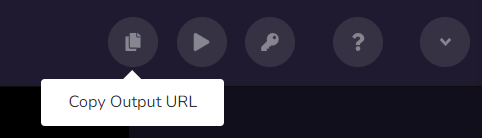
When you press this a little green pop-up will appear at the top letting you know the link has been copied to the clipboard;

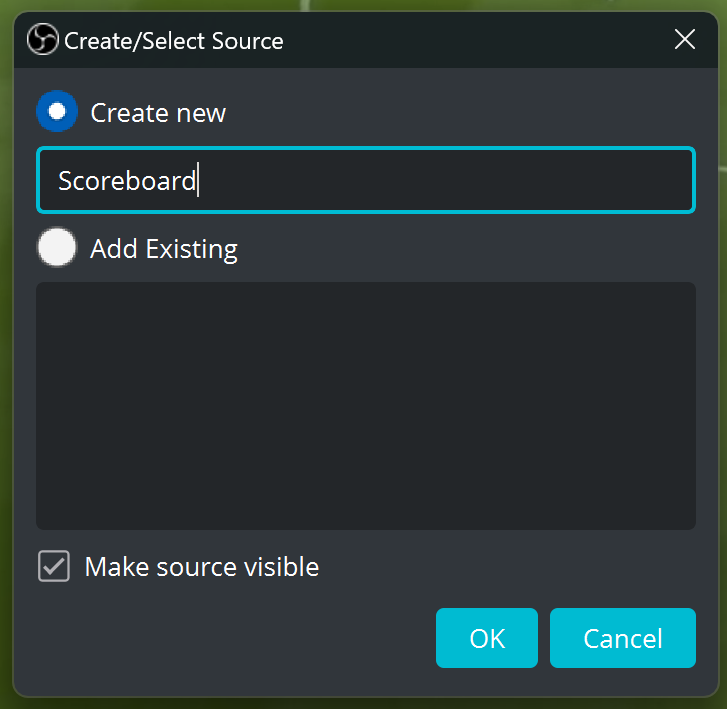
Now head over to OBS, navigate to the Sources panel and click on the (+) symbol to add a new source, then select the Browser option, Name your source, ‘Scoreboard – Uno’ for example and select OK;
On the next screen in the URL text box delete the default link and paste the link from Uno. Change the width and height to match your video source (Most likely HD so 1920×1080).
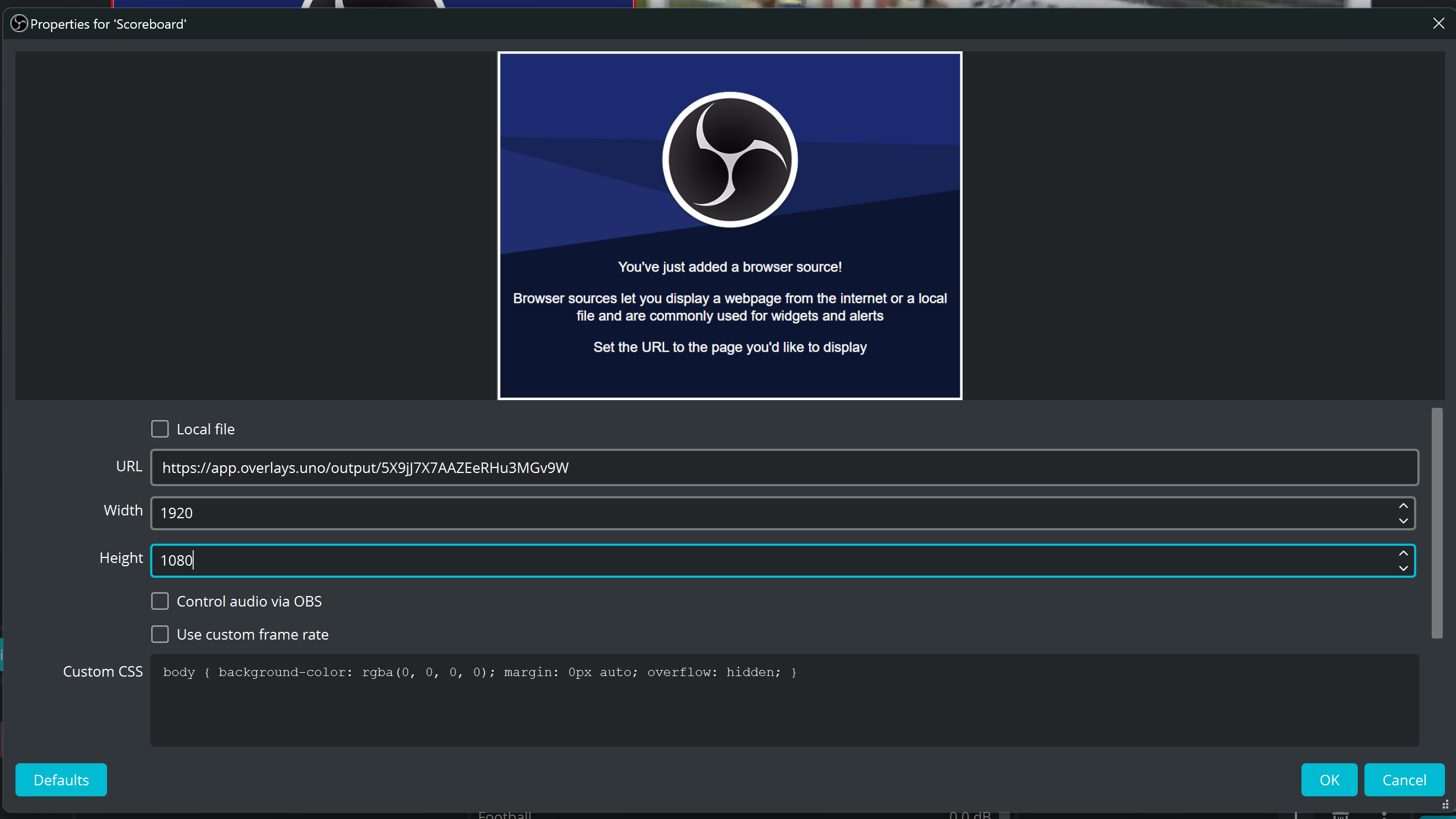
When finished, select ‘OK’.
After a few seconds, the scoreboard should animate into the screen. The position of the scoreboard can be changed and once you’re happy with this then you can move on to the next step.
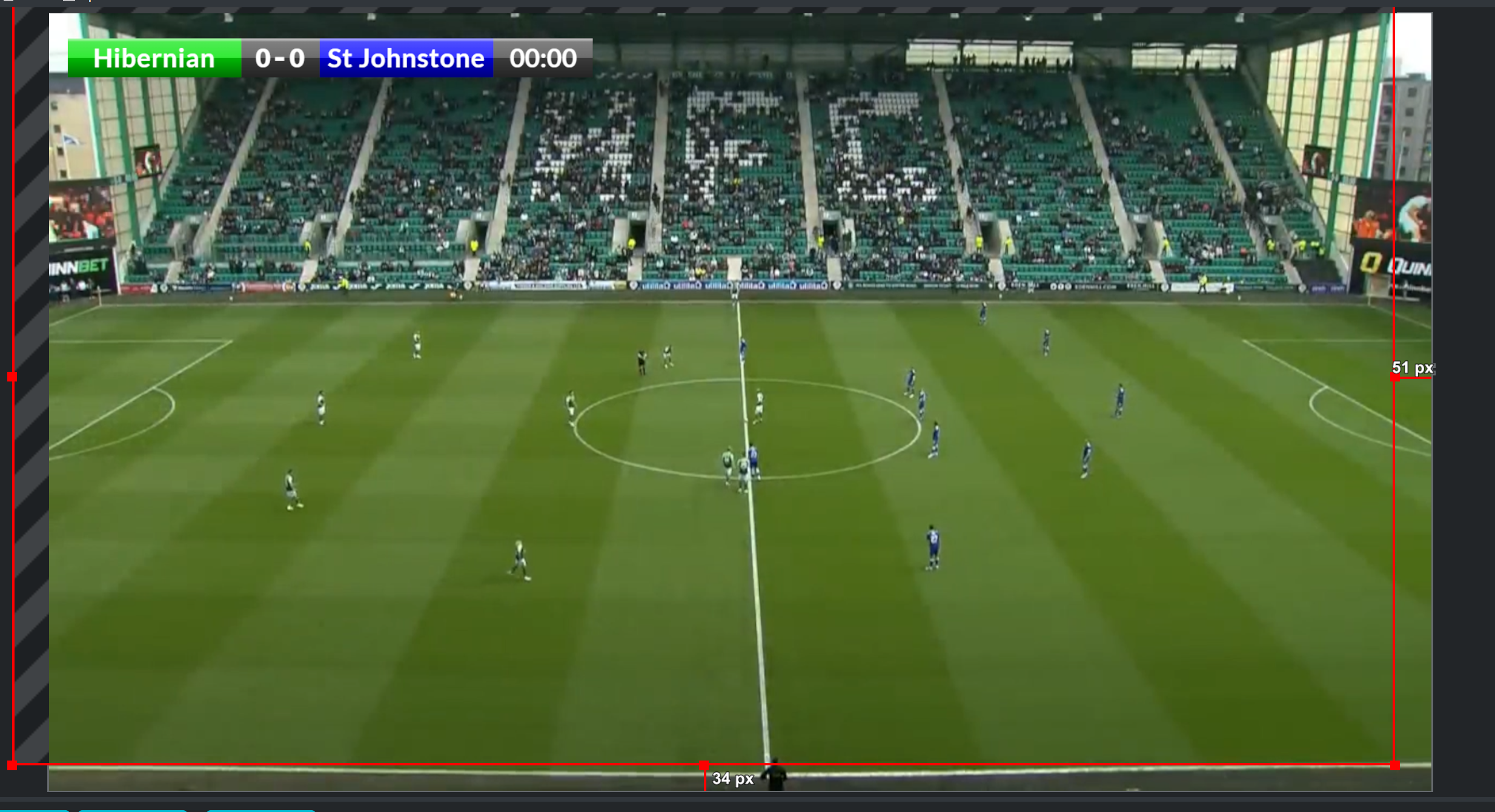
If you want to control the scoreboard from the same computer that’s running OBS then we would suggest using dual monitors so you can monitor OBS and use the scoreboard functions at the same time. If you are limited to a single screen you can use a smartphone or iPad to control the scoreboard, which may be useful as you can control this from anywhere.
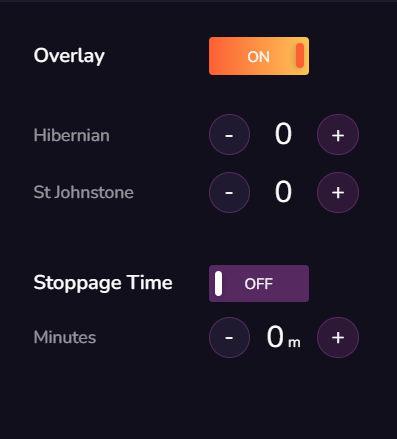
Changing the score
To control the scoreboard from the web browser on your computer, simply head back to singular.live, and you should still be on the control page and click on the ‘Score tab’.
Adjusting the time
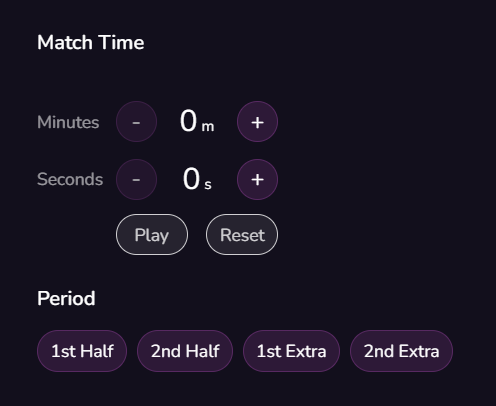
Next, click on the Clock tab:
These two tabs will be used when the game is about to start and while it is live. This will require human input throughout the broadcast to keep scoring live. There is an option to have an outside source such as the system that runs the digital scoreboards in a stadium (this requires a paid version).
Smartphone/iPad Control
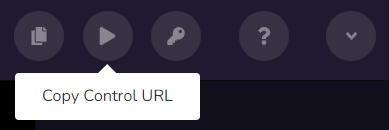
On Uno, next to the ‘Copy Output URL’ there is the the ‘Copt Control URL’:
This will copy the controller page link (another way is to just copy the link in the address bar), and open that link on your mobile device, such as a smartphone or iPad.
The controller page will open, and you can control the scoreboard from this, even if you close the browser on the computer.
A few tips for using the mobile version;
It is typically best practice to have the scoreboard set to ‘overlay – off’ when going live, with most scoreboards appearing several seconds after the event start time/kick-off time. Here’s a football-specific flow to follow below;


