
Recast’s ‘Arrange Content’ feature enables you to curate any live or on-demand videos into a ‘Custom Section’ within your Recast Embed Widget, and order this content as you see fit. This is perfect for episodic or related content, i.e. highlights videos from a competition, all episodes from one series of a drama or simply any related content you think your audience would be interested in.
For a complete guide on how to create a Custom Section, click here.
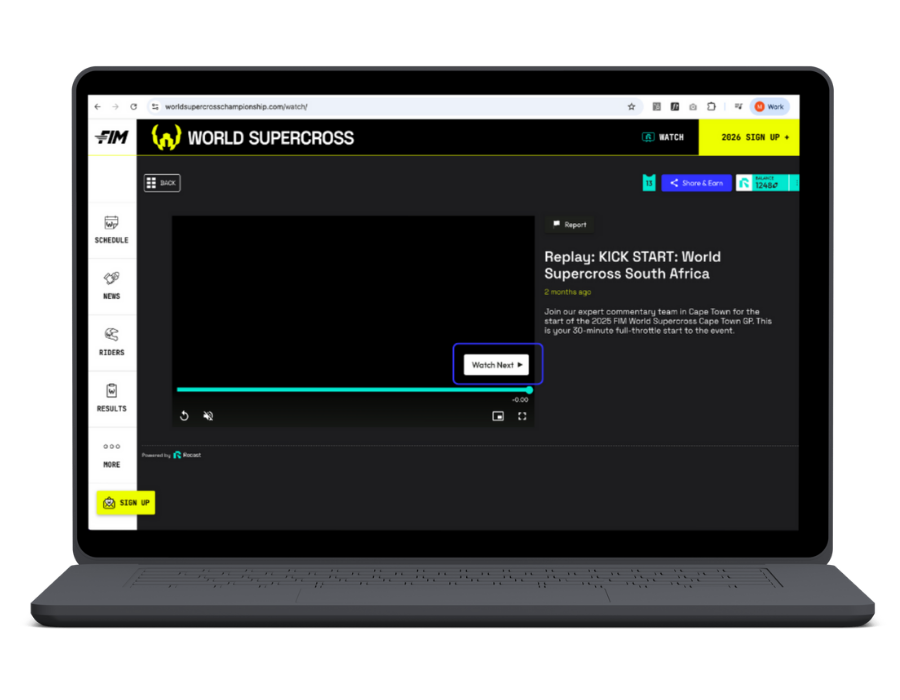
Once you have created your Custom Section within your widget, enabling the “Watch Next” prompt for users couldn’t be easier.


Now, every time a user finishes watching a video in this section of your widget, they be prompted to watch the next video, in the order that you have arranged your content.


