Get started with Recast for Business - For Content Owners (API)
Last updated:
April 16, 2026
This article contains the following sections:
•
What you'll need:
Your name
Vendor name
Company registered address
Primary contact email address
Primary contact job title
A name for your channel
A profile and background image for the channel in case you wish to embed a 'full channel' widget
Create your vendor account
Head to business.recast.tv/api-register. Before you set up your vendor account, you'll be asked to first create a Recast user account, or if you already have one, you can sign-in with your existing user account details.
Now you can set up your Vendor account. This is the person or business that will be paid out any earnings from your sales via Recast. You'll need to provide some details such as the primary contact for the vendor and once you've done that you can start setting up your Brand.
Set up your brand
Your Brand is your public-facing part of your Vendor account. Give it a name, description, profile image, and cover image that makes you easily recognisable. You'll take this brand across the web as you (and affiliates) embed and share your content.
Cover image:
3520px Width x 1080px Height.
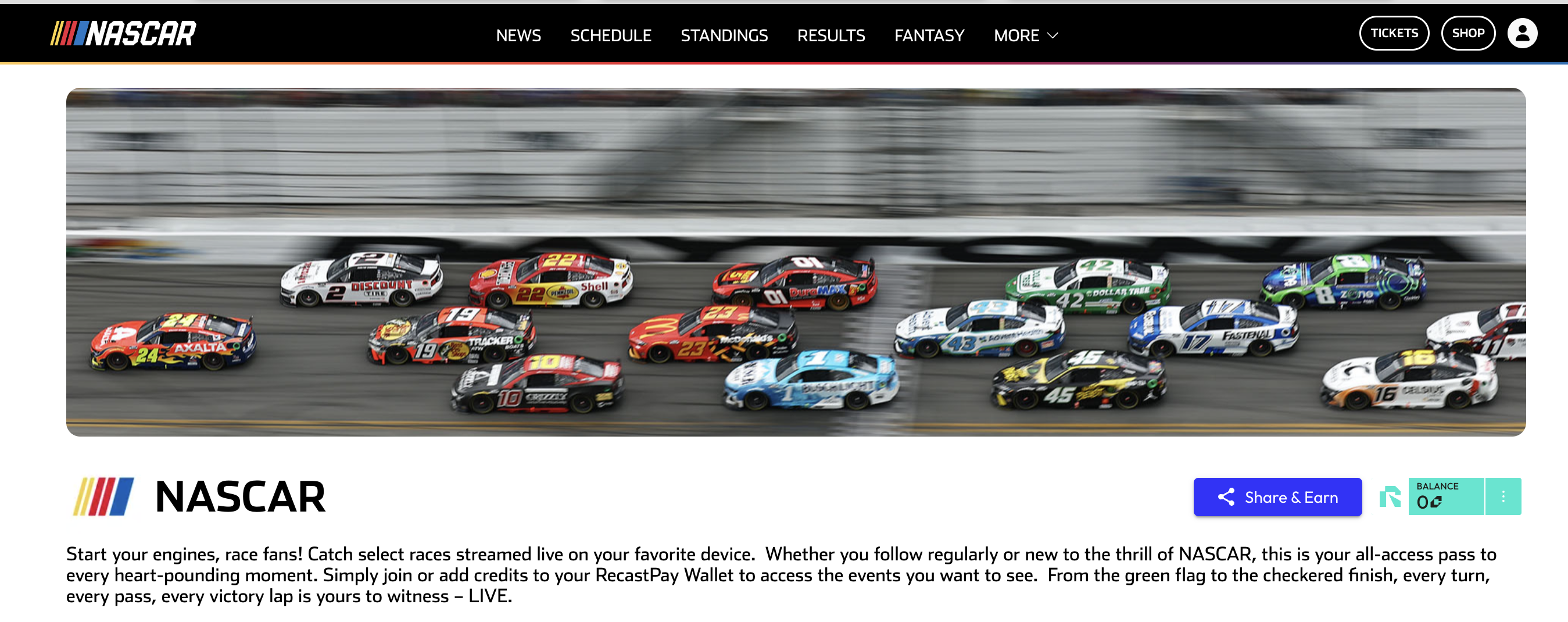
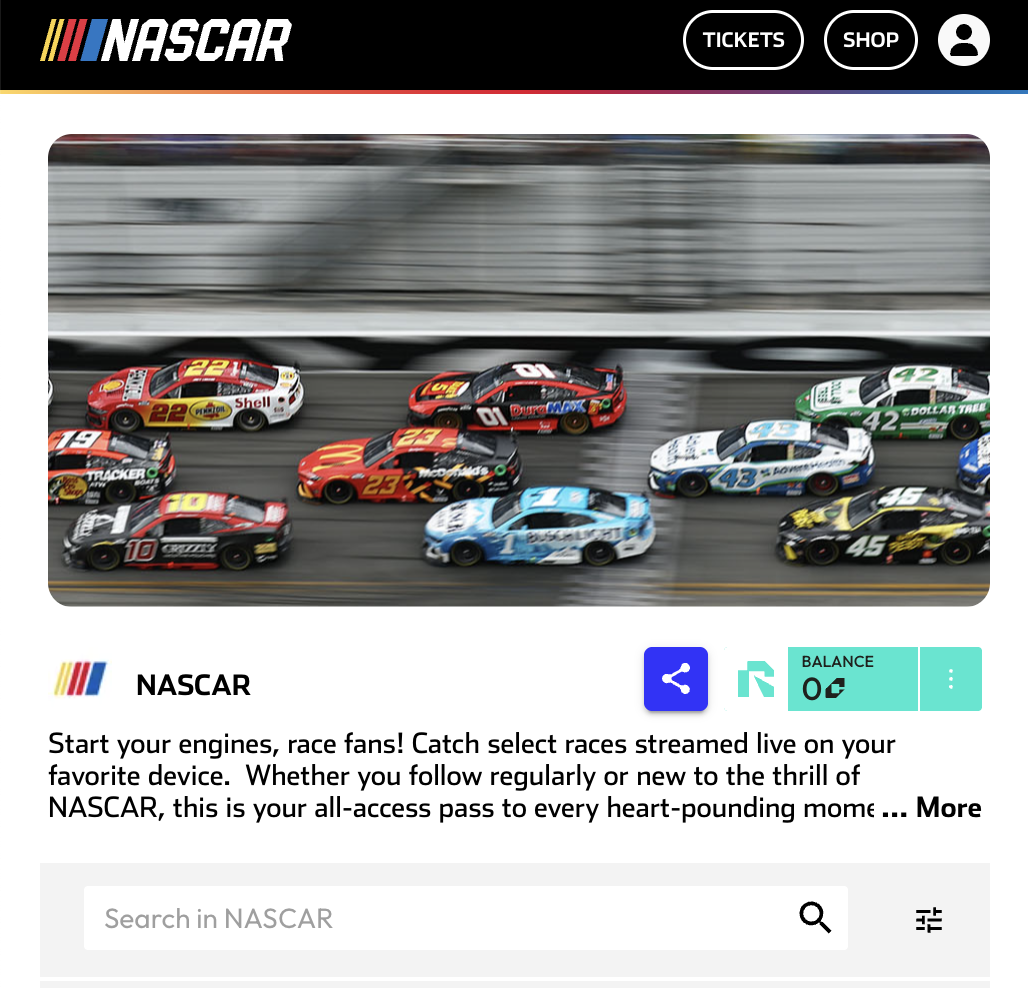
If adding branding, leave a "safe area" to allow for the image getting cropped when on smaller screen sizes. 30% on each side will suffice. Keeping this image free of long text will ensure messaging doesn't get cropped out. Example:
Cover image on desktop
Cover Image on Mobile - Cropped
Brand Logo: Logos are based on a 1:1 aspect ratio. Similarly, try to leave a safe area of about 20% around the edge of the image uploaded to prevent cropping.
You are now signed up and are logged in to Recast for Business.
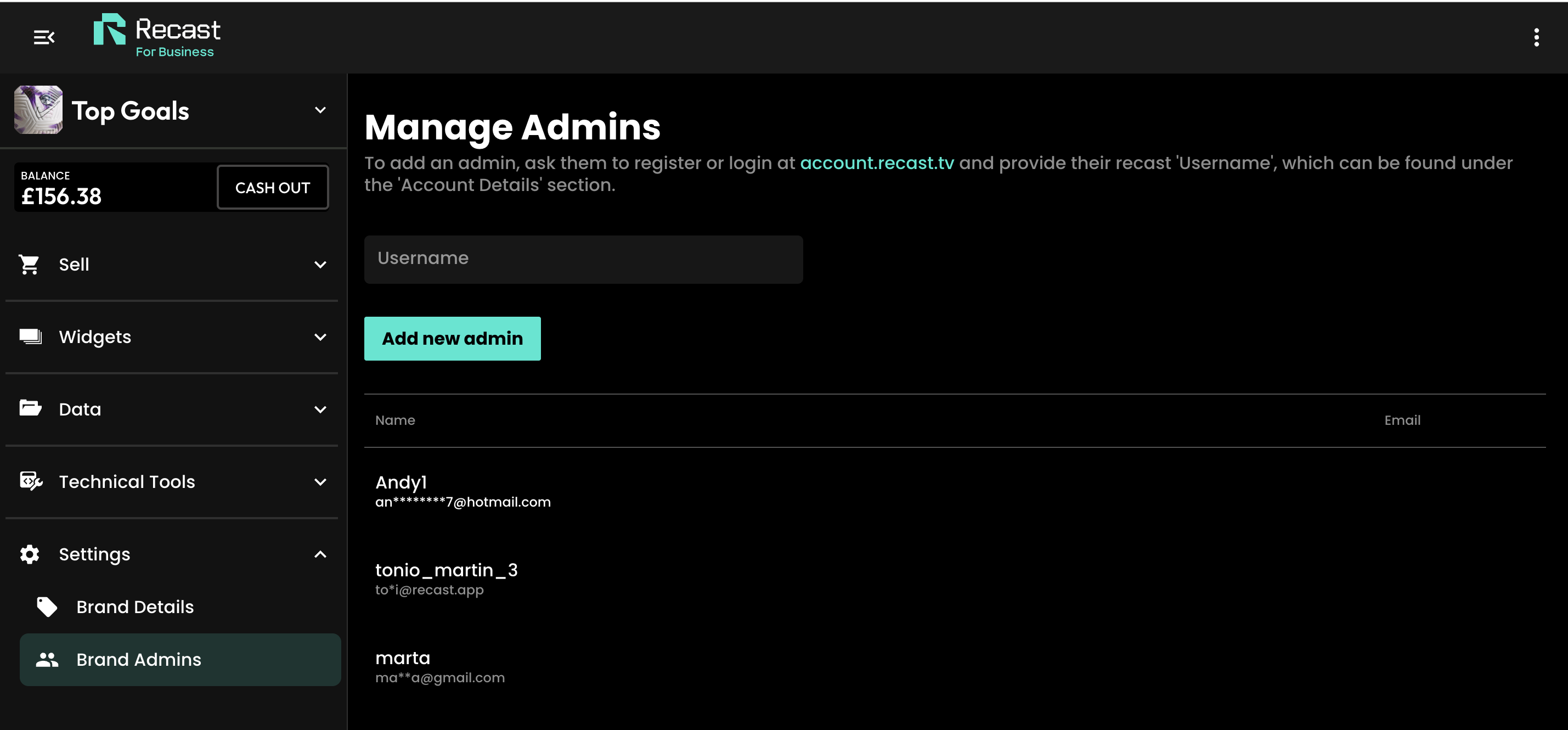
Add brand admins
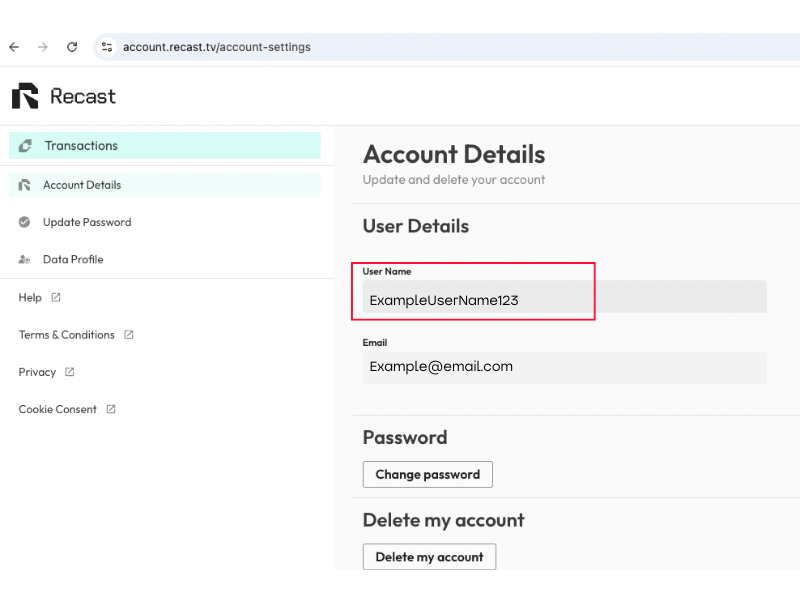
To add additional admins for your channel, first make sure they have signed up for a Recast fan account and ask them to share their account User Name