
After you have created your Recast for Business account, you can become a Publisher of other Recast Vendors. Please contact us at publishersupport@recast.tv if you’d like to get whitelisted. Once whitelisted, here's how to create an Embed Widget.
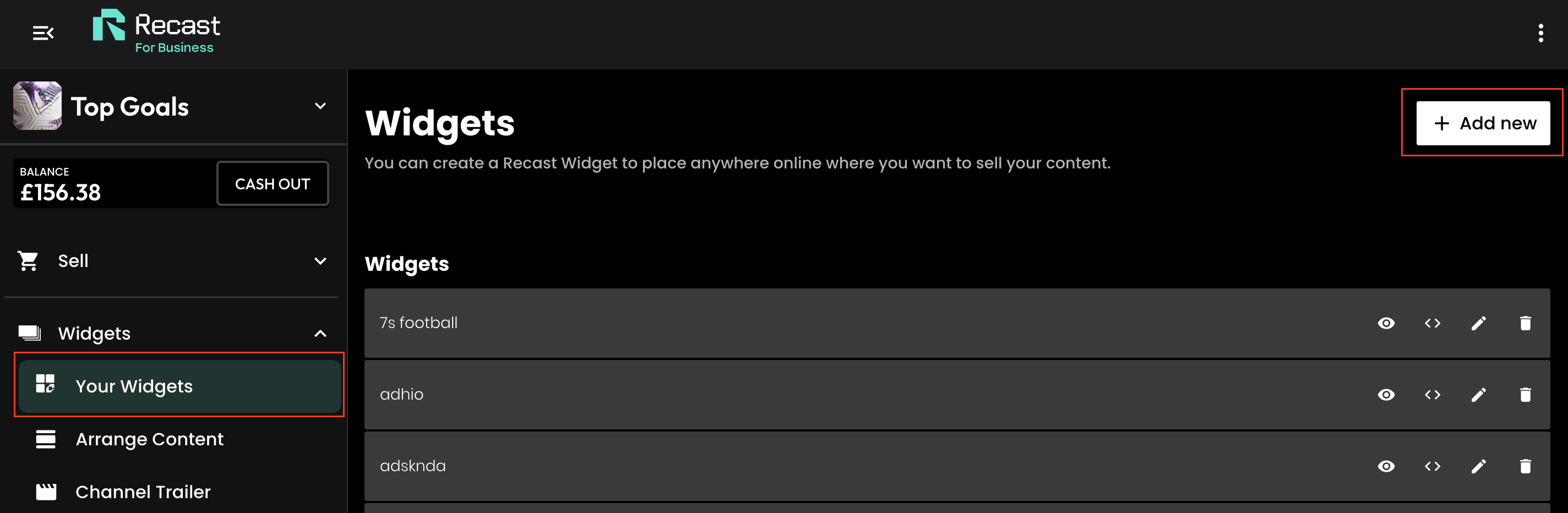
1. As a Publisher, you can create widgets containing content from Recast Vendors. First, head to the Your Widgets page in Recast for Business and select ‘Add New’.
2. Give the widget a name and select the option ‘Content from other channels’. You can also give the widget some header text which will be visible on the created widget.
.png)
At this point you have two options:
3. Select one (or multiple) channels whose content you’d like to include on your widget.
4. If you selected "Create with Selected videos and events, you'll now be asked to choose to create the widget from either on-demand or live content from the selected channel(s). And if you want to be more precise in the content you are selecting you can specify certain videos or categories of videos.
.png)
5. You can now style the widget to suit the colours and content of your brand's website. Use the colour picker or type in the hex ode of the colour you want to apply.
You can also change the font that is displayed on the widget by typing the font family name into the text fields. For this to work correctly:
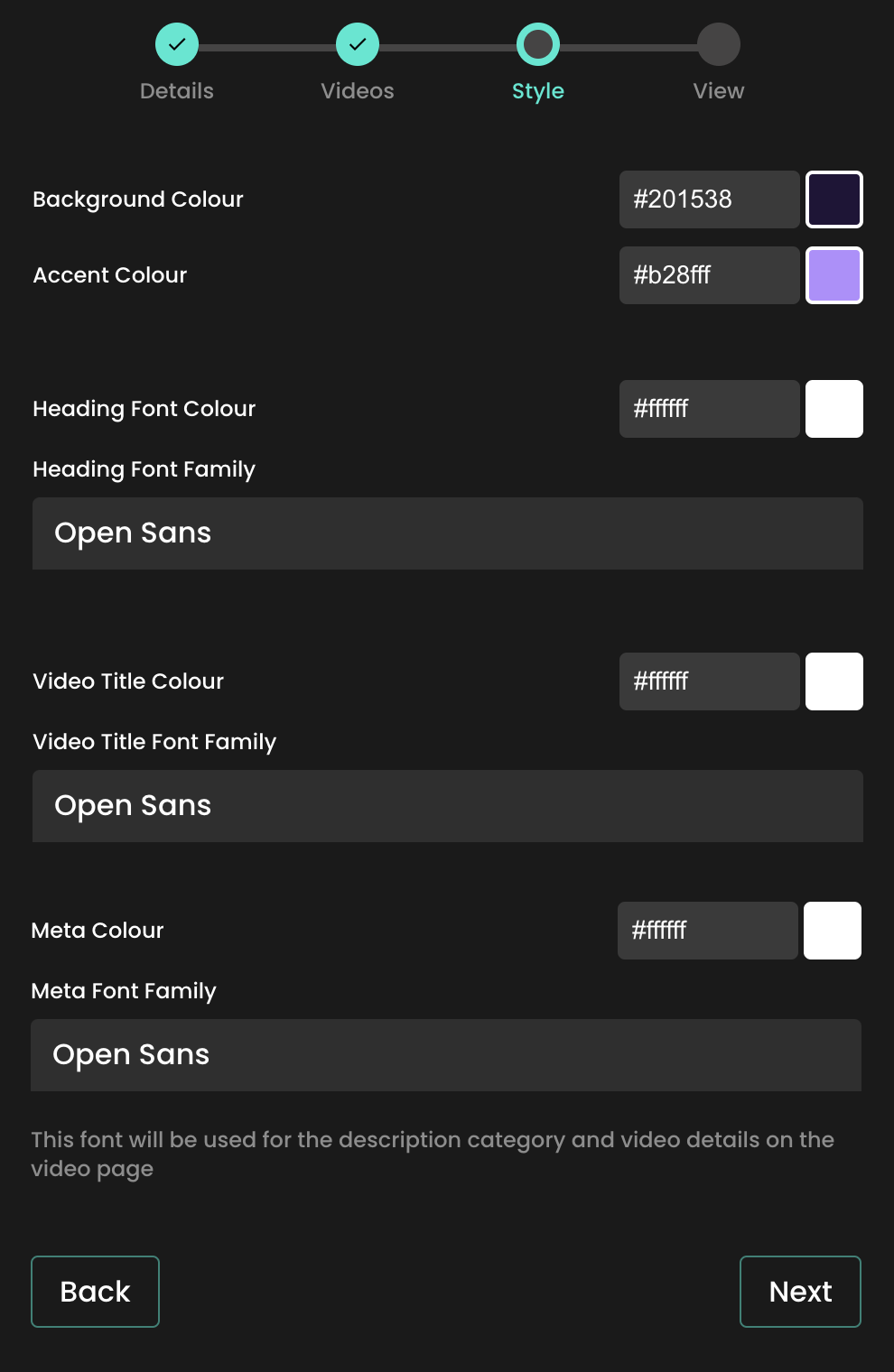
Be sure to check that the transparency slider (see red box in the below image) is set to the right hand side, otherwise if may not be visible:

Then press ‘Next’ to move to the next stage.
6. Preview your widget and copy the iFrame code, ready for use on your website.

Once you've copied your widget code, go to the web page on your website where you want it to live. How you add the code will depend on the website CMS software you use, but typically website's will allow you to toggle between a "visual" view and a "code" or "text" view in the text editor section. If you go to the latter, you'll be able to drop the embed code straight into the text editor.
Other website CMS's may have a component called " Code embed" or similar, that you can just add to your page before pasting in your Recast Embed widget code. Remember to save and publish the page.
When a user purchases third-party content via a widget you have created, you will earn a percentage of the purchase. This percentage is determined by the content owner when they price their content and set their share percentage.
If you do not want to embed content on your site, you can still earn a revenue share of content you promote, by using Share & Earn links. For a full explanation of how these work, click here.


