How to enable pre-purchasing for on-demand video content
Last updated:
May 1, 2026
This article contains the following sections:
•
Recast lets you set up your video content so it's purchasable before it’s available to watch. And you don’t need to have the video ready to upload to make it purchasable.
This guide explains the two options you have when enabling pre-ordering of content:
Enabling Pre-Order Sales - no video asset available yet
Enabling Pre-Order Sales - video asset available
Enable Pre-Order Sales before you have the asset
1. List the video
In Recast for Business, click “Sell” -> “Video Uploads” and click “+ Video”
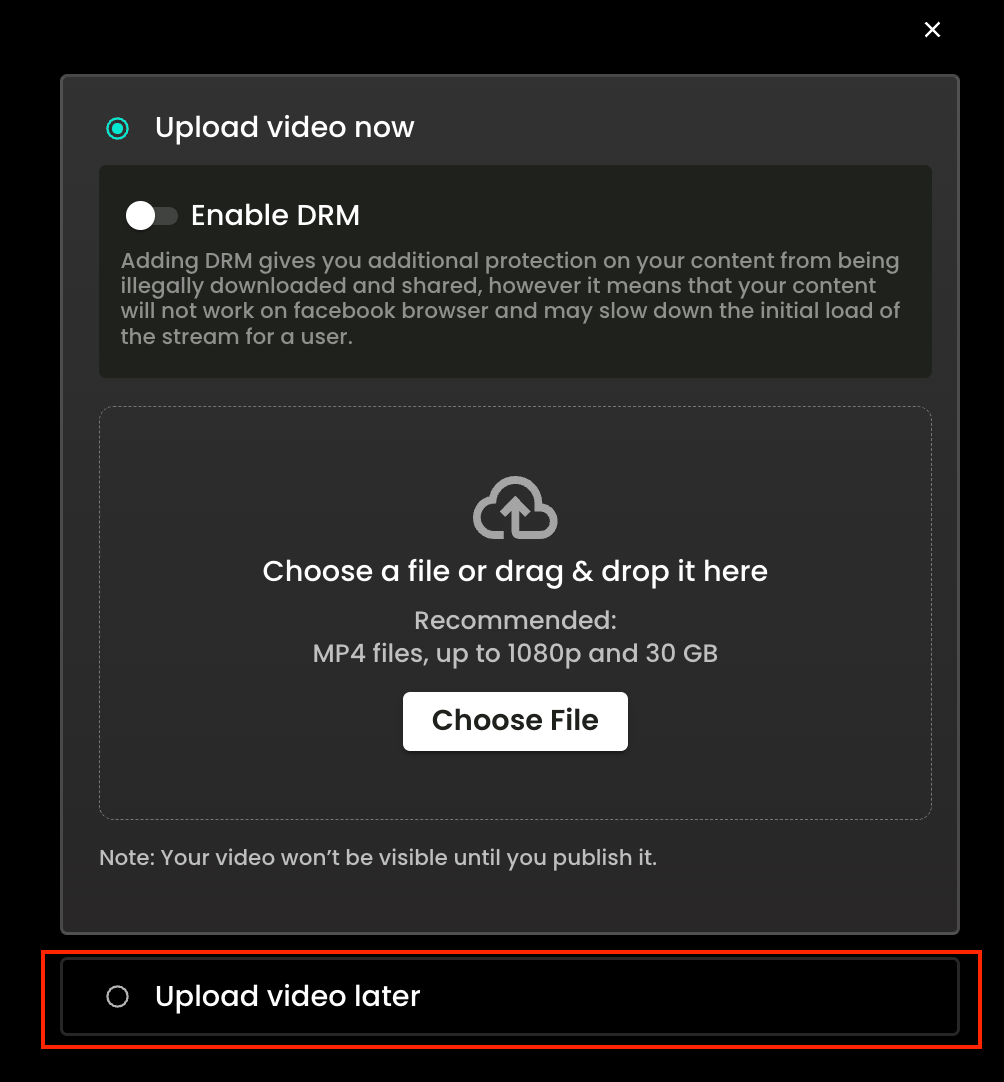
Select the option to “Upload video later”
Add an estimated length of the video - this will allow us to recommend a suitable price
Then, on the next screens,iinput the following information as per the standard video upload process:
Video Details
Give the file a title and description
Upload a thumbnail video
Upload a trailer (or select no trailer)
Select (or request) a category tag
Confirm if it will contain advertising
Pricing & Availability
Add the price of the video
Set availability
Set the share percentage
Choose whether you want to split earnings
2. Publish your video
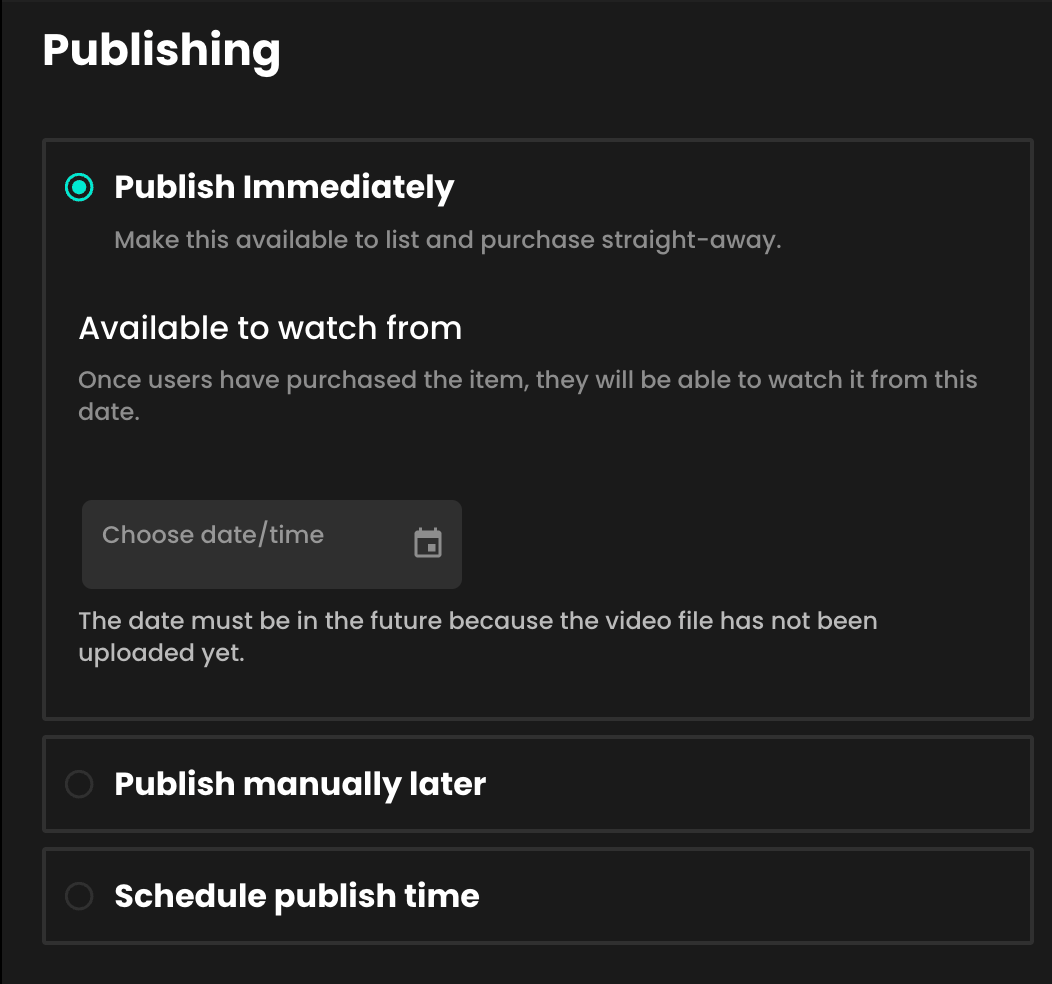
As you are looking to publish your video immediately to enable pre-sale, click ‘Publish Immediately'*
Under “Available to watch from”, add a date/time when the video will be available, so your audience knows when it will be available to watch. After purchasing, users will see a countdown timer showing when the video will be available from.
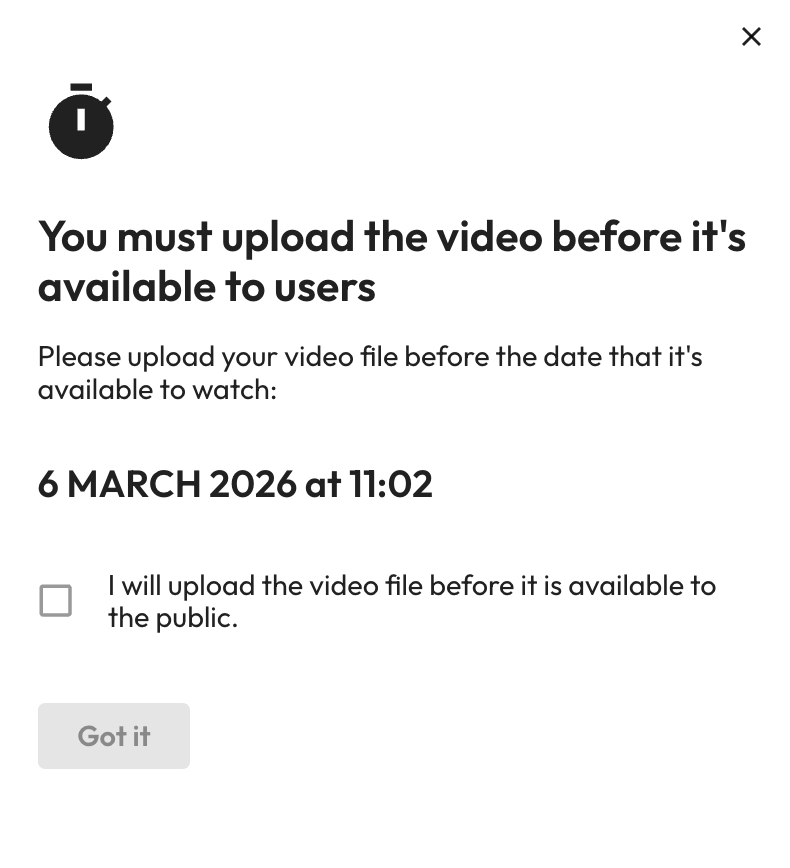
Upon publishing, you’ll be asked to confirm that you understand that you need to return to manually upload the video file before it’s available to the public.
*You can also “Schedule publish time” as you would with a normal video, and you will need to set the Available from time in the same way.
Enabling Pre-Order sales - video asset available
1. List the video
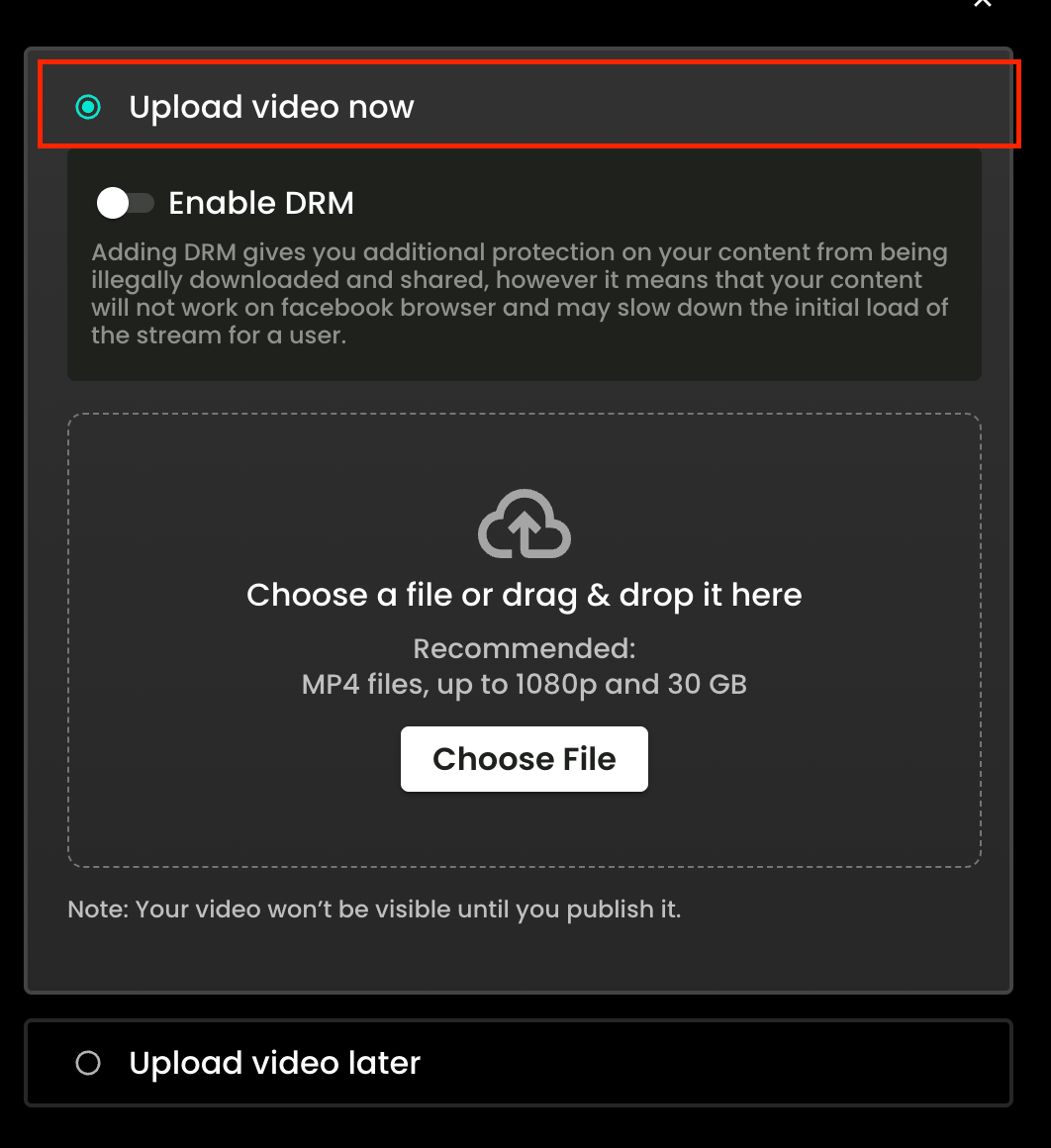
In Recast for Business, click “+ Video”,on the first screen,select the option to “Upload video now” and choose your file
In this scenario, as you want to enable Pre-Sales now, but delay making the video available to watch, then you can either select:
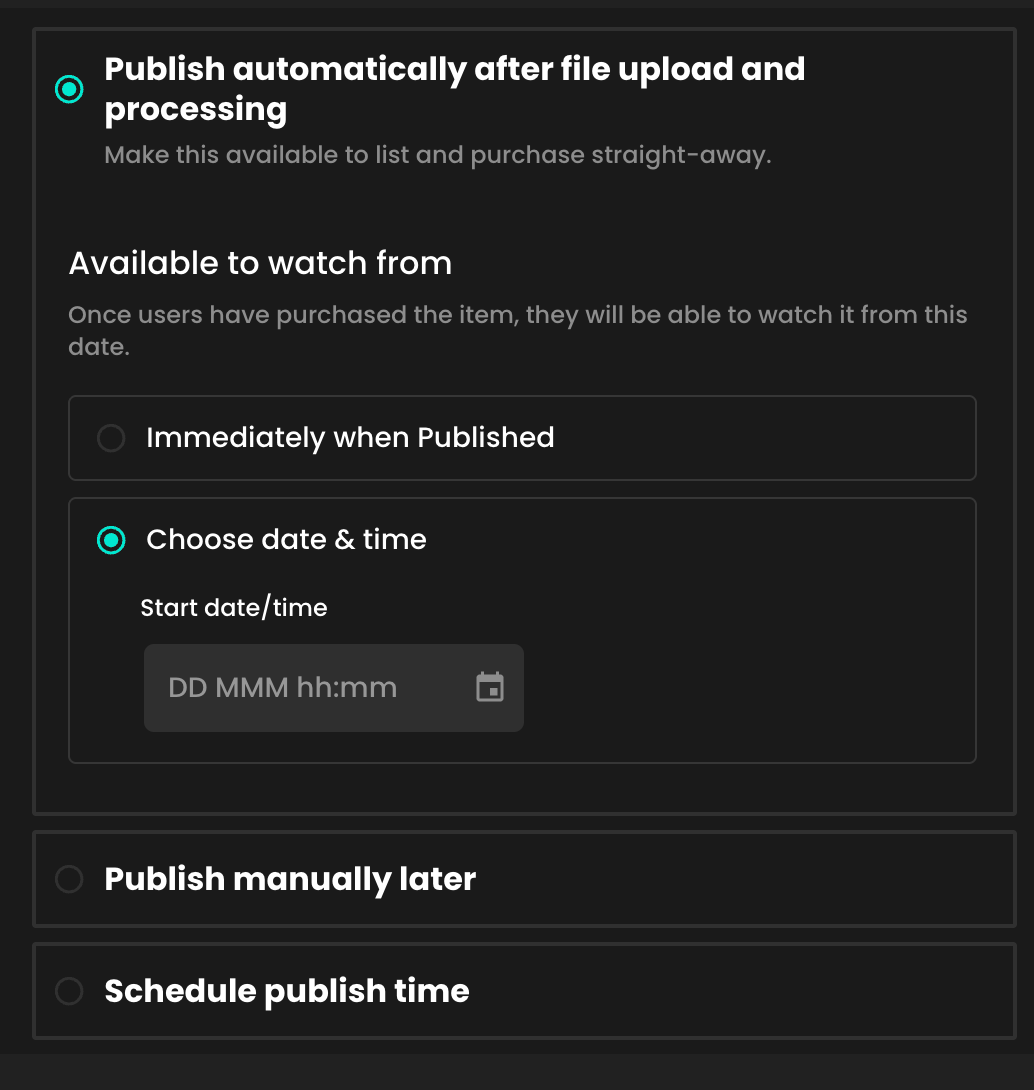
Publish automatically, adding an “Available to watch” from date/time in the future.
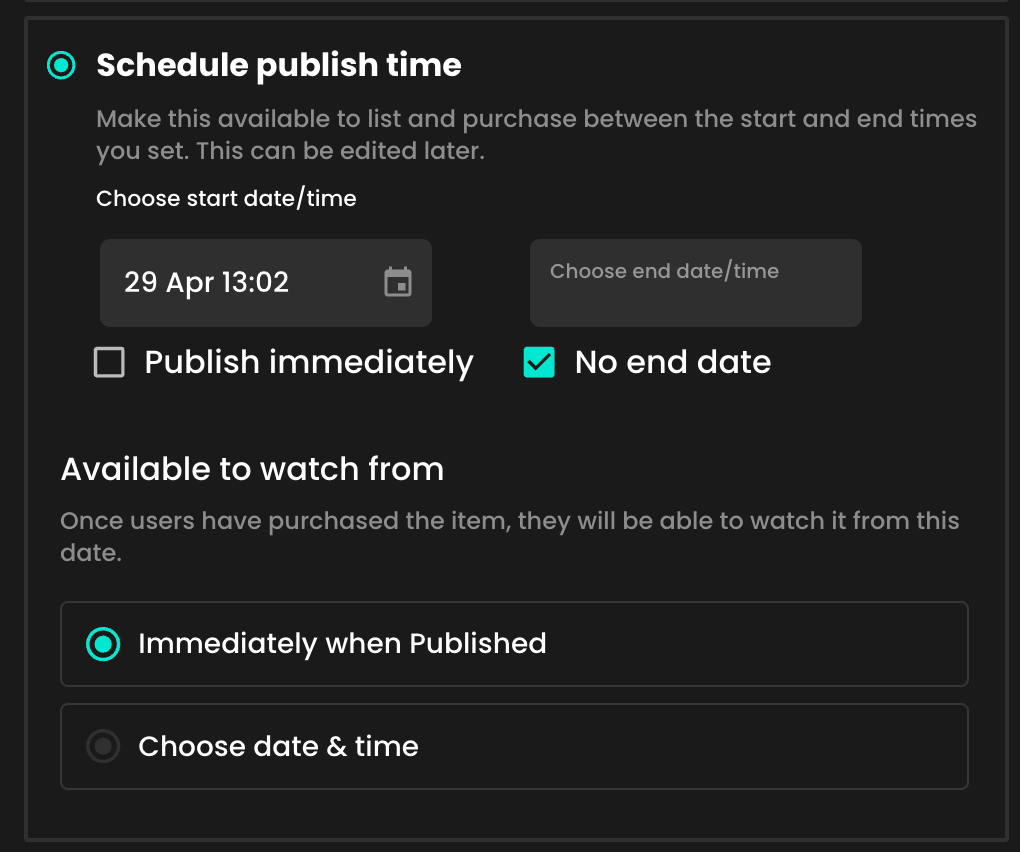
Schedule Publish time
Or you can decide to publish it manually later - details as follows:
Publish Automatically
Select “Publish Automatically”
Under “Available to watch from”, select Choose date & time
And add a date/time when the video will be available, so your audience knows when it will be available to watch.
Click Publish Now
Schedule publish time
If you’d like to set a date/time when your video will be available to purchase from (not to watch from), select Schedule publish time and choose a start date/time.
You can now choose when the video will be available to watch by your anyone who has made a purchase. You have two options:
Immediately, as soon as the video is published
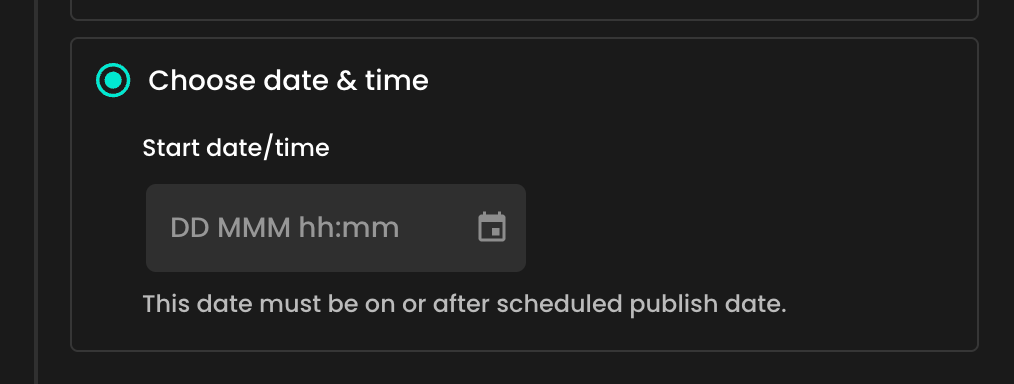
At a later date
If you’d like to make the video available to watch from a later date than when you’ve decided to publish it, then select “Choose date and time”
Click ‘Schedule your video” to complete the process.
Publish Manually Later
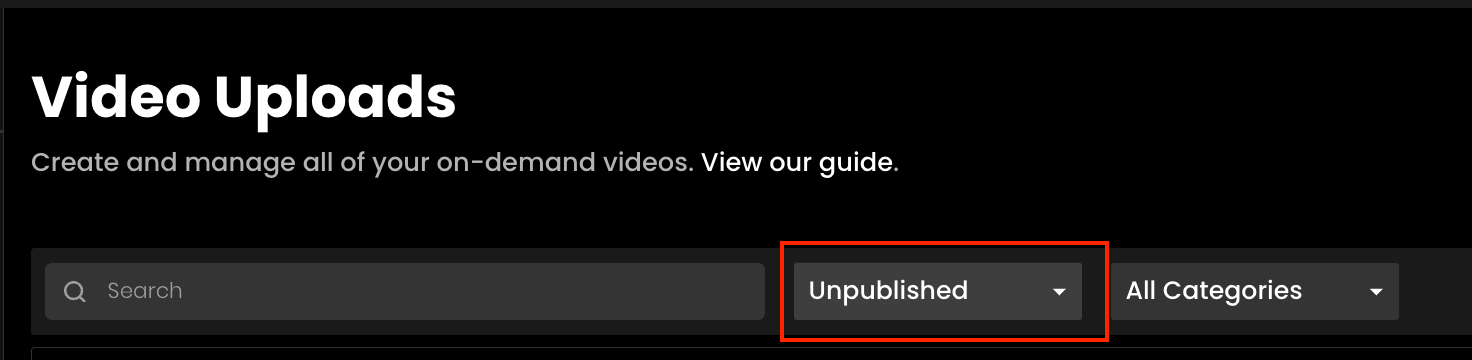
If you choose to publish manually later (saving your item as a draft), your inventory item will be stored in Video Uploads for now, and when you’re ready to publish and start selling it, just search for the video title or filter by “Unpublished” videos.
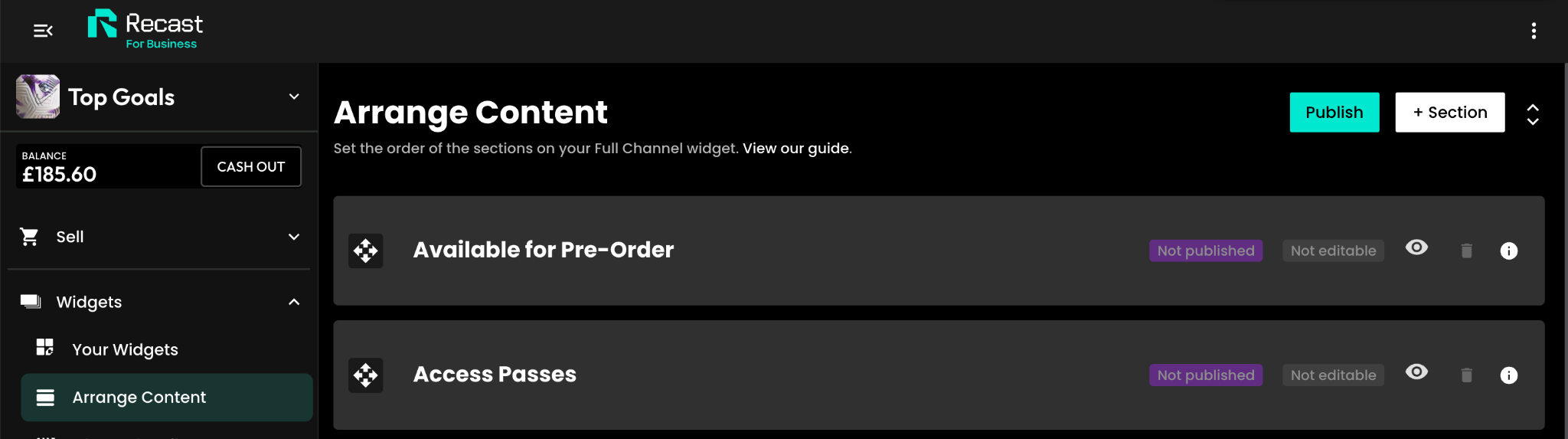
Arranging pre-order content on your widget
If you’ve integrated Recast using an Embed Widget, every published pre-order video will now appear in a new, dedicated section titled “Available for pre-order”:
If you’d like a more customised layout, you can hide this section and/or add your pre-order videos to a new, custom section, alongside other videos. For more information on custom sections, click here.