Recast enables you to upload and sell access to video content. This guide will explain exactly how to do so.
How to Upload Your Video
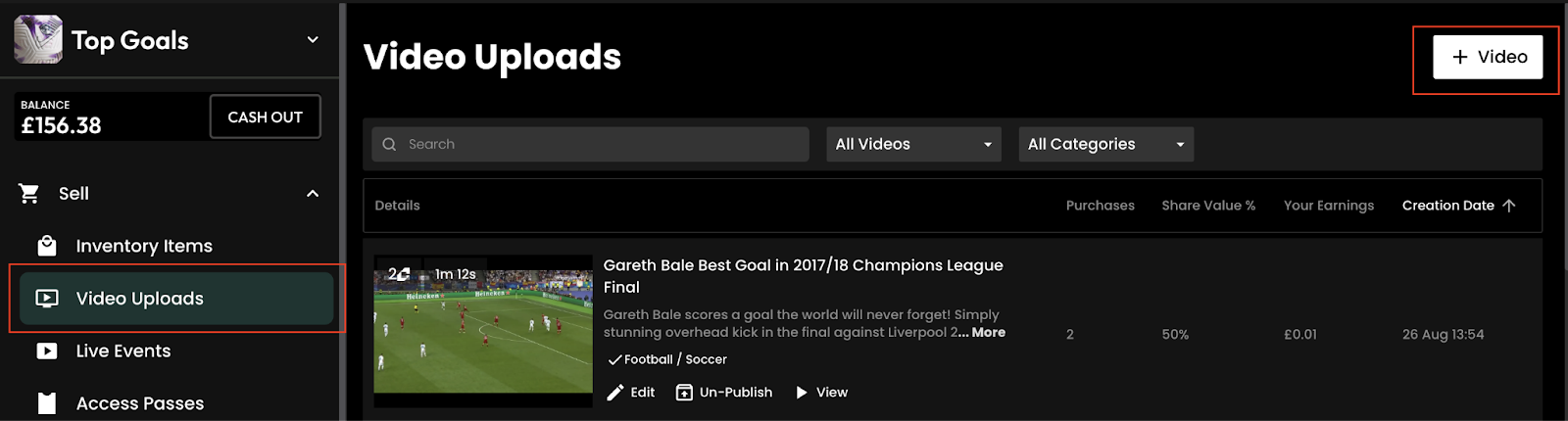
Go to ‘Sell’ and click ‘Video Uploads’ in the left-hand menu within Recast for Business. Click the ‘+ Video’ button from the toolbar
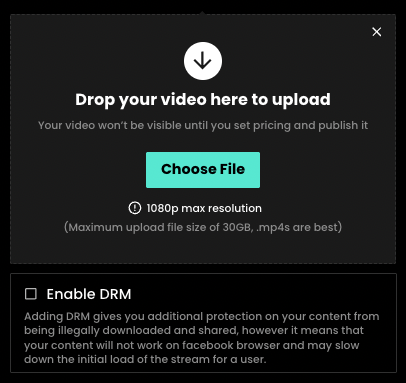
Select the video file you want to upload. Whilst 16:9 (landscape) video content works best, you can upload either landscape or portrait video formats:
For vertical (portrait) use a 9:16 aspect ratio file.
For horizontal (landscape) videos, use a 16:9 aspect ratio file.
If you wish to add an extra layer of protection from your content being illegally downloaded or shared, click “Enable DRM”.
Add video details
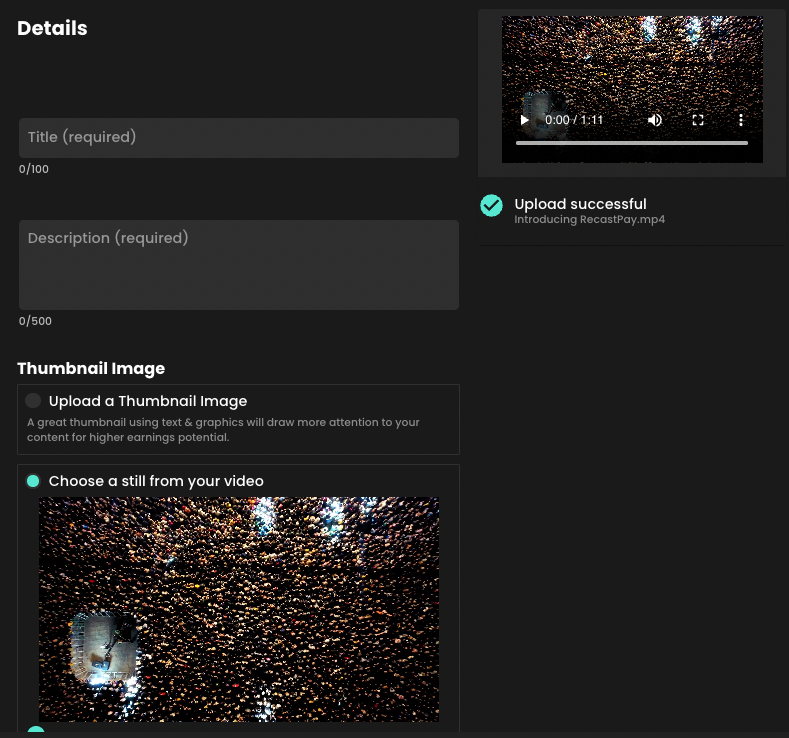
Give your video a title and a description. Catchy titles will help users find your content and encourage them to purchase it when they do.
When selecting your thumbnail, you can either upload a thumbnail image or choose a still from the video. If you’re uploading a thumbnail, ensure it matches the dimensions of your video.
Thumbnail specifications:
Vertical - 9:16 Aspect Ratio.
Horizontal - 16:9 Aspect Ration
Recommended size: 1080x1920 (or 1920x1080). Max size: 10MB (Images will be optimised to ensure quick page load speeds).
Choose a still from the video
Create your trailer
Trailers are shown on your widget when hovering over a thumbnail, or when a user clicks a link that you, or a third party reseller, has shared on social media.
Trailers can be watched without purchasing a video and should be used to encourage users to purchase your content.
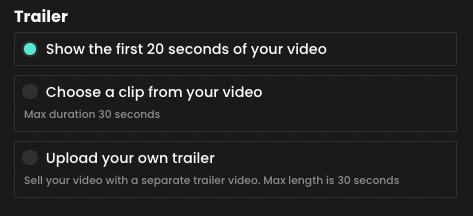
When selecting your trailer, you can either:
Short the first 20 seconds of your video
Select a clip of up to 30 seconds from your video
Upload your own trailer of up to 30 seconds
Categorise your content
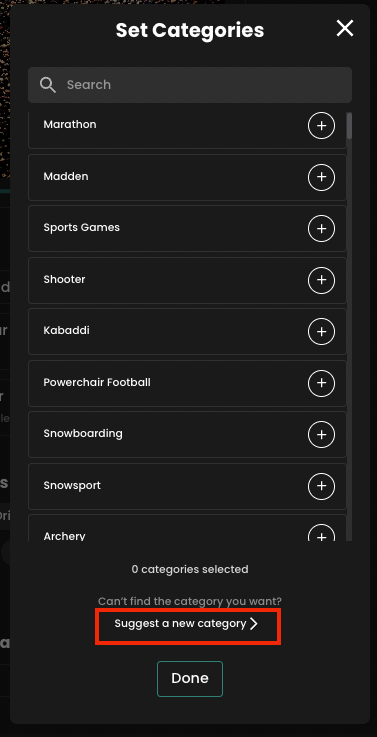
Categories also make it easier for users to find your content on Recast widgets. A minimum of one category must be selected when uploading videos.
If a suitable category is not available, you can suggest a new one - just go to more categories and click “Suggest a new category”
You’ll be asked if your content contains any advertisements. If it does, you’ll be asked some follow-up questions to determine the suitability of the advertising content for both audiences and the platform.
Pricing
You must set a price for your video before it can be published.
The pricing tool gives you an indication of how much you will earn per purchase based on the current cost of your content in Credits, Recast’s unique in-platform currency.
Please note: We assign a defauly recommended price based on the length of your content. As a free-to-use solution, we set minimum pricing to ensure streaming and infrastructure costs are covered.
Availability
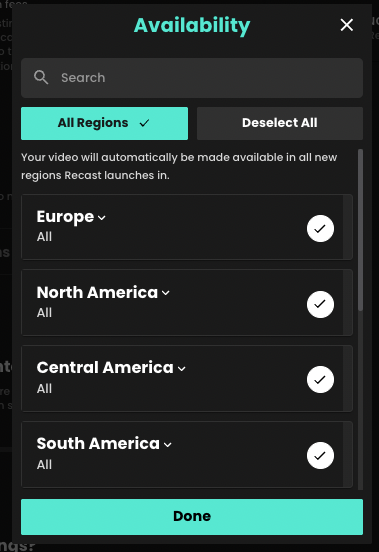
Select the countries you want to make your content available in, ensuring you hold the rights for the content you are sharing in those territories.
Set your share percentage
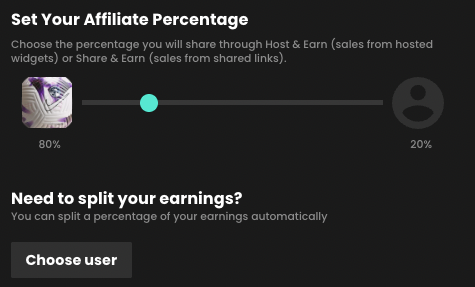
Slide the dial to select the percentage of revenue you will share with either User or Resellers (Publishers or Ambassadors) when they when they drive a purchase by either hosting or sharing your content.
Splitting earnings
Splitting your earnings allows you to share earnings from the video with another brand.
Use this when collaborating with another publisher, brand, host or affiliate on a piece of content or if you need to share earnings with a partner.
How to Publish Your Video
You’ll now have the choice of how you publish your video with 3 distinct options:
Publish automatically after upload finishes - This will make your video live as soon as it completes uploading/processing, provided you have selected the ‘publish now’ button.
Publish manually later - This will save the video as a draft and allow you to publish later.
Schedule publish time - If you want your video to be available at a certain time use this option to publish at the date and time you choose. For time-sensitive or restricted content, you can also set an end date/time to unpublish the video.
Adding Video Content to Your Widget
Once your content is published, you’re ready to arrange the content on your widget.
Recast widgets consist of two different types of sections:
Default Sections, such as “Live and Upcoming” and “Latest videos”.
If you have both portrait and landscape format content to sell in your Recast Embed Widget, we recommend organising the different sizes into their own custom sections on your widget. Learn more about adding a custom section to your widget here.
General Video Upload Information
The time it will take to upload your video depends on how large the file size is and your internet upload speed. Make sure not to close the platform when you are uploading, as this will interrupt the upload, and you will have to repeat it.
Once uploaded, the video will show as processing. Please note it can take a while to process, depending on your upload speed. This is so we can create HD, high, medium, and low-quality versions.
Once you have finalised your video upload, it can be accessed via the ‘Video Uploads’ button, where you can edit & view your video.
Please note: If you try to close the Upload a Video form before the setup has completed, you will be asked to discard or save the Video Upload Draft.
If you choose to save the draft, it will be available on the Unpublished Video Uploads list, which is found in the ‘Video Uploads’ section. If you choose to discard, the draft will be permanently deleted.
Technical Video Specification
File Type
.mp4 (recommended).mov (recommended)
VideoCodec
h.264 (recommended)h.265/HEVC
AudioCodec
AAC
Resolution
We support resolutions up to 1080p. We suggest these standard resolutions:
1920×1080, 1280×720 or 854x480
Aspect Ratio
We support both 16:9 landscape and 9:16 portrait resolutions. If your video doesn’t match one of the above aspects ratios, we will pad the video with black bars.
Frame Rate
We support constant frame rates up to 60fps.
Note: You may encounter difficulties when uploading content with a variable frame rate. If you receive a “processing failed” error when uploading variable frame rate content, we suggest converting this to constant frame rate and try the upload again.
Many iOS devices have variable frame rate enabled on their camera by default, we suggest disabling this if you encounter issues uploading video shot on iOS devices.
Video Bitrate
Audio Bitrate
128 kbps
Audio Channels
Stereo
Colour
We currently only support SDR videos. For these please use the standard BT.709 colourspace
Scan Type
We currently only support progressive scan video. You can upload interlaced videos but we are unable to deinterlace these.
Video Length
Up to 6 hours. If you need to upload longer duration videos, please reach out to techsupport@recast.tv and we can discuss solutions.
File Size
Up to 30 GB
Subtitles
Not currently supported. If you require subtitles on your video, we suggest burning these into the video itself.