Bundles are an alternative way for your users to enjoy your content. They give users access to a specific list of your content, curated by you.
You can activate as many bundles as you wish, they will be available for users to purchase on your widget as soon as you publish them.
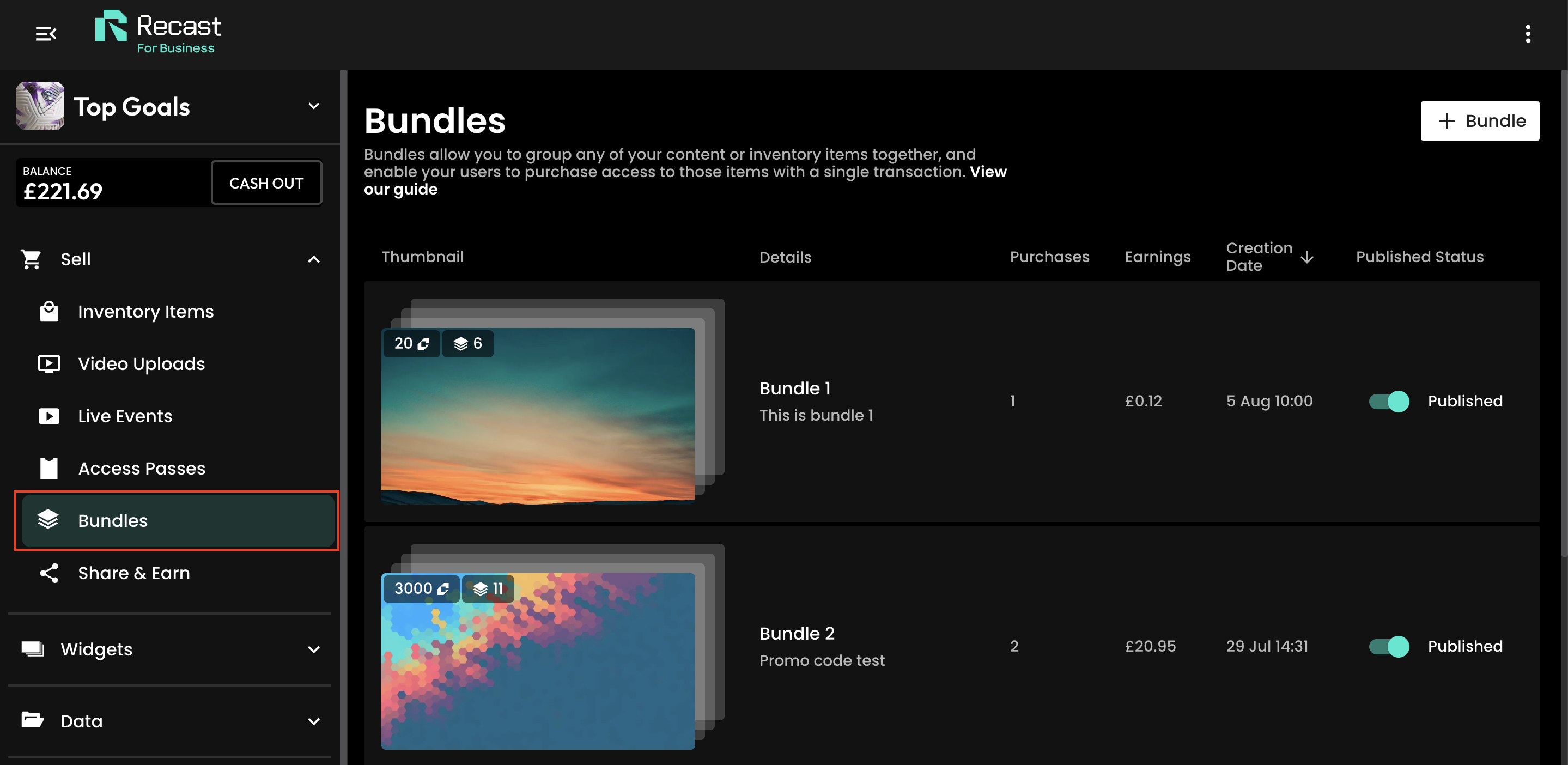
You can create, view and edit your bundles by selecting ‘Bundles' under 'Sell' on the left-hand menu of your Recast for Business account.
Creating a Bundle
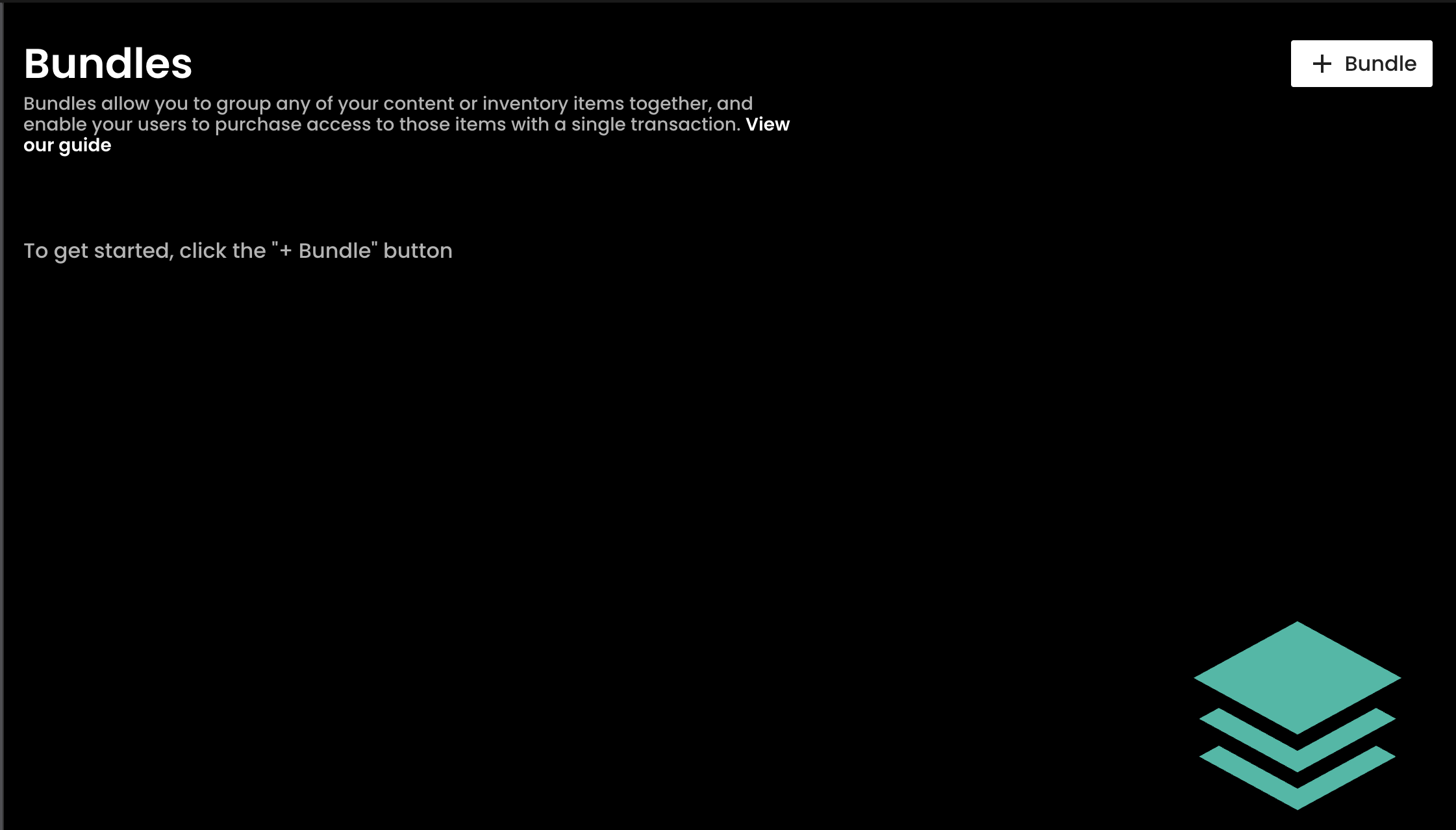
When you first land on the Bundle section you will see our initial screen with a button which allows you to ‘Create your first Bundle’. Simply tap this button to get started.
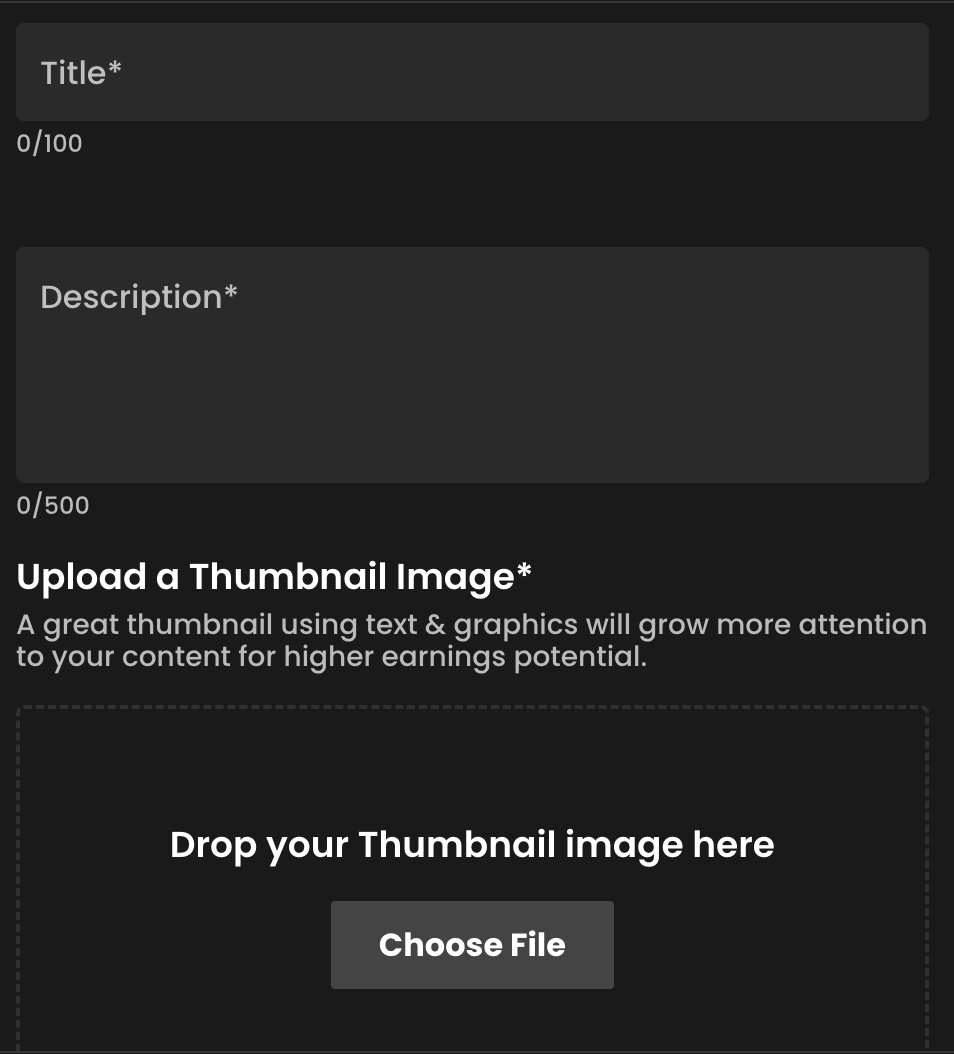
You will first need to add the initial details of the bundle:
Give your bundle a name and a description. This will be visible to any of your users on your widget, so name and describe it in accordance to the content within the bundle.
Upload a thumbnail image. Use the 16:9 (horizontal) aspect ratio
Click next to proceed to the content settings
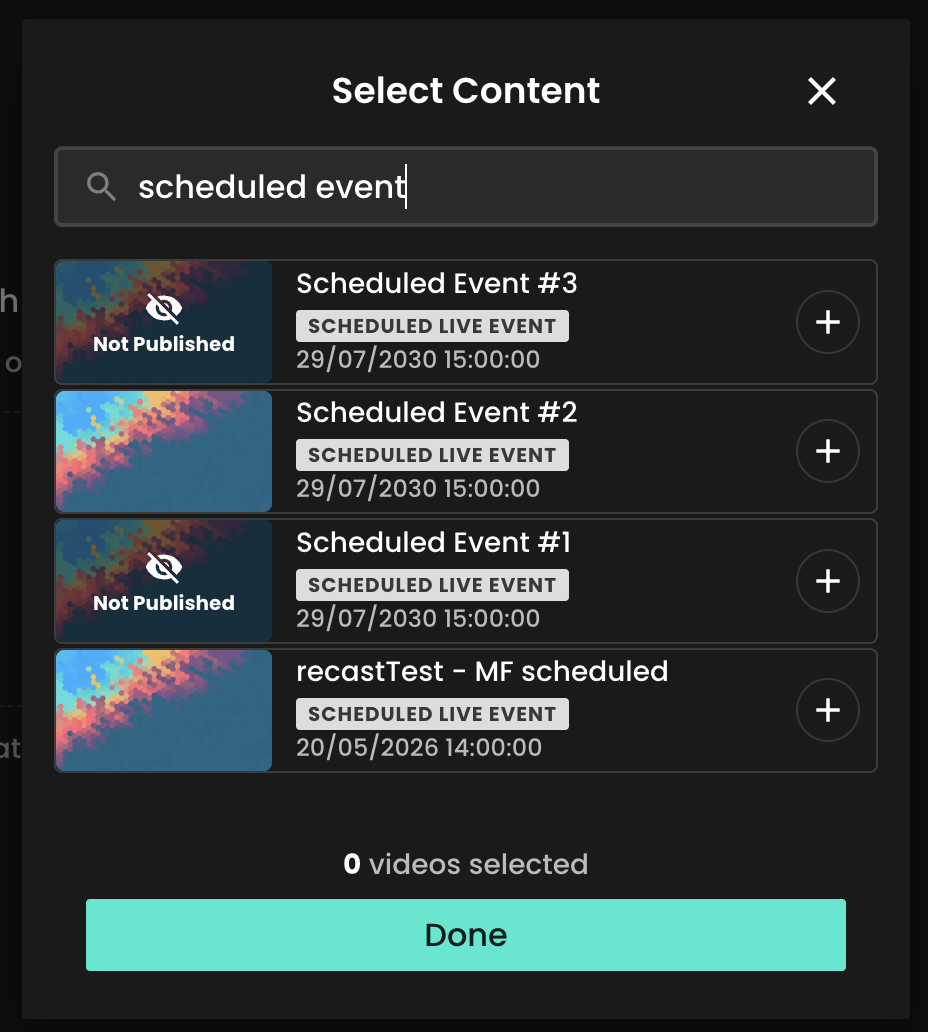
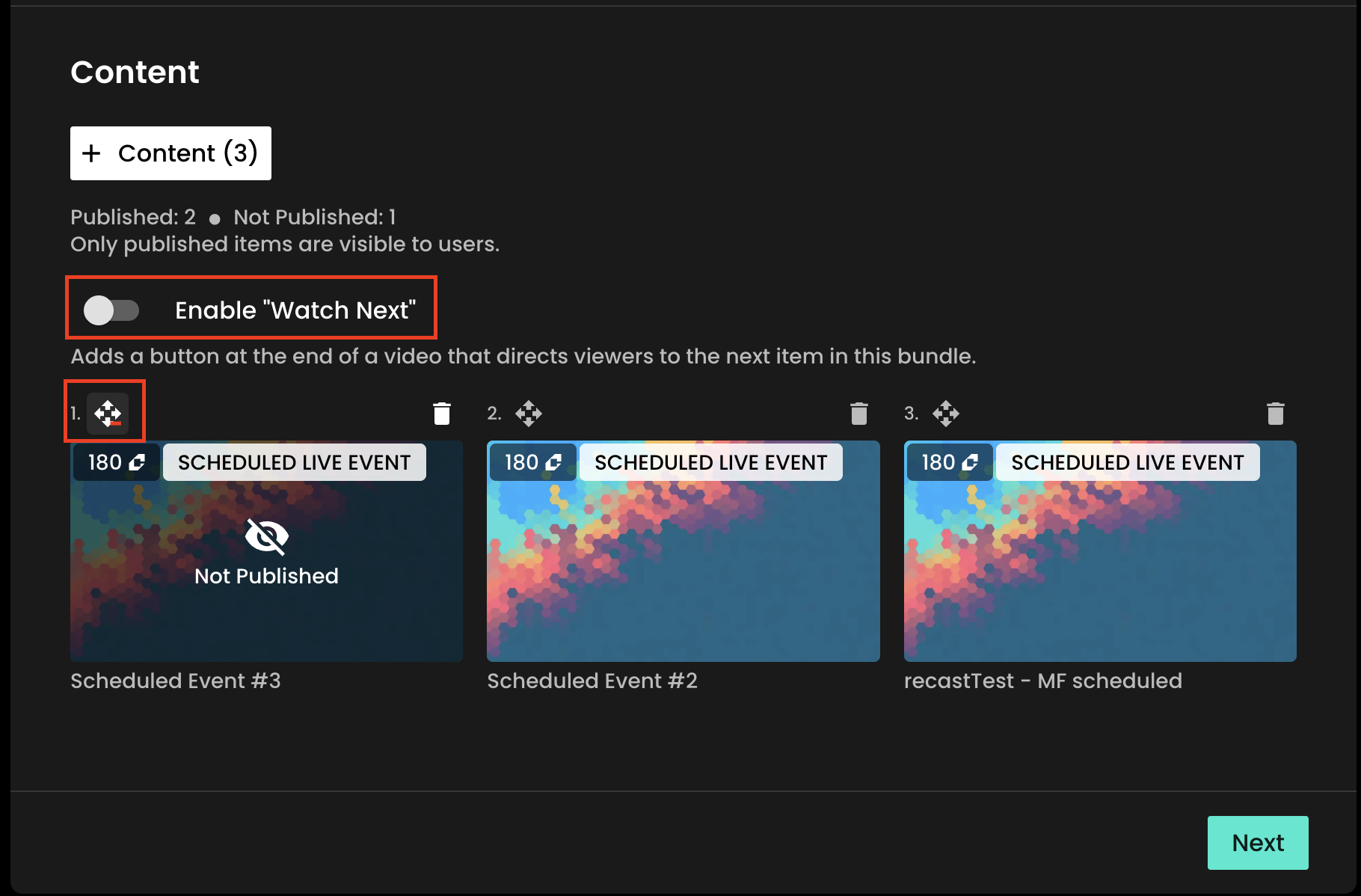
Select Content
Click + Content button
Use the text search box to find the scheduled events, pre-order videos or on-demand videos that you have listed. Click the + button to add each item
When you've selected all the content for this bundle, click "Done"
Order your content
At this point you can drag the videos into the order you want them to appear on your bundle. To do so, click and hold the arrows icon to drag each video into the correct order
If you want your users to receive a prompt to watch the next video in the bundle when each video ends, slide the toggle right to enable "Watch next"
When you're finished, click "Next"
Pricing, Availability and Revenue Sharing
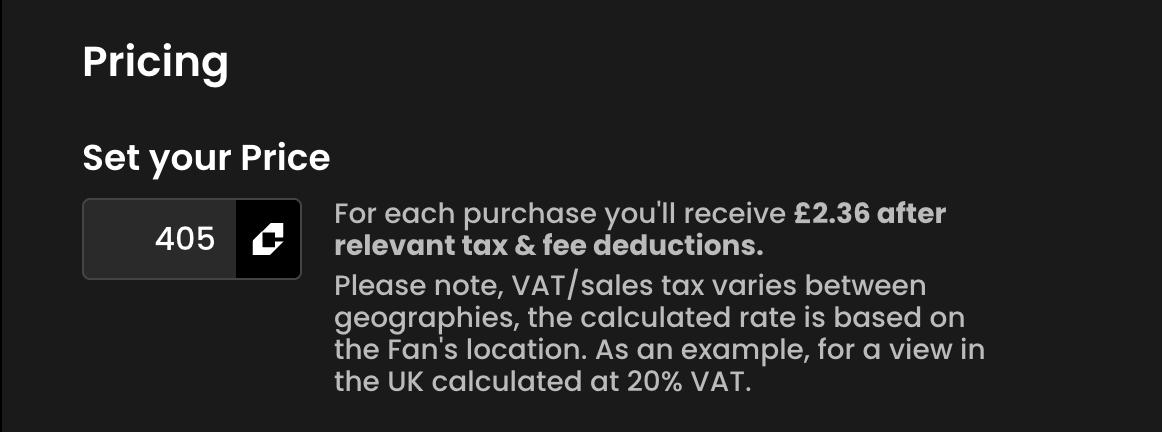
Set your price. As a reminder, 100 Credits = £1.00 GBP. Your price should be less than the sum of each individual item within the bundle.
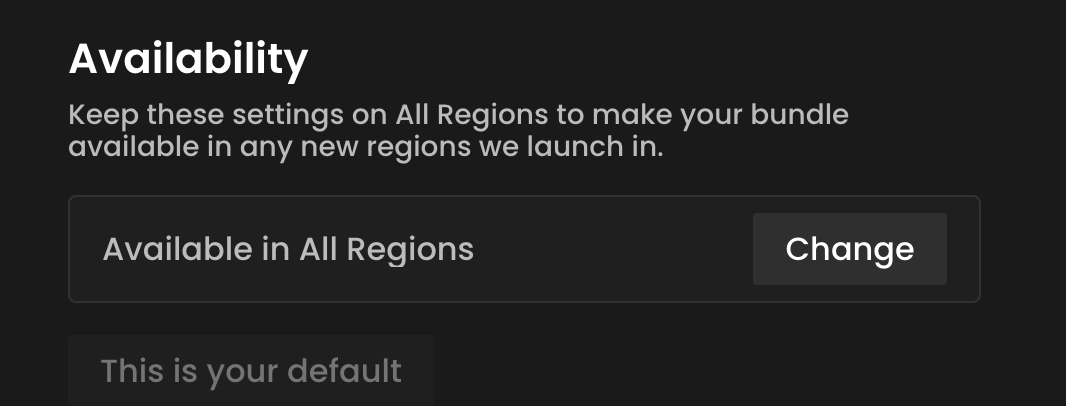
Set the geo availability of this bundle. The geo-blocking of a bundle is a separate setting from each piece of content within it. So you can allow bundle sales where a subset of content may not be available if you wish, but be cautious with this to avoid customer dissatisfaction.
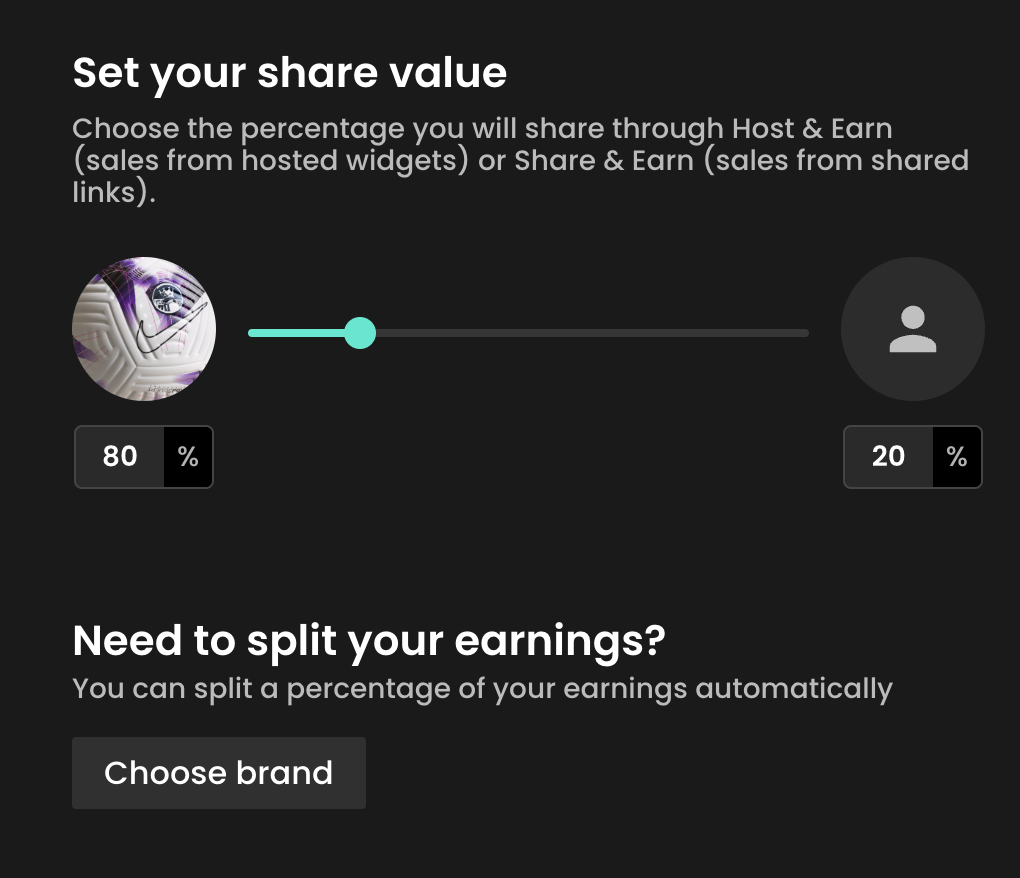
Set your share value. This is the revenue share that you agree to give any whitelisted publishers or ambassadors who will be promoting your content via Host & Earn widgets or Share & Earn links.
If you wish to share the revenue from this bundle with a partner, use the split earnings function. Simply click 'Choose brand', select your partner and set the revenue split percentage.
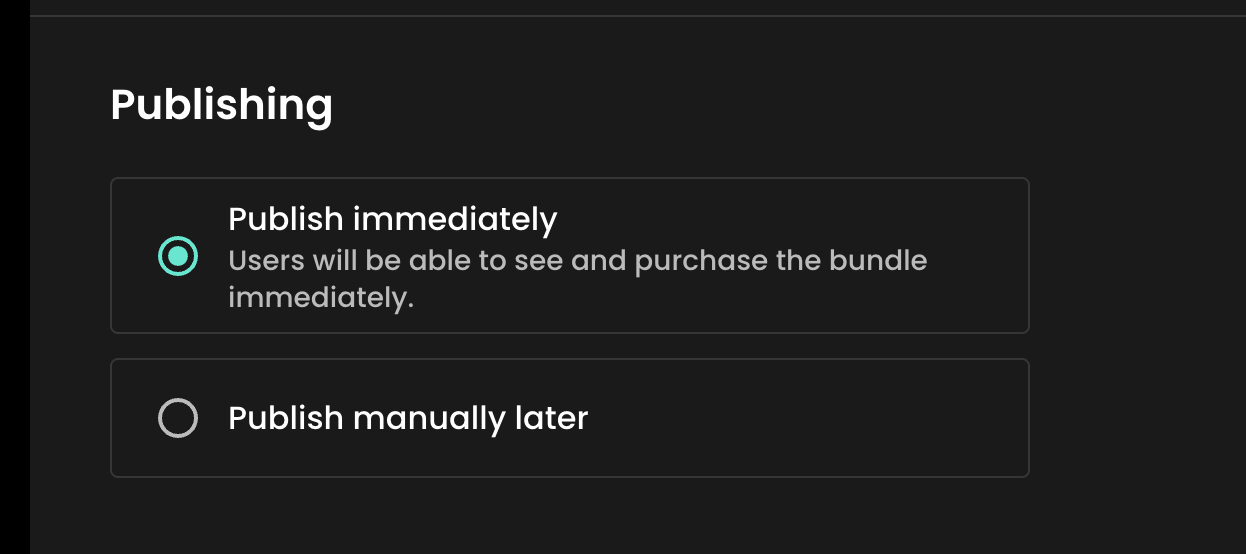
Publishing
To publish your bundle, click "Publish immediately" and then click the Create & Publish button
Or, if you wish to save it as a draft for now, click "Publish manually later", and click "Create".
Add your bundle to your widget
Unlike content, when a bundle is published it will not immediately appear on your widget until you create a custom section in your widget for your bundle(s).
To do so:
Click the 'Widgets' item in the left hand menu, and select "Arrange Content"
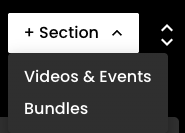
Click the "+Section" button on the top right of the screen, and then select "Bundle
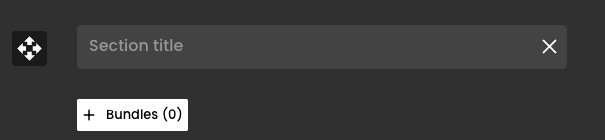
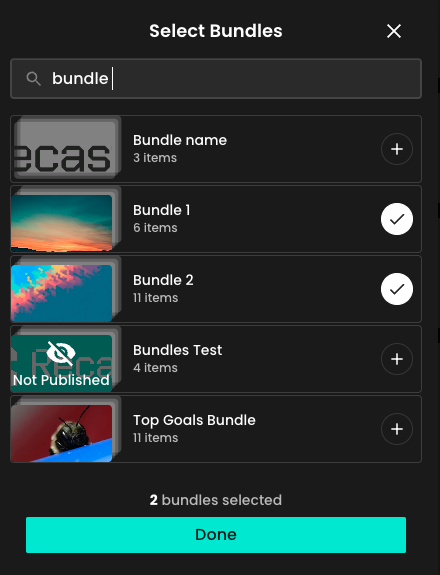
Give your bundle section a title - this will display on your widget - and then click the "+Bundles+ button to select which of your published bundles you want to appear on your widget
Once you've selected the bundle(s) you want to appear click 'Done"
Arrange the order in which your bundles will appear by pressing this button to drag the bundle into position
When your happy with the order, you must scroll back to the top of the page and click "Publish"
View your bundles
Once you have created your bundle you will then be able to see both published and unpublished bundles on the bundles page.
You can see:
Which are currently published
The number of purchases per bundle
The earnings per bundle
From this section you can also edit or delete your bundle(s) using the edit and delete icons respectively.
You can easily make your bundles available or unavailable for sale from this toggling ‘Published' on / off.
Behaviour for users when editing bundles
Setting a bundle to 'Unpublished' stops it from being available for sale, and any users who have purchased this bundle will no longer be able to see/access it on your widget. However they will have access to each item on an individual basis.
Deleting a bundle will remove it from your widget permanently, but any users who have purchased it will still have access to each item on an individual basis.
Items added to the bundle will be come available for all users who have purchased the bundle in the past, and any future purchases.
Items removed from the bundle will no longer be accessible to users who buy the bundle in the future BUT will remain accessible for users who bought it in the past whilst the item was part of the bundle.